

Run a workflow on a job
Included with Enterprise
Add your company's workflow to a job and work through its tasks in the workflow panel beside the job form. A workflow lays out the steps for a job as tasks, such as booking the inspection, writing the report, sending it and invoicing it. A mandatory task stops the job being completed until it is done.
Before you start
- Your role needs Use workflows and tasks on jobs and Update valuations. If you do not have them, Set up users shows how an administrator gives them to you.
- Your company needs at least one workflow. An administrator makes them in Set up workflows and tasks.
- Open a saved job. The workflow panel only appears once a job has been saved for the first time.
Add a workflow
- In the workflow panel on the right of the job form, click Add workflow. The button shows while the job has no tasks. The Add task dialog opens, showing only the tasks that start a workflow.
- Click the workflow you want and click Add task.
- The starting task runs straight away. Every task in the workflow appears in the panel, in order, each with its assignee.
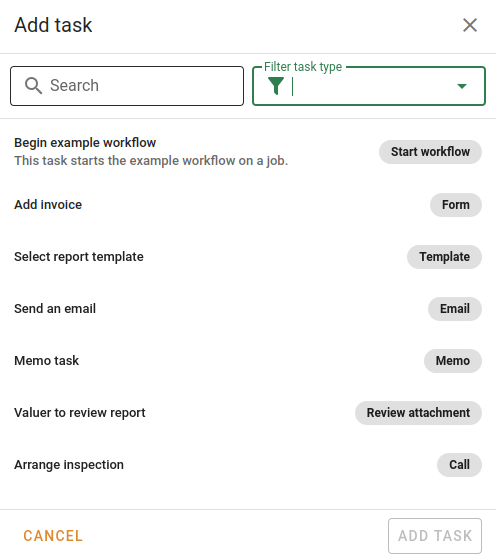
Adding a workflow to a job
Tasks save themselves. Adding, doing, skipping or cancelling a task saves the whole job the moment you confirm it, including any changes on the job form you have not saved yet.
Do a task
- Click the button on the task. The task's dialog opens, named after the task.
- Do what the task asks.
- A memo or a call is marked done.
- An email task opens the composer with the template filled in, and is done when the email is sent.
- A review task shows you the report to approve.
- A template task uploads a file or picks one of your company's templates.
- Click the dialog's confirm button. The task turns green with a tick, and the next task is up.
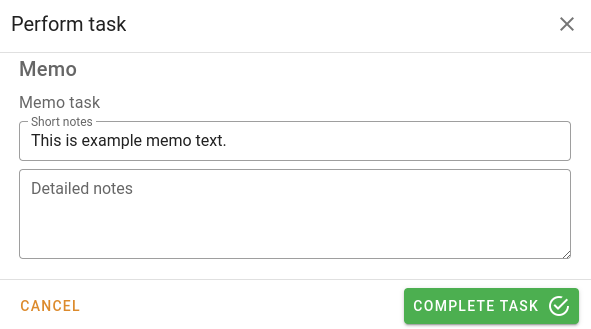
Doing a task
Add a one-off task
- Click the button in the workflow panel's heading. The Add task dialog opens with every task your company has.
- Type under Search or choose under Filter task type to find the task. Click it, and click Add task.
- Open the task's Action
 menu and choose Edit task.
- Choose the Task assignee, add Short notes to show on the task, and click Save.
Adding a one-off task
Skip or cancel a task
Skip a task that does not apply to this job. Cancel a task that will never happen, usually because the job is being cancelled.
- Open the task's Action menu.
- Choose Skip task or Cancel task, and confirm.
Either way the task is finished and cannot be reopened. A mandatory task that is skipped no longer holds the job up.
What the tasks look like
- A task you own is raised off the panel.
- A red task is overdue and a yellow one is due soon.
- An outlined task is mandatory.
- Green with a tick is done.
- Grey with a skip or cancel icon is finished without being done.
- The number on the minimised panel is how many tasks are overdue.
What you should see
The workflow panel lists the workflow's tasks in order, with the first one green with a tick. The task you added is among them with your notes under its name.
Next
Add supporting sales. For the task types and how each one is done, see Tasks. For how workflows are built, see Workflows.