

Organise files
Included with every subscription
Before you start
- Your role needs Update valuations to change a job's files. Creating a tag that does not exist yet needs Create new system list items. If you do not have them, Set up users shows how an administrator gives them to you.
- Open the job's Attachments tab in folder view. Renaming and tagging also work from a card in flat view. Moving and folders need folder view.
- A locked file cannot be renamed, moved or deleted until it is unlocked.
Rename a file
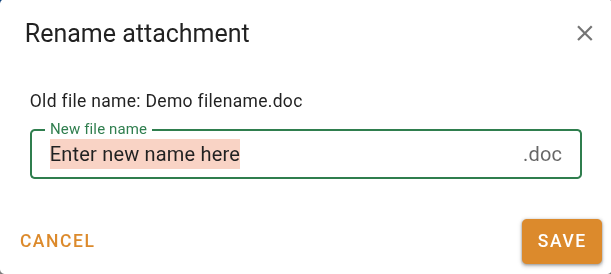
- Right-click the file and choose Rename.
- In the Rename attachment dialog, type the new name in New file name. The old name is shown above it, and the file's extension stays as it is.
- Click Save. The new name is kept at once, without saving the job. Save stays disabled while another file in the folder has the same name.
Move files into a folder
- Select the files to move. Hold Ctrl and click to pick several.
- Drag any one of them onto the folder, either the folder's card in the current folder or the folder in the tree on the left. The folder opens as you hover over it.
- Let go. All the selected files move together, and a message confirms how many moved and where to.
- Click Save. The move is kept once the job is saved.
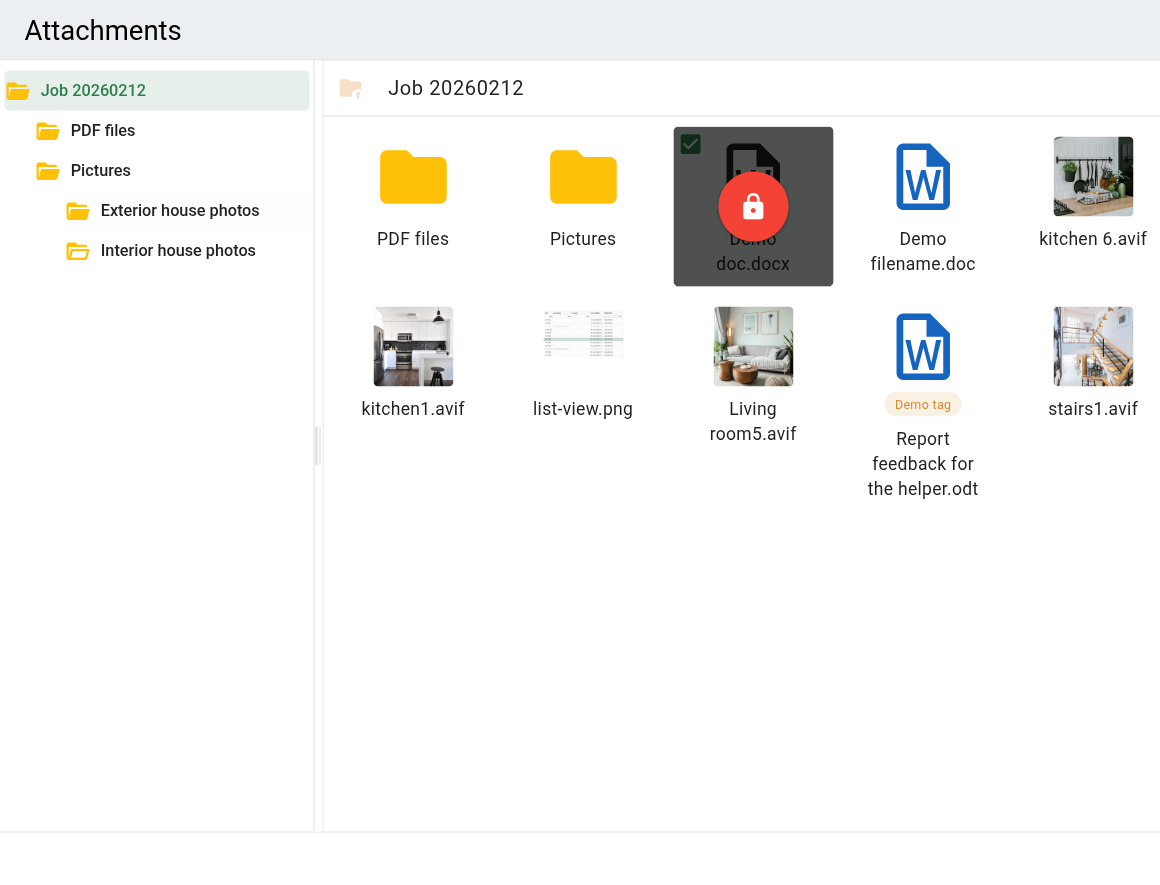
Moving files into a folder
Move a folder the same way. A file cannot be dropped into a folder that already has a file of the same name.
Tag files
Tags are labels shared by your whole company, such as Contract, Title search or Instruction letter. A file can carry several.
- Right-click the file and choose Tags.
- Type in Add/filter tags to find the tag. Click a tag to put it on the file. Click it again to take it off.
- If the tag does not exist yet, type its name and click Create "name" tag at the bottom of the list, or press Ctrl+Enter. The tag is created and applied in one go.
- Click Done. The tags show as chips under the file's thumbnail.
- Click Save to keep the tags on the job.
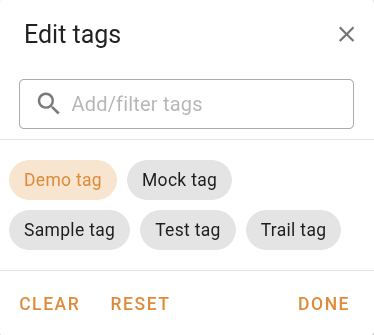
To tag several files at once, select them, right-click and choose Bulk tag. Each tag shows whether it is on all, some or none of the selected files. One click puts it on all of them.
Delete a file
- Right-click the file and choose Delete file, or select it and press Del.
- The Delete attachments dialog shows the file and says the change will not take effect until the job is saved.
- Click Delete.
- On a job, click Save.
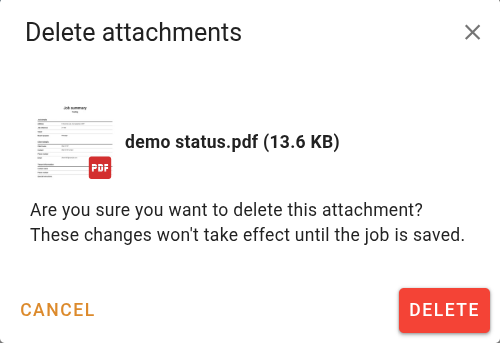
Delete an empty folder the same way, with Delete folder.
What you should see
- The renamed file shows its new name.
- The moved files are inside their folder in the tree.
- The tagged files show tag chips.
- After the job is saved, the deleted file is gone from the folder.
Next
Edit a file with VOW Helper. For moves that are not allowed, the bulk tag states and the delete restrictions, see Managing attachments.