

Quote attachments and history
Included with Professional and Enterprise
A quote's attachments and event log are in the side panel on the right edge of the quote.
Before you start
- Open any quote. Attaching files needs Edit quotes. Reading the event log needs View event logs. If you do not have them, Set up users shows how an administrator gives them to you.
- Have a file to attach, such as the client's instruction letter or a title search.
Attach files to a quote
- Click the button on the strip at the right edge of the form. The side panel opens on Attachments.
- Drop the file onto the folder area, or click it and choose the file. It uploads at once.
- Click Done on the upload confirmation. The file appears in the folder.
- Click the file to open it. Right-click it to rename, tag, move or delete it.
- Click the x at the top of the panel to close it.
- Click Save quote.
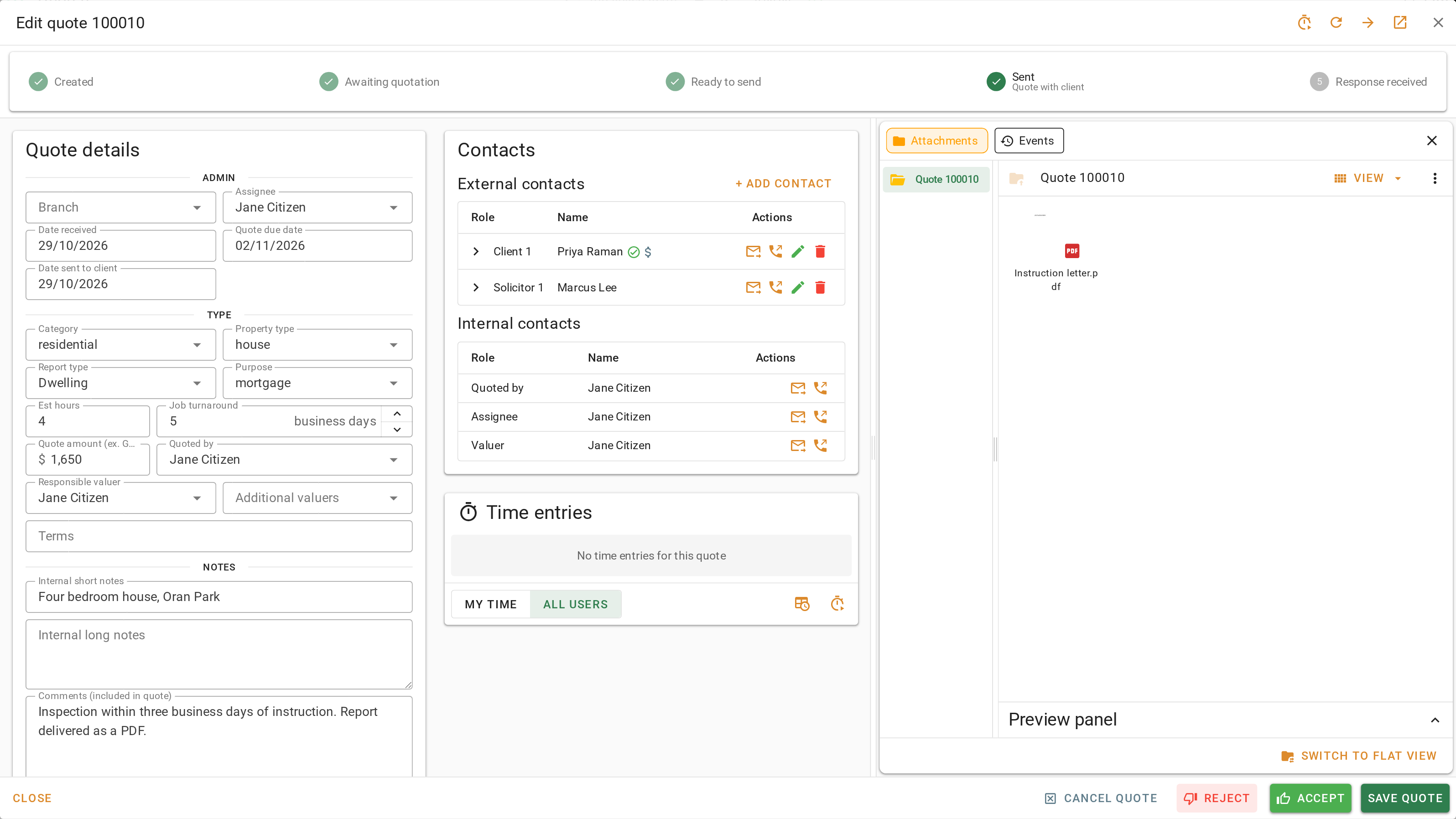
Attaching files to a quote
A file is not attached to the quote until the quote is saved. Closing the quote without saving loses it.
When the quote is accepted with New job, the job gets copies of every attachment. Cloning a quote offers to copy them too.
Read a quote's history
Every save, status change and action on a quote is logged with who did it and when.
- Click the button on the strip at the right edge of the form. The side panel opens on Events, newest first.
- Each entry names what happened, such as the quote being created, sent, rejected or reopened, with the person and the time.
- Click an entry's arrow to open it. A save shows each field that changed, with the old value and the new one.
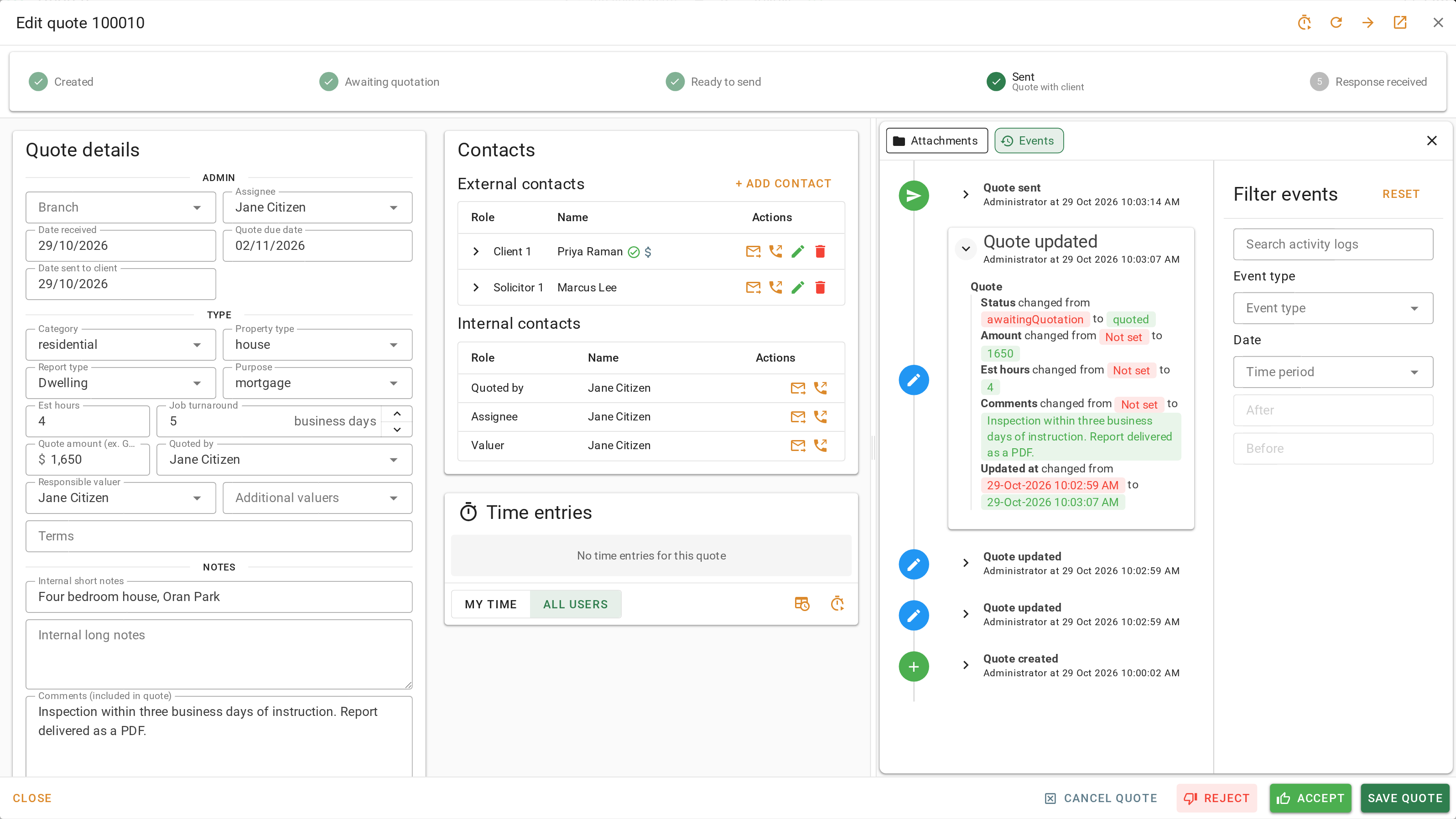
Reading a quote's history
A rejection or cancellation reason stays in the log after the quote is reopened. A job created from a quote starts its own log with an entry pointing back to the quote.
What you should see
The attachment's thumbnail is in the Attachments panel when you reopen the quote, and the newest entry in the Events panel records the save that added it.
Next
Go back to Working with quotes for the lesson list, or on to the next module in VOW tutorials. For everything the attachments panel can do, see Managing attachments.