

Find a request
Included with Professional and Enterprise
Use the table view to find an older request, or to see the requests you accepted or rejected.
Before you start
- Your role needs View requests page and View request details. If you do not have them, Set up users shows how an administrator gives them to you.
- Open Requests from the main menu and click the button at the top right. VOW remembers the view you chose.
Find accepted and rejected requests
- The table opens with Show completed off, so it lists only the pending requests. Click Presets and choose Completed requests. The accepted and rejected requests take their place.
- Check the Status column for which is which. An accepted request's Created ref column holds the reference of the job or quote it became. Click it to open that record.
- To see everything at once, choose All requests, or turn on Show completed to add the closed requests to your current filter.
- Click Reset filters when you are done. It appears whenever a filter, a search or Show completed is on.
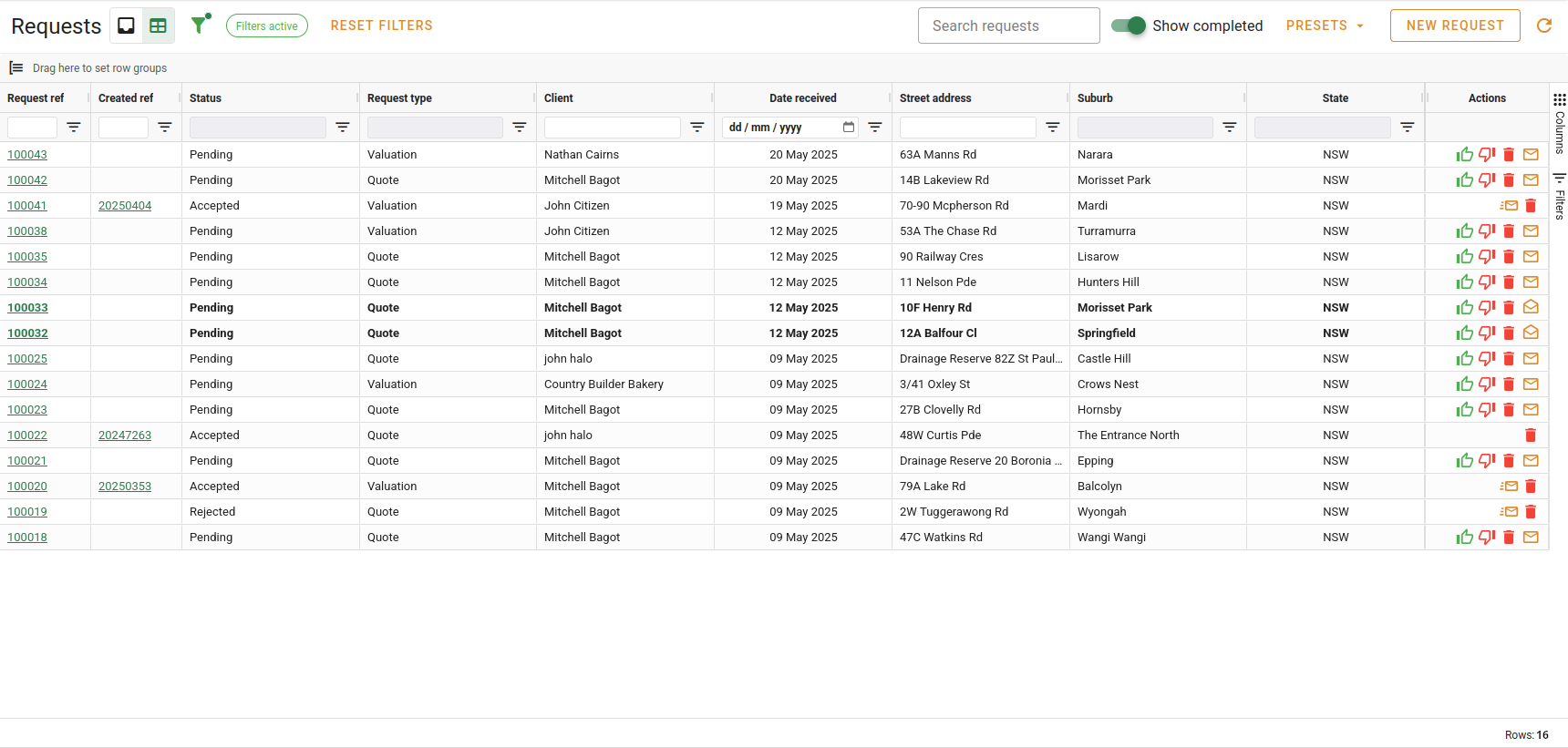
Bold rows are unread. The Unread, incomplete requests preset shows only those, like the inbox's Unread filter.
Search
- Type in Search requests above the table. The table narrows as you type to rows with that text in any column.
- Clear the box to see every row again.
The inbox view has the same box above its list. There it matches the request reference, the requester's name, the client, the street address, the date received, the status and the request type.
Open and act on a request from the table
- Double-click a row to open the request in a dialog over the table. Its footer has Accept, Reject, Send email and Save, as the request's status allows.
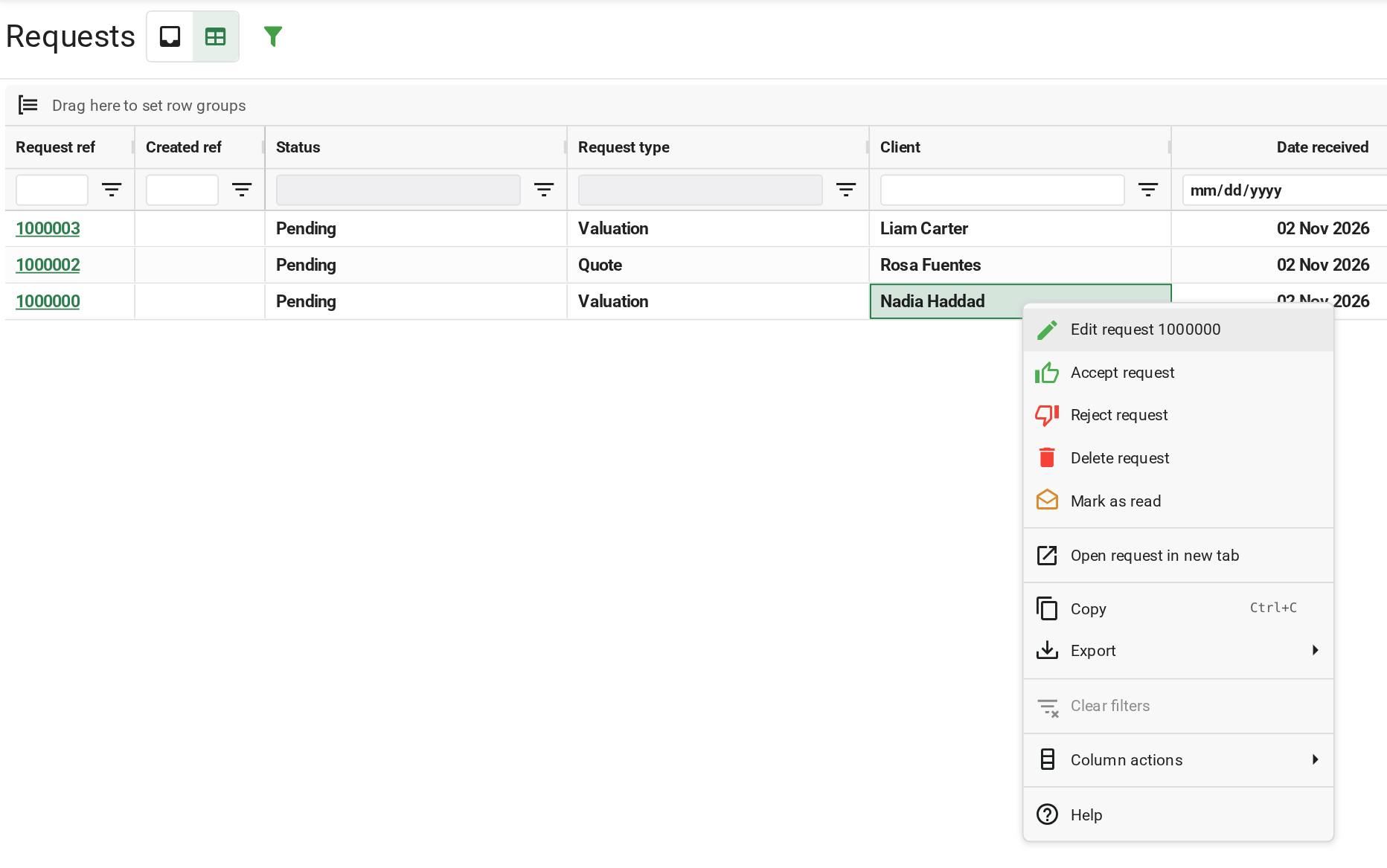
- To act without opening it, right-click the row. The menu has Edit request, Accept request, Reject request, Delete request, Email notice, Mark as read or Mark as unread, and Open request in new tab. Only the actions the request's status allows are shown.
The buttons in the Actions column at the end of each row do the same.
Column filters and export
- Type or pick a value in the filter box under a column heading to filter by that column. The button opens every column's filter in one panel.
- To count requests by Status or Request type, drag the heading into the Drag here to set row groups bar above the table.
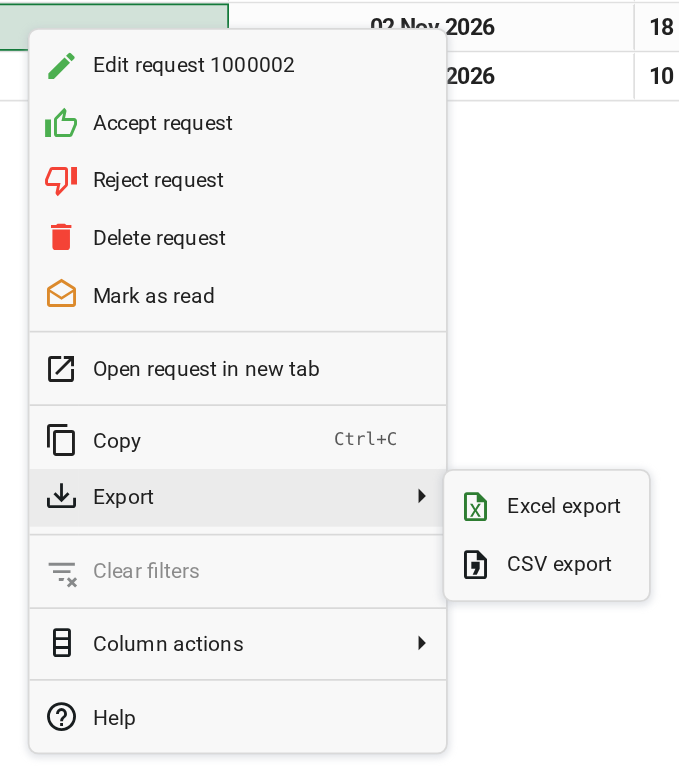
- To export, right-click the table, choose Export, then Excel export or CSV export. The file holds the rows on screen, with the filters applied.
What you should see
With the Completed requests preset on, every row is Accepted or Rejected, and the accepted rows show a reference under Created ref. Choosing Incomplete requests brings the pending ones back.
Next
Go back to Working with requests for the lesson list, or on to the next module in VOW tutorials. For every column, filter and preset, see Requests grid view.