

Review your day and week
Included with Enterprise
Before you start
- Open Time keeping from the main menu. It opens on the view you used last.
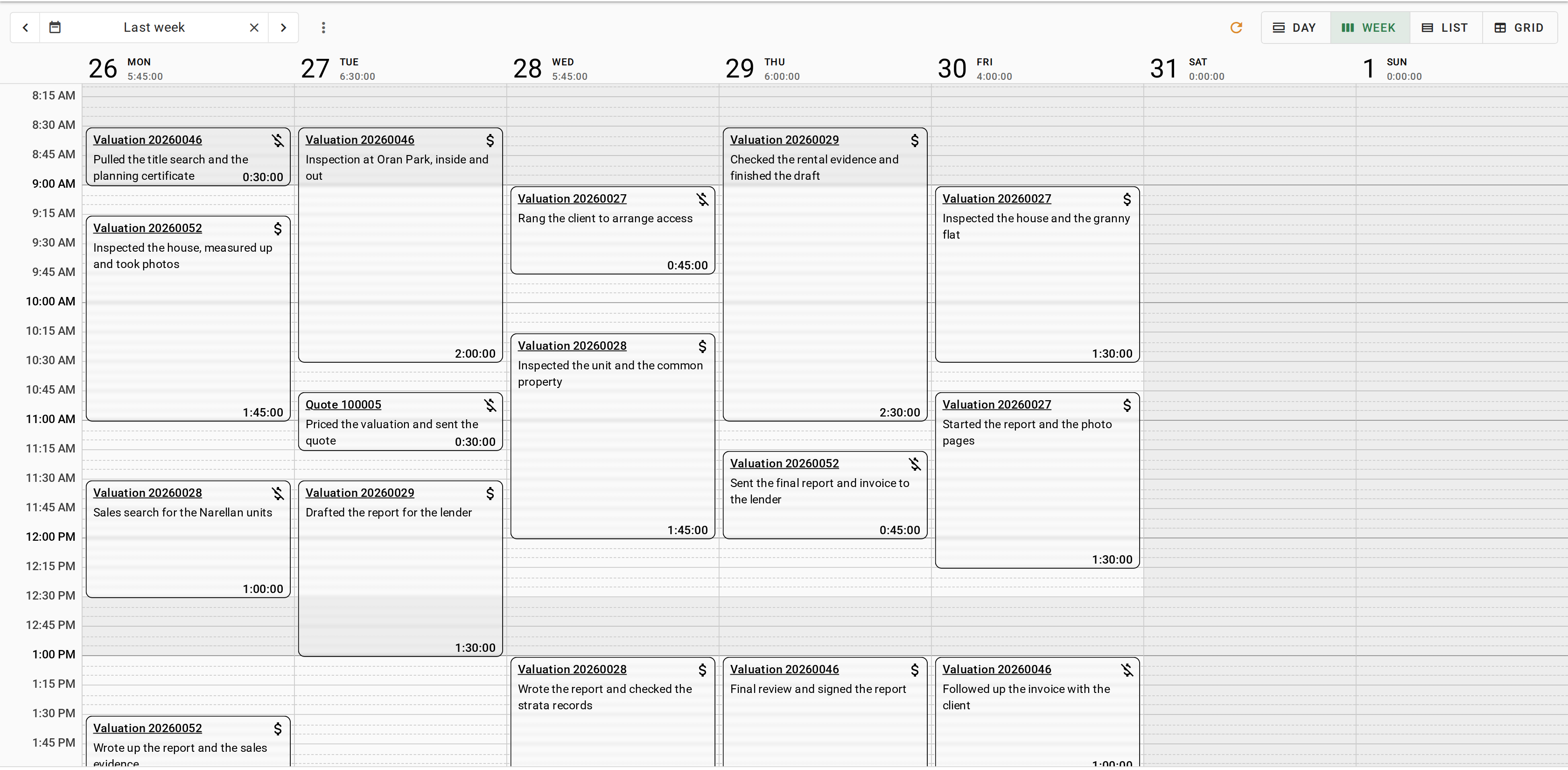
Move between the views and the dates
- Click Day, Week, List or Grid at the top of the page. Day and Week are calendars, with each entry drawn at its time and the day's total above the column.
- On a calendar, click the arrows either side of the date to move a day or a week at a time, or click the date to pick one.
- Click the button in the date box to return to today. On the Week view it reads Reset to this week.
- Click List. Entries are grouped by day, newest first, with each day's total. Click Load more at the bottom for earlier days.
Set your working hours
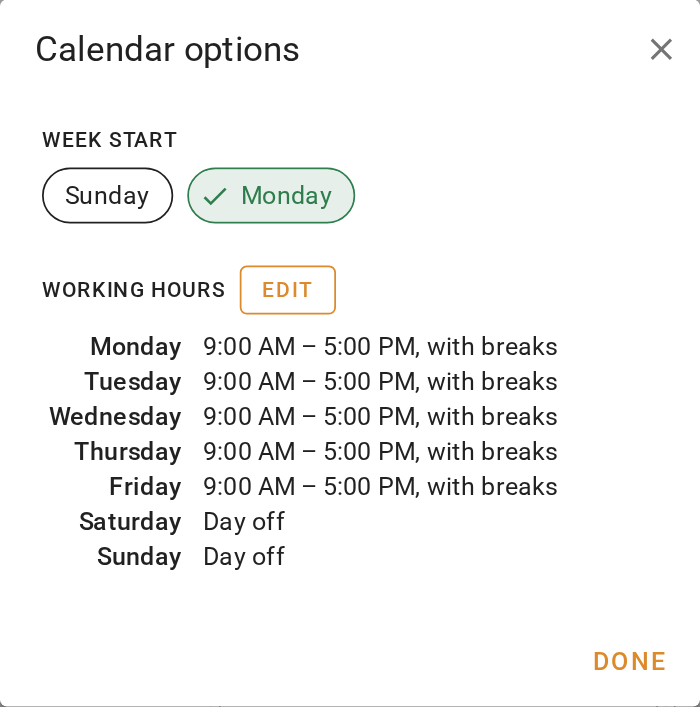
The calendar shades the hours you do not work. By default every day has the same hours.
- On the Day or Week view, click the button beside the date.
- Under Week start, choose Sunday or Monday for the first column of the week.
- Under Working hours, click Edit. In the Configure working hours dialog, set the Start time and Finish time under Default hours, and click Add break for each break.
- Under Overrides, click any day that differs, such as a half day, and set its hours, or turn on Day off. Click Save.
- Click Done.
Filter and export a period
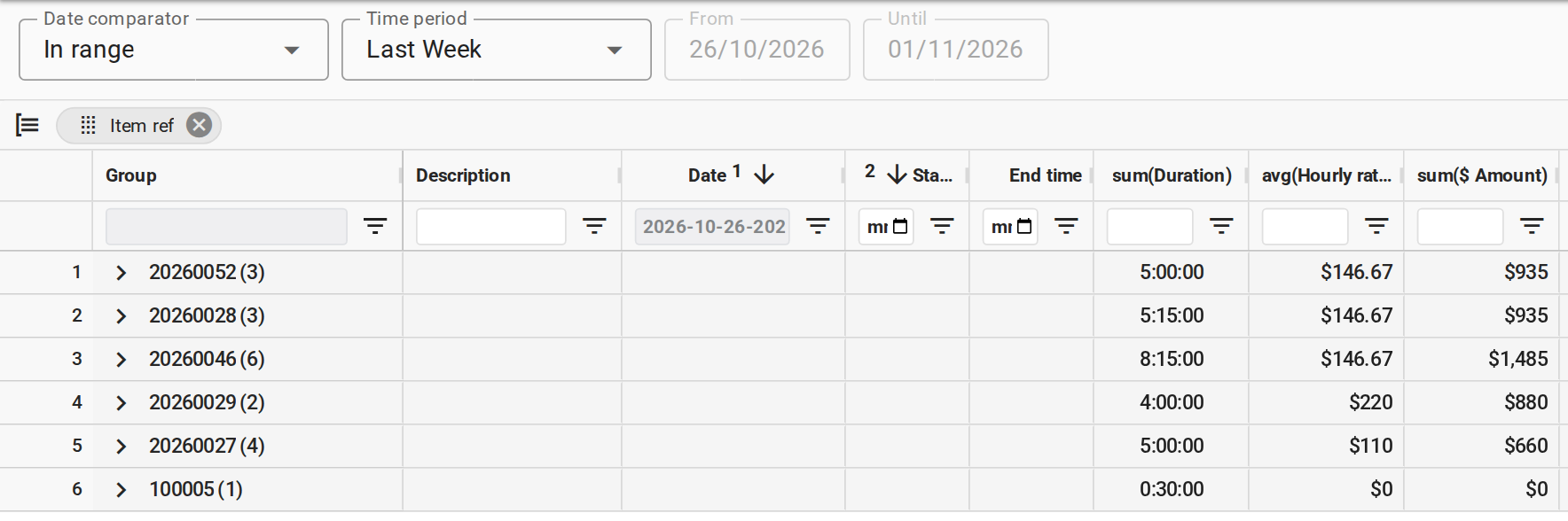
- Click Grid. Each entry is a row, and the grid opens on This Week.
- Under Time period, pick the period, or choose Custom range and set the dates yourself.
- Type in Search to narrow the rows to a job, a client or a word from a description.
- Drag a column heading, such as Item ref or Client name, into the Drag here to set row groups bar above the table. The rows fold into one group for each value, and each group row totals its Duration.
- Right-click a row, choose Export, then Excel export or CSV export. The file has one row per entry with the columns shown. The grouping is not kept.
- Open the file from your browser's downloads in Excel or another spreadsheet program.
The Grid view shows only your own entries. To see everyone's entries and billable amounts, use the time tracking report under Reporting, which needs View time keeping reports. See Run the time tracking report, and Time tracking report for every column.
What you should see
The Week view shows the week's entries in their columns with a total above each day, your working hours unshaded and the rest grey. The Grid view, grouped by job, shows the hours for each job this week.
Next
See the time on a job. For every column and filter in the report, see Time tracking report.