

Add or analyse a sale
Included with every subscription
Analyse a VG sale to make your company's own copy, a company sale, and record the land value, report commentary and internal notes on it. Enter a sale from scratch when the import does not have it yet.
Before you start
- Your role needs Create new sales. If you do not have it, Set up users shows how an administrator gives it to you.
- Have a Results tab open from Find a sale, with a VG sale in it.
Analyse a VG sale
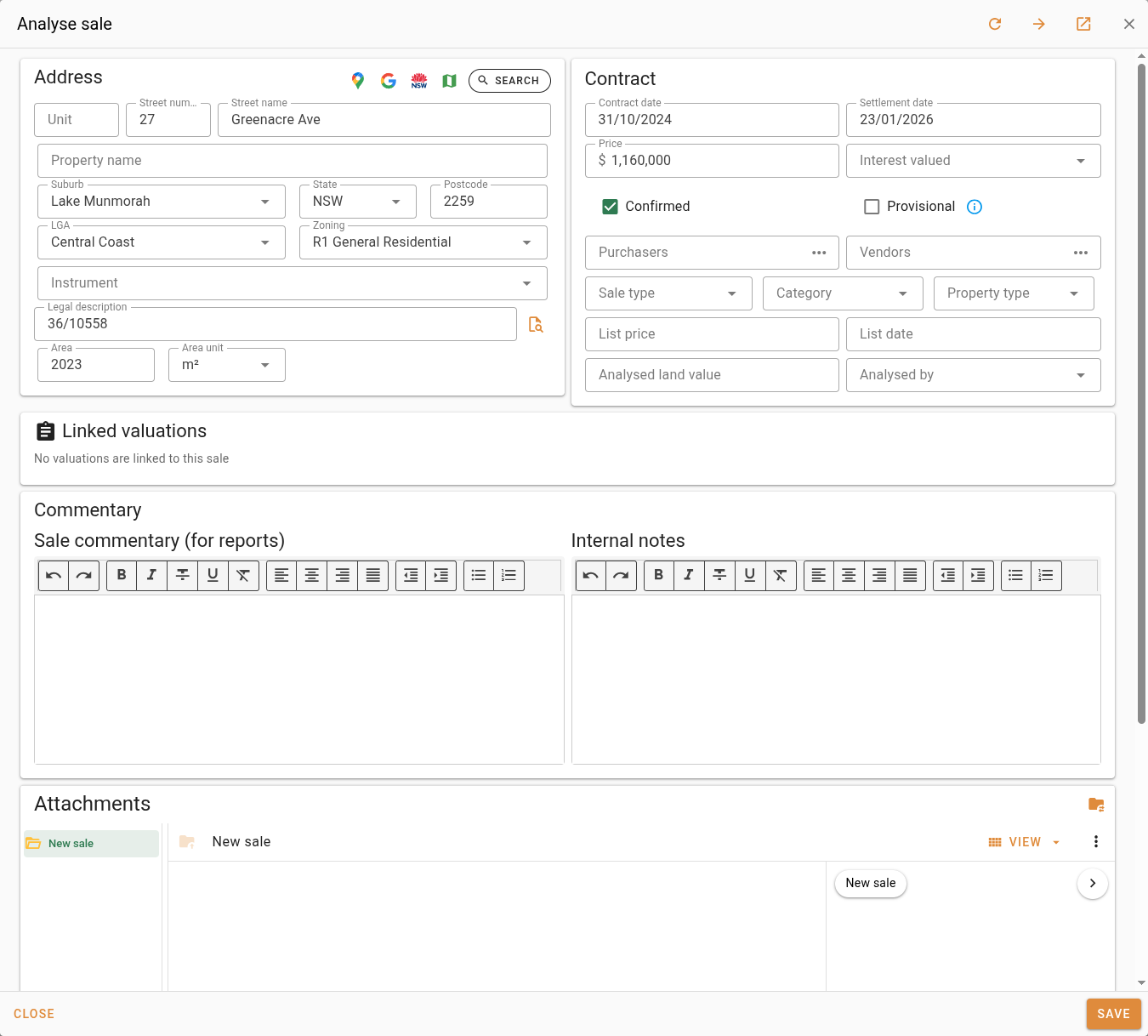
- Double-click the VG sale to open its card, then click Analyse. The 'Analyse sale' dialog opens with every field already filled from the VG record.
- Under the contract details, check Contract date, Settlement date and Price. Change anything the import got wrong. You are editing your copy, and the VG sale is not touched.
- Choose the Sale type, such as investment or vacant possession, and the Category. Your company can change the sale types on offer.
- Enter the Analysed land value and choose who analysed it under Analysed by.
- Write the Sale commentary (for reports). It is copied onto a valuation when you add the sale as evidence, and goes into that report. A later change to the commentary does not reach valuations that already use the sale. Internal notes stay inside your company.
- Click Save. A Sale saved message appears and the dialog title changes to 'Edit analysed sale' with the sale's new reference. The sale is now a company sale, with a Ref of its own and your company's logo in the Src column.
- Click Close.
From the results, the button in the row's Actions column opens the same dialog without the card. Once a VG sale has been analysed, searches show your company sale in its place and the button becomes .
Enter a new sale
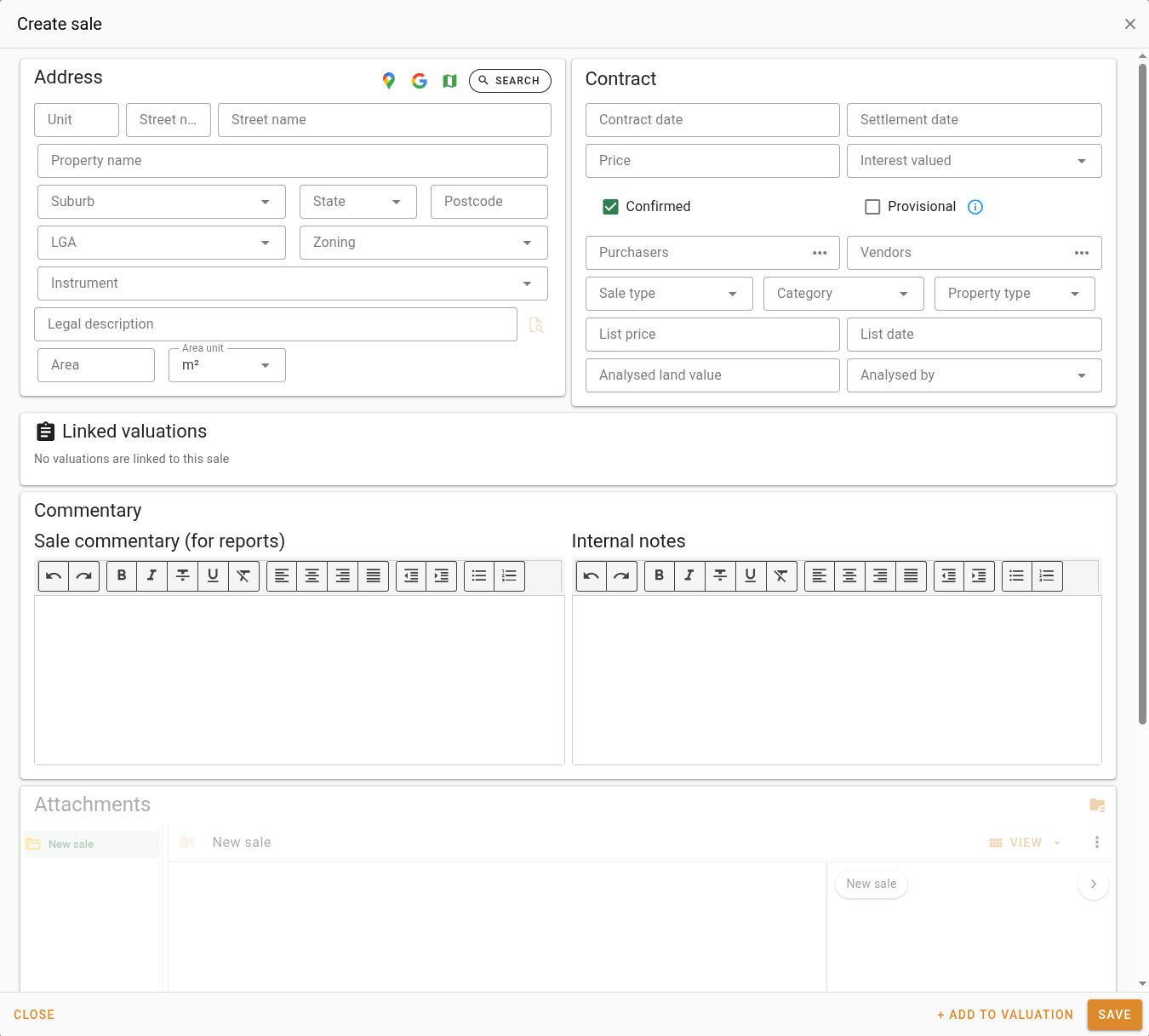
- Click New sale at the top right of the Sales page. The 'Create sale' dialog opens empty.
- Under Address, click Search, type the address and pick the match. VOW fills the street, suburb, state, postcode and LGA. Add the Zoning in force at the contract date.
- Enter the Contract date and the Price. A sale needs both unless it is provisional.
- Enter the Purchasers and Vendors. Type a name and press Enter to add it as a chip, then type the next. Names are kept in capitals, the way the Valuer General records them.
- Leave Confirmed ticked if you have checked the details. If the sale is not certain yet, untick it and tick Provisional instead. A provisional sale can be saved without a price or a date, but cannot be used as evidence until you clear the tick.
- Click Save, then click Close. The new sale is in the results the next time you search for its suburb.
A sale you enter by hand has no dealing number until the Valuer General's record arrives. When it does, both appear in searches until you add the dealing number to yours.
What you should see
Your sale is in the results with your company's logo under Src and a Ref number. Its Actions column shows in place of .
Next
Edit or delete a sale. For every field on the sale form, see Managing sales.