

Find a quote
Included with Professional and Enterprise
Find, group and export quotes in the quotes table. The table opens showing the quotes still in progress. Turn on Show completed to see closed quotes.
Before you start
- Open Quotes from the main menu. Your role needs View quotes page and View quotes. If you do not have them, Set up users shows how an administrator gives them to you.
- Some roles only see the quotes they are assigned to or quoting. Seeing everyone's needs See quotes assigned to other users.
Open a quote
- Double-click a row to open the quote in a dialog over the table.
- Click the Quote ref to open it as a full page, with room for the side panel.
- Right-click a row for the quote's actions, which are edit, clone, accept, reject, cancel, reopen and delete. Only the actions the quote's status allows are shown.
Search
Type in Search quotes. The table narrows as you type to rows containing that text, such as a street, a suburb, a client or a status. Columns you have hidden are searched too. Clear the field to see everything again.
Find accepted, rejected and cancelled quotes
- Turn on Show completed in the toolbar. Closed quotes join the table, and the Rejection/Cancellation reason and Linked job columns appear.
- To see only one kind, open the Status column's filter, type the status you want, such as Accepted, and press Enter. The filter only offers the closed statuses while Show completed is on.
- Click Reset filters when you are done. It appears in the toolbar whenever a filter is active.
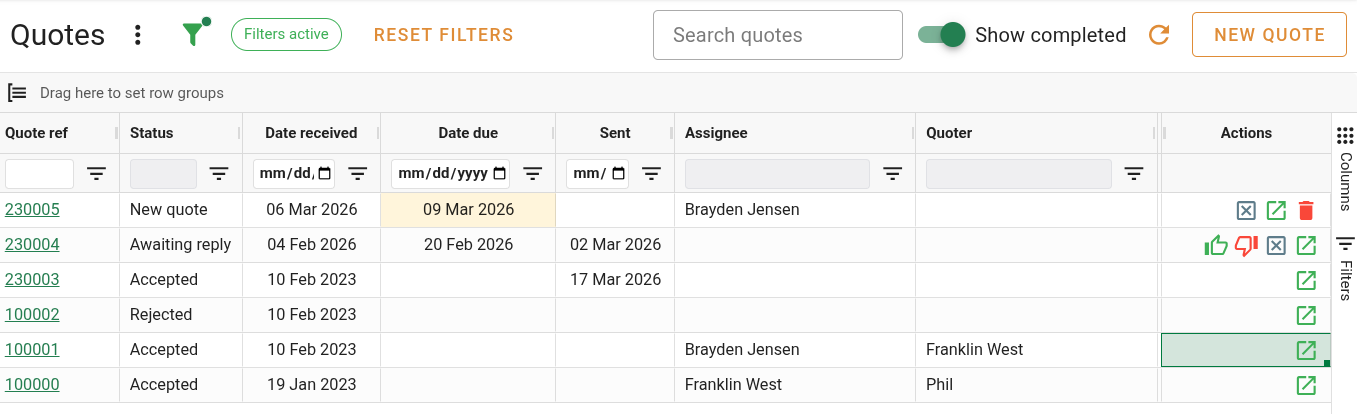
Finding accepted, rejected and cancelled quotes
An accepted quote's Linked job is a link. Click it to open the job the quote became.
Group quotes and total their value
- Right-click the Status column heading and choose Group by Status. The rows fold into one group per status, and each group heading shows its count and the total of Quote Amt.
- Click a group heading's arrow to open it.
- Right-click the Assignee heading and choose Group by Assignee. Each status now splits by who manages it.
- To go back, click the x on each chip in the grouping bar above the table.
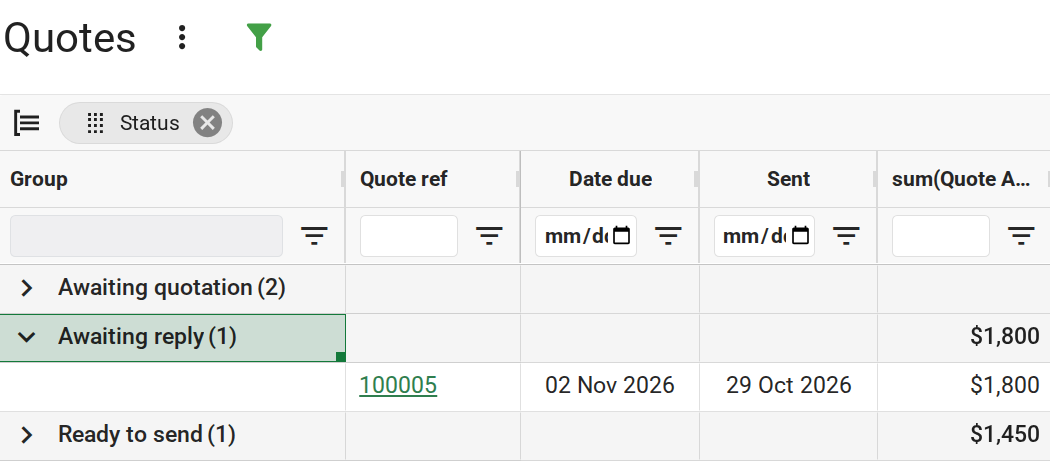
Grouping quotes and totalling their value
The totals add up only what the table is showing. With Show completed off they leave out accepted, rejected and cancelled quotes, and any search or filter narrows them the same way.
Column filters
Every column heading has a filter. Text columns match what you type. Columns such as Status, Assignee and Quoter give you a list to tick. The button opens every column's filter in one panel.
Export the table
Click the button and choose Export data to Excel or Export data to CSV. The file holds what is on screen, with the columns shown, the rows that match your search and filters, and any grouping.
What you should see
With Show completed on and Status filtered to Accepted, the table lists only accepted quotes, each with its Linked job. Reset filters brings the table back to the in-progress quotes.
Next
Quote attachments and history. For every column and filter, see Quotes table.