

Track time with the timer
Included with Enterprise
The time is recorded against the job you start the timer from. Only one timer runs at a time.
Before you start
- Time keeping is turned on for your company. If Time keeping is not in your main menu, an administrator switches it on in Turn on time keeping.
- To mark time billable, your role needs Charge for time spent on jobs. If you do not have it, Set up users shows how an administrator gives it to you.
- Open the job at 14 Oran Park Drive, Oran Park from the Valuations page.
Start the timer on a job
- In the job's header, click the button. VOW confirms Timer started and the timer appears in the top bar with the job's reference beside it.
- Click the button on the timer and tick the kind of work, such as an inspection.
- Click the button if the client pays for this time. It turns green, and the entry takes your hourly rate. A new timer starts with the tags and billing of the one before it, so check both.
- The timer keeps counting on every page, and the job reference on it links back to the job.

Starting the timer on a job
Starting a timer on another job stops and saves the one that is running.
Describe the work while the timer runs
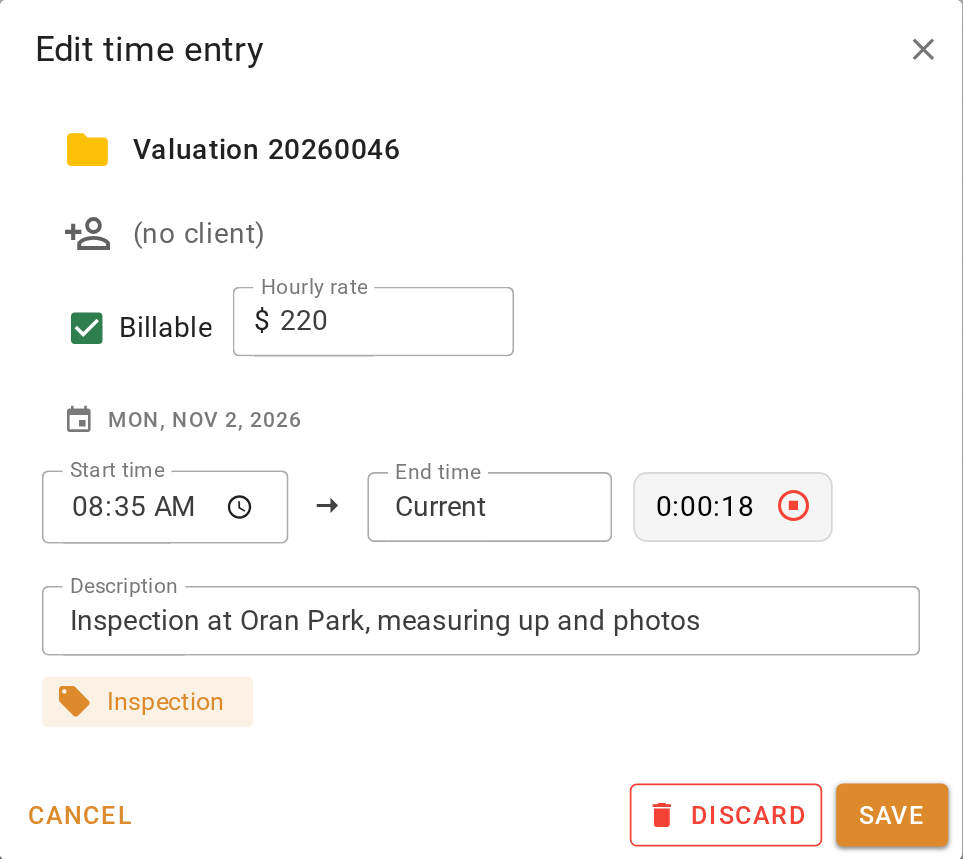
- Click the elapsed time on the timer. The Edit time entry dialog opens on the running entry.
- Under Description, write what you are doing in a few words.
- If the time is for a client who is not on the job, click (no client), choose the client in the Choose client dialog and click Accept.
- If you did not mark the timer billable, tick Billable and check the Hourly rate.
- Click Save. The timer keeps running.
Stop the timer
- Click the button on the timer. VOW confirms Timer stopped. and saves the entry with the stop time as its End time. The stopped entry stays in the top bar with a button.
- To resume the same work, click that Start timer button. Later on, open Time keeping from the main menu, click List, find the entry and click the button on it. Either way a new entry starts with the same job, client, tags and billing.

A timer you forget to stop keeps running until you stop it. Click Stop timer, then open the entry and set its End time to when you finished. A timer that ran past midnight stops as one entry per day, so correct the first day's entry and delete the later ones. Edit or delete a time entry shows how.
What you should see
On the job, the Time keeping panel adds the entry's length to your card. On the Time keeping page the entry sits in today's column, linked to the job, with your description on it.
Next
Log time by hand. For every field on an entry, see Time tracking report.