

Edit or delete a time entry
Included with Enterprise
The week's totals update as soon as you change an entry.
Before you start
- Open Time keeping from the main menu and go to the day with the entry, on the Day or Week view.
- You can change your own entries. Changing someone else's needs Update other users' time entries. If you do not have it, Set up users shows how an administrator gives it to you.
Change an entry's times
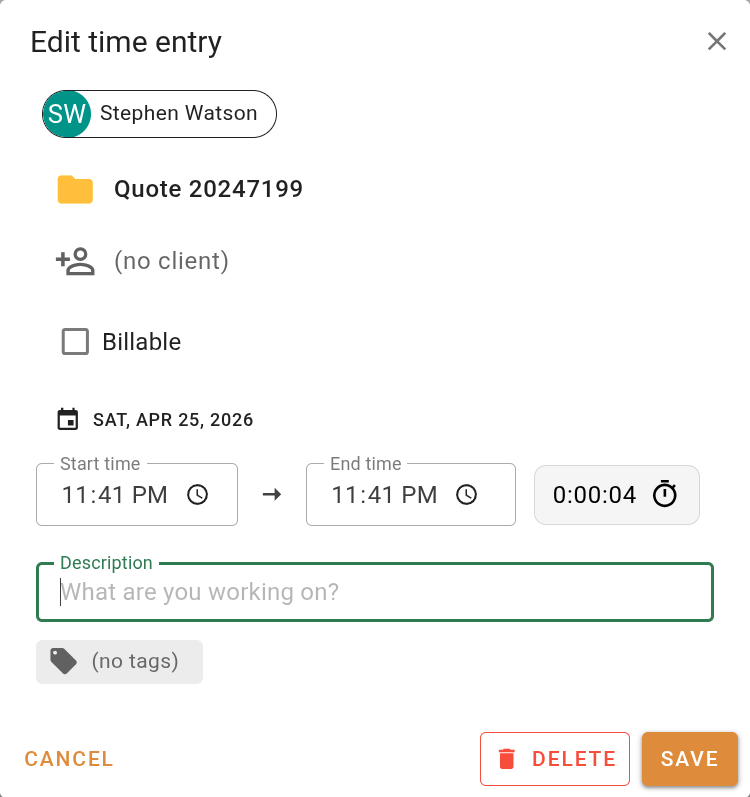
- Click the entry on the calendar. The Edit time entry dialog opens.
- Change End time to when you finished. For a timer that was left running, End time reads Current. Click on the timer in the top bar first, then open the entry again and set the End time. A timer that ran past midnight stops as one entry per day, so correct the first day's entry and delete the later ones.
- If the time was for something else, change the Description or the linked item. Click the linked item, choose another job in the Link time entry dialog and click Link, or click Unlink to leave the entry on no job.
- Click Save. The entry resizes on the calendar and the day's total changes with it.
On the calendar, drag an entry's top or bottom edge to change its start or end time without opening it, or drag the whole entry to move it. A running timer cannot be dragged.
Split an entry between two jobs
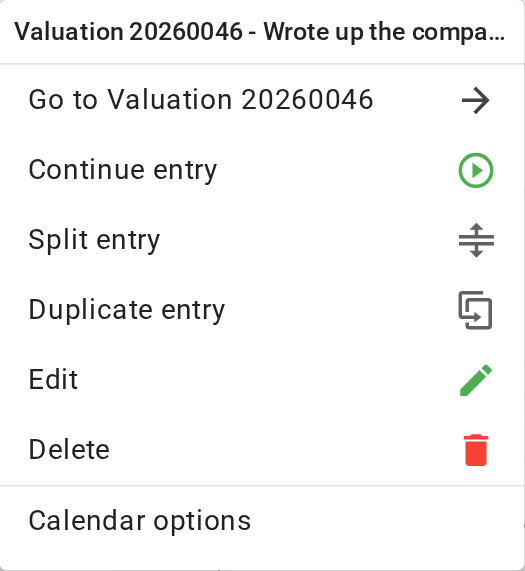
- Right-click the entry and choose Split entry.
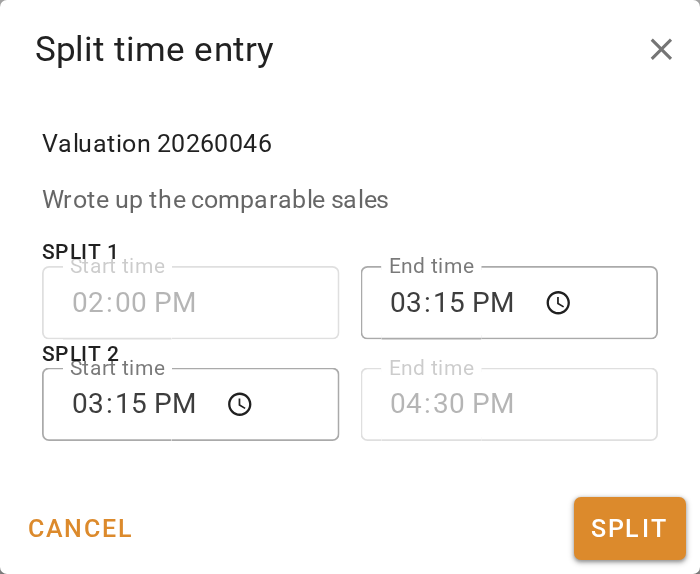
- In the Split time entry dialog, set the End time of Split 1 to when the first job finished and the Start time of Split 2 to when the second job began. Both start at the halfway point and change separately, so set each one. Split 2 keeps the original end.
- Click Split. You now have two entries with the same details.
- Click the second entry, link it to the other job, change its Description, then click Save.
Delete an entry
- Right-click the entry and choose Delete, or open it and click Delete in the dialog footer. For a timer that is still running, both read Discard.
- Click Delete in the Delete time entry dialog.
To delete a whole group of entries at once, click the button on the group in the List view, choose Delete entries, then click Delete all.
Deleting an entry removes its hours and its billable value from the job and the report. There is no undo. For an entry on the wrong job, change its linked item instead.
Copy an entry
- Right-click an entry and choose Duplicate entry.
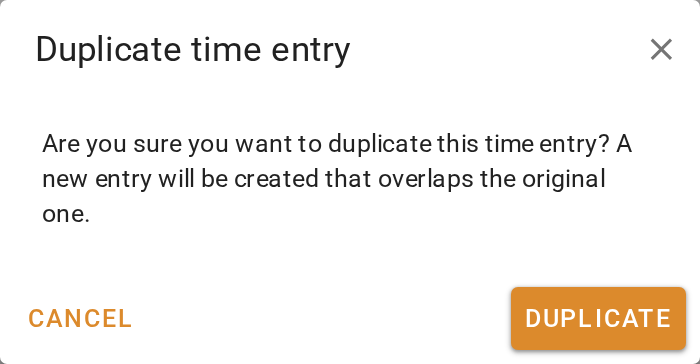
- Click Duplicate in the Duplicate time entry dialog. A second entry with the same times and details is created.
- Open the copy and set its own times. Until you do, it overlaps the original.
What you should see
The edited entry shows its new length on the calendar. The two halves of a split sit end to end, each linked to its own job. A deleted entry is gone from the day, and the day's total at the top of the column has dropped by its length.
Next
Review your day and week. For every action on an entry, see Time tracking report.