

Invoice the job
Included with every subscription
The fee comes from Report fee (ex. GST), the recipient from the contact marked Bill to, and the bank details from your company's settings. The invoice PDF is attached to the job, and the job tracks whether it has been sent and paid.
Before you start
- Your role needs Create and update invoices. If you do not have it, Set up users shows how an administrator gives it to you.
- Your company's bank account and payment terms are set in Set up invoicing.
- Open the job from Generate the report. It needs the Report fee (ex. GST) entered and saved, and a contact marked Bill to.
Raise the invoice
- On the Details tab under Invoices, check the Report fee (ex. GST). The invoice is for this amount, with GST added.
- Click Auto invoice. VOW raises an invoice for the full fee to the Bill to contact, numbers it from the job reference, dates it today, sets the due date from your payment terms, and attaches the PDF.
- To split the fee, bill someone else or itemise, click + Add invoice instead. In the invoice editor, choose the Bill to recipient, the Pay to bank account and the items, and click Save. An item amount can be a percentage, such as 50%.
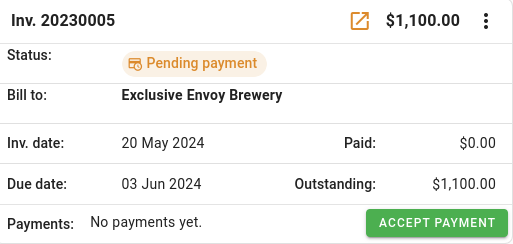
Raising the invoice
Invoices save themselves. Raising, editing or paying one is saved straight away, with no Save on the job. If you edit an invoice after it was raised, its PDF is marked as outdated until you click the button.
Send the invoice
To send the invoice with the report, tick it under Email attachments when you send the email from the job. VOW marks the invoice as sent when the email goes.
To send it from the invoice itself, click Send invoice on the invoice. If you can send email from VOW, the email composer opens with the invoice attached. If you cannot, VOW asks you to download the PDF, email it from your own mail client, and click Mark as sent.
If the invoice has already reached the client some other way, click the arrow beside Send invoice and choose Mark as sent.
A sent invoice is locked. Payments can still be recorded against it, and an administrator can unlock it if it has to change.
Record the payment
- Click Accept payment on the sent invoice. When your company uses Xero, or the invoice already has a payment, open the invoice's Action
 menu and choose Accept payment or Edit payments instead.
- The amount outstanding is filled in. Change it for a part payment, choose the Payment method, and click Save.
- The invoice shows as paid, or part paid with the balance still owing.
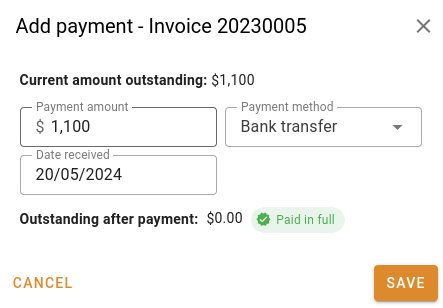
Recording a payment
When your company uses Xero
Included with Professional and Enterprise
With Xero connected in Connect to Xero, VOW does not send invoices to Xero or fetch payments by itself.
- Once the invoice is sent, click Sync to Xero on the invoice to create it in Xero.
- To bring in payments recorded in Xero, click the button under Invoices. VOW applies them to the matching invoices.
What you should see
Invoices lists one invoice for the report fee plus GST, addressed to the Bill to contact, with its PDF attached and its payment recorded.
Next
Send an email from a job. For every field in the invoice editor, see Invoices.