

Create a lease
Included with every subscription
Before you start
- Your role needs Create new leases. If you do not have it, Set up users shows how an administrator gives it to you.
- Have the lease document, or at least the address, the commencing and terminating dates, the current rent and whether it is per annum or per month. VOW will not save a lease without them.
Create a lease
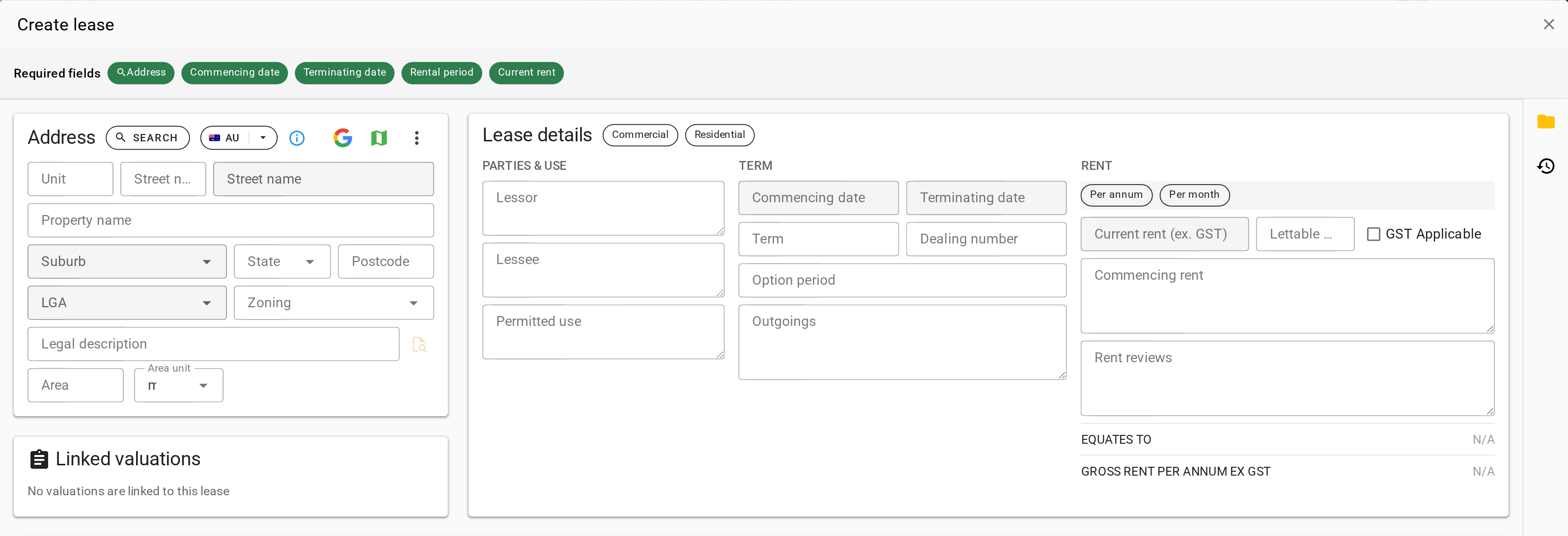
- Open Leases from the main menu and click New lease. The 'Create lease' form opens with a Required fields bar across the top listing what is still missing. Click an item in the bar to go to that field.
- Under Address, click Search, type the property address and pick the match. VOW fills the street, suburb, state, postcode and LGA, and records the location it uses to find this lease for valuations nearby.
- Across the top of Lease details, choose the lease type, such as Commercial. The types offered are your company's own list.
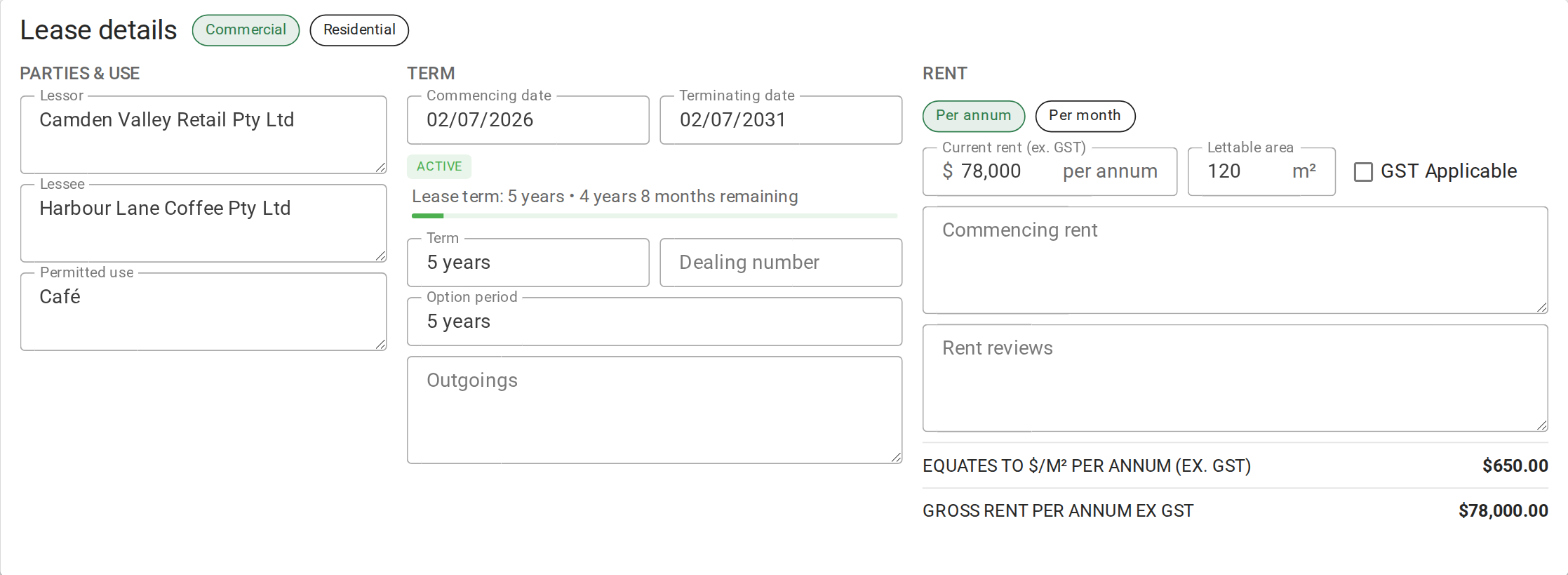
- Under Parties & use, enter the Lessor, the Lessee and the Permitted use as the lease states them.
- Under Term, enter the Commencing date and the Terminating date. The readout underneath shows the status and how much of the term has run. Enter the Term as text, such as 3 years, and the Dealing number and Option period if the lease has them.
- Under Rent, choose Per annum or Per month to match the lease, then enter the Current rent (ex. GST) and the Lettable area. Gross rent per annum ex GST and Equates to $/m² per annum (ex. GST) fill in automatically.
- Click Save. The lease gets the next reference number and stays open.
Creating a lease
A valuer sees the Equates to rate when this lease is offered as evidence. Without a Lettable area the lease shows no rate to compare, so enter it now, even if you measure it from the plan.
Clone a lease for a renewal
Clone an existing lease when it is renewed, or when the same landlord lets the shop next door on the same terms.
- On the Leases page, click the button on the lease's row.
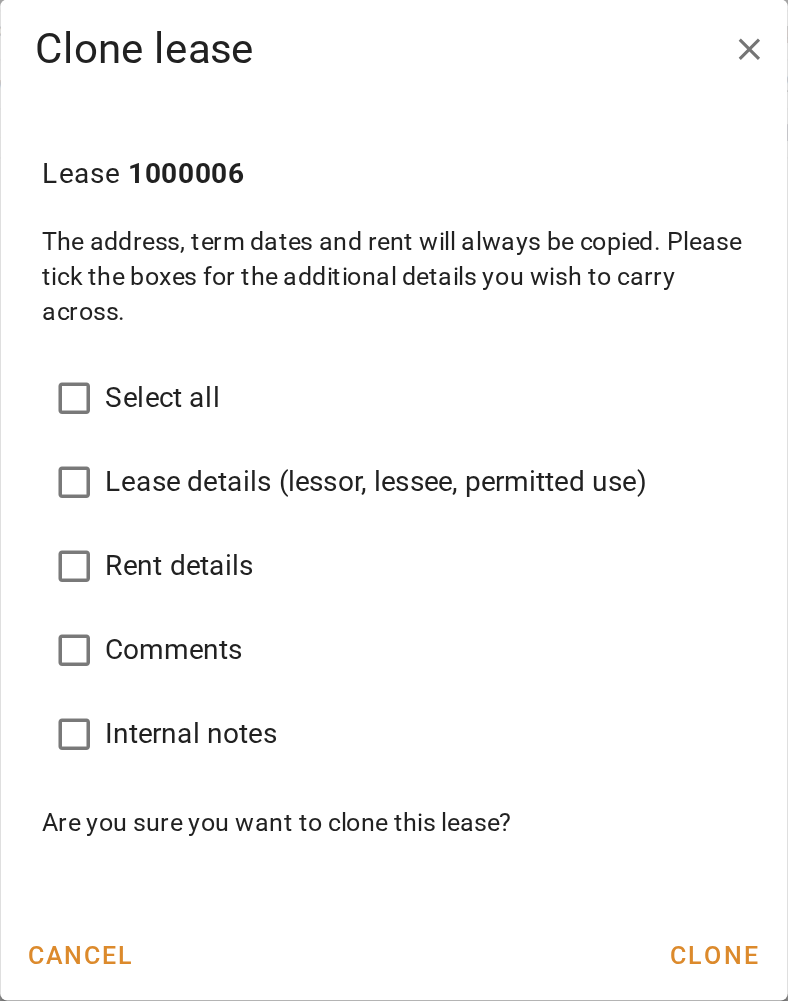
- In the 'Clone lease' dialog, tick what to carry across. Lease details (lessor, lessee, permitted use) also brings the lease type, Term, Dealing number and Option period. Rent details brings Per annum or Per month, the Lettable area, the Rent reviews and the Outgoings. Comments brings the Lease commentary (for reports) and Internal notes brings the internal notes. The address, the term dates, the current and commencing rent, GST Applicable and the attachments always come across.
- Click Clone. The new lease opens in the form, filled in from the old one and not yet saved.
- Change what the renewal changed, usually the Commencing date, the Terminating date and the Current rent (ex. GST). If you left Rent details unticked, choose Per annum or Per month and enter the Lettable area again.
- Click Save.
What you should see
The new lease is in the Leases table with its reference under Ref, the parties under Lessee and Lessor, and a Status that follows its dates, such as Active, Upcoming or Expiring. The table only lists leases whose term overlaps the period chosen above it, so widen the period if a lease that starts later is missing. Open it and the Required fields bar is gone.
Next
Edit a lease. For every field, see Lease form.