

Upload files to a job
Included with every subscription
Before you start
- Your role needs Upload files to the system and Attach documents to valuations, and Update valuations to save the job. If you do not have them, Set up users shows how an administrator gives them to you.
- Open the job from Valuations and click its Attachments tab. A job must be saved once before it takes files. A new job shows a notice saying so until you save it.
- Have the files ready, such as the client's instruction letter and a title search. A file can be up to 50 MB. PDFs, images, Word, Excel and PowerPoint files, plain text and emails are all accepted.
Upload files with the drop zone
- On the Attachments tab, drag the files from your desktop or file manager onto the drop zone at the top of the panel, or click the drop zone and choose the files. Up to ten files upload at a time.
- The File upload progress dialog opens. Each file shows Queued, then Processing, then Uploaded with a green tick. Wait for the message that every file uploaded.
- Click Done. The files appear as cards in the panel.
- Click Save, or press Alt+S. On a job the files are not kept until the job is saved.
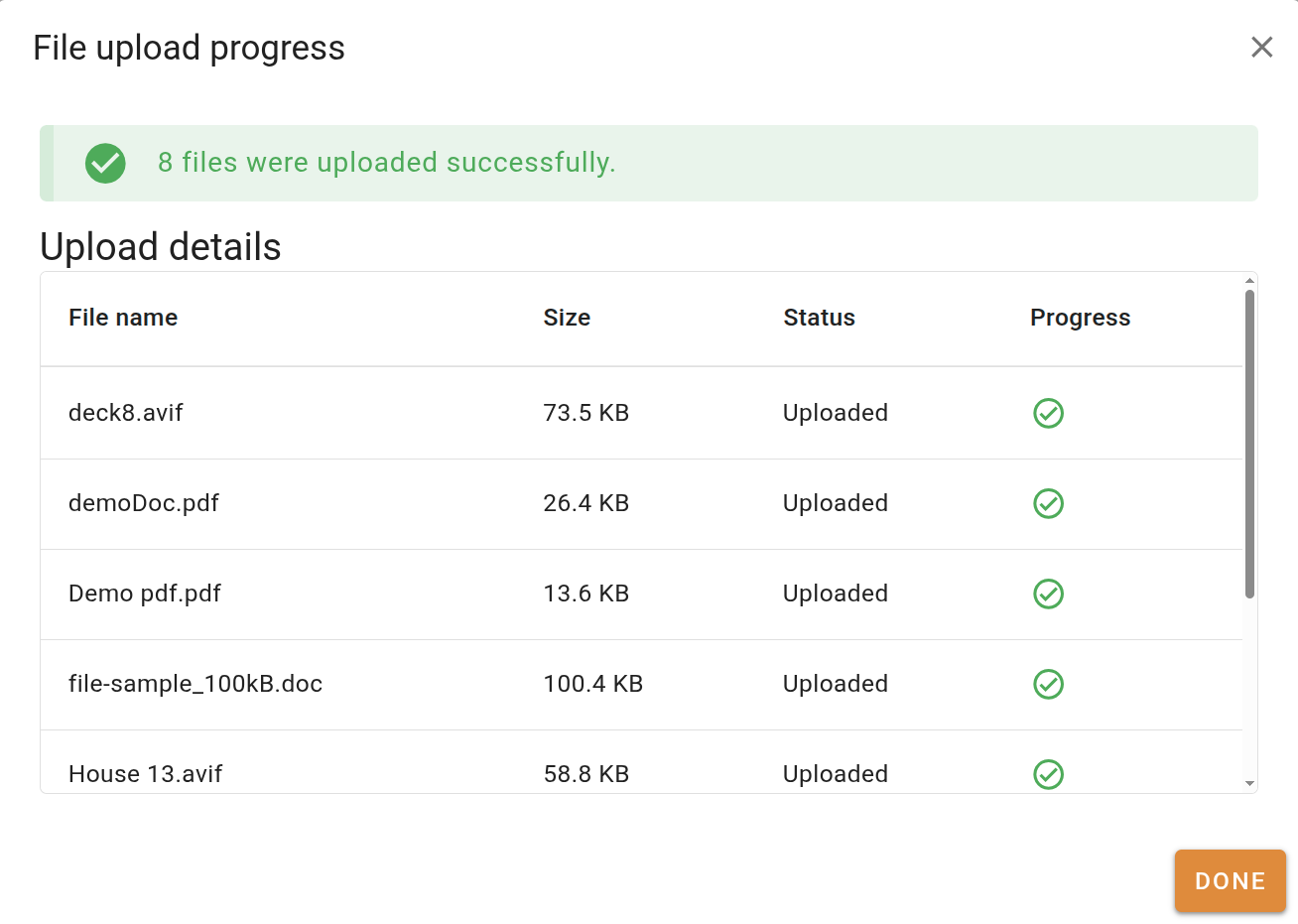
Uploading files to a job
Closing a job without saving loses the files you uploaded. The same applies to a quote, a lease and a request.
Upload into a folder
- Click the button at the bottom right of the panel.
- Right-click an empty part of the folder area and choose Add a new folder.
- In the Add folder dialog, type over the name in New folder name, such as Inspection photos, and click Create folder. The folder appears in the tree on the left and in the folder area.
- Double-click the folder to open it. It reads This folder is empty.
- Drag the files onto the folder area, or click the empty-folder message and choose them. The File upload progress dialog runs as before. Click Done.
- Click Save.
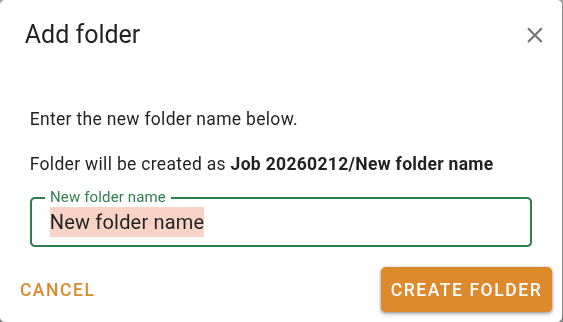
Uploading into a folder
Drag a whole folder from your file manager onto the folder area. VOW recreates its folders and puts each file in the right one.
What you should see
Flat view shows a card for each file. Folder view shows the new folder in the tree with the files inside it. Reopen the job after saving and the files are still there. The Event log tab records the upload.
Next
Find and open a file. For the accepted file types and the upload dialog in full, see Managing attachments.