

Find a sale
Included with every subscription
Use the Simple tab to search by suburb, date range and price bracket. Use the Full tab to search any field, such as every sale one valuer analysed. Keep a search you run often on the Favourite tab.
Before you start
- Your role needs View and search for sales. If you do not have it, Set up users shows how an administrator gives it to you.
- Open Sales from the main menu. It opens on the Search tab.
Run a simple search
In this example, Jane is valuing a house in Oran Park and wants the sales there over the last year.
- On the Simple tab, enter the Suburb, Oran Park, and choose the State, NSW. The suburb alone brings back every sale there, so narrow it from the start.
- Enter a Min contract date a year ago. Sales are sorted newest first.
- Enter a Min price and Max price if you already know the bracket. Leave them empty to see the whole market.
- Click the button. The results open in a Results tab beside Search, and the search is added to your Recent tab.
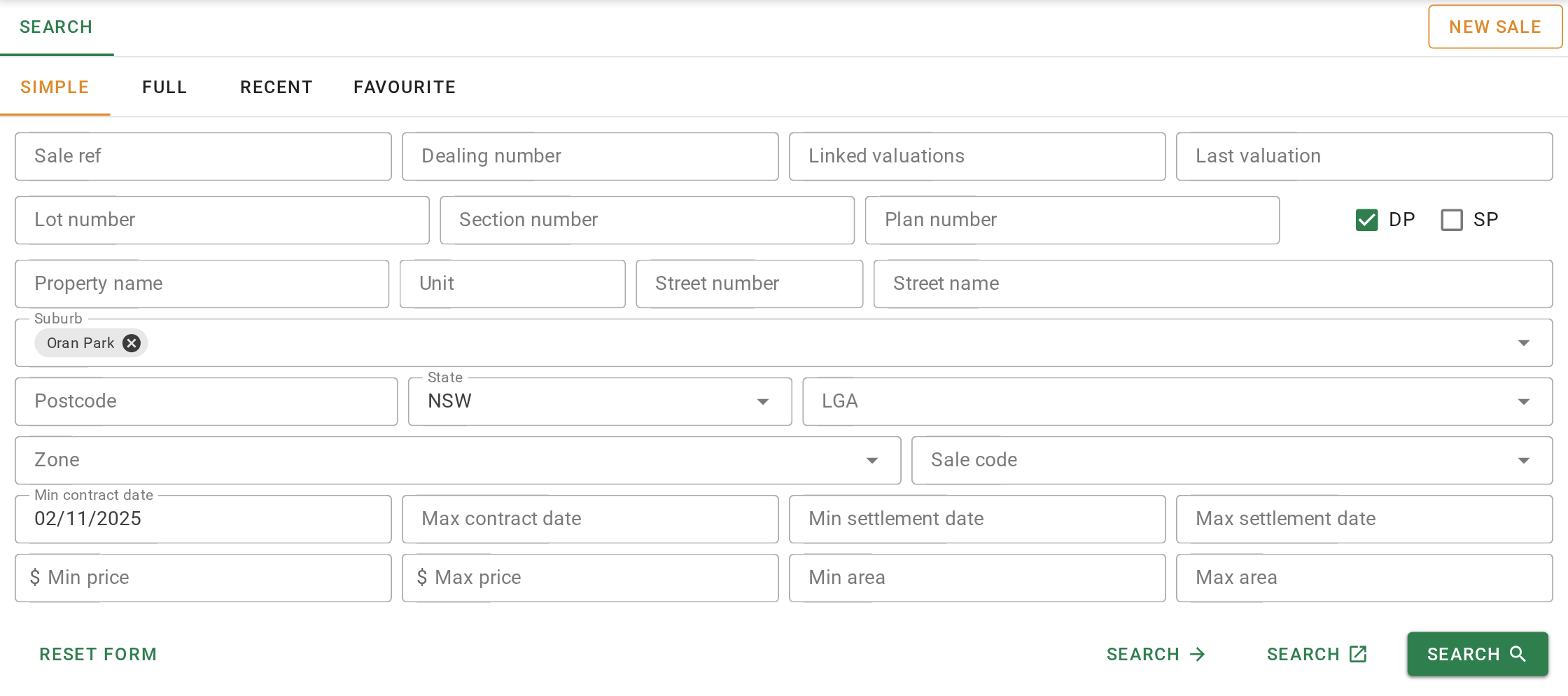
The three search buttons run the same search in different places. The button opens the results in a tab on this page. The button opens them as a full page. The button opens them in a new browser tab.
Build a full search
- Click the Full tab.
- In the first row, choose the Field, such as Analysed by. A Comparator appears beside it.
- Choose the comparator, such as equals, and enter the Value. The value input changes to suit the field. It is a list of valuers here, a date picker for a date and a number for an area.
- Choosing a field on the last row adds a new empty row underneath. Add the next criterion the same way, such as Contract date on or after a date. A sale is returned only when every row is true.
- Click the button. It stays disabled until the first row has a field.
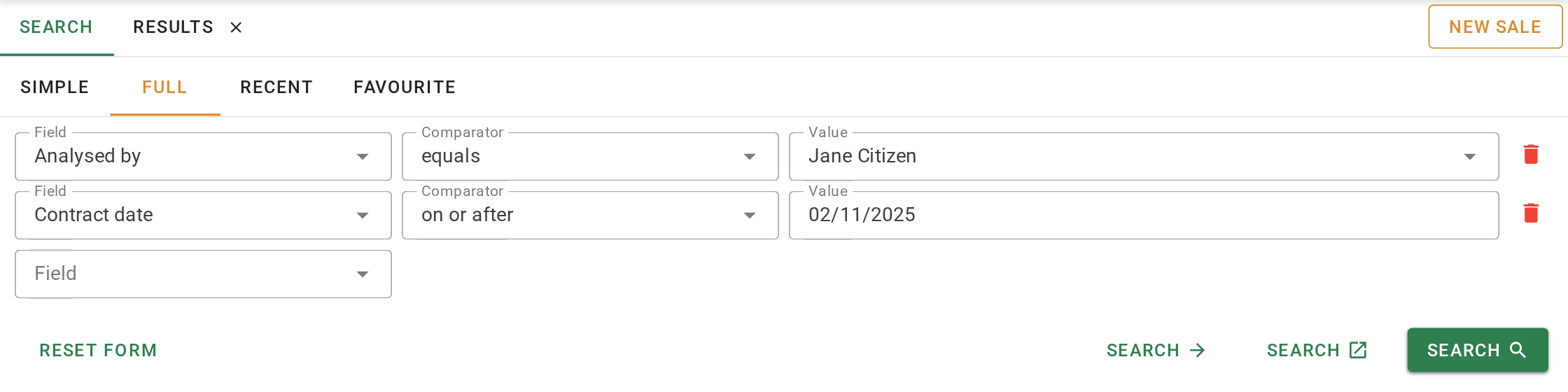
To take a row out, click its button. Reset form clears every row. For what each comparator does on each kind of field, see Search comparators.
Keep a search as a favourite
The Recent tab keeps only your last fifty searches. A favourite is kept until you remove it.
- Click the Recent tab. Each search you have run is a card showing its criteria and when you last ran it.
- On the card for the search you want to keep, click the button. It turns pink and the search appears on the Favourite tab as well.
- Click the Favourite tab. Click the card to run the search again as a full page, or its button to open it in a tab on this page.
- To change a favourite before running it, click its button. The criteria load into the Full tab.
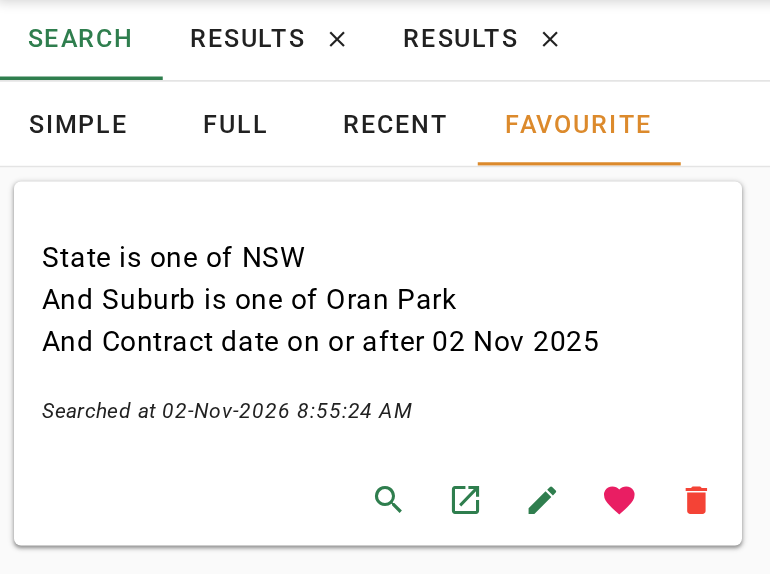
Recent and favourite searches keep the criteria, not the results. A favourite you run next month shows next month's sales.
What you should see
A Results tab for each search you ran sits beside the Search tab, with the Oran Park sales listed newest first. The Favourite tab shows the card you kept, with its heart in pink.
Next
Work with the results. For every field on the two search forms, see Searching for sales.