

Reject a request
Included with Professional and Enterprise
Reject a request with a reason, then email the requester from the request. The reason is recorded on the request.
Before you start
- Your role needs Process requests. If you do not have it, Set up users shows how an administrator gives it to you.
- The reasons offered come from the Request rejection reasons list an administrator keeps under Settings | System lists. You can also type a reason that is not in the list.
- Open a Pending request from the inbox, as in Read a request.
Reject a request
- Click Reject. From the inbox list, right-click the card and choose Reject request instead.
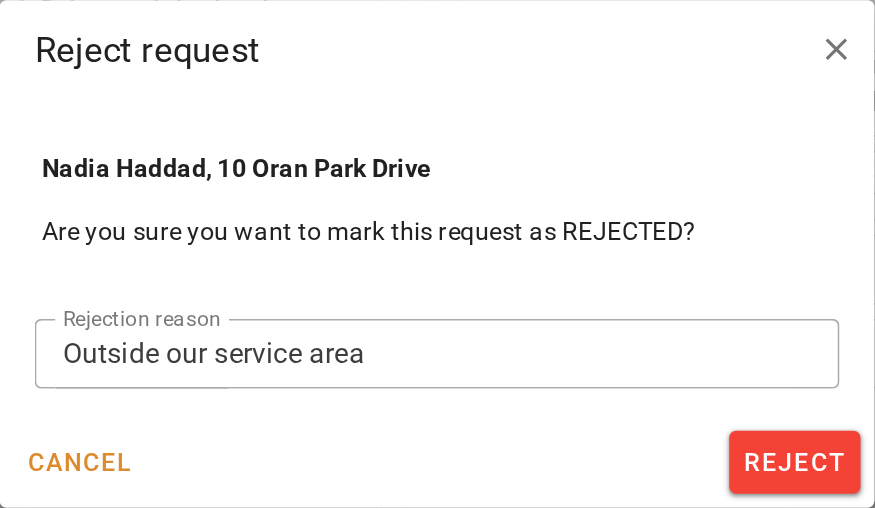
- The Reject request dialog names the request's first contact and the property. Choose or type the Rejection reason.
- Click Reject. The request closes as Rejected and leaves the Incomplete list.
Tell the requester
Once a request is accepted or rejected, Send email replaces the Accept and Reject buttons.
- Click Send email. From the inbox list, right-click the card and choose Email notice instead.
- If you send email from VOW, the composer opens with the request's contacts under Recipient(s). Click Select template and choose your company's template, or write the message, then click Send. VOW records the email as sent.
- If you do not send email from VOW, your own mail program opens a new message addressed to the request's contacts, and VOW shows the Email sent to client dialog. Write and send the message in your mail program. Then come back to VOW and click Yes in that dialog. VOW cannot see your mail program, so this is how it learns the email went.
- Check the stepper. Requester notified is complete, and Send email is no longer offered.
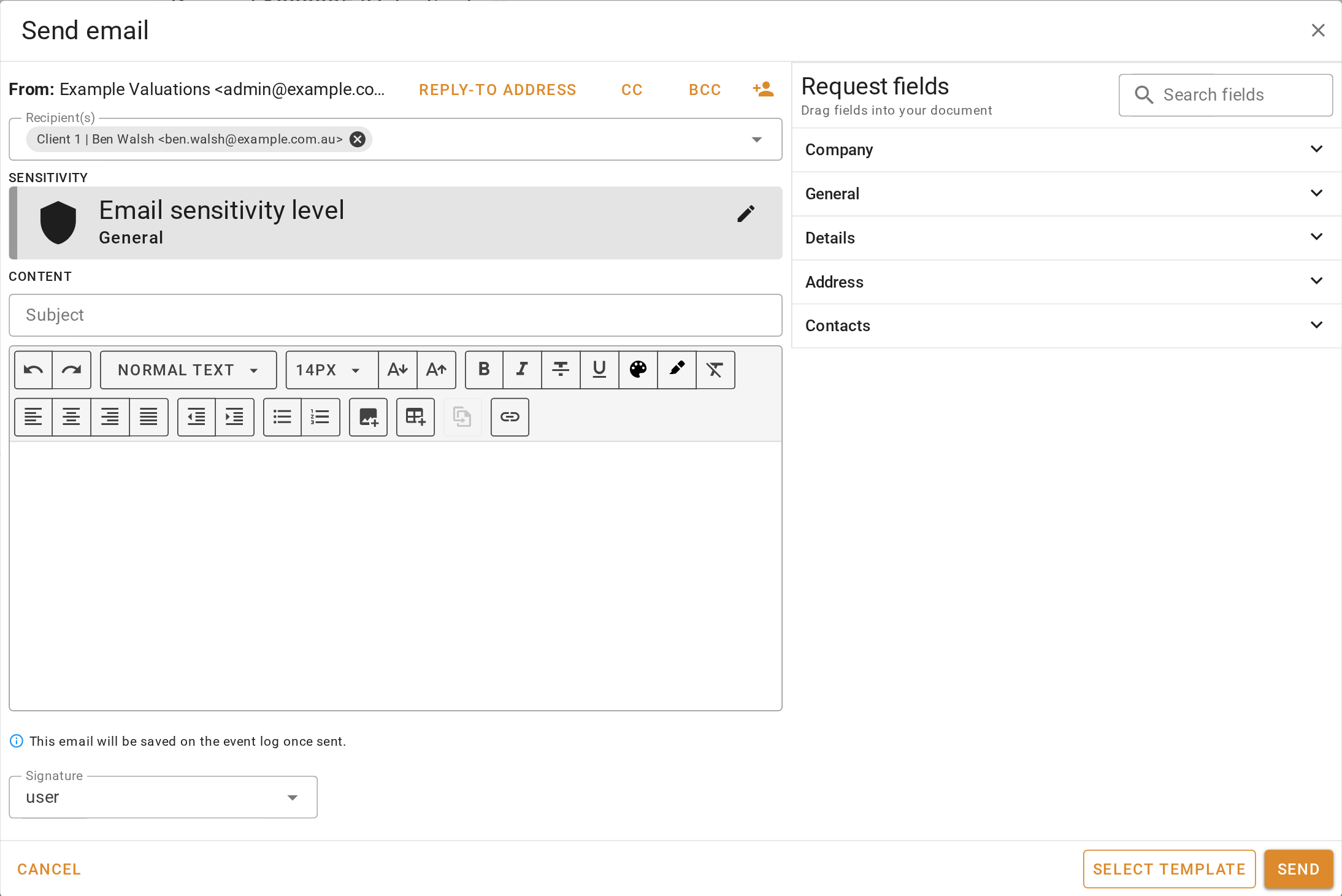
An administrator can choose an acceptance template and a rejection template under Settings | Requests. With those set, and if you send email from VOW, the composer opens with the right template loaded as soon as you accept or reject. Check it and click Send. See Requests settings.
Delete a request instead
Rejecting keeps the record. Deleting removes it. Delete a test request or a duplicate that was dropped in twice, never a genuine enquiry you decided not to take.
- Right-click the request's card in the inbox, or its row in the table, and choose Delete request.
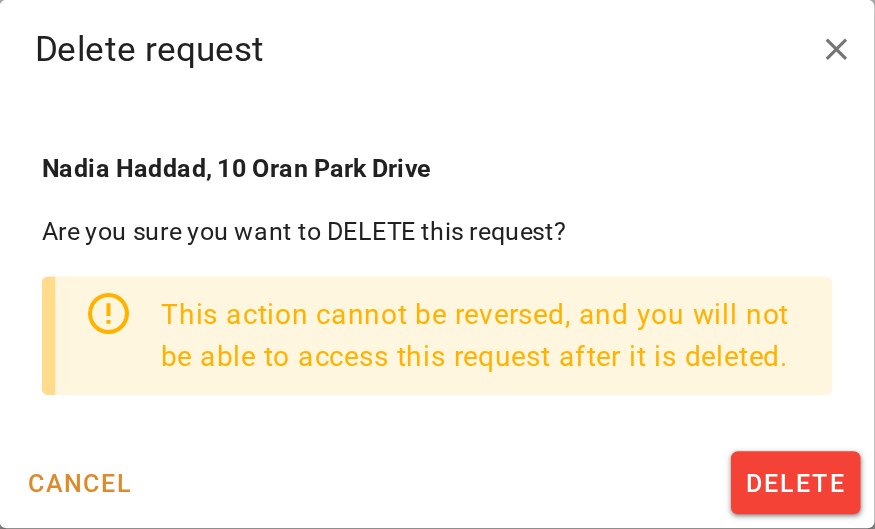
- Read the warning in the Delete request dialog and click Delete. The request cannot be brought back.
What you should see
The request's stepper shows Rejected in red and Requester notified complete. It is no longer in the Incomplete list. To see it again, click All, or switch to the table view and choose the Completed requests preset.
Next
Find a request. For which buttons each status offers, see Request editor.