

Use a lease as rent evidence
Included with every subscription
Add comparable leases to a valuation and write how each compares to the subject. VOW suggests the closest leases to the property, running around the valuation date, with their rent per square metre worked out. The figures go into the report.
Before you start
- Your role needs Update valuations and View and search for leases. If you do not have them, Set up users shows how an administrator gives them to you.
- Open a valuation that assesses rent, with its address filled in through the address lookup and its valuation date set. VOW searches by distance from the property and backwards from the valuation date, so both are needed.
- If the Leases panel is not on the tab, click Panels in the tab's toolbar and tick Leases.
Add leases to the valuation
- On the valuation's Leases panel, click + Add leases. The 'Add lease' dialog lists the leases near the property, the most comparable first by distance and lettable area, each with its rent per square metre, lettable area and permitted use. Leases already on the valuation are at the top and start ticked.
- Tick the leases that compare. Click anywhere on a row to tick it. A lease that is already evidence on other valuations shows their references underneath.
- To narrow the list, type part of an address in Filter results by address. To change the search, click the button and set the period before the valuation date, a radius or a choice of suburbs, a zone, and a rent or area range. Click Apply. The filters are saved with the valuation, so the next search on this job starts from the same settings.
- Click Save. The leases join the Lease list on the left of the panel.
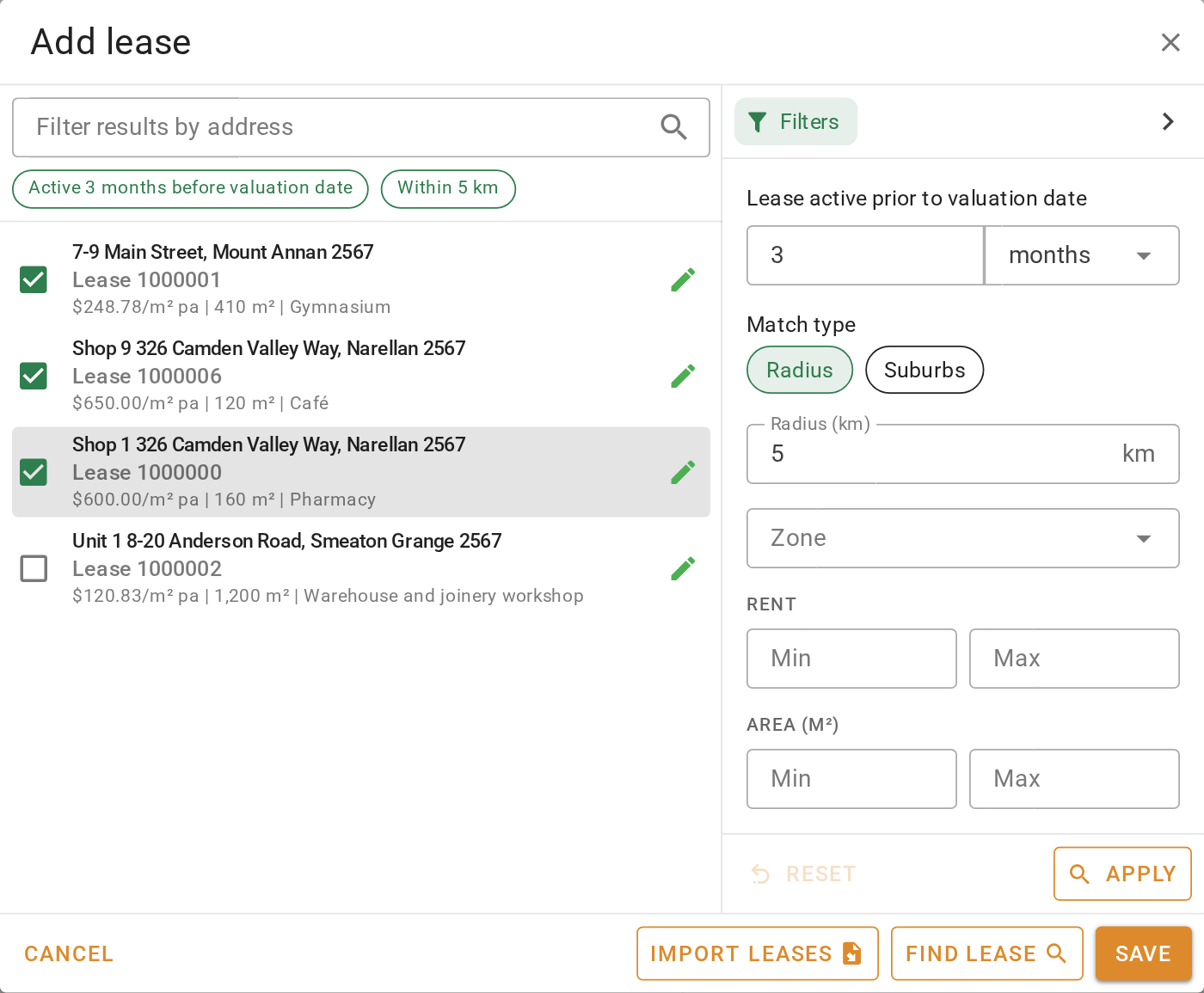
The period under Lease active prior to valuation date counts back from the valuation date, not from today. A valuation dated last year searches last year's leases.
To find a particular lease, click Find lease in the dialog and search by Lessor, Lessee, Lease ref or Dealing number. To take the leases another valuation used, click Import leases, enter that job's reference and click Search, then Import. Append adds them to the leases already here, and Replace swaps them.
Write the comparison
- Click a lease in the Lease list. Its details appear on the right, with the term, the status, the current rent, the gross rent and the rate per square metre, then the parties, the permitted use and the lettable area.
- Brief Comments starts with the lease's Lease commentary (for reports). Edit it for this valuation. Import comment copies the lease's commentary in again.
- In Comparison to subject, write whether this lease is superior, inferior or comparable to the property being valued, and why.
- Click Save on the valuation.
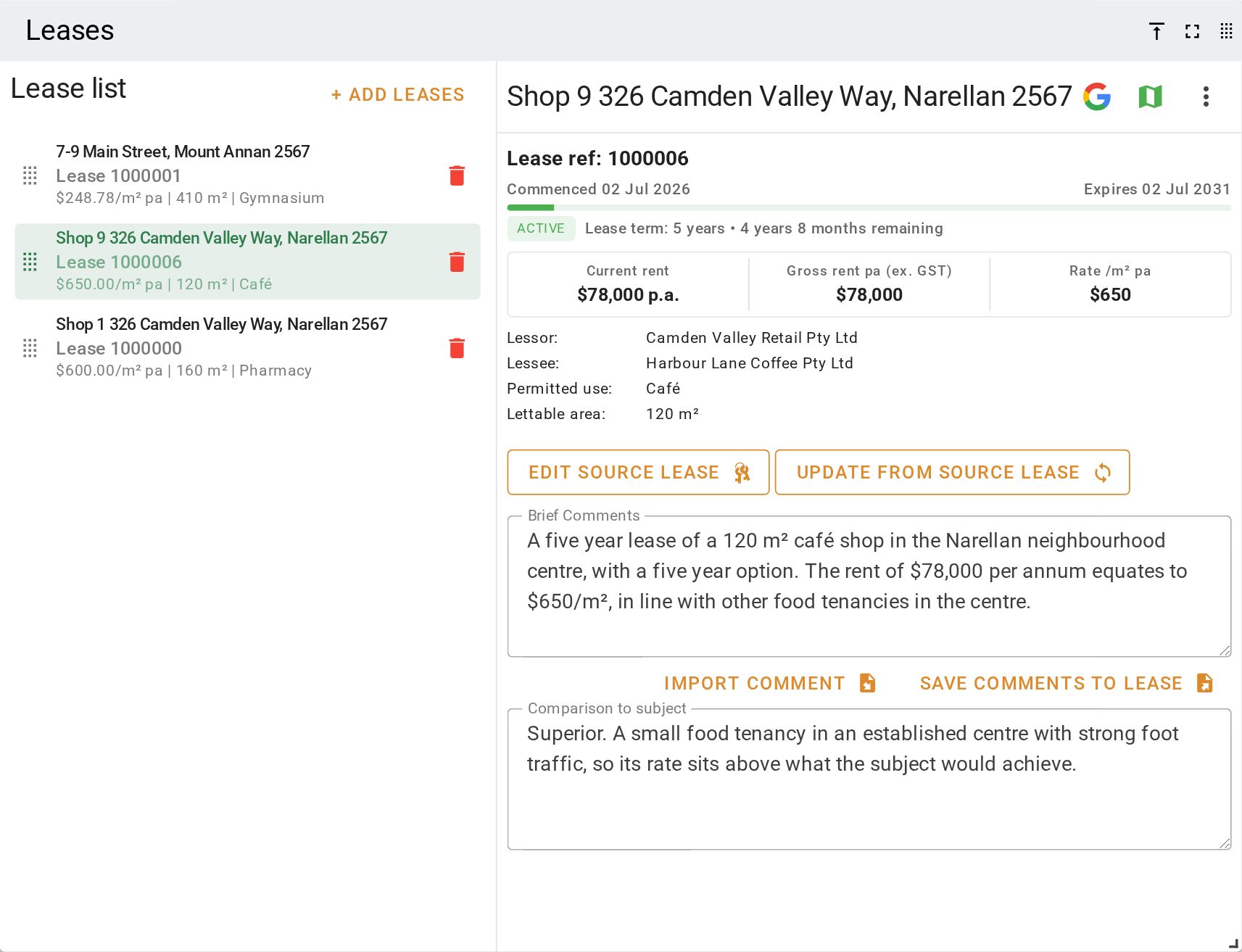
A lease on a valuation is a copy. If the lease record changes later, click Update from source lease to bring the new figures across. It also replaces Brief Comments with the lease commentary, and keeps your Comparison to subject. Save comments to lease writes your Brief Comments over the lease's Lease commentary (for reports) for the next valuer.
To change the order of the leases, drag the handle. To take a lease off the valuation, click its button and click Delete in the 'Remove lease' dialog. The lease record is not deleted.
Add a lease from the lease form
- Open the lease and click + Add to valuation. The button shows only once the lease is saved, and is greyed out while it has unsaved changes.
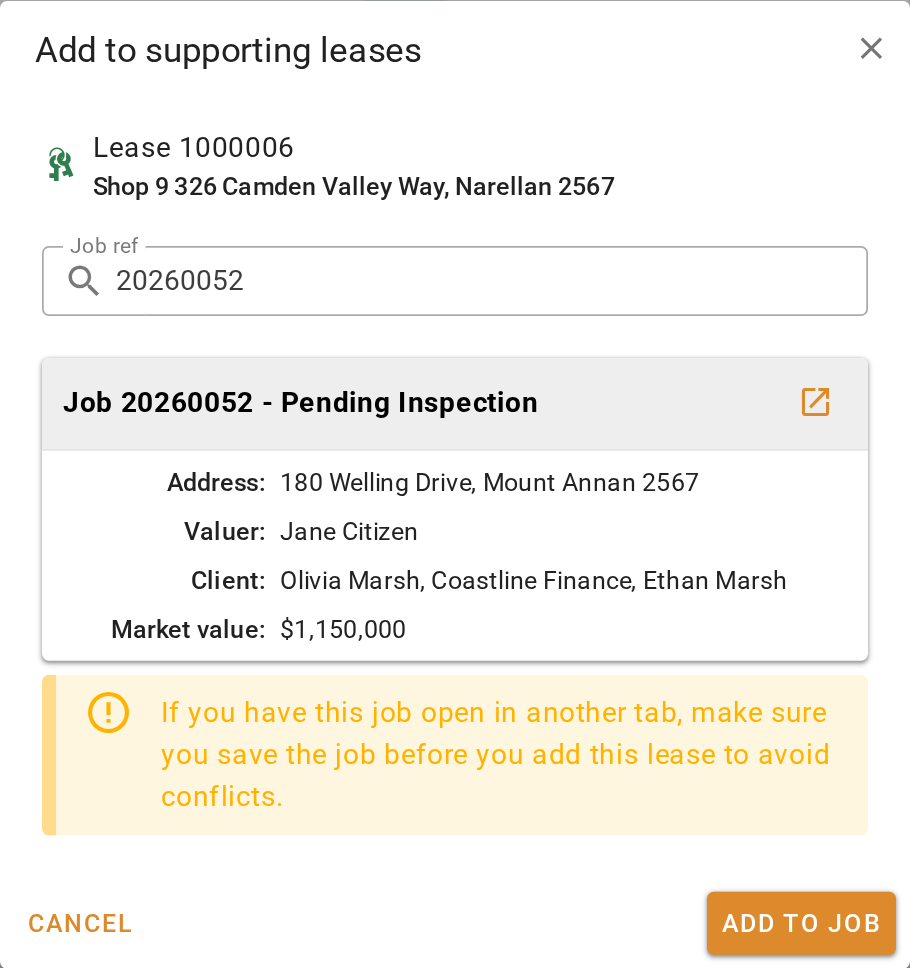
- In the 'Add to supporting leases' dialog, enter the valuation's reference under Job ref and click Search. A summary of the job appears. Check it is the right one.
- Click Add to job. VOW confirms the lease was added as a supporting lease to that job.
- Click Open job to go to the valuation and write the comparison, or Close to stay on the lease.
What you should see
The valuation's Lease list holds the leases you chose, each with its rate per square metre, and the selected one shows your Comparison to subject. On the lease record, the Linked valuations card lists the valuation's reference, and so does the Linked valuations column on the Leases page.
Next
Go back to Working with leases for the lesson list, or on to the next module in VOW tutorials. For every control on the panel, see Leases in the valuation form reference.