

Log time by hand
Included with Enterprise
Before you start
- Open Time keeping from the main menu. It opens on the view you used last. Click Day to see one day.
- To mark time billable, your role needs Charge for time spent on jobs. If you do not have it, Set up users shows how an administrator gives it to you.
Draw an entry onto the day
- On the Day view, find the hour the work started. Hours outside your working hours are shaded, and a green line marks the current time.
- Press on the start time and drag down to the finish. The selection shows its length as you drag. Let go, and the Create time entry dialog opens with the Start time and End time filled in.
- Click (no linked item), search for the job by its reference or address in the Link time entry dialog, then click Link. The time now counts towards that job. Searching by address only finds jobs and quotes still in progress, so search for a finished job by its reference.
- Under Description, write what the work was.
- Tick Billable if the client pays for it. Hourly rate fills in from your rate.
- Click Create. The entry appears on the day. Drag its edge to lengthen or shorten it.
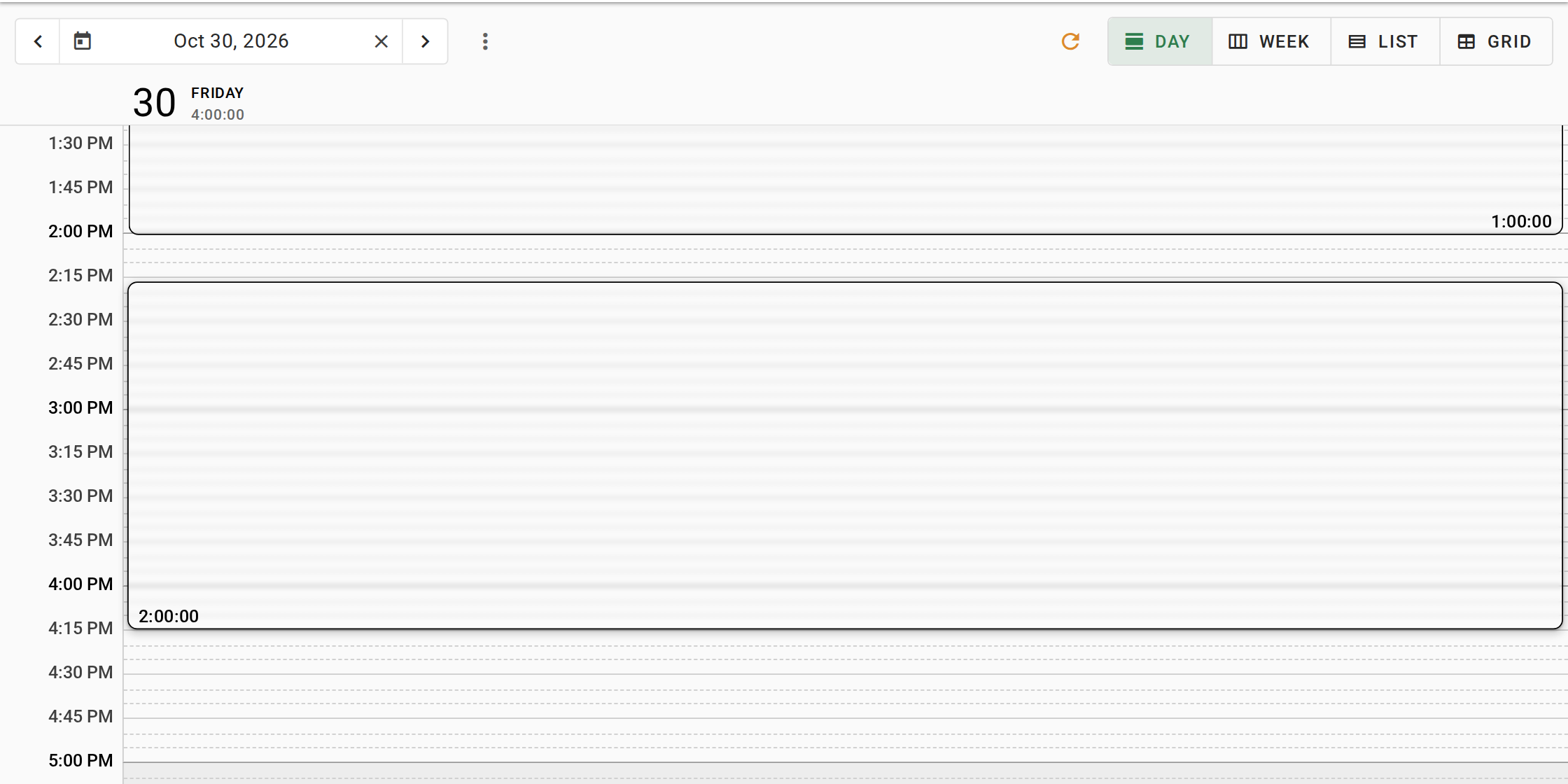
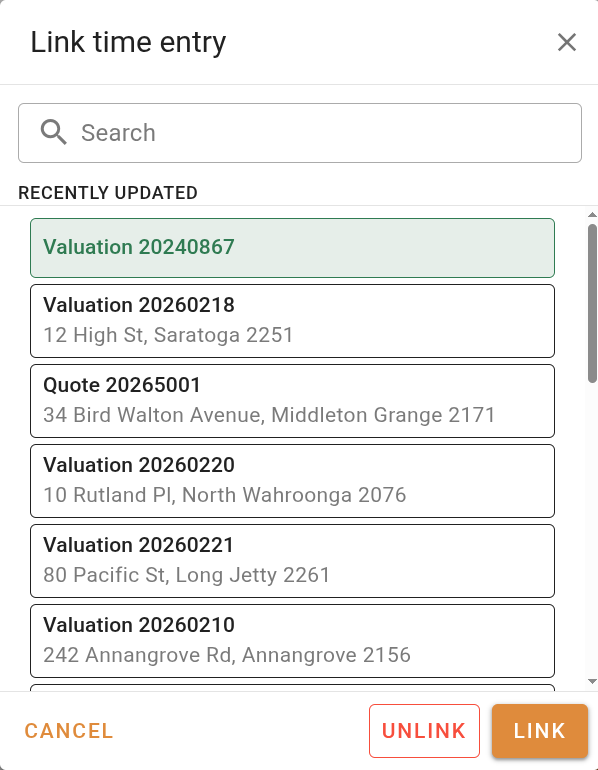
Drawing an entry onto the day
Click Time spent beside the times and type the length as hours, minutes and seconds, and VOW sets the End time for you. For work that is still going, start a timer instead, as in the next section.
Backdate a timer you started late
- Start the timer on the job as usual, then click the elapsed time on it in the top bar. The Edit time entry dialog opens on the running entry.
- Set Start time to when the work began. It cannot be later than now.
- Click Save. The timer now counts from the start you set.
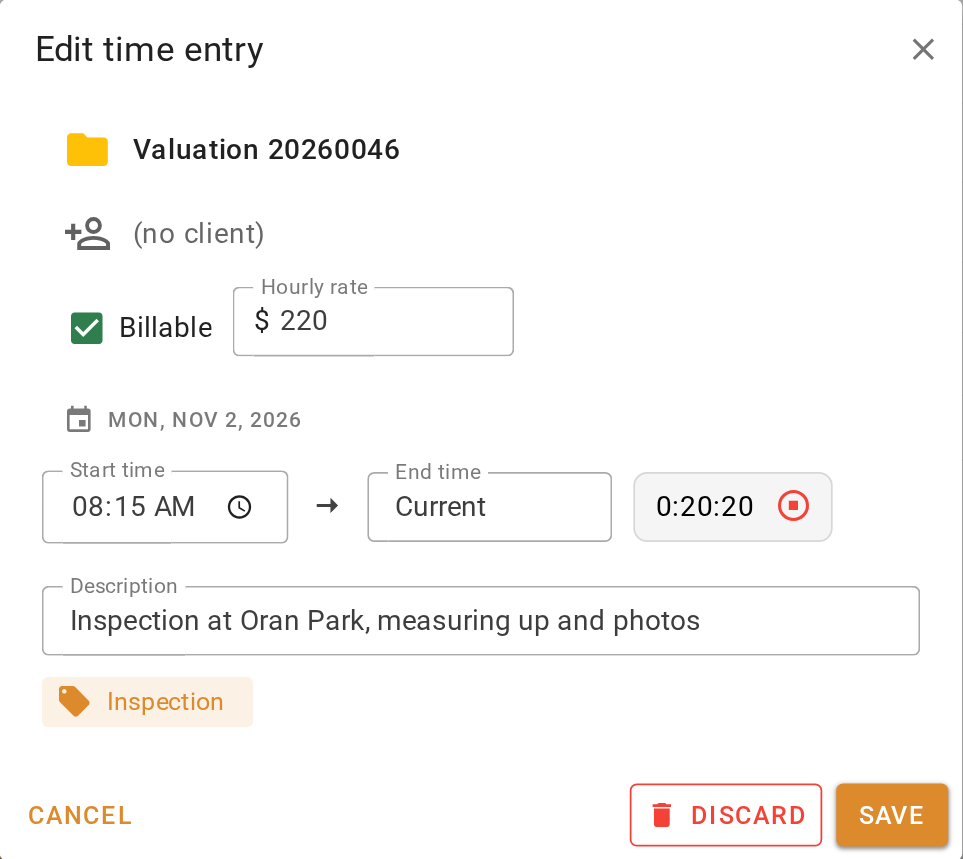
What you should see
The drawn entry sits on the Day view between the times you set, with the job reference and your description. The job's Time keeping panel adds it to your card. The backdated timer in the top bar shows the time since the start you chose, not since you clicked Start timer.
Next
Edit or delete a time entry. For every field on an entry, see Time tracking report.