Time tracking report
The time tracking report brings the time entries recorded across your firm into a single list, so you can review where time is being spent over a chosen period. It draws on every user's entries, subject to your permissions, and is available when time keeping is enabled for your organisation.
What the report includes
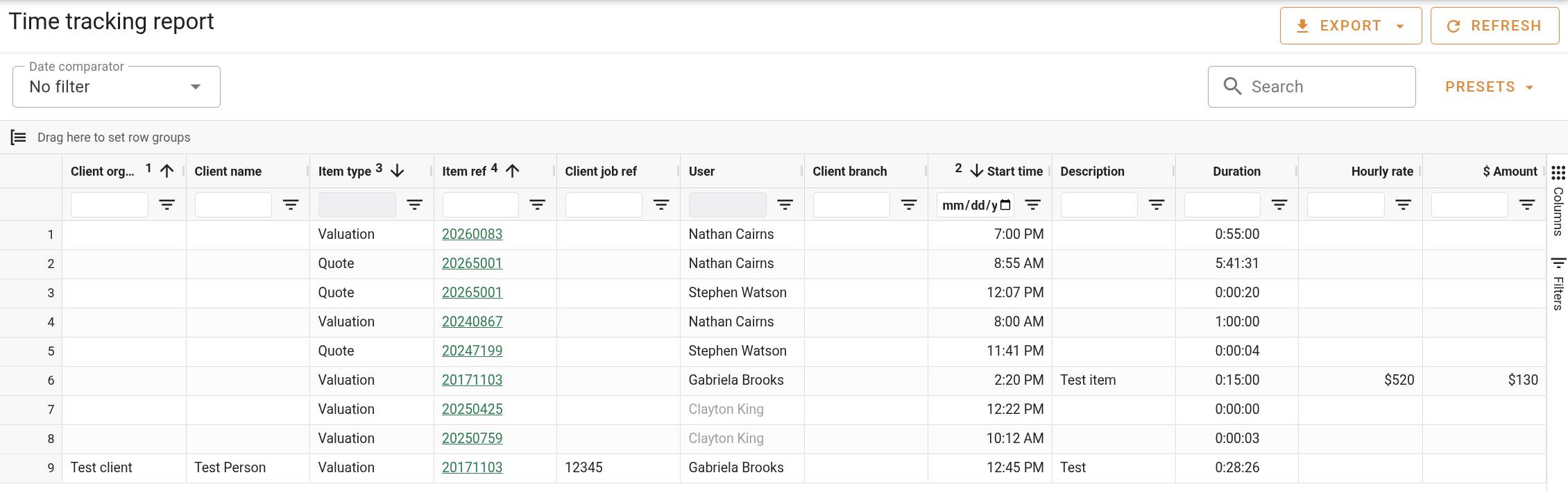
The report is built from time entries, with one row per entry. It spans every user's entries rather than your own, and a row appears when the entry's date falls within the date filter, which defaults to the current week.
The Hourly rate and $ Amount columns are only present when you have permission to see other users' billable rates. Without it, the report still lists everyone's entries but omits their rates and amounts.
Entries can be edited directly from the report. See Editing a time entry below, and Time keeping for how entries are recorded.
The time tracking report is available when time keeping is enabled for your organisation, and viewing it requires the time keeping report permission.
Report controls
The controls along the top of the report determine which entries are listed and how they are filtered by date. The report updates as you change the date filter or search.
| Field | Description |
|---|---|
| Date comparator | How entries are filtered by date: In range (between two dates), Equals, Doesn't equal, Before, After, Not set, Is set, or No filter. Defaults to In range. |
| Time period | Sets the date range when Date comparator is In range. Selecting a preset fills in the dates automatically. Selecting Custom range lets you set the dates yourself. Defaults to This Week. |
| From / Date | The start of the range, or the single date for comparators other than In range. Editable when Time period is Custom range. |
| Until | The end of the range. Shown only when Date comparator is In range. Editable when Time period is Custom range. |
| Search | Filters the listed entries to those matching the text you enter. |
The presets available in Time period are:
| Period | Range covered |
|---|---|
| Custom range | The dates you set yourself. |
| Today | The current day. |
| Yesterday | The previous day. |
| This Week / Last Week | The current or previous calendar week. |
| This Month / Last Month | The current or previous calendar month. |
| This Quarter / Last Quarter | The current or previous calendar quarter. |
| This Year / Last Year | The current or previous calendar year. |
The date filter resets to the current week each time you open the report, so adjust it to see entries from another period.
Presets
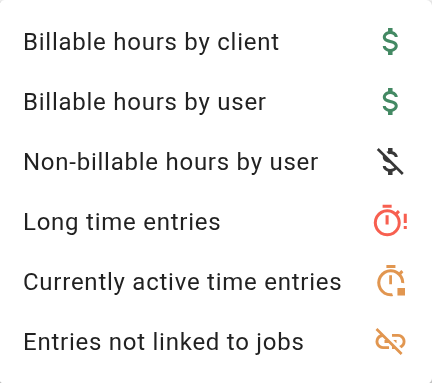
The menu applies a ready-made arrangement of columns, grouping, and filters to the report. Applying a preset keeps your current date filter and replaces the rest of the columns and filters with the preset's.
| Preset | What it shows |
|---|---|
| Billable hours by client | Billable entries grouped by client organisation, totalling duration and amount. |
| Billable hours by user | Billable entries grouped by user, totalling duration and amount. |
| Non-billable hours by user | Non-billable entries grouped by user, totalling duration. |
| Long time entries | Entries of eight hours or more, ordered by duration. |
| Currently active time entries | Entries that have started but not yet ended. |
| Entries not linked to jobs | Entries with no linked record, totalling duration and amount. |
Report columns
The report is a single list with one row per time entry. Some columns are hidden by default and can be shown from the column chooser, and most columns can be filtered. Columns can be grouped by dragging them into the row group area, and grouped rows show the total duration and amount for the entries beneath them. Your column choices and arrangement are remembered the next time you open the report. See Working with data grids for how grouping and filtering work.
| Column | Description |
|---|---|
| User | The user who recorded the entry. |
| Description | The note recorded against the entry. |
| Date | The date the entry started. |
| Start time | The time the entry started. |
| End time | The time the entry ended. Blank while the entry is still running. |
| Duration | The length of the entry. Totals when the rows are grouped. |
| Hourly rate | The billable hourly rate applied to the entry. When the rows are grouped, the average across the group. Only present when you have permission to see other users' billable rates. |
| $ Amount | The billable amount for the entry, the duration multiplied by the hourly rate. Totals when the rows are grouped. Only present when you have permission to see other users' billable rates. |
| Item type | The kind of record the entry is linked to: Valuation, Project, Quote, or Request. Blank when the entry is not linked to a record. |
| Item ref | The reference of the linked record. Opens the record. |
| Billable | Whether the entry is marked as billable. |
| Tags | Any tags applied to the entry. |
| Client name | The contact recorded on the entry. |
| Client job ref | The client's own reference for the work. |
| Client is Org. | Whether the client is an organisation rather than an individual. |
| Client organisation | The organisation the client belongs to. |
| Client branch | The client's organisation branch. |
| Contact email | The client's email address. |
| Created by | The user who created the entry. Hidden by default. |
| Created at | When the entry was created. Hidden by default. |
| Updated by | The user who last changed the entry. Hidden by default. |
| Updated at | When the entry was last changed. Hidden by default. |
Editing a time entry
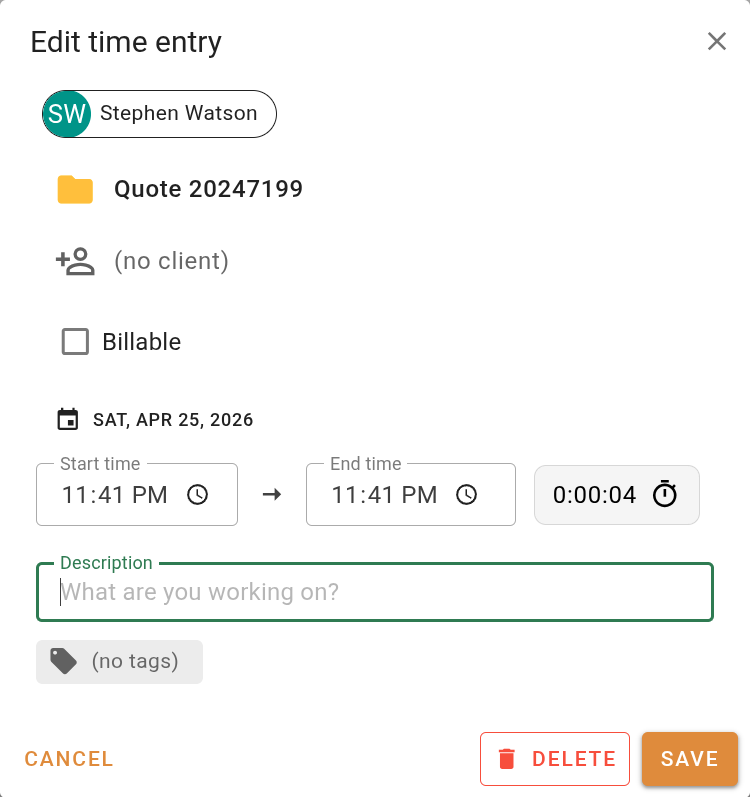
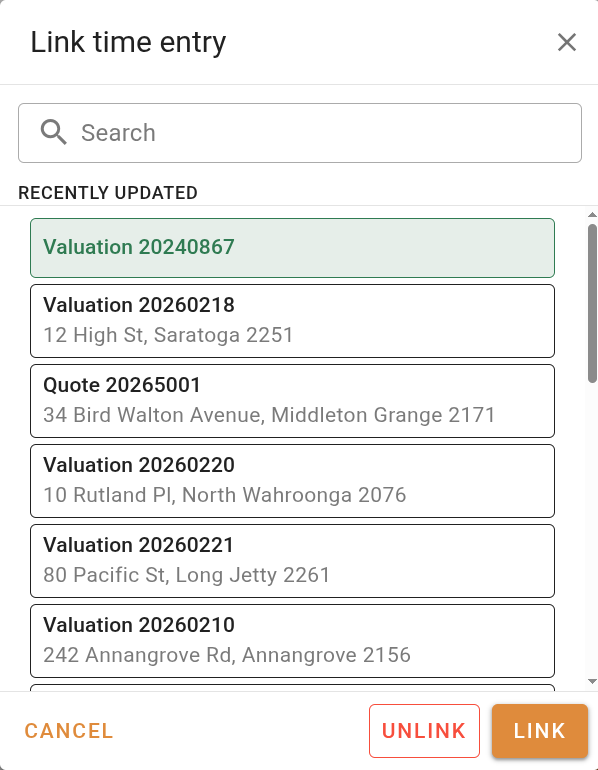
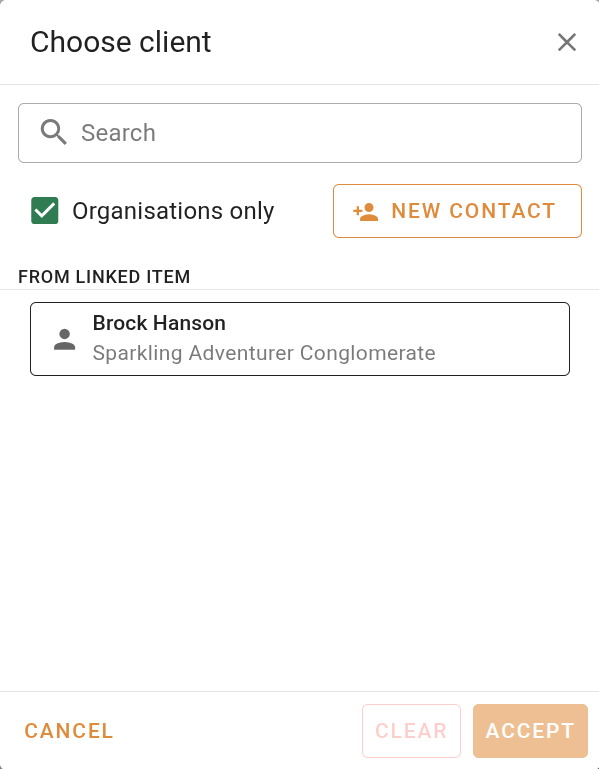
Double-clicking a row opens the entry in the "Edit time entry" panel, the same panel used to record time throughout time keeping. You can edit your own entries; editing another user's entry requires permission to update other users' entries. The user the entry belongs to is shown at the top of the panel.
| Field | Description |
|---|---|
| Date | The day the entry is recorded against. Cannot be changed while the entry is still running. |
| Start time | The time the entry began. |
| End time | The time the entry ended. Shows "Current" while the entry is still running. |
| Description | A note describing the work. |
Row menu
Right-clicking a row opens a menu of actions for that entry. The recording actions work the same as elsewhere in time keeping; see Time keeping for detail.
| Action | Description |
|---|---|
| Go to ... | Opens the valuation, project, quote, or request the entry is linked to. |
| Continue entry | Starts a new running entry continuing from this one. |
| Split entry | Divides the entry into two at a chosen time. |
| Duplicate entry | Creates a copy of the entry that overlaps the original. |
| Edit | Opens the entry in the Edit time entry panel. |
| Delete | Removes the entry. Reads Discard for a running entry. |
| Stop timer | Stops the entry, shown only while it is running. |
Exporting
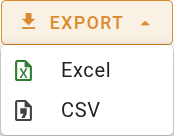
The menu downloads the report. The export reflects the list as it currently stands, including the columns shown and any grouping, so the file matches what is on screen.