Income report
The income report summarises the fees your firm has invoiced over a chosen period, grouped by job. It is built from invoices, so a job appears only once it has been invoiced.
What the report includes
The income report is built from invoices, not jobs. A job appears only when it has at least one invoice whose invoice date falls within the selected period, and each row combines all of that job's qualifying invoices into a single total.
The Client name column shows the contact or contacts recorded on the job, which can differ from the contact an invoice was billed to.
Viewing the income report requires the Print management reports permission.
Report controls
The controls along the top of the report determine which invoices are included and how the results are presented. The report updates automatically when you change the period or the dates.

| Field | Description |
|---|---|
| Time period | Sets the date range the report covers. Selecting a preset fills in the dates automatically. Selecting Custom range enables the After and Before fields. |
| After | The start of the range. Editable only when Time period is set to Custom range. |
| Before | The end of the range. Editable only when Time period is set to Custom range. |
The presets available in Time period are:
| Period | Range covered |
|---|---|
| Custom range | The dates you set in After and Before. |
| Today | The current day. |
| Yesterday | The previous day. |
| This Week / Last Week | The current or previous calendar week. |
| This Month / Last Month | The current or previous calendar month. |
| This Quarter / Last Quarter | The current or previous calendar quarter. |
| This Year / Last Year | The current or previous calendar year. |
| Financial Year To Date | From the start of the current financial year (1 July) to today. |
| Last Financial Year | The previous financial year, 1 July to 30 June. |
Your time period and display options are remembered and reapplied the next time you open the income report. A preset such as This Month stays selected and shows the current period, while a custom range keeps the exact dates you set.
Display options
Report columns
The income report is a single list. A set of base columns is always present, and the display options change which financial columns are added alongside them. The underlying rows are the same in every combination, only the financial columns differ. Many columns are hidden by default and can be shown from the column chooser, every column can be filtered, and any column can be dragged into a row group or pivoted, with a grand total row at the bottom. Your column choices and arrangement are remembered the next time you open the report. See Working with data grids for how grouping, filtering, and pivoting work.
Base columns
These columns are available in every combination of the display options.
| Column | Description |
|---|---|
| Job ref | The job's reference number. |
| Valuer | The job's valuer. |
| Client name | The contact or contacts recorded on the job. Hidden by default. |
| Referral type | How the client was referred. Hidden by default. |
| Category | The job's category. Hidden by default. |
| Property type | The job's property type. |
| Supervising valuer | The job's supervising valuer. |
| Purpose | The job's report purpose. Hidden by default. |
| Assignee | The user the job is assigned to. Hidden by default. |
| Additional valuers | Any further valuers recorded on the job. |
| Address columns | The standard VOW address columns: Full address, Street address, Property name, Unit No., House number, Street, Suburb, State, Postcode, GPS coordinates, LGA, Zones, Instrument, Legal description, Area, Property ID, and Plan type. Street address, Suburb, State, Zones, and Area are shown by default; the rest are available from the column chooser. |
| Short notes | The job's summary note. Hidden by default. |
| Inspection type | The job's inspection type. |
| Branch | The branch the job belongs to. |
Fee analysis columns
Shown by default, when Detailed income report is off. The base columns stay, and the columns below are added alongside them. Each aggregates when you group the rows (for example by valuer or client) and contributes to the grand total row.
| Column | Description |
|---|---|
| Avg fee | The average fee. When the rows are grouped, the average across the group. |
| % of jobs | The group's share of the total number of jobs. |
| Jobs | The number of jobs. |
| % of fees | The group's share of total fees. |
| Fees charged | The total fees, excluding GST. |
Turning on Show extra columns adds these further columns.
| Column | Description |
|---|---|
| Min fee | The smallest fee. When the rows are grouped, the smallest in the group. |
| Max fee | The largest fee. When the rows are grouped, the largest in the group. |
| GST | The total GST. |
| Total invoiced | The total invoiced, including GST. |
Detailed columns
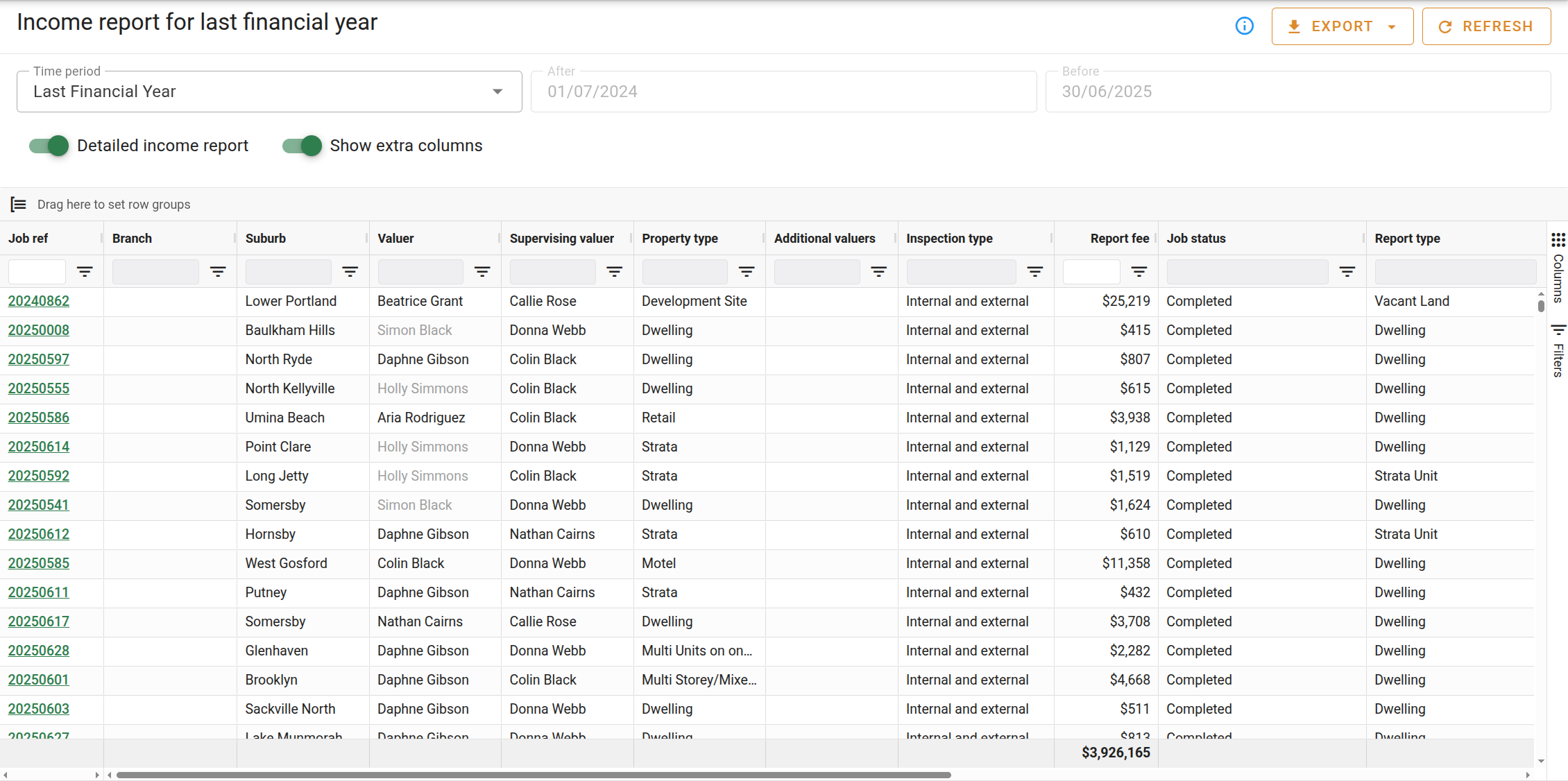
Shown when Detailed income report is on. The base columns stay, and the fee analysis columns are replaced by the per-job columns below. Show extra columns has no effect in this state.
| Column | Description |
|---|---|
| Report fee | The total fees invoiced for the job, excluding GST. |
| Job status | The job's current status. |
| Report type | The job's report type. |
| Market value | The market value recorded on the job. |
| Valn. date | The valuation date. |
| Date out | The date the job was sent out. |
| Invoices | The number of invoices included for the job. |
| Inv. date | The date of each invoice included. |
| Outstanding | The amount still outstanding after payments. |
Exporting
The menu downloads the report. The export reflects the list as it currently stands, including the columns shown and any grouping, so the file matches whichever display options are selected.