

Attachment panels
The attachment panel is the file management interface for a record in VOW, available on valuations, sales, quotes, requests, and company records. It presents the record's files in two interchangeable views: a flat view of thumbnail cards and a folder view with a directory structure.
The Switch to folder view and Switch to flat view button toggles between the two.
Flat view
The flat view shows all attachments on the record as a grid of thumbnail cards, folders excluded. Cards can be dragged to reorder them. Clicking a thumbnail opens the file. For editable file types, a dialog is shown offering to edit the file via the VOW Helper or download a copy. For all other file types, the file opens in a new browser tab. If the file is locked, clicking the thumbnail shows the unlock dialog instead.
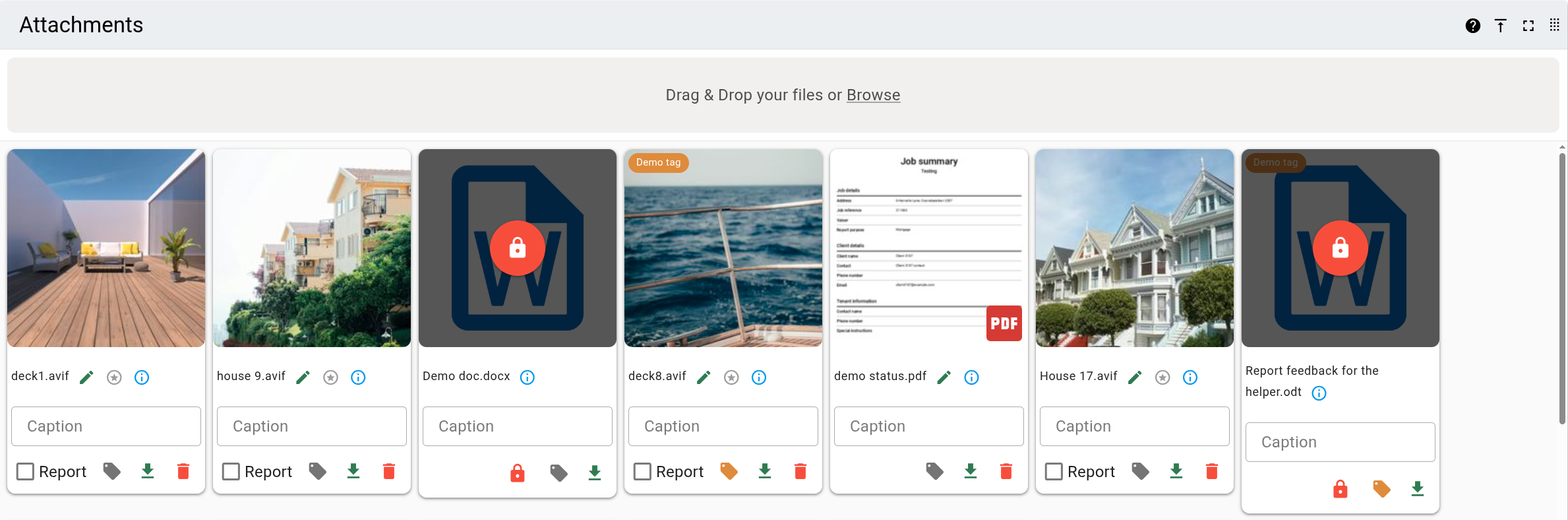
Thumbnails also reflect the state of each file. Tags appear as chips along the top of the thumbnail. Password protected files show a badge at the bottom right corner. Files locked for editing show a dark overlay with a red lock button and the name of the user who has it locked. Clicking the lock button releases it.
Drag-and-drop zone
The attachment drop zone appears above the thumbnails and accepts files by drop or by click. It is not shown when the record is read-only. See Uploading files for further details.
On valuations and sales, the record must be saved before files can be uploaded. A warning overlay is shown on the panel until the record is saved.
Cards
Each card provides the following controls.
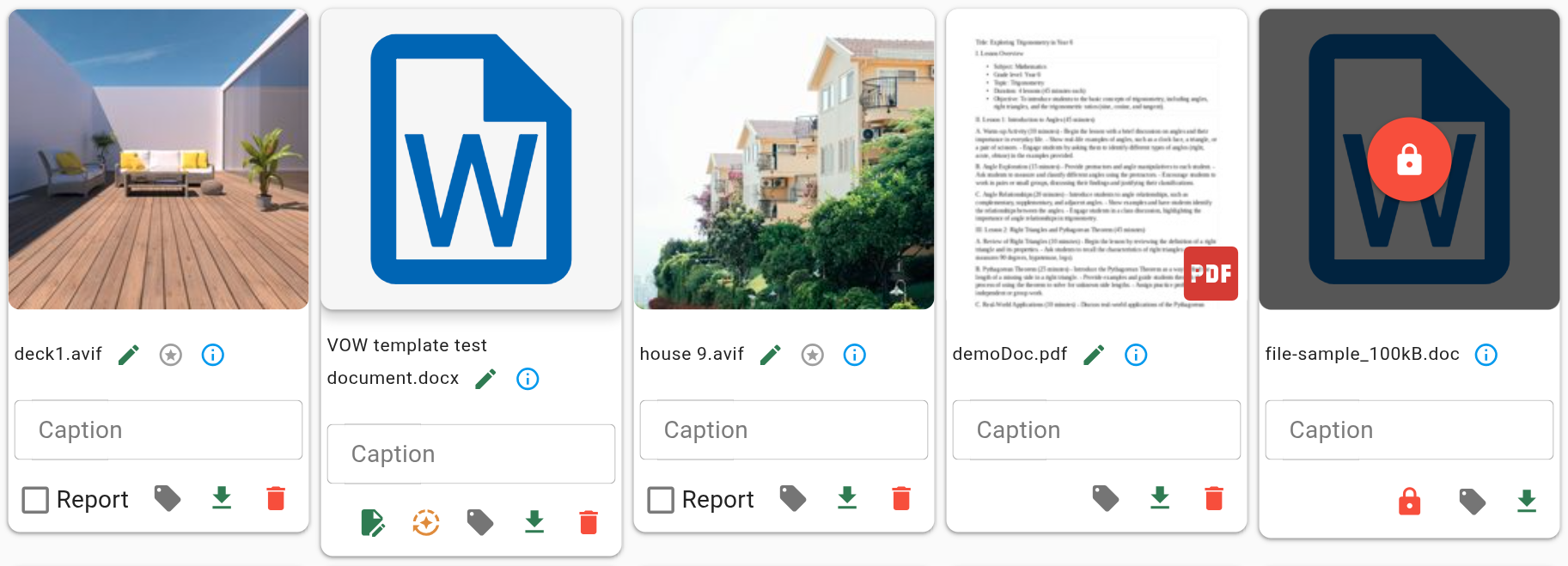
Folder view
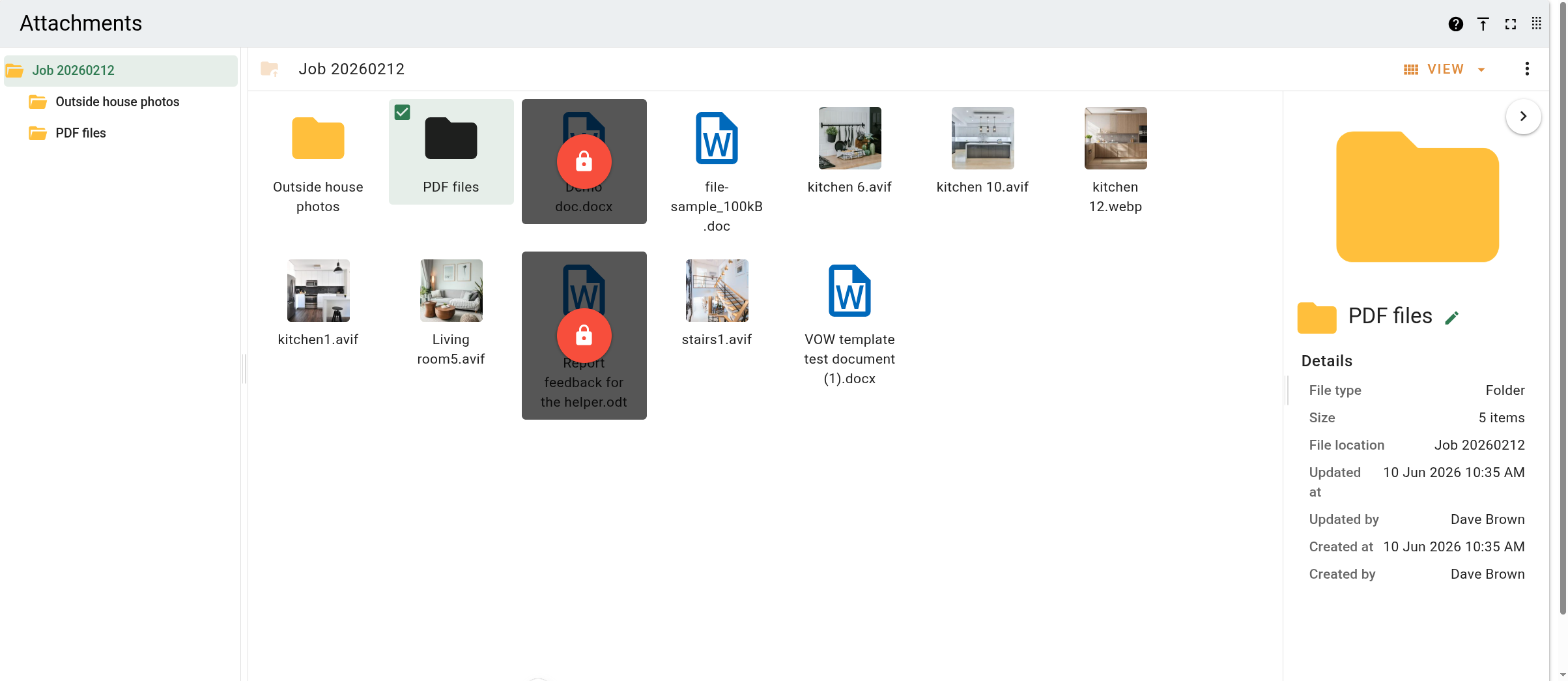
The folder view provides a file manager interface with three areas.
| Area | Description |
|---|---|
| Directory tree | Shows the folder hierarchy in the left pane. Only folders are shown. |
| Current folder | Shows the contents of the selected folder. Switches between grid view and list view. |
| Side panel | Shows a preview or the file properties for the selected file. Positions to the right when space allows, or at the bottom in a narrower view. Can be collapsed. |
The toolbar above the current folder pane shows a folder-up button, the breadcrumb path for the current location, a View menu, and an actions menu button.
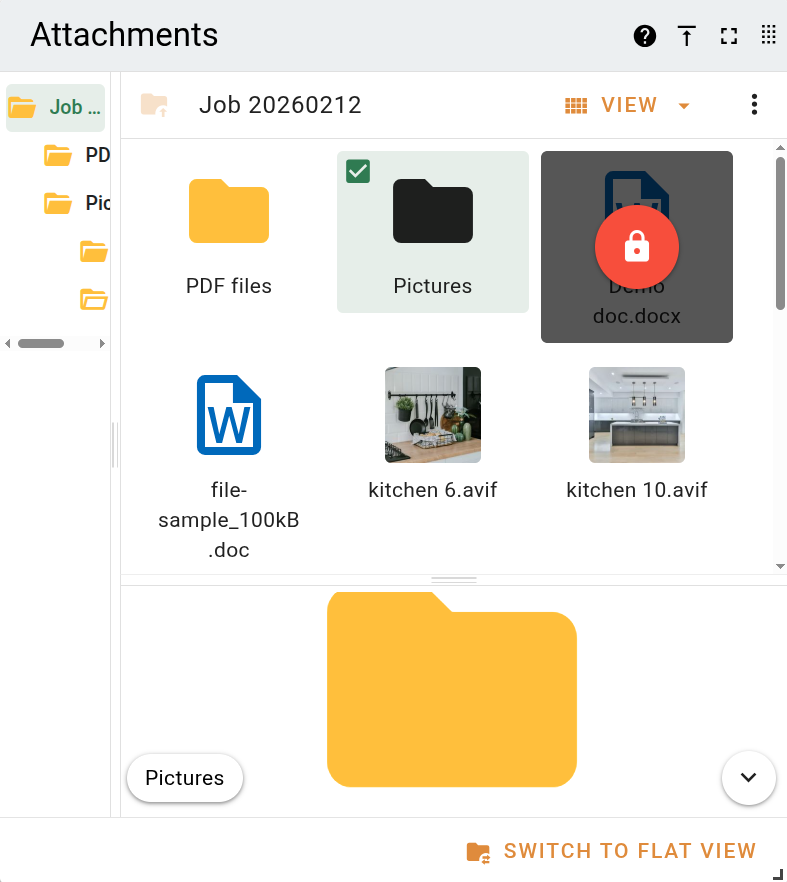
When the attachment panel is displayed at a reduced width, the side panel moves below the current folder pane rather than to the right of it. The split orientation adjusts automatically.
Directory tree
The directory tree in the left pane shows the folder hierarchy for the record. Only folders are shown. Click a folder to navigate to it in the current folder pane. Click the folder icon to expand or collapse the folder without navigating to it.
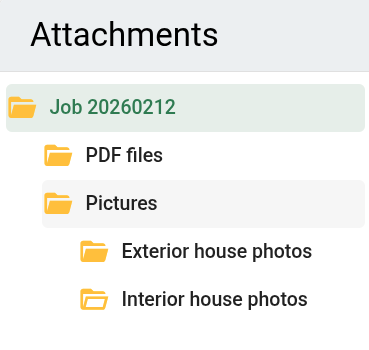
Files and folders can be moved by dragging them onto a folder in the tree. Right-click a folder to open the context menu. See Managing attachments for the available actions.
View menu
The View menu controls the layout of the current folder and the active side panel mode.
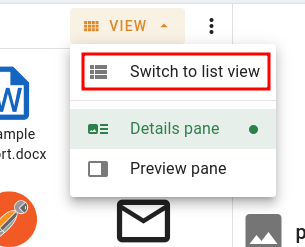
| Option | Description |
|---|---|
| Switch to grid view | Switches the current folder to grid view. Shown when list view is active. |
| Switch to list view | Switches the current folder to list view. Shown when grid view is active. |
| Details pane | Sets the side panel to show file properties and metadata. The active mode is indicated with a dot. |
| Preview pane | Sets the side panel to show a visual preview of the selected file. The active mode is indicated with a dot. |
Context menu
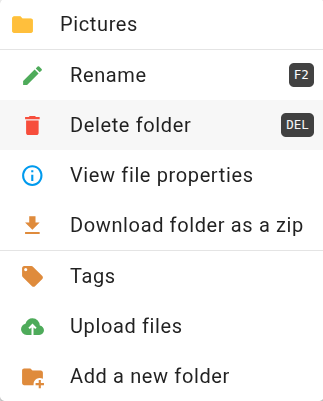
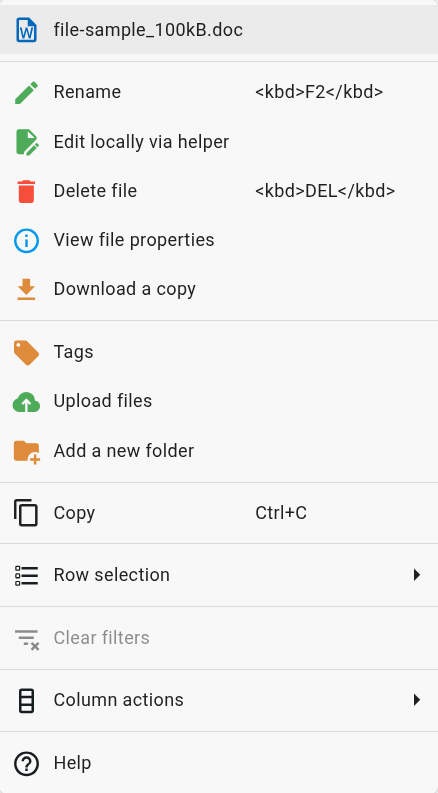
The context menu provides file and folder actions and is available in grid view, list view, and the directory tree. It can be opened in two ways:
- Right-click a file, folder card, list row, or directory tree entry to open the context menu for that item.
- Click the button to the right of the View button in the toolbar to open the context menu for the current selection.
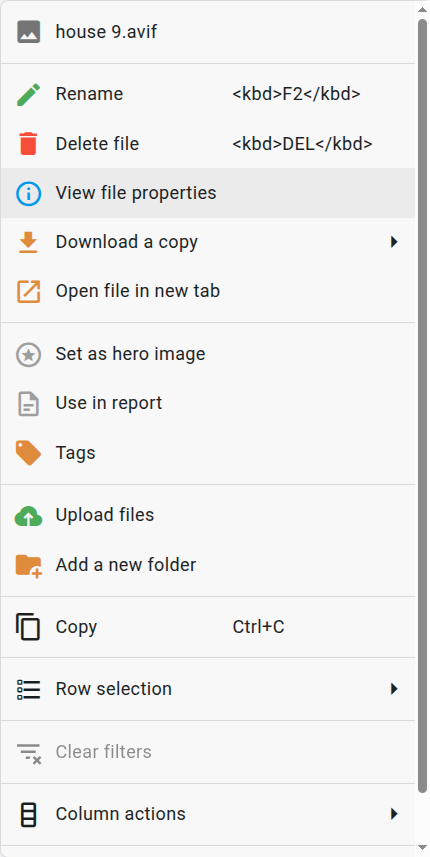
The options shown vary depending on the file type and the active view. Image files have additional options not present for other file types. Some options are only available in list view.
| Folder | Document file | Image file |
|---|---|---|
 |  |  |
| Option | Description |
|---|---|
| File/folder name | The name of the file or folder. Displayed as a non-interactive header at the top of the menu. |
| Rename | Opens the rename dialog. Not shown for multi-selection or the root folder. |
| Unlock | Removes the editing lock from the file. Only shown when the file is currently locked for editing. |
| Edit locally in Helper | Locks the file and opens it for local editing via the VOW Helper desktop application. Only shown for editable File Types. |
| Populate template fields | Populates the document's template fields with data from the current record. Only shown for .docx files on valuation records when the Word Add-in feature is enabled for your company. |
| Delete | Opens a confirmation dialog. Confirming permanently removes the file or folder. Not shown for the root folder. |
| View file properties | Opens the file properties dialog. Not shown for the root folder. |
| Download a copy | Downloads the file. For folders, downloads the contents as a zip. For image files, a sub-menu offers Original or Resized quality. |
| Open file in new tab | Opens the file in a new browser tab. Only shown for file types that can be displayed in a browser (images, PDFs, videos). Not shown for folders. |
| Set as hero image | Designates the image as the hero image for the record. Only shown on image files. |
| Use in report | Includes or excludes the image from the valuation report. Only shown on image files on valuation records. |
| Tags | Opens the tag selector to add or remove tags on the file. Not shown for multi-selection or the root folder. |
| Bulk tag | Opens the bulk tag selector to add or remove tags on all selected files. Only shown when multiple files are selected. |
| Upload files | Opens the file upload dialog for the current folder. |
| Add a new folder | Opens the create folder dialog. |
| Copy | Copies the selected content to the clipboard. Only shown in list view. |
| Row selection | Row selection mode options. Only shown in list view. |
| Clear filters | Clears any active column filters. Only shown in list view. |
| Columns | Column visibility and configuration options. Only shown in list view. |
| Help | Opens contextual help. Only shown in list view. |
Drag-and-drop zone
Files can be uploaded by dragging them from outside the browser and dropping them onto the current folder pane. The entire pane acts as the drop zone in both grid view and list view, and files are uploaded to the current folder. When the current folder is empty, a placeholder card is shown that also accepts drops. Not available when the record is read-only.
When dragging over a folder card or a folder in the directory tree, the folder is highlighted and its icon opens to indicate it is the active drop target. Dropping onto a highlighted folder moves the files into that folder rather than the current one.
Grid view
Grid view displays the contents of the current folder as a grid of thumbnail cards. Folders are listed before files; both are sorted alphabetically.
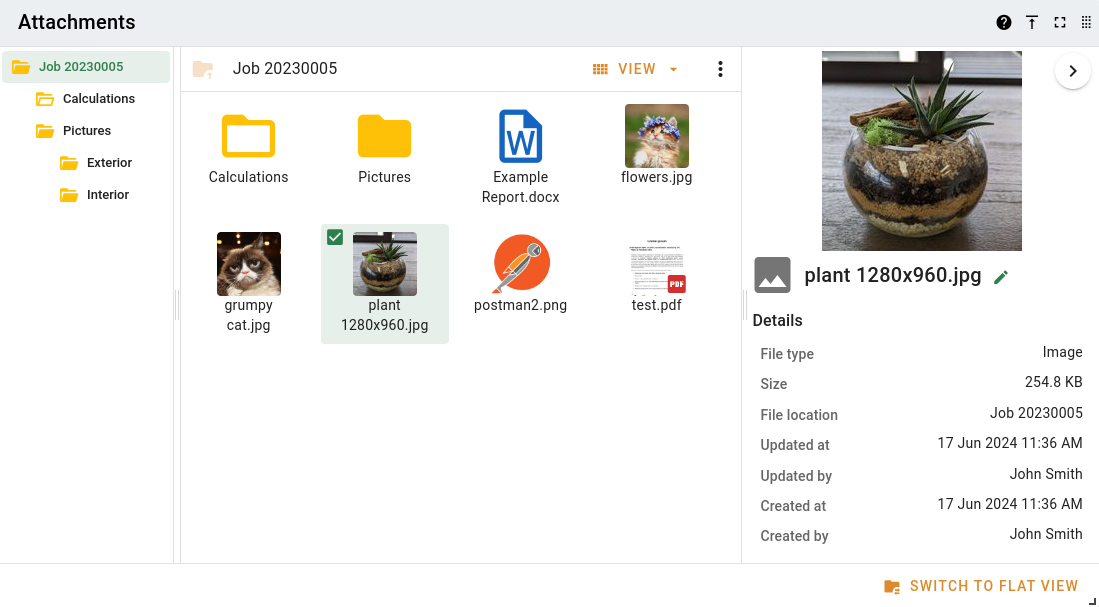
Each card shows a thumbnail preview or file type icon, any applied tags as chips, and the file name. A checkbox appears on a card when the card is hovered or the file is selected.
A badge appears in the bottom-right corner of a file thumbnail when one of the following states applies.
| Badge | Meaning |
|---|---|
| In report | The image is included in the valuation report. Only shown on valuation records. |
| Hero image | The image is set as the hero image for the valuation. Only shown on valuation records. |
| Password protected | The file requires a password to open. |
Files locked for editing show a dark overlay with a red lock button. The tooltip on the overlay names the user who has the file locked. Clicking the lock button releases it.
Click a card to select it and clear any other selection. Hold Ctrl and click to add or remove individual files from the selection. Hold Shift and click to extend the selection from the first selected file to the clicked card. Click on an empty area or press Esc to clear the selection. Double-click a file to open it, or double-click a folder card to navigate into it.
Files and folders can be moved by dragging cards onto a folder card in the current pane or onto a folder in the directory tree.
When the current folder contains no items, a placeholder is shown. Clicking the placeholder opens the file upload dialog.
List view
List view displays the contents of the current folder as a sortable table. Each row represents a file or folder.
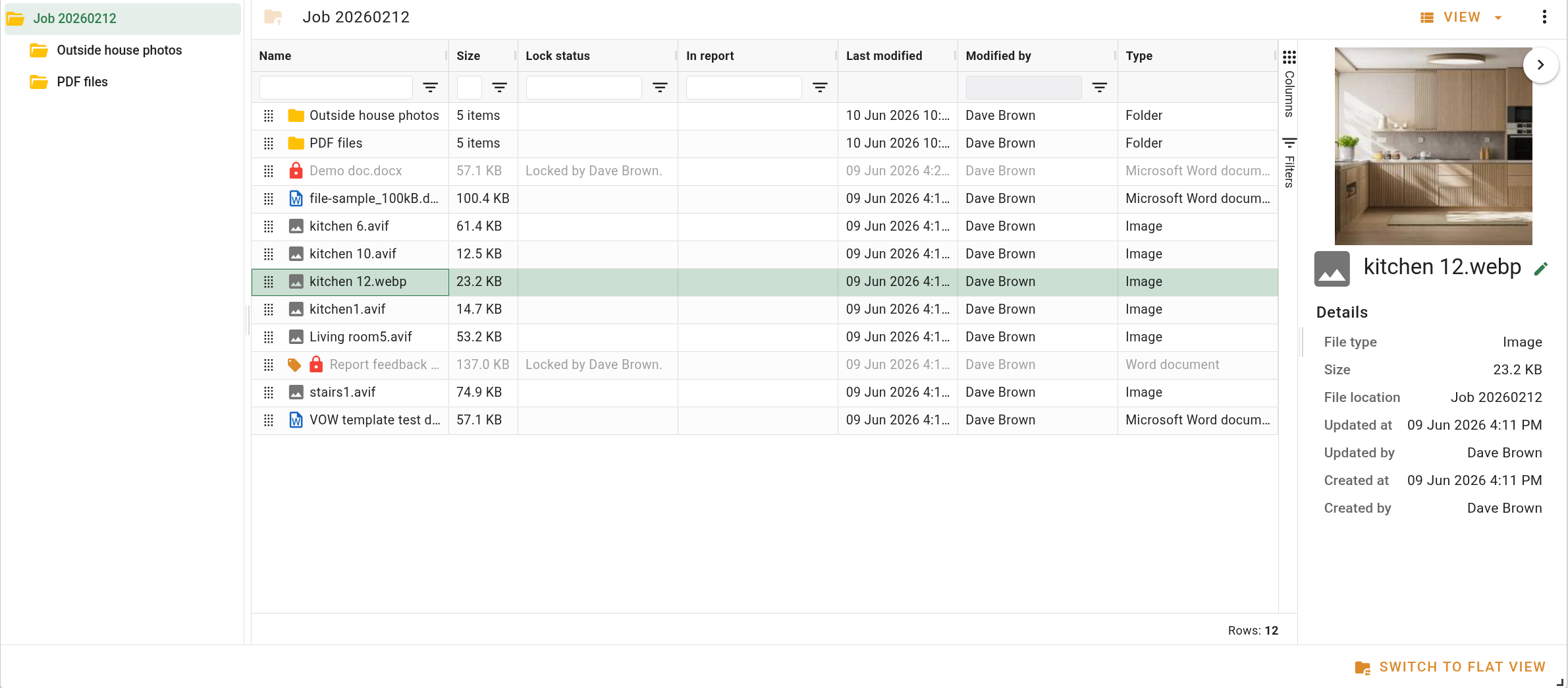
| Column | Description |
|---|---|
| Name | The file or folder name with a file type icon. |
| Size | The file size. |
| Lock status | The name of the user who has the file locked for editing. Blank when the file is unlocked. |
| In report | Displays Yes when the image is included in the valuation report. Only shown on valuation records. |
| Last modified | The date and time the file was last modified. |
| Modified by | The name of the user who last modified the file. |
| Type | The file type, derived from the file's MIME type. |
Click a column header to sort by that column. Click the header again to reverse the sort order.
Click a row to select it and clear any other selection. Hold Ctrl and click to add or remove individual rows from the selection. Hold Shift and click to extend the selection to the clicked row. Double-click a file row to open it, or double-click a folder row to navigate into it.
Files and folders can be moved by dragging rows using the drag handle in the Name column onto a folder row in the table or onto a folder in the directory tree.
Details pane
The details pane shows the properties and metadata of the selected file or folder. When no file is selected, the pane shows a placeholder. When multiple files are selected, a message is shown.
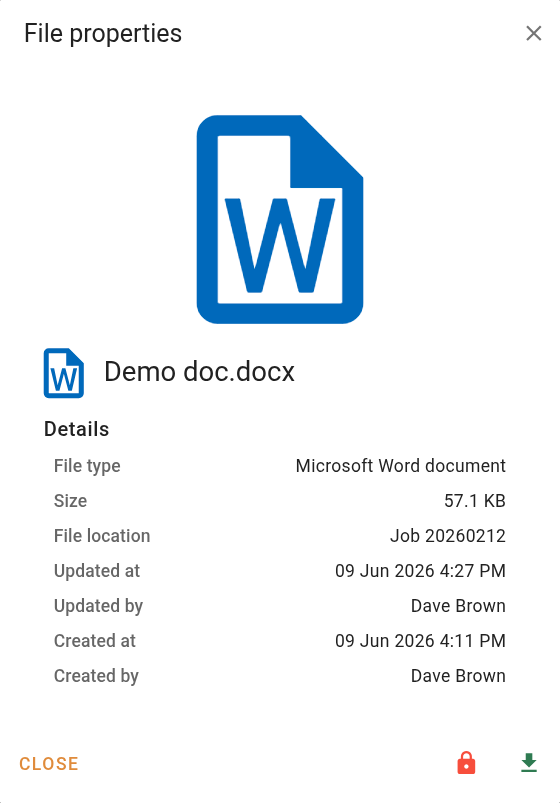
A thumbnail preview or file type icon is shown at the top of the pane. For image files on valuation records, the caption is displayed as a chip below the thumbnail if one has been set. The file name is shown below alongside a file type icon. Click the button to rename the file. The rename button is not available on locked files, unsaved files, or when the panel is read-only.
For valuation records, status chips are shown below the file name when applicable: Hero image when the file is set as the hero image for the valuation, and Included in report when the image is included in the valuation report.
| Field | Description |
|---|---|
| File type | The type of file, derived from its MIME type. |
| Size | The file size. For folders, the number of items directly inside the folder. |
| File location | The path of the file within the folder structure. Not shown for the root folder. |
| Updated at | The date and time the file was last modified. Not shown for the root folder. |
| Updated by | The name of the user who last modified the file. Not shown for the root folder. |
| Created at | The date and time the file was uploaded. Not shown for the root folder. |
| Created by | The name of the user who uploaded the file. Not shown for the root folder. |
| Lock status | Whether the file is locked for editing and by whom. Only shown for editable file types. |
Preview pane
The preview pane shows a visual preview of the selected file. The file name is displayed as a chip at the top of the pane when a file is selected.

Previews are supported for images, videos, PDFs, and PowerPoint presentations. For other file types, the file type icon is shown in place of a preview. For password protected files, the file type icon is shown with a password badge.