

Managing sales
You can create, edit, and delete company (CX) sale records if you have the appropriate permissions; VG sales are read-only and cannot be modified. The Sale card provides additional actions including adding a sale to a valuation and analysing a VG sale.
Creating a new company sale
Click Sales in the main navigation, then click New sale at the top right of the Sales page to open the sale creation form.
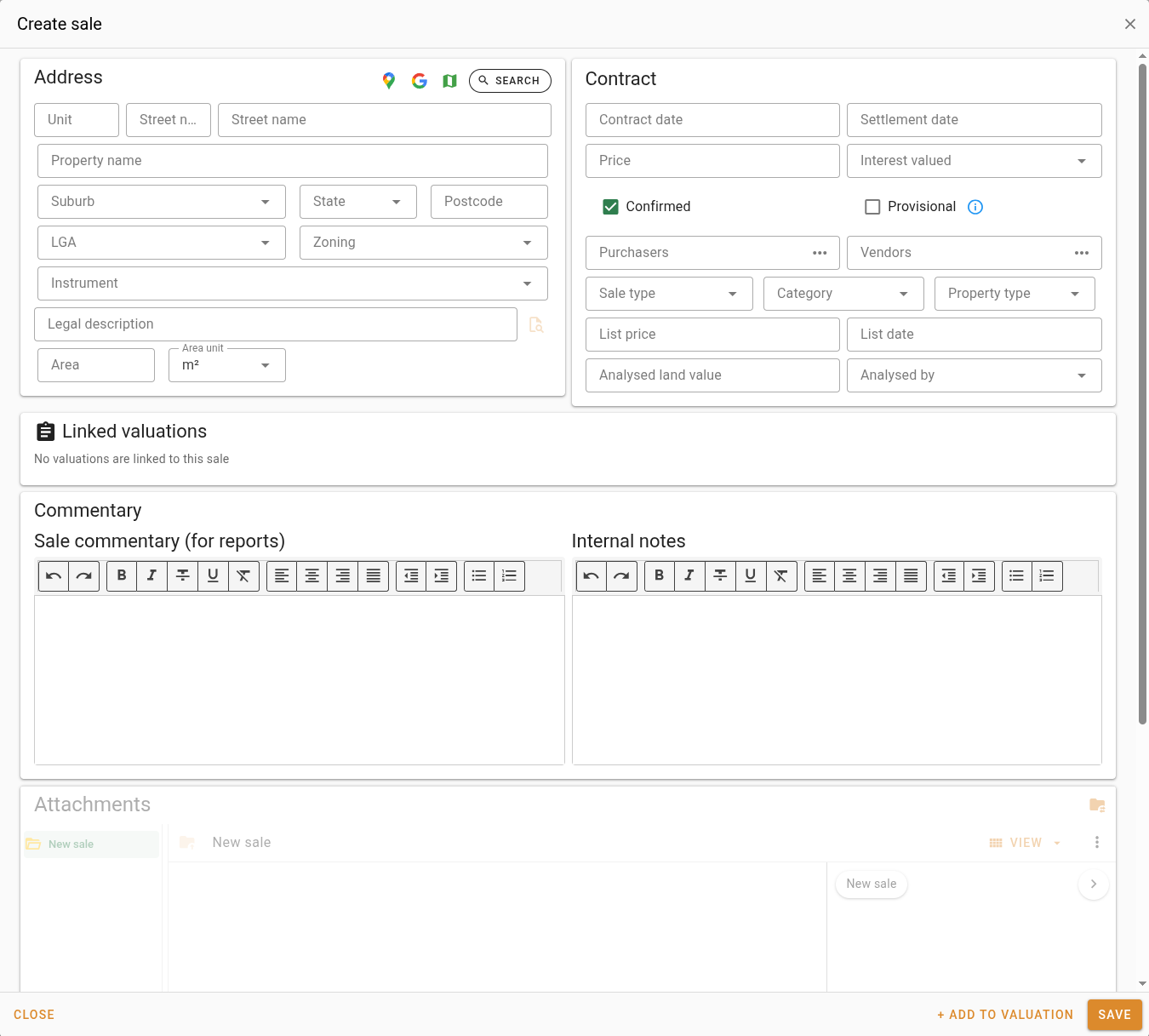
Address form
Links
Open in Google MapsAction
Click the  button to open the sale address in Google Maps in a new browser tab.
button to open the sale address in Google Maps in a new browser tab.Search address on GoogleAction
Click the  button to search the sale address on Google in a new browser tab.
button to search the sale address on Google in a new browser tab.| Field | Description |
|---|---|
| Unit | An optional unit number for properties within a multi-unit building. |
| Street number | The street number of the property. |
| Street name | The name of the street on which the property is located. |
| Property name | An optional name for the property or building. |
| Suburb | The suburb in which the property is located. |
| State | The state or territory in which the property is located. |
| Postcode | The postcode of the property. |
| LGA | The Local Government Area in which the property is located. |
| Zoning | The zone codes assigned to the property at the time of the contract, filtered to those effective at the contract date. Multiple zone codes can be applied to a single property. |
| Instrument | The zoning instrument (LEP) applicable to the property. |
| Legal description | The legal description of the property. Click the button to open the Plan finder and search for plan documents associated with the legal description. Plan documents found can be attached directly to the sale. |
| Area | The land area of the property. |
| Area unit | The unit of measurement for the area value. |
Contract form
| Field | Description |
|---|---|
| Contract date | The date on which the contract was signed. |
| Settlement date | The date on which the transaction settled. |
| Price | The sale price of the transaction. |
| Interest valued | An optional description of the interest in the property that was valued, such as freehold or leasehold. |
| Purchasers | The names of the parties who purchased the property. Type a name and press Enter to add it as a chip. Click the button to open the purchasers list editor, where names can be entered one per line. Names are stored in uppercase. |
| Vendors | The names of the parties who sold the property. Type a name and press Enter to add it as a chip. Click the button to open the vendors list editor, where names can be entered one per line. Names are stored in uppercase. |
| Sale type | The type of sale transaction, such as auction or private treaty. |
| Category | The sale category assigned to the record. |
| Property type | An optional property type classification for the sale. |
| Sale code | An optional regulatory classification code for the sale, chosen from a state-specific list. Only codes matching the sale's State are offered, and only the code is stored on the sale. The list of codes is maintained under Settings | Lists | Sale codes. |
| List price | An optional asking price at which the property was listed for sale. |
| List date | An optional date on which the property was listed for sale. |
| Analysed land value | An optional land value recorded as part of a sale analysis. |
| Analysed by | The valuer who recorded the land value analysis. |
Linked valuations
The Linked valuations section shows all valuations this sale has been used as evidence in. It is read-only and populated automatically when the sale is added to a valuation.
| Field | Description |
|---|---|
| Last valuation | The reference number of the most recent valuation this sale has been used as evidence in. The reference is a link that opens the valuation. |
| Linked valuations | The complete list of all valuations this sale has been used as evidence in. Each reference is a link that opens the corresponding valuation. When more than five valuations are linked, the list is truncated and a See more button appears to expand it. |
Commentary
Attachments
The attachments section allows files to be uploaded and linked to the sale record. Each attachment can be tagged for categorisation. See Attachment panels for full details on uploading, managing, and tagging attachments.
Analysing a VG sale
Analysing a VG sale creates a new company (CX) sale record pre-populated from the selected VG sale. The VG sale itself remains read-only; the analysis produces a separate, editable record owned by your organisation.
Click Analyse on a Sale card of a VG sale to open the 'Analyse sale' dialog.
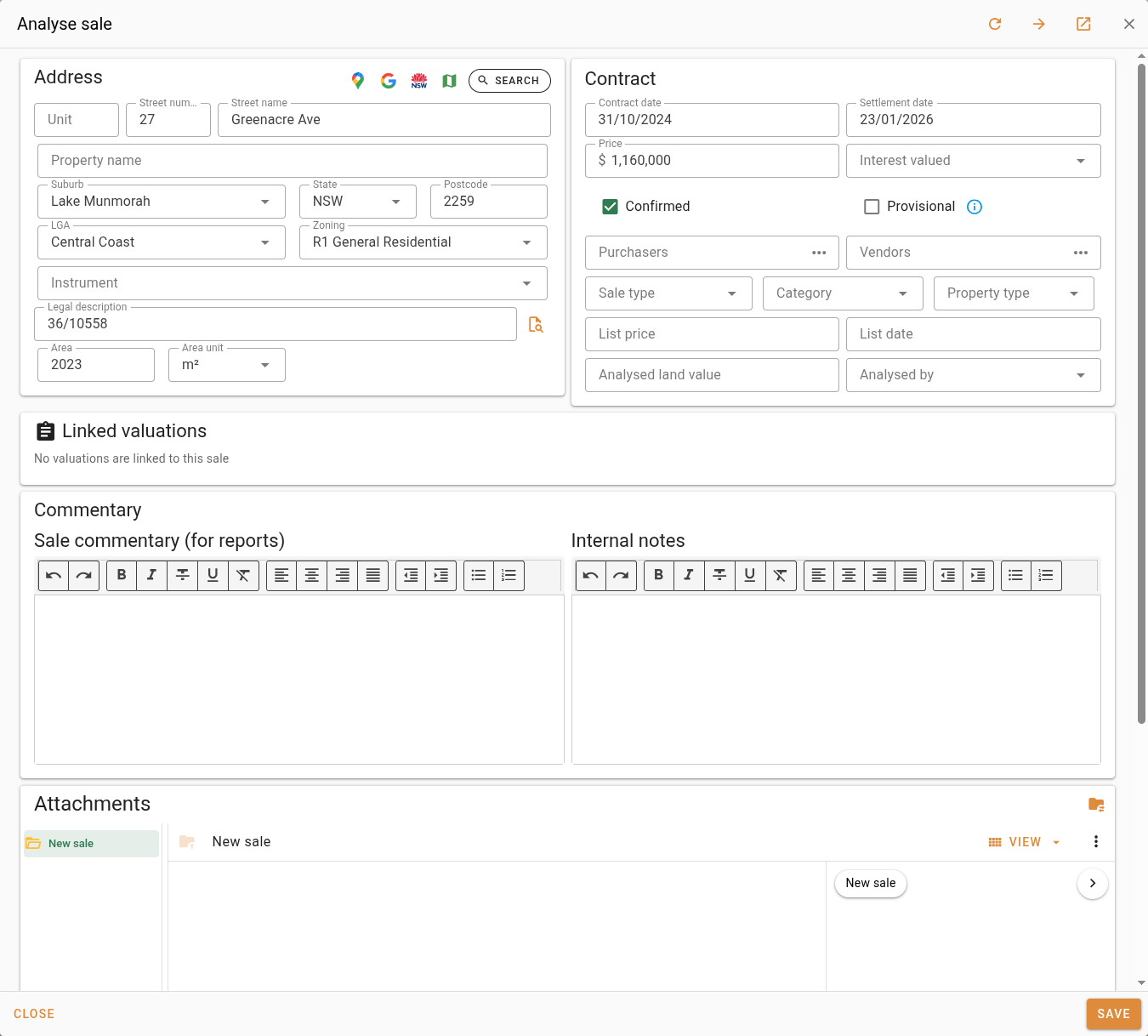
The 'Analyse sale' dialog contains the same fields as the sale creation form, pre-filled with data from the VG sale. See Creating a new company sale for a description of all available fields.
Click Save to create the new CX sale record. The original VG sale is not modified.
Editing a company sale
Company (CX) sales include both directly created sales and those produced by analysing a VG sale. Both types can be edited the same way. You can open a company sale for editing in three ways from the sales list.

- Double-click a row in the list to open the sale card, then click Edit in the bottom corner to open the sale form.
- Click the icon in the Actions column of the row.
- Right-click a row to open the context menu, then select Edit sale.
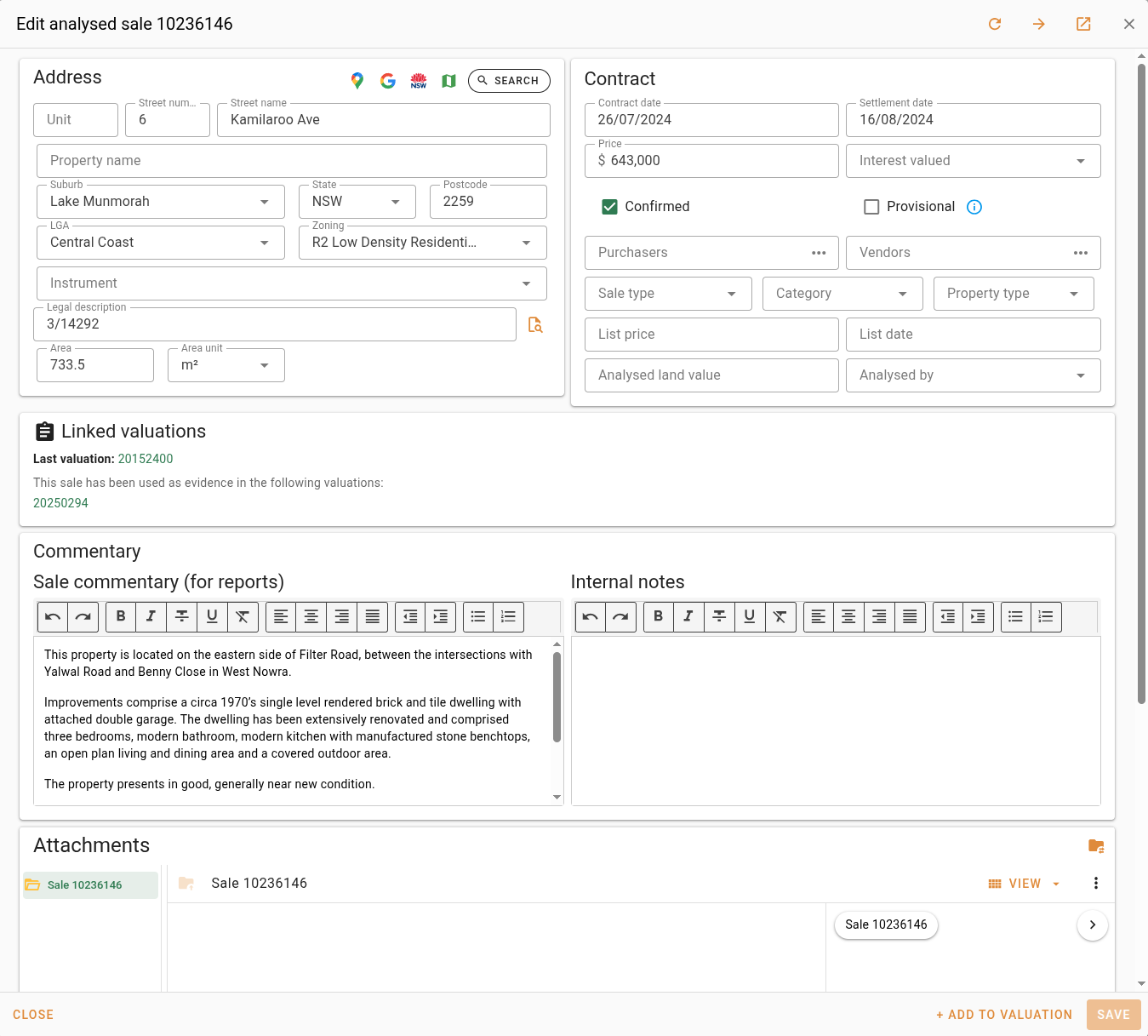
Each of these actions opens the edit analysed sale form with all fields available for editing. Once you have finished editing, click Save to apply the changes.
Deleting a company sale
Adding a sale to a valuation
Adding a sale to a valuation links it as supporting evidence on a job record. You can add both company (CX) and VG sales; provisional sales cannot be added as evidence. You need permission to edit jobs to add a sale.
You can add a sale in two ways from the sales list:
- Click the icon in the Actions column of the row.
- Right-click a row to open the context menu, then select Add sale to a valuation.
Both actions open the 'Add to sales evidence' dialog.
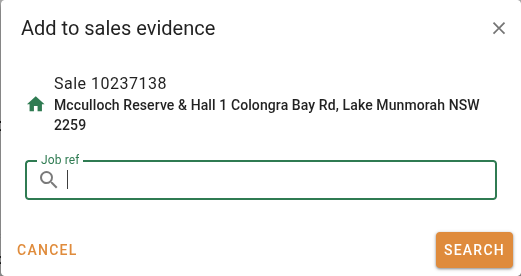
Enter the job reference in the Job ref field and click Search. When a matching job is found, a summary of the job is displayed. Click Add to job to link the sale as evidence on that job.
If the target job is open in another browser tab, save it before adding the sale to avoid conflicts.
When the sale is added successfully, a confirmation is shown. Click Open job to navigate to the job, or Close to return to the search results.
When a VG sale is added to a valuation, the system automatically creates a new company (CX) sale record from it. The original VG sale is not modified. The new CX record appears in subsequent searches and is linked to the job as evidence.