

Task summary
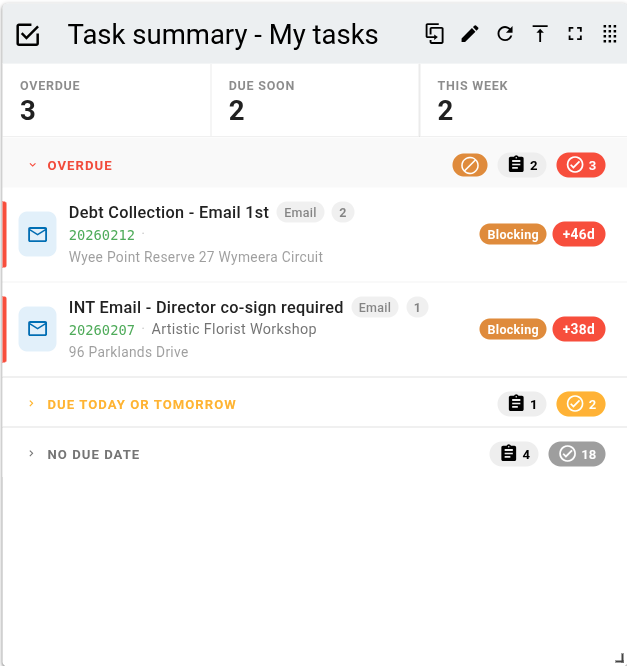
The task summary is a dashboard panel that lists every outstanding task assigned to you, grouped into urgency buckets, with counters showing how many need attention and when. By default it shows your own tasks, and the panel caption shows whose tasks are displayed.
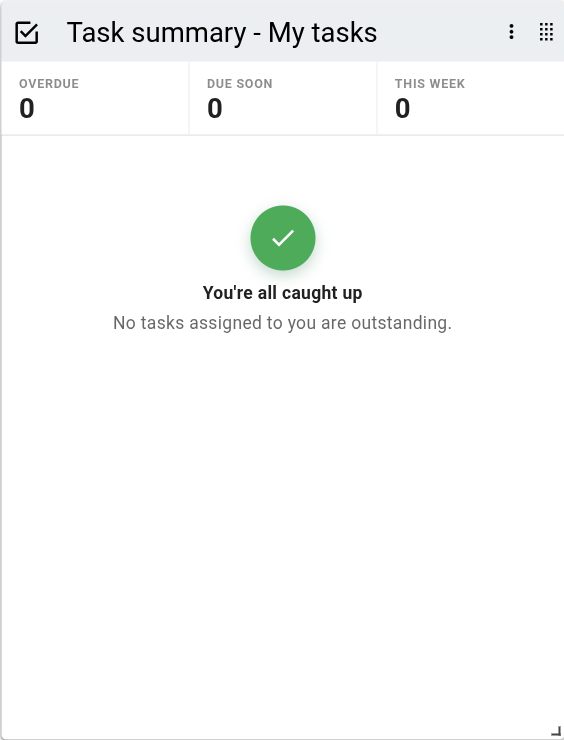
When you have no outstanding tasks, the panel shows a You're all caught up message in place of the buckets.
Counters
A strip across the top of the panel holds three counters. Clicking a counter expands the matching bucket in the panel body.
| Counter | Description |
|---|---|
| Overdue | Outstanding tasks whose due date has passed. The count is shown in red. |
| Due soon | Outstanding tasks due today or tomorrow. The count is shown in amber. |
| This week | Outstanding tasks due within the next seven days. Includes the due-soon tasks, but not overdue ones. |
Task buckets
Tasks are grouped into collapsible buckets by due date. A bucket appears only when it contains tasks. Each bucket has an urgency colour, used for its chevron, the left rail on its task rows, and its task-count chip (the Overdue and Due soon counters use the same red and amber).
| Bucket | Colour | Criteria |
|---|---|---|
| Overdue | Red | The task's due date has passed. |
| Due today or tomorrow | Amber | The task is due today or tomorrow. |
| Later | Green | The task has a due date, but is not overdue or due soon. |
| No due date | Grey | No due date has been set on the task. |
Each bucket header shows:
- A Blocking chip when an overdue task in the bucket is holding up a task assigned to someone else.
- A jobs count: how many jobs have a task in this bucket.
- A tasks count: the total outstanding tasks across those jobs within this bucket.
Task rows
Each row represents the most urgent outstanding task on a job within that bucket.
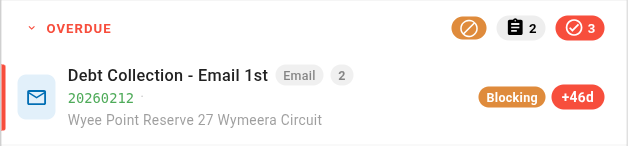
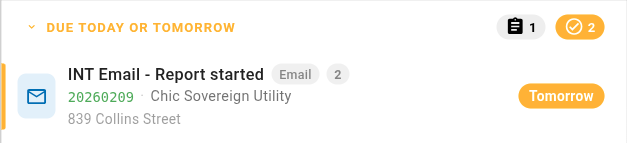
Each row shows:
- The task name and a pill showing the task type (for example Email, Call, Memo, Review attachment, Template, Form, Start workflow, or Stop all tasks).
- A count pill showing how many outstanding tasks the job has in this bucket.
- The job reference and client name.
- The property address.
- A Blocking pill when the task is overdue and is holding up a task assigned to someone else.
- A due chip showing when the task is due (for example Today, Tomorrow, a number of days, or a date), shown in red for overdue tasks and amber for tasks due today or tomorrow.
Clicking a row opens the job and highlights the relevant task.
Panel toolbar options
Each panel header provides the following options. A drag handle sits at the right of the header. Drag it to move the panel around the dashboard. The drag handle stays visible at all times, but when the panel is too narrow to show the remaining options they collapse into a overflow menu. For resizing and showing or hiding panels, see Panels.
The task summary panel requires permission to use workflows. Showing another user's tasks requires permission to view other users' jobs.