Skip to content

Managing layouts

A layout is a saved arrangement of the tabs and panels on a form, and you can keep several to switch between as different tasks call for them. Layouts apply to your account only, so the ones you create, switch between, and change are yours alone.

The Layouts menu

The Layouts button in the toolbar above the grid opens a menu listing your saved layouts, with the active one marked. The same menu holds the actions for creating, resetting, importing, and exporting layouts, and for opening the Manage layouts dialog.
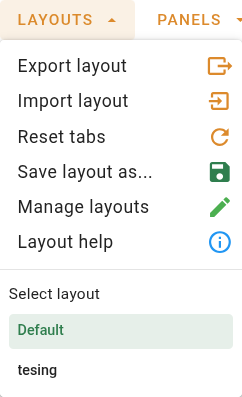
Layouts menu
Export layoutAction
Downloads a layout as a file
Import layoutAction
Adds a layout from an exported file
Reset tabsAction
Restores the layout's default tabs and panels
Save layout asAction
Saves the current arrangement as a new layout
Manage layoutsAction

The Manage layouts option opens the Manage layouts dialog.

Layout helpAction
The Layout help option opens the user guide for layouts in a new tab.
Select layoutAction
The list at the foot of the menu shows every layout you have for this form, with the active one marked. Selecting a layout switches to it at once and remembers it as your choice for this form next time you open it.
cast_for_education

Changes to a layout's tabs and panels are saved to it automatically, with no separate save step. To try a new arrangement without changing your current layout, use Save layout as first and rearrange the copy.

The Manage layouts dialog

The Manage layouts dialog lists all of your layouts for the form, where you can download, rename, reorder, and delete them, or create and import new ones. Close the dialog with Done.
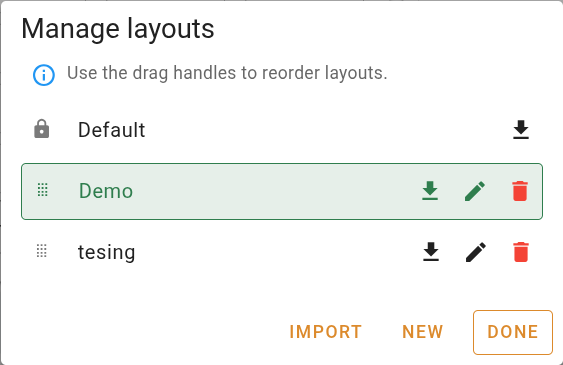
Manage layouts dialog
info

Every form has a built-in Default layout that cannot be renamed, deleted, or reordered, so its row shows only the download button. It stays at the top of the list as a clean starting point you can always return to. No other layout can take the name Default, and a name that matches an existing layout is allowed but flagged as possibly confusing.

Import layoutAction
Adds a layout from an exported file
NewAction
Creates a fresh layout from the defaults
DoneAction
Closes the Manage layouts dialog
DownloadAction

Click the Export layout button on a layout to download it as a JSON file. This does the same as Export layout in the Layouts menu, applied to the layout you choose, and is available on every layout.

RenameAction
Click the Rename layout button on a layout to give it a new name.
DeleteAction
Permanently removes a layout
ReorderAction
Drag the handle to move a layout up or down the list. Reordering becomes available once you have more than two layouts.