

Panels
A panel is a self-contained block within a tab that shows a single area of information or lets you work with it. Panels make up the body of every layout on the job and project forms, and the panels you show and how you arrange them apply to your account only.
The panel grid
Within a tab, panels are arranged in a grid that you can rearrange to suit how you work.
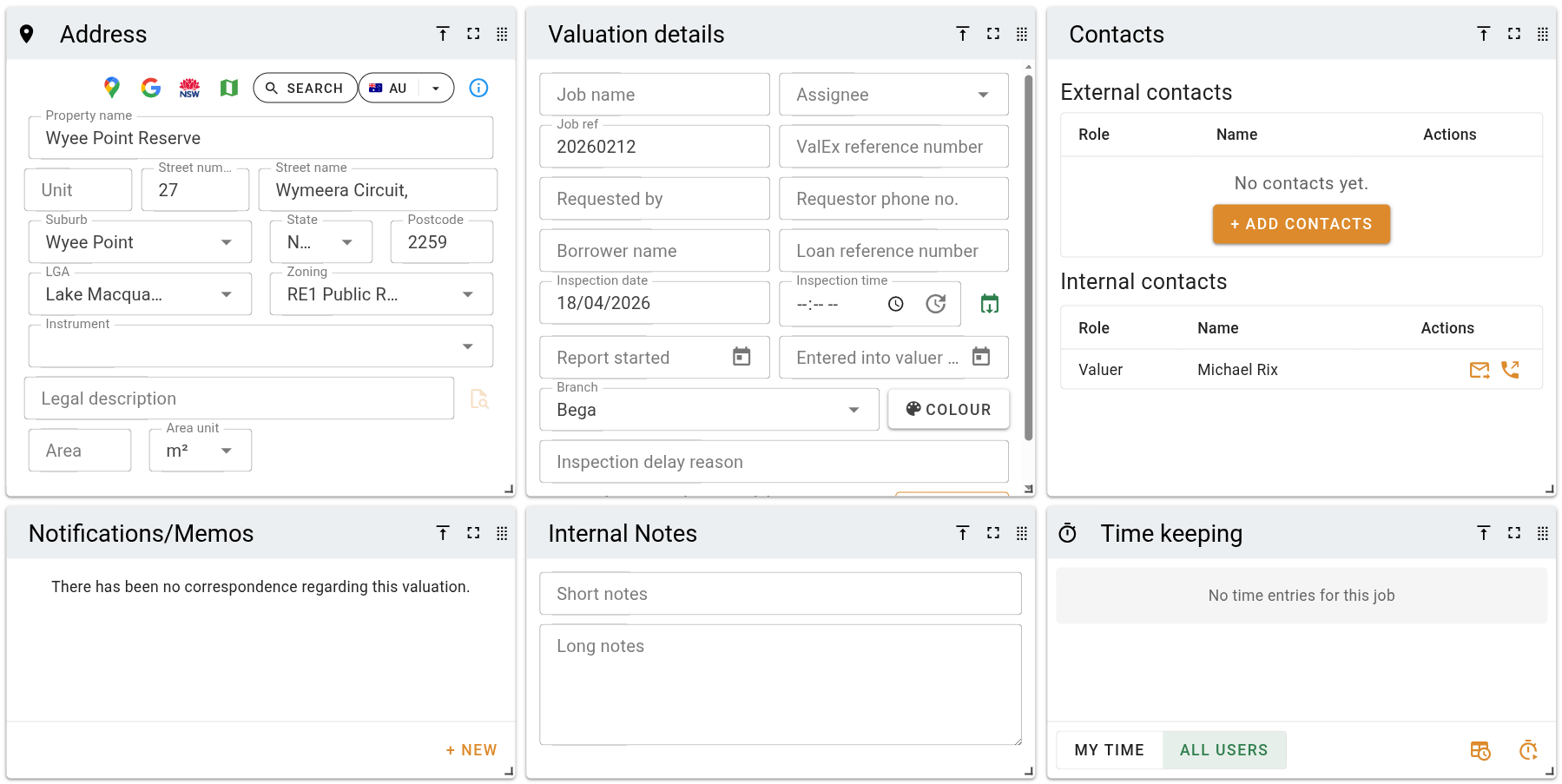
Drag the resize handle in a panel's bottom-right corner to change its size. The other panels reflow to fit, and the grid compacts upward to close any gaps.
Panel actions
Each panel header shows the panel's name on the left and a row of action buttons on the right. Which buttons appear depends on the panel. The panel action buttons are described below.

When a panel is too narrow to show all of its action buttons, they collapse into a single menu that lists the same actions. The drag handle stays visible.
Showing and hiding panels
The Panels button in the toolbar above the grid opens a menu that controls which panels appear in the current tab. From it you can show or hide individual panels, toggle them all at once, search the list, and reset the tab to its default panels.
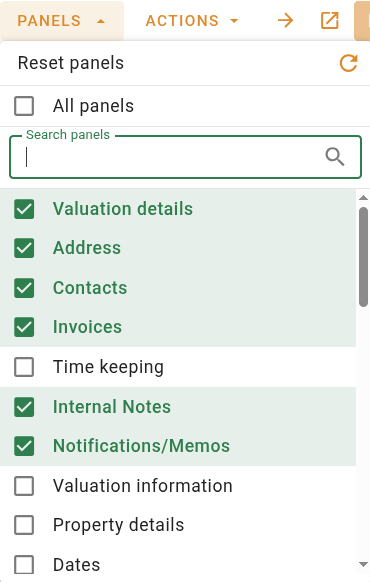
When every panel in a tab is hidden, the grid shows a No panels message. Show panels again from the Panels menu, or use Reset panels to restore the tab's defaults.
Showing, hiding, moving, and resizing panels is saved to your current layout straight away. There is no separate save step.