

Managing contacts
Contacts are added to a job or project from its contacts panel, where they can also be edited or removed. Editing a contact changes either the job's own copy of the contact or the shared record in the Contacts list.
Adding a contact
A contact is added from the panel's + Add contact button, or the + Add contacts button shown when the job has no contacts.
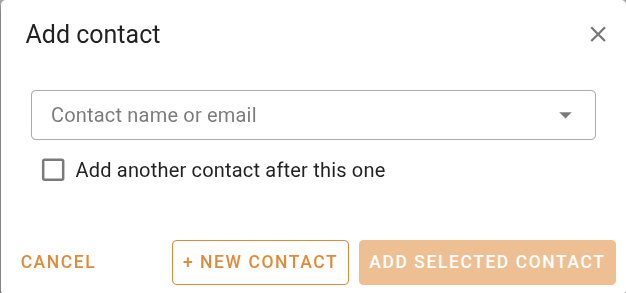
Search the Contacts list in the Contact name or email field and select a match. The selected contact is shown, along with a Job Details section that records how the contact relates to this job.
| Field | Description |
|---|---|
| Referral type | Sets the contact's role on the job, chosen from your organisation's Contact roles list or typed in. |
| Client job reference | The client's own reference for the job. |
| On behalf of | The person the contact is acting for. |
The flag chips set the contact's part in the job, such as instructing party or lender. See Contacts panel for what each flag means.
Add another contact after this one keeps the dialog open to add further contacts, and Add selected contact adds the chosen contact to the job.
To add someone who is not yet in the Contacts list, + New contact opens the contact form to create them. The new contact is saved to your contacts and added to the job.
The first contact added to a job is automatically marked as the instructing party.
Editing a contact
Each contact on a job is a copy of its record in the Contacts list, made when the contact was added. It can be edited in two ways, and the difference is what the change affects.
| Action | What it changes |
|---|---|
| Edit contact | The job's own copy only. The record in the Contacts list, and any other job that uses the contact, stay as they are. |
| Edit source contact | The shared record in the Contacts list. The change also flows back to this job's copy. |
The button on a contact row opens the job's copy. You can change the contact's details and addresses, along with its role on the job, the client job reference, who they are acting on behalf of, and flags such as Instructing party or Lender. A banner confirms the changes apply to this job only, and Done saves them to the job.
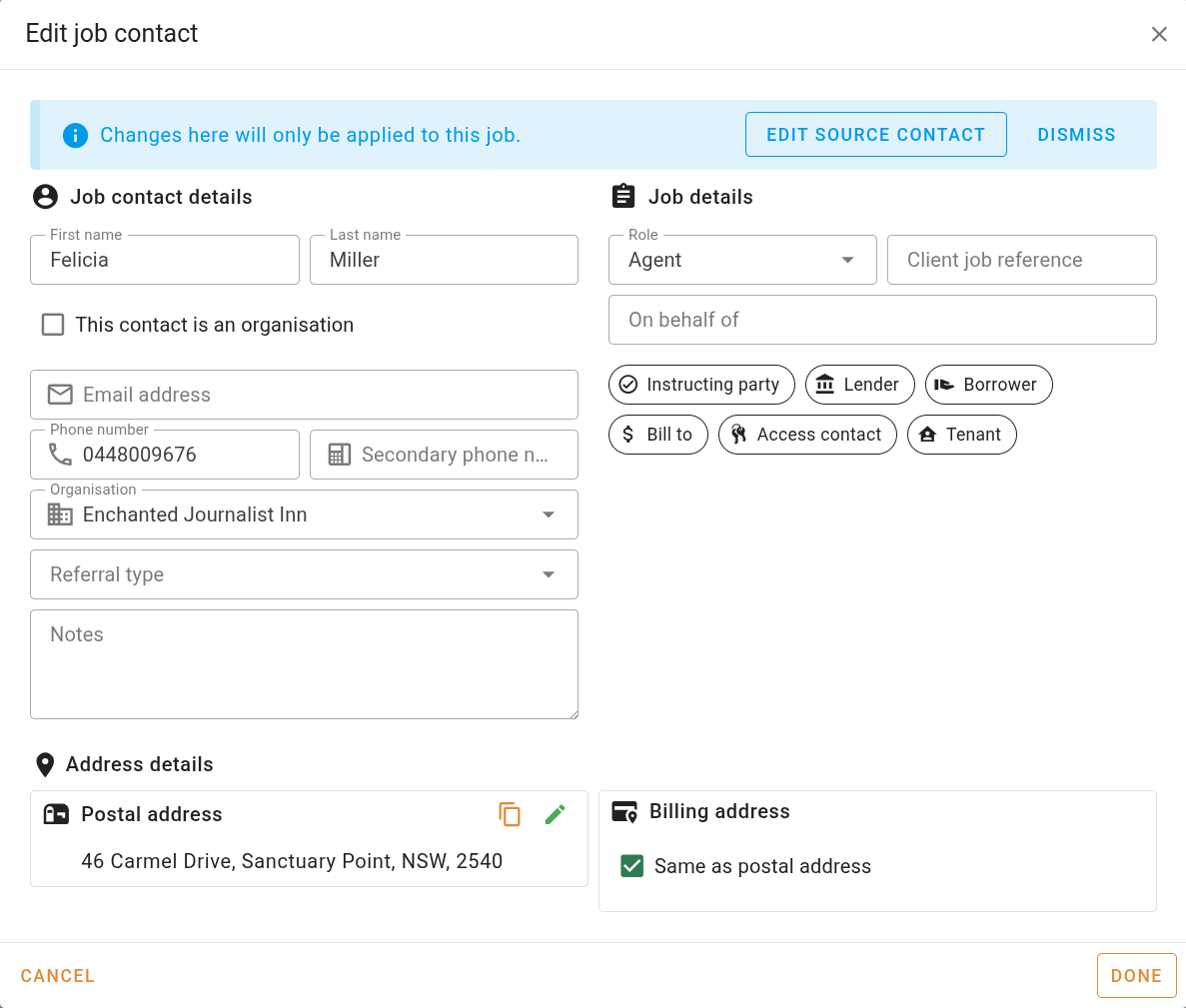
Inside that dialog, Edit source contact opens the shared record instead. Saving there updates the record in the Contacts list and applies the change to this job's copy as well.
A job keeps its own copy of each contact. Editing the contact on the job does not change the record in the Contacts list, and editing the source record does not change copies already on other jobs.