

System
System settings are the organisation-wide configuration options for VOW. They cover company details, subscription, integrations, and system behaviour. Changes made here affect all users in your organisation. For settings that apply only to your own account, see Settings | My settings.
Company details
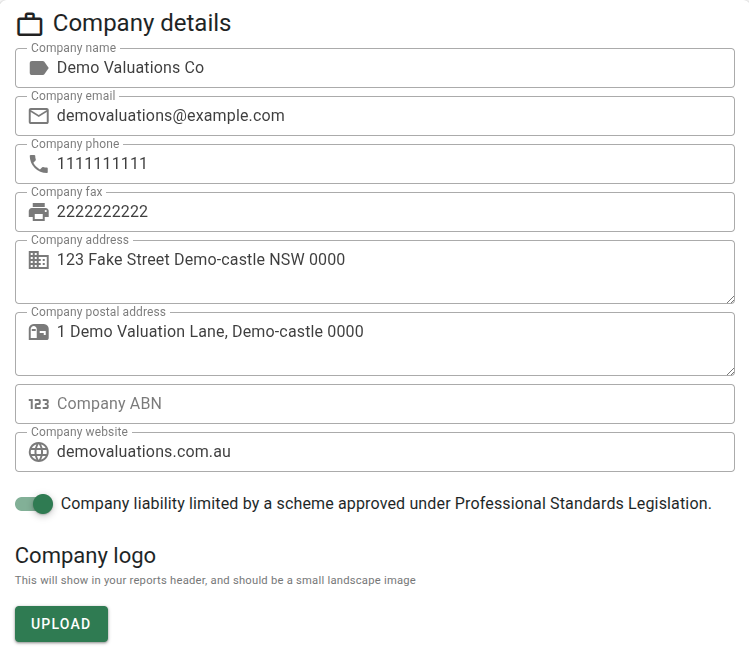
Your company details appear throughout the system in report headers, on invoices, and as placeholders available in email and report templates.
| Field | Description |
|---|---|
| Company name | The trading name of your practice. Appears in report headers, on invoices, and as a template placeholder. |
| Company email | Your organisation's primary contact email address. Appears on invoices and as a template placeholder. |
| Company phone | Your organisation's primary contact phone number. Appears on invoices and as a template placeholder. |
| Company fax | Your organisation's fax number. Appears on invoices and as a template placeholder. |
| Company address | Your organisation's physical street address. Appears on invoices and as a template placeholder. |
| Company postal address | Your organisation's mailing address. Appears on invoices and as a template placeholder. |
| Company ABN | Your 11-digit Australian Business Number. Validated as you type. Appears on invoices and as a template placeholder. |
| Company website | Your organisation's website URL. Available as a template placeholder in email and report templates. |
References
The References card groups settings that control sequential numbering, turnaround times, invoice behaviour, and default sales evidence search criteria.
Reference numbers
The system automatically assigns sequential references to jobs, projects, quotes, sales, and requests as they are created. The card lists each counter with a live preview of the next reference it will issue. Click the button beside a counter to change how its references are numbered and formatted.

Editing a counter opens a dialog with the fields below and a live preview of the next reference it will issue. Apply changes with the Save button; Cancel discards them.
| Field | Description |
|---|---|
| Next reference | The number that will be assigned to the next record created. Set this to continue from an existing numbering scheme, for example when migrating to VOW. |
| Number length | Optional minimum length for the number. Shorter numbers are padded with leading zeros — with a length of 4, number 42 renders as 0042. When the sequence outgrows the length, the reference simply gains a digit. Zero applies no padding. |
| Prefix | Optional text placed before the number. |
| Suffix | Optional text placed after the number. |
| Delimiter | Optional separator rendered between the prefix or suffix and the number — the - in VAL-100042. Not rendered when there is no prefix or suffix. |
Prefixes, suffixes, and delimiters may contain letters, numbers, dots, underscores, and hyphens only, because references appear in page addresses.
Practices that restart numbering each year can combine these settings: a prefix of 2026 with a number length of 4 issues 20260001, 20260002, and so on — constant-width references that are easy to scan. At the start of the next year, set the prefix to 2027 and the next reference back to 1.
Format changes are not retroactive. A new prefix, suffix, delimiter, or number length only applies to references issued from then on — existing references, and any links or documents that contain them, are unchanged.
The five counters:
| Counter | Description |
|---|---|
| Job references | Assigned to new jobs, including the jobs created within a project. |
| Project references | Assigned to new projects. By default the Use job numbering toggle is on and projects are numbered by the job counter, sharing one sequence. Turn it off to number projects separately — a separate project counter must use a different format (prefix, delimiter, or suffix) from the job counter. |
| Quote references | Assigned to new quotes. Only visible if the Quotes feature is enabled on your subscription. |
| Sale references | Assigned to new sale records. |
| Request references | Assigned to new incoming requests. |
Turnaround times
Default turnaround times set the expected completion window applied to new jobs and quotes. Each can be enabled or disabled independently. When disabled, no default turnaround is applied.
Turnaround times set here can be overridden when creating a job, and more specific defaults can be set per report type in the Lists settings.
Invoices
Sales evidence criteria
These defaults are applied when searching for comparable sales to support a valuation. They can be overridden at the time of the search.
VOW account details
Financial details
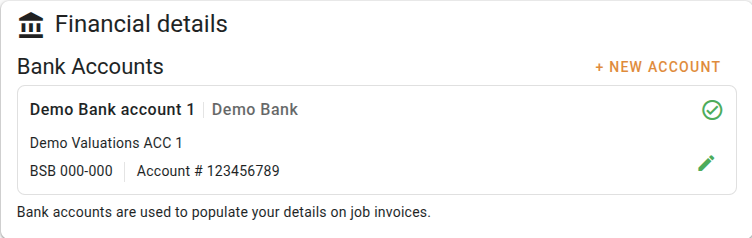
The Financial details panel holds your practice's bank account records. These accounts appear on invoices, and are available to select wherever the system asks for a bank account.
Click New account to add an account. Each account in the list shows its label, bank, account name, BSB, and account number. Click the edit button on an account to modify or delete it.
Each bank account has the following fields:
| Field | Description |
|---|---|
| Account label | A short name used to identify this account when selecting it in the system (e.g. "Operating account"). |
| Bank name | The name of the bank. |
| Account name | The name on the account. |
| BSB | The Bank State Branch number. |
| Account number | The account number. |
| Primary account | When checked, this account is used as the default wherever the system needs to select one automatically. |
Only one account can be set as the primary. If you mark a new account as primary, the previous primary account will be updated automatically.
Emails
System emails
Controls whether VOW sends automatic notification emails when work is assigned to valuers. These use the system's own email delivery. No mail server configuration is required.
| Setting | Description |
|---|---|
| A job is assigned to them | When enabled, valuers and supervising valuers receive an email notification the first time they are assigned to a job. |
| A quote is assigned to them | When enabled, the quoting valuer receives an email notification when they are assigned to a quote. |
Email integration
Email integration lets users send emails directly from job pages, either free typed or using preconfigured templates, with all outgoing correspondence tracked in the event log. A subscription that includes email integration is required.
Configuring this section requires your mail server credentials. It may be worth involving your IT support team to ensure the settings are entered correctly.
The following settings are only visible when email integration is enabled.
Sensitivity labels
Sensitivity labels allow outgoing emails to be marked with a confidentiality classification, supporting information protection policies. Requires the Enterprise subscription tier.
Company contacts
Company contacts are always available as recipients when composing emails in VOW, regardless of which job is open. Click + Add contact to create one. Each contact record holds a name, email address, and phone number. Use the edit and delete buttons in the contacts list to manage existing entries.
Mail server configuration
| Field | Description |
|---|---|
| Mail server username | The identifier used to authenticate with your mail server. |
| Password | The password for the mail server username. Displayed masked by default. Click the eye icon to reveal. |
| Email from address | The address emails will appear to be sent from. Disabled when Same as username is turned on. |
| Same as username | When enabled, the from address is kept in sync with the mail server username automatically. |
SMTP server settings
VOW uses these settings to send outgoing emails on your behalf.
| Field | Description |
|---|---|
| Outgoing SMTP mail server | The hostname or IP address of your outgoing mail server. |
| Outgoing SMTP port | The port your SMTP server listens on. |
IMAP server settings
VOW uses these settings to copy sent emails into the Sent folder of your mail account.
| Field | Description |
|---|---|
| Incoming IMAP mail server | The hostname or IP address of your IMAP mail server. |
| Incoming IMAP port | The port your IMAP server listens on. |
Company email signature
Security
Session
Integrations
Requests API key
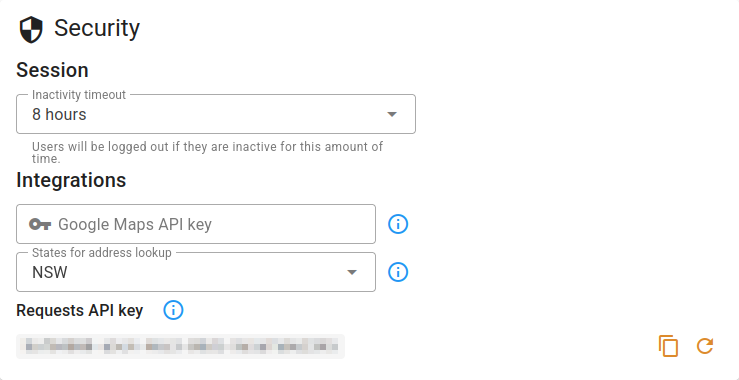
The Requests API key allows external systems to submit job requests into VOW programmatically. See the Requests API documentation for details on using the API.
Accounting Integration
VOW can connect to your Xero account to sync invoices automatically. This card is only visible when accounting integration is enabled on your subscription.
A status chip at the top of the card shows the current connection state:
| Status | Meaning |
|---|---|
| Connected | VOW is linked to your accounting organisation. The organisation name and connection date are shown alongside the status. |
| Not connected | No accounting connection has been established. |
| Error | A connection exists but is in a failed state. The error message is displayed below the status chip. |
Attachments
Word add-in
The VOW Tools add-in for Microsoft Word allows you to insert template placeholders into Word documents. When a document containing placeholders is attached to a job in VOW, clicking the Populate button fills those placeholders automatically from the job data. Requires a subscription that includes the Word add-in feature.
The following downloads are only visible when the Word add-in is enabled. They are also available to individual users from their My settings page.
Time keeping
The time keeping module allows users to track the time they spend on jobs. Reports can be run to gain insight into how and where time is being spent across the practice. Requires a subscription that includes time keeping.