

Importing freeform data
If you have notes, an email, or other loose text about a job, VOW can read it and suggest values for the job's fields. You check each suggestion against the part of your text it came from, then choose which ones to keep.
This option only appears on a saved valuation you are allowed to edit, and only when an administrator has turned on AI features and freeform data import for your organisation. See AI features in the System settings reference.
Entering your text
- Open the valuation.
- Click the Actions button, then choose Import freeform data.
- Type or paste your text into the box.
- Click Process.
The text you enter is sent to OpenAI for processing. Nothing is written to the valuation until you review the suggestions and click Import.
VOW suggests facts and figures only, such as the address, areas, rooms and sale prices. It never fills in commentary.
Reviewing the suggestions
The review step lists the suggested values on the left, with your text on the right.
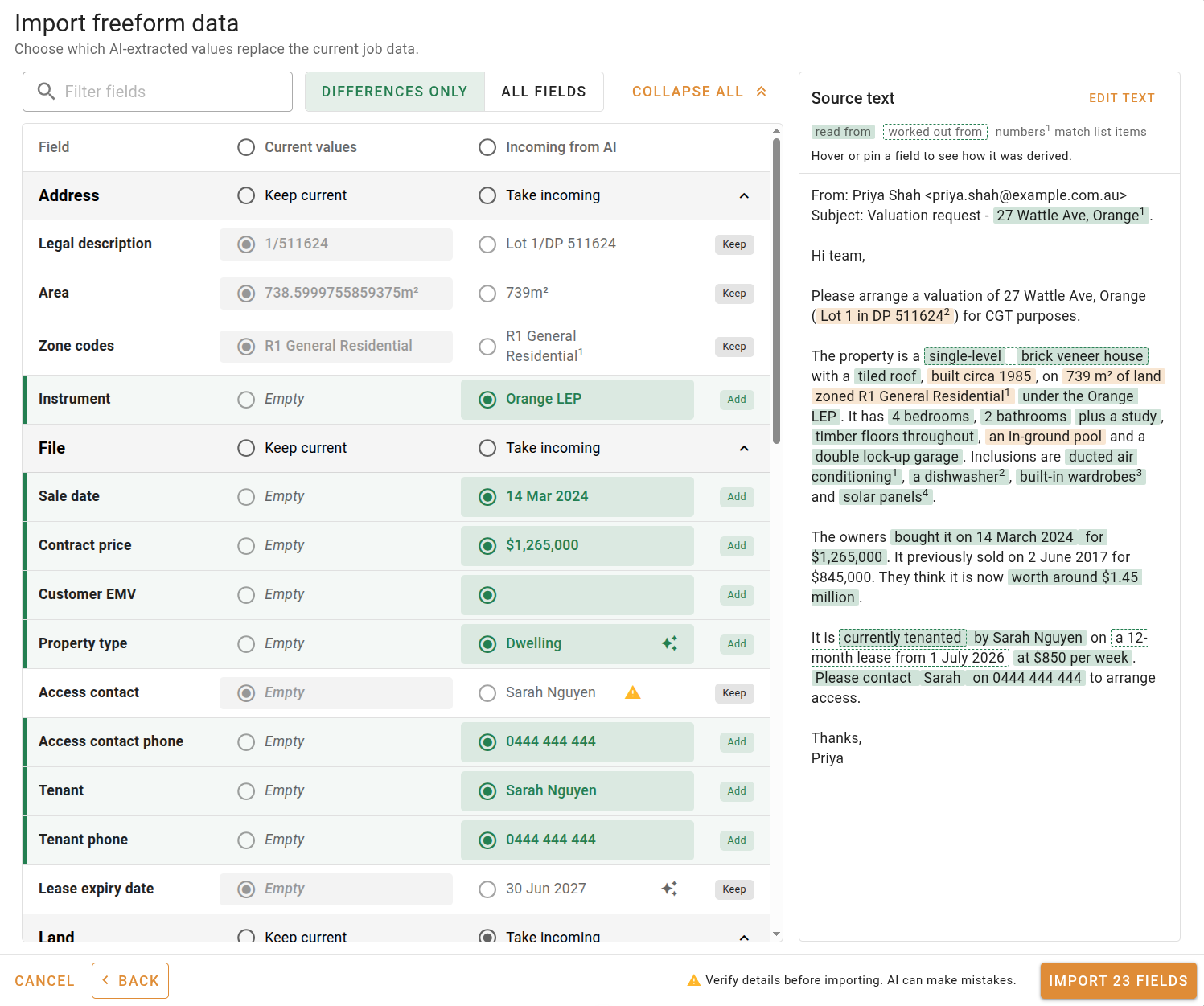
Click a value to choose it. To choose a side for every field at once, click Current values or Incoming from AI at the top of the list, or Keep current or Take incoming in a section's heading.
An empty field starts with the suggestion chosen, and a field that already has a value keeps it, so nothing is replaced by accident. A suggested yes or no starts chosen either way.
Checking a value against your text
Point at a row to highlight the part of your text its value was read from. Click the incoming value, or the button, to keep that passage highlighted and bring it into view.
Some suggestions carry a marker:
- The value could not be matched to your text. Point at it to see why, and check it carefully.
- The value was worked out from your text rather than read word for word, for example a lease expiry calculated from a start date and a term.
A suggestion with a marker always starts with the current value kept, even when the field is empty. Choose it yourself once you have checked it.
Dates and prior sales
A date is only suggested when your text gives its day, month and year. "Sold in March 2024" is not enough, so no date is suggested for it.
Prior sales cover the last 3 years only, so an older sale in your text is left out. The property's last sale is listed under prior sales as well when it falls inside those 3 years. A suggested sale is compared with the valuation's sale on the same contract date, and any other suggested sale is added as a new one. A new sale is only added when you choose its contract date as well.
Importing the selected fields
Click Import. The chosen values are saved to the valuation straight away.
The valuation's event log records that fields were populated using AI, and keeps the text you entered as an attachment on that event.