

Supporting leases
Use the Leases panel on a valuation to attach the leases that support your rent assessment. See Leases in the reference manual for every control.
To show the Leases panel, tick Leases in the tab's Panels menu.
Lease suggestions
VOW uses the details already on the valuation to suggest leases. Leases already on the valuation are listed first, then the closest ones.
- Location. If the address was filled in with the address lookup, VOW searches by distance from the property. Otherwise it searches the same suburb.
- Valuation date. The search looks backwards in time from the valuation date, so set the valuation date before you search. If it is not set, VOW uses today's date.
Adding leases
- Click + Add leases on the Lease list.
- Tick the leases you want. Click anywhere on a lease row to tick or untick it.
- Click Save.
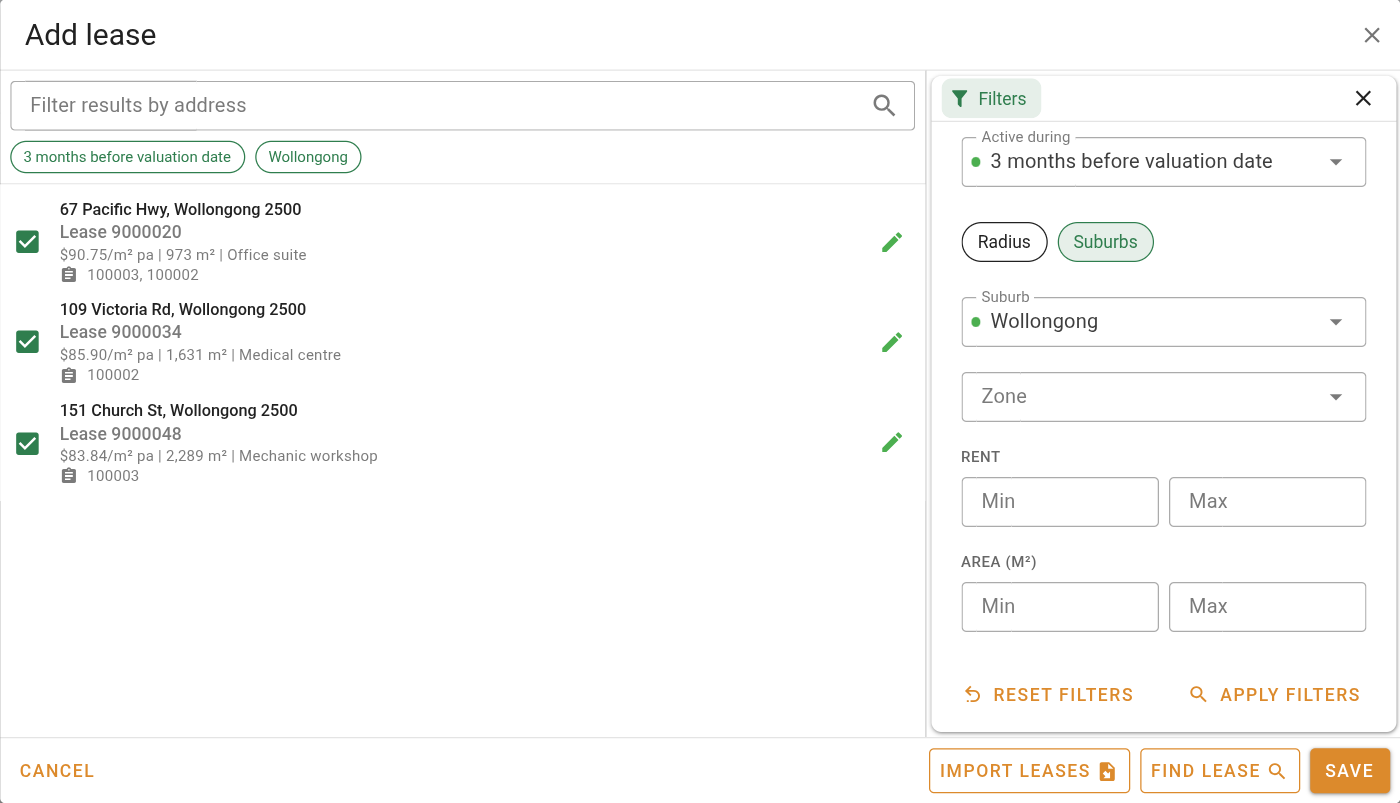
Leases already on the valuation appear at the top and start ticked. Unticking one and saving removes it from the valuation.
To narrow the list by address, type in Filter results by address.
If a lease is already used as evidence in other valuations, their reference numbers are listed under the lease beside the icon.
Adjusting the search filters
Click the button on the right edge of the dialog to open the filters panel. Change what you need, then click apply filters. Your ticked leases are kept, unless a lease no longer appears in the new results.
When the panel is closed, a green dot on the filter button tells you a suburb, zone, rent, or area filter is set.
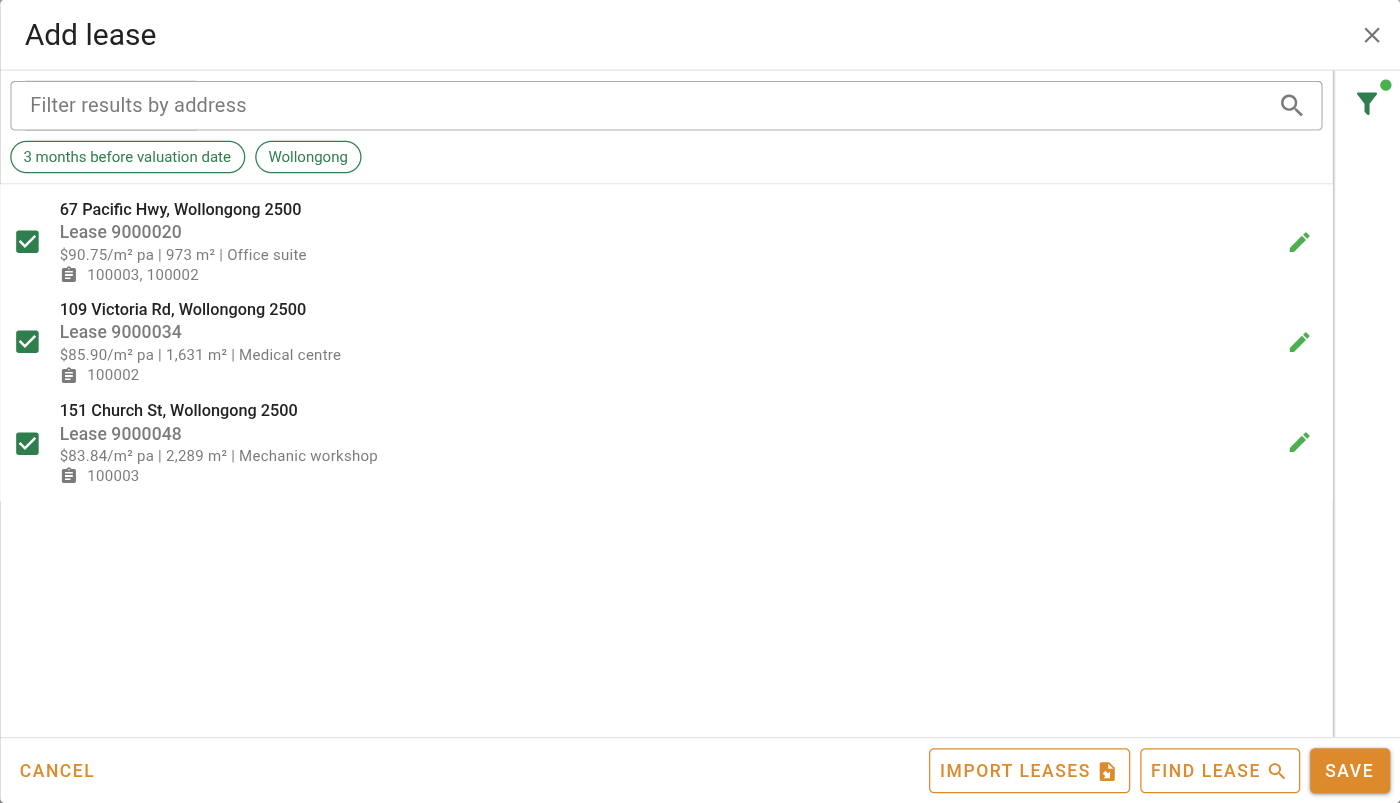
Filters panel closed, with a filter set
| Filter | What it does |
|---|---|
| Active during | Shows leases that were running in the period leading up to the valuation date. The default is 3 months before. Choose 6, 12, 24 or 36 months, On valuation date, or Custom range to widen or change it. |
| Radius / Suburbs | Search within a distance of the property, or within suburbs you choose. |
| Zone | Only leases in the zones you choose. |
| Min rent and Max rent | Only leases with a current rent in this range. |
| Min area and Max area | Only leases with a lettable area in this range. |
The filters you set are saved with the valuation, so the next search on this job starts from the same place. Click Reset filters to return to the defaults.
The Active during options count back from the valuation date, not from today. A valuation dated last year searches last year's leases by default.
Finding a specific lease
Click Find lease to look for one lease. Enter any of the lessor, lessee, lease reference, dealing number, or an address, then click Search. Tick the leases you want and click Save.
Importing leases from another job
If another valuation already has the leases you need, click Import leases. Enter the job reference number, click Search, untick any you do not want, and click Import.
Adding a lease from the lease form
If you already have the lease open, you can attach it without opening the valuation.
- Click + Add to valuation on the lease form.
- Enter the job reference number and click Search.
- Click Add to job.
See Adding a lease to a valuation in the reference manual.
Working with an attached lease
Select a lease in the Lease list to see its details on the right. A lease keeps the details it had when you attached it, so later edits to the lease record do not change your valuation on their own. Below the lease reference, you can see any other valuations that use the same lease. Click a reference to open that valuation.
- Write your own Brief Comments and Comparison to subject for the lease.
- Click Import comment to copy the lease commentary into Brief Comments.
- Click Edit source lease to open the lease record.
- Click Update from source lease to refresh the valuation with the current lease details after you edit the record.
- Click Save comments to lease to save your Brief Comments back to the lease record.
Updating from the source lease also replaces your Brief Comments with the lease commentary. Your Comparison to subject is kept.
To change the order, drag the handle. To take a lease off the valuation, click its button. The lease record itself is not deleted.