

Managing leases
You can create, edit, clone, and delete leases if you have the appropriate permissions. See Roles for the lease permissions. To attach leases to a valuation as evidence, see Leases in the valuation editor.
Creating a lease
Click Leases in the main navigation, then click New lease at the top right of the Leases page to open the lease form with the title Create lease. Fill in the lease form and click Save. The Required fields bar lists what is still missing.

The lease is given the next reference number when it is saved, and the Leases page refreshes to include it.
Editing a lease
Cloning a lease
Cloning creates a new lease from an existing one, which is useful when a property has a similar lease, or when a lease is renewed.
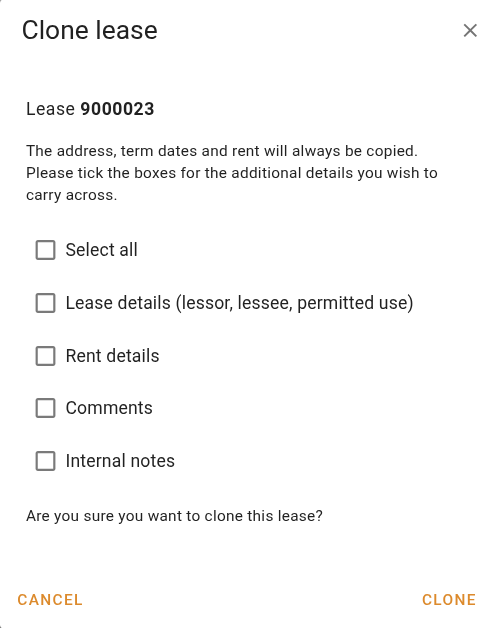
The clone dialog always copies the address, the term dates, the current rent, the commencing rent, and the GST Applicable setting. Tick the boxes for any additional details you want to carry across. Anything you leave unticked starts blank in the new lease.
| Option | Description |
|---|---|
| Select all | Ticks every option below. |
| Lease details | Copies the lessor, lessee, permitted use, lease type, term, option period, and dealing number. |
| Rent details | Copies the rental period, lettable area, rent reviews, and outgoings. |
| Comments | Copies the lease commentary. |
| Internal notes | Copies the internal notes. |
Click Clone to open the lease form pre-filled with the copied details. The clone is not saved until you click Save in the form.
Adding a lease to a valuation
Adding a lease to a valuation attaches it to the job as a supporting lease, where it appears in the Leases panel. You need permission to edit valuations to add a lease.
Open the lease in the lease form and click + Add to valuation to open the 'Add to supporting leases' dialog. The button is disabled while the lease has unsaved changes, so save the lease first.
Enter the job reference in the Job ref field and click Search. When a matching job is found, a summary of the job is displayed. Click Add to job to attach the lease to that job.
If the target job is open in another browser tab, save it before adding the lease to avoid conflicts.
When the lease is added successfully, a confirmation is shown and the job appears under Linked valuations on the lease. Click Open job to go to the job, or Close to return to the lease.
Deleting a lease
Deleting a lease cannot be undone.