

Tasks
Tasks are the individual actions that make up a workflow. Each task definition describes what needs to be done, who should do it, and how it behaves when performed. Task definitions created here are available to add to Workflows, and can also be added directly to individual jobs.
Tasks list
The tasks list shows all task definitions in your organisation, with columns for order, name, type, description, the number of workflows it appears in, and whether it is active. Use the Search field to filter by name or description.

Task types
The following task types are available. Each type determines what happens when the task is performed, and some types reveal additional fields in the task editor.
| Type | Description | Extra fields |
|---|---|---|
| Start workflow | Adds a workflow and all its tasks to the job. Performed automatically as soon as the task is added. | Workflow to start. |
| Sends an email using a selected template. Requires email integration. | Email template. | |
| Memo | Records a note on the job. | Default short notes, Default detailed notes. |
| Review attachment | Marks an attachment as reviewed. | Attachment type to review (Report, Invoice, Attachment, Other), Default short notes. |
| Template | Adds a template file to the job. | Template type (Report or Attachment). |
| Call | Records a reminder to call a contact on the job. | Default short notes, Default detailed notes. |
| Form | Adds a form or document to the job. | Form type (Invoice, Calculations, Job summary, Other). |
| None | A general-purpose task with no specific action. | Default short notes, Default detailed notes. |
| Stop all tasks | Automatically cancels all remaining tasks on the job when performed. | Default summary. |
Reordering tasks
Click Reorder to open the reorder dialog and drag tasks into your preferred order. The order you set here is reflected in the tasks list and in the task picker when adding a task to a job's workflow. You will need to refresh the page before the new order appears in the add tasks dialog.
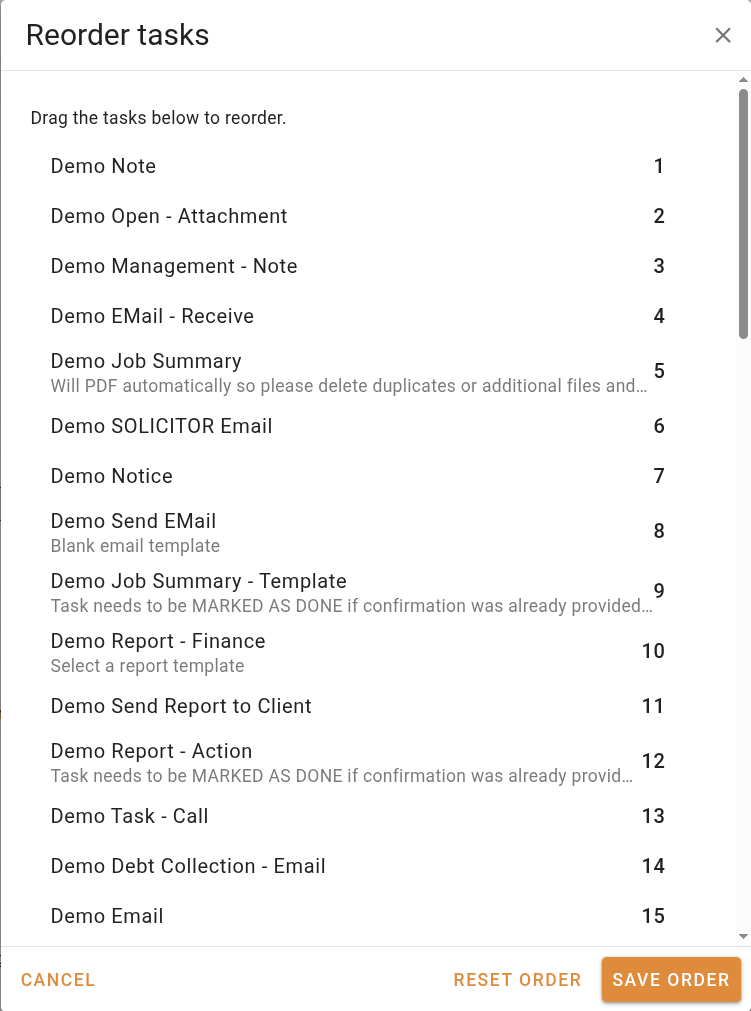
Click Reset order to discard any unsaved drag changes and return to the previously saved order. Click Save order to commit your changes.
Creating a new task
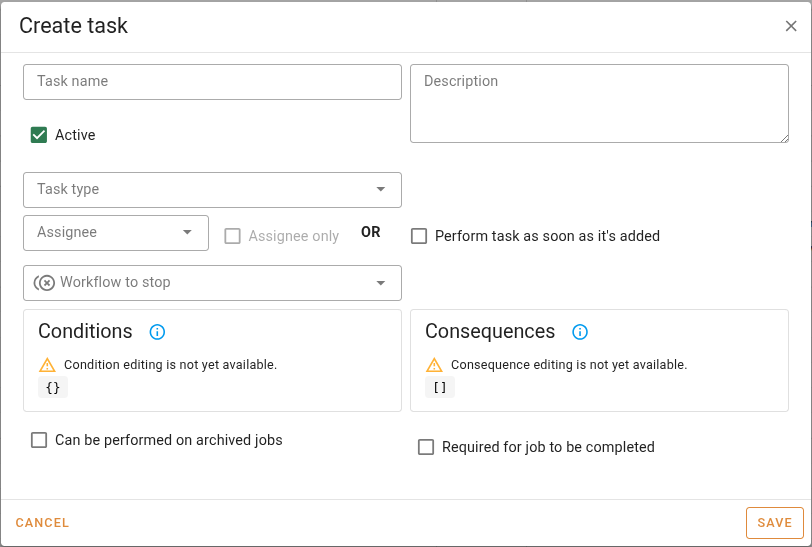
Click New to open the new task dialog. Fill in the fields and click Save to add the task to your organisation.
| Field | Description |
|---|---|
| Task name | The name displayed on the task throughout the system. |
| Description | A brief description of what the task is for. Optional. |
| Workflow to stop | An optional workflow to stop when this task is performed. Use this to end a parallel workflow as part of a task action. |
| Conditions | Requirements that must be met before the task can be performed. Condition editing is not yet available in the interface. Existing values are shown in read-only mode. |
| Consequences | Changes applied to the job when the task is completed, such as updating the job status. Consequence editing is not yet available in the interface. Existing values are shown in read-only mode. |