

Workflows
Workflows define ordered sequences of tasks that can be applied to jobs. When a workflow is started on a job, its tasks are added in order, giving the team a structured checklist to follow as work progresses.
Workflows list
The workflows list shows all workflows in a searchable grid. Use the Search field to filter by name or description, and the Show inactive toggle to include inactive workflows.
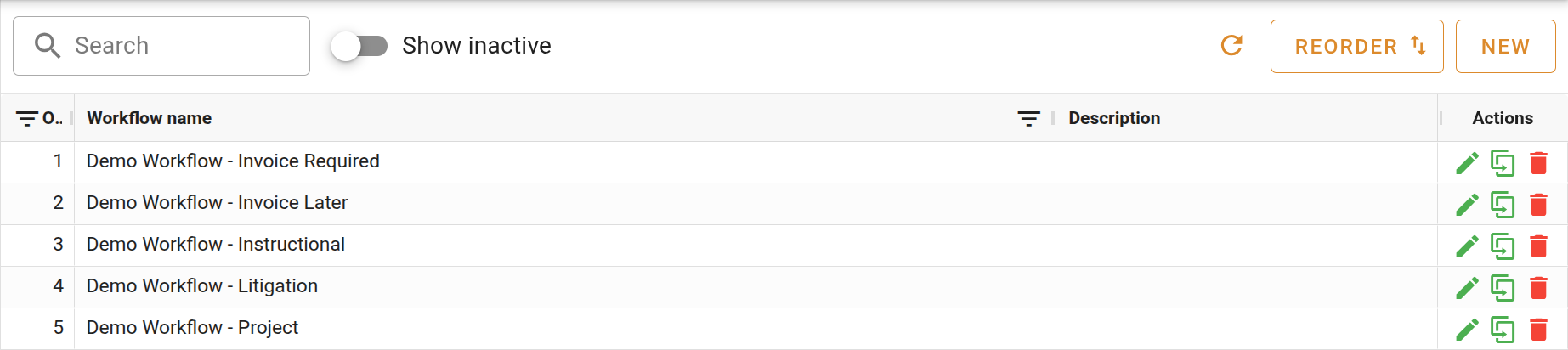
| Column | Description |
|---|---|
| Order | The workflow's position in the list. Workflows are displayed in this order when applied to a job. |
| Workflow name | The name of the workflow. |
| Description | A brief description of the workflow's purpose. |
| Active | Whether the workflow is currently active. |
Reordering workflows
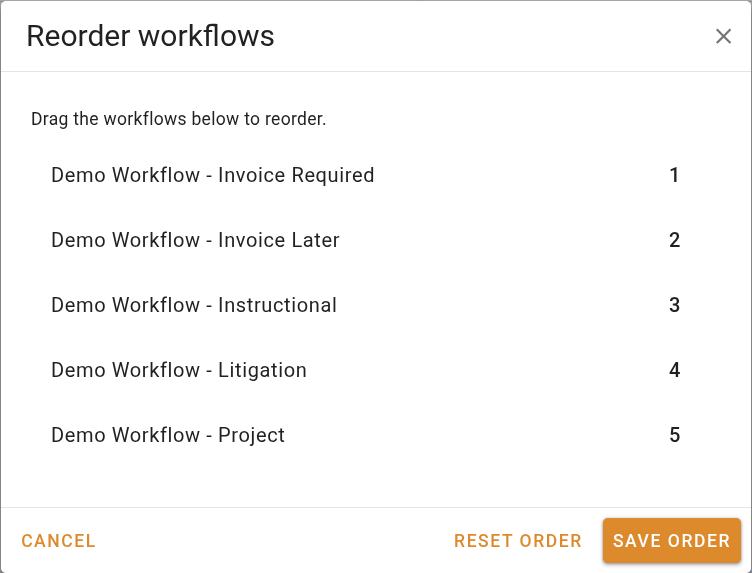
Click Reorder in the toolbar to open the reorder dialog. Only active workflows are shown. The order set here determines the sequence in which workflows are listed when applied to a job.
Creating a new workflow
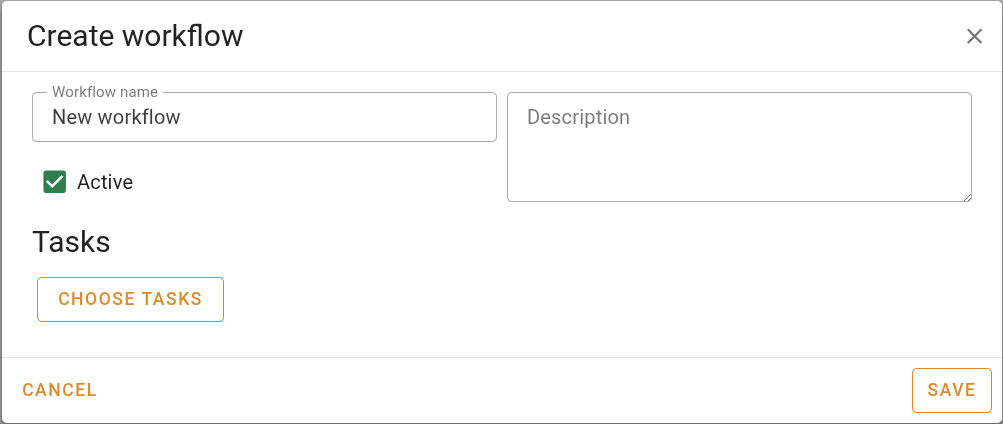
Click New to open the workflow editor dialog.
Workflow details
| Field | Description |
|---|---|
| Workflow name | The name displayed throughout the system when this workflow is referenced. |
| Description | An optional description of the workflow's purpose. |
Choosing tasks
The Tasks panel lists the tasks currently assigned to this workflow in order. Each row shows the task number, name, and description. The Offset days field on each row sets the number of days after the workflow starts that the task's due date is set.
Click Choose tasks when no tasks have been added yet, or + Add tasks to add more, to open the task picker.
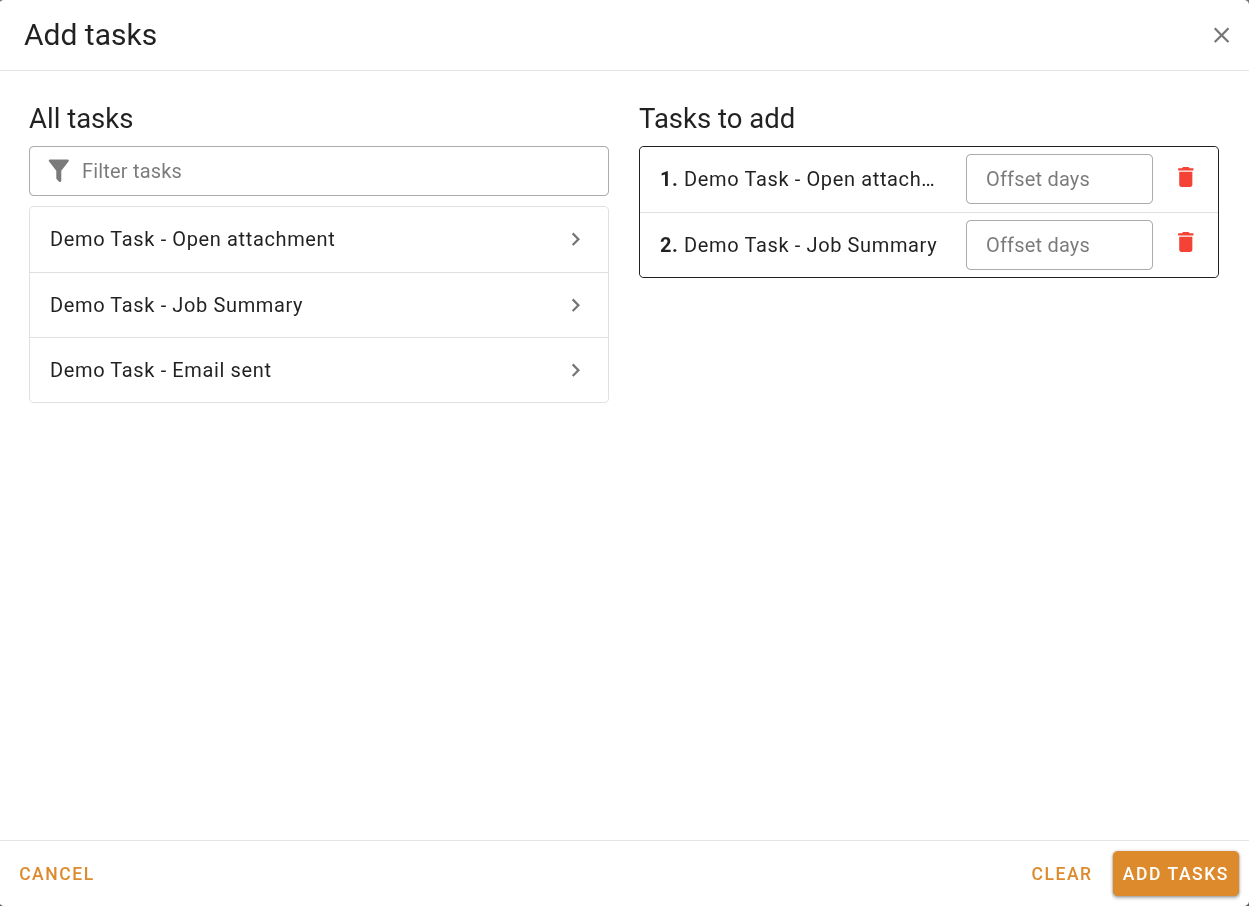
The left panel lists all available tasks. Use the filter field to narrow the list, then click the button to move a task to the right panel. Tasks in the right panel can be reordered by dragging and given an Offset days value before confirming. Click Add tasks to append them to the workflow.
A task configured to start this workflow cannot be added to it, as it would create a circular reference.