

Property search results
The search results list shows all properties matching your search criteria, with columns displaying property identifiers, address, area, LGA, zone codes, land value, and more.
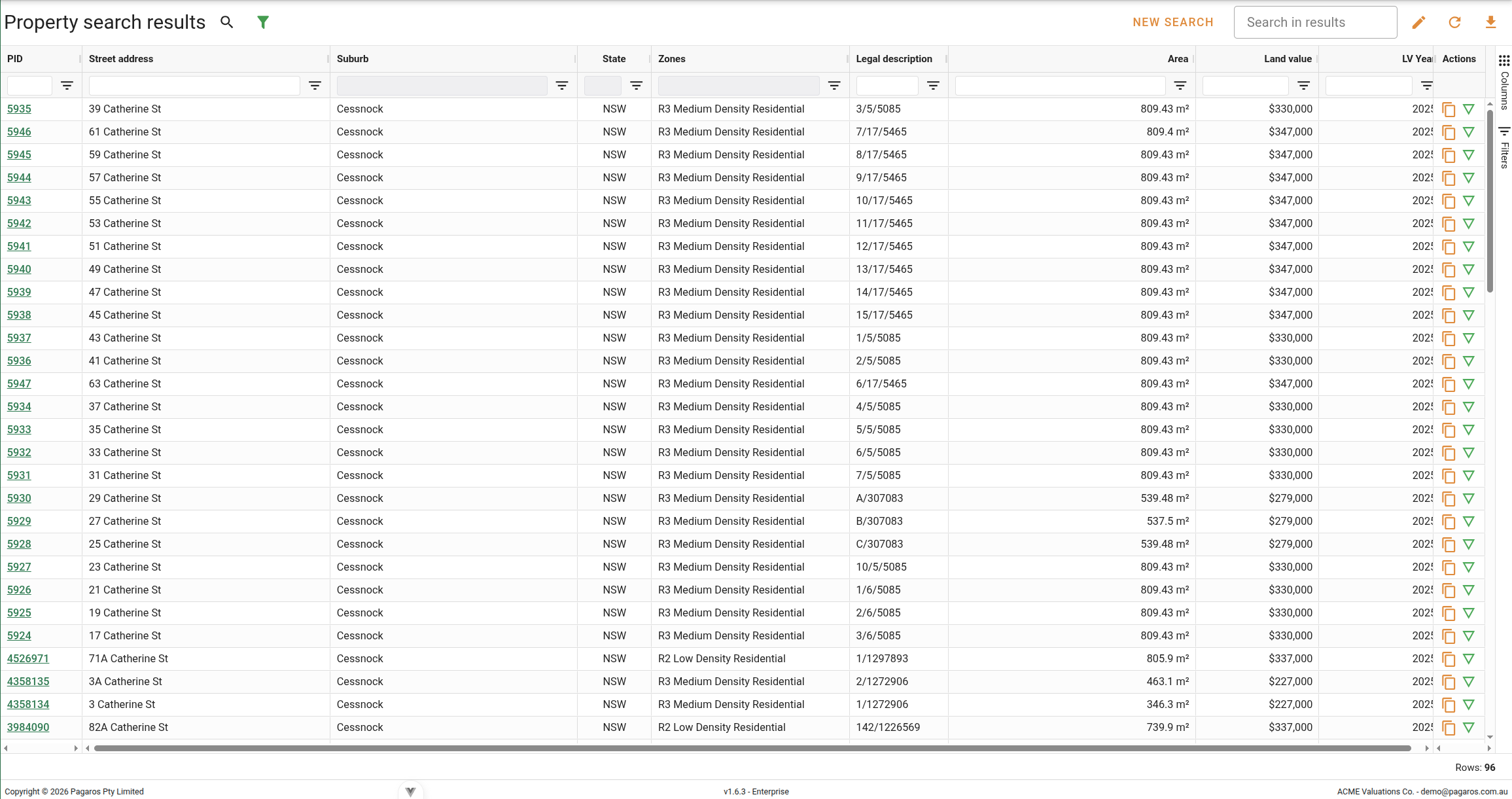
Results displayed
The results are displayed one property per row. Double-clicking a row opens the Property card. Clicking any column header sorts the results; holding Shift and clicking additional headers sorts by multiple columns. Columns marked as hidden by default can be made visible using the column menu in each column header.
| Column | Description |
|---|---|
| PID | The unique government property identifier. Displayed as a link that opens the property record. |
| Full address | The full formatted address, combining unit number, house number, street name, suburb, and postcode. |
| Street address | The street address, combining unit number, house number, and street name, without suburb or postcode. Hidden by default. |
| Property name | The name of the property or building. Hidden by default. |
| Unit No. | The unit number of the property. Hidden by default. |
| H/N | The house number of the property. Hidden by default. |
| Street | The street name of the property. Hidden by default. |
| Suburb | The suburb in which the property is located. Hidden by default. |
| State | The state or territory in which the property is located. Hidden by default. |
| Postcode | The postcode of the property. Hidden by default. |
| GPS coordinates | The GPS coordinates of the property. Hidden by default. |
| LGA | The Local Government Area in which the property is located. |
| Zones | The zone codes assigned to the property. |
| Legal description | The legal description of the property. |
| Area | The land area of the property, displayed as either m² or ha. |
| Plan type | The plan type of the property. Hidden by default. |
| Property type | The property type as recorded in the Register of Land Values, either NORMAL or UNDERSP. |
| Land value | The most recently assessed land value for the property. |
| LV Year | The year in which the land value was assessed. |
| Actions | The per-row action buttons available for each property. See Managing search results for details. |
Filtering
Column-level filters can be applied to all columns in the results table. Click the button to open the filter panel, which lists all filterable columns. Filters can also be applied directly from each column header. When one or more filters are active, a Filters active chip and a Reset filters button appear in the controls bar. Click Reset filters to clear all active filters at once and return the list to the full result set.
Context menu
The context menu is accessible by right-clicking any row in the results grid.
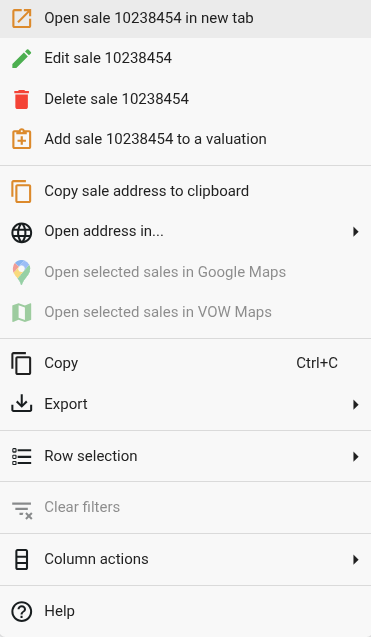
Available options vary based on your account permissions and the number of selected rows.
 Google Search: Opens the address on Google in a new browser tab.
 SIX Maps: Opens the address in NSW SIX Maps. Shown only for NSW properties. Disabled if no government property identifier is recorded against the property.
Open selected properties in Google MapsAction
Click the  button to open all currently selected properties in Google Maps. Disabled when no rows are selected.
button to open all currently selected properties in Google Maps. Disabled when no rows are selected.