

Sales search results
Sales search results are the sales returned by a search run on the Sales page. Results open in a Results tab and can be filtered, exported, and acted on directly from the list.
Search results list
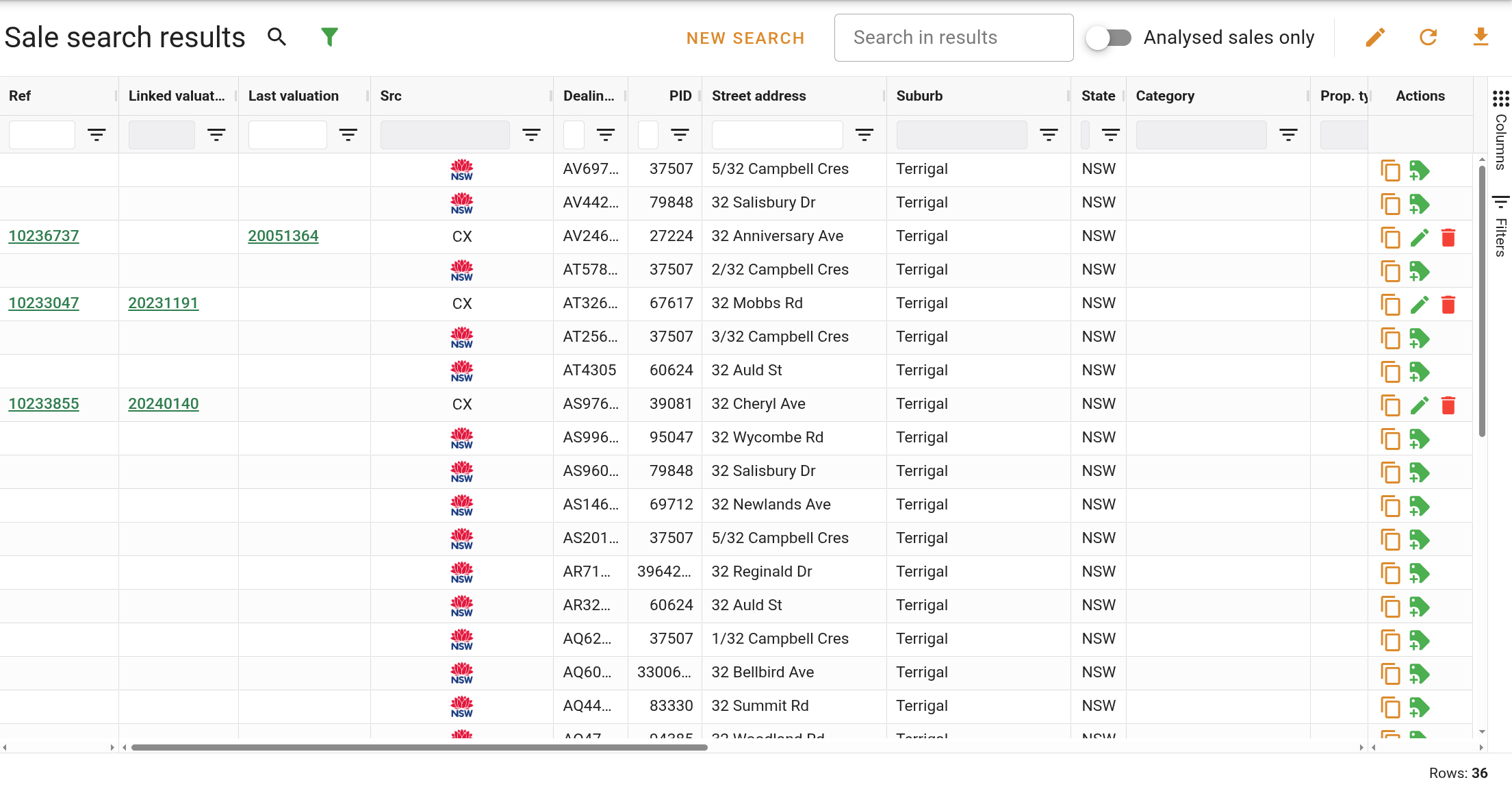
The search results list shows all sales matching your search criteria, with columns displaying reference numbers, sale source, dealing number, address, contract date, price, and more.
Results displayed
The results are displayed one sale per row. Results are sorted by contract date descending by default. Double-click any row to open the Sale card. Columns marked as hidden by default can be made visible using the column menu in each column header. Below is a list of the columns available for each sale displayed in the results list.
| Column | Description |
|---|---|
| Ref | The unique reference number for the sale. Displayed as a link that opens the sale record. |
| Linked valuations | The reference numbers of valuations that use this sale as evidence. |
| Last valuation | The reference number of the most recent valuation completed at this property. |
| Src | The source of the sale record, shown as an icon indicating either a government (VG) or company (CX) record. |
| Dealing No. | The government dealing number associated with the transaction. |
| PID | The unique government property identifier. |
| Full address | The full formatted address including unit, house number, street, suburb, and postcode. Hidden by default. |
| Street address | The street-level address including unit, house number, and street name. |
| Prop. name | The name of the property or building. Hidden by default. |
| Unit No. | The unit number of the property. Hidden by default. |
| H/N | The house number of the property. Hidden by default. |
| Street | The street name of the property. Hidden by default. |
| Suburb | The suburb in which the property is located. |
| State | The state or territory in which the property is located. |
| Postcode | The postcode of the property. Hidden by default. |
| GPS coordinates | The latitude and longitude of the property. Hidden by default. |
| LGA | The Local Government Area in which the property is located. Hidden by default. |
| Zones | The zone codes assigned to the property. |
| Instrument | The zoning instrument (LEP) applicable to the property. Hidden by default. |
| Legal description | The legal description of the property. |
| Area | The land area of the property. |
| Plan type | The plan type from the legal description, such as DP or SP. Hidden by default. |
| Strata Lot No. | The strata lot number of the property. Hidden by default. |
| Category | The sale category assigned to the record. |
| Prop. type | The property type assigned to the sale. |
| Interest valued | The interest in the property that was valued. Hidden by default. |
| Contract date | The date on which the contract was signed. |
| Settlement date | The date on which the transaction settled. |
| Created at | The date and time the sale record was created in the system. |
| Price | The sale price of the transaction. |
| List price | The asking price at which the property was listed. Hidden by default. |
| List date | The date the property was listed for sale. Hidden by default. |
| Purchasers | The names of the parties who purchased the property. Hidden by default. |
| Vendors | The names of the parties who sold the property. Hidden by default. |
| Analysed LV | The land value recorded as part of a sale analysis. Hidden by default. |
| Analysed by | The valuer who recorded the land value analysis. Hidden by default. |
| Confirmed | Whether the sale has been marked as confirmed. Displays Yes when confirmed, blank otherwise. |
| Provisional | Whether the sale has been marked as provisional. Displays Yes when provisional, blank otherwise. |
| Interest | The fraction of the property that was sold. Hidden by default. |
| Nature | The nature of the property, such as residential or commercial. Hidden by default. |
| Component | The component code associated with the sale. Hidden by default. |
| Purpose | The primary purpose for which the property is used. Hidden by default. |
| Sale commentary | The public commentary notes recorded against the sale. Hidden by default. |
| Sale code | The regulatory sale code assigned to the transaction. Hidden by default. |
| Internal notes | The internal notes recorded against the sale, visible only to your organisation. Hidden by default. |
| Actions | The per-row action buttons available for each sale. See Managing search results for details. |
Filtering
Column-level filters can be applied to all columns in the results table except Purchasers, Vendors, and GPS coordinates. Click the button to open the filter panel, which lists all filterable columns. Filters can also be applied directly from each column header. When one or more filters are active, a Filters active chip and a Reset filters button appear in the controls bar. Click Reset filters to clear all active filters at once and return the list to the full result set.
Context menu
Right-click any row in the results grid to open the context menu as shown below.
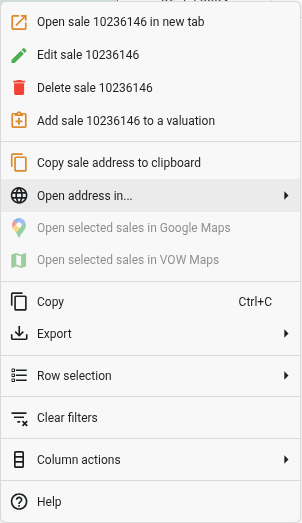
Available options vary based on the sale source, your account permissions, and the number of selected rows.
 Google Search: Opens the address on Google in a new browser tab.
 SIX Maps: Opens the address in NSW SIX Maps. Shown only for NSW properties. Disabled if no government property identifier is recorded against the sale.
Open selected sales in Google MapsAction
 Opens all currently selected sales in Google Maps. Disabled when no rows are selected.
 Managing search results
Creating, editing, and deleting applies only to company (CX) sales. VG sales are read-only and cannot be modified.