

Email composer
The email composer creates and sends an email from a record, using your organisation's configured email integration. It opens from valuations, projects, quotes, and requests, as well as from an invoice raised on a valuation or project, and records every message it sends on the originating record's event log.
Availability
The composer opens from a record. The entry point determines what is pre-filled when it appears.
| Open it from | Available on | What is pre-filled |
|---|---|---|
| Send email in the Actions menu | Valuations, projects | A default subject, no recipients |
| Send email on a quote | Quotes | A default subject built from the property address, no recipients |
| Send email in the form header | Requests | The record's contacts |
| The envelope on a contact | Valuations, projects, quotes, requests | The selected contact |
| The Send invoice button on an invoice | Valuations, projects | The billing contact, with the invoice attached |
When email templates are enabled and a template exists for the record type, the Send email Actions menu path offers template selection before the composer opens.
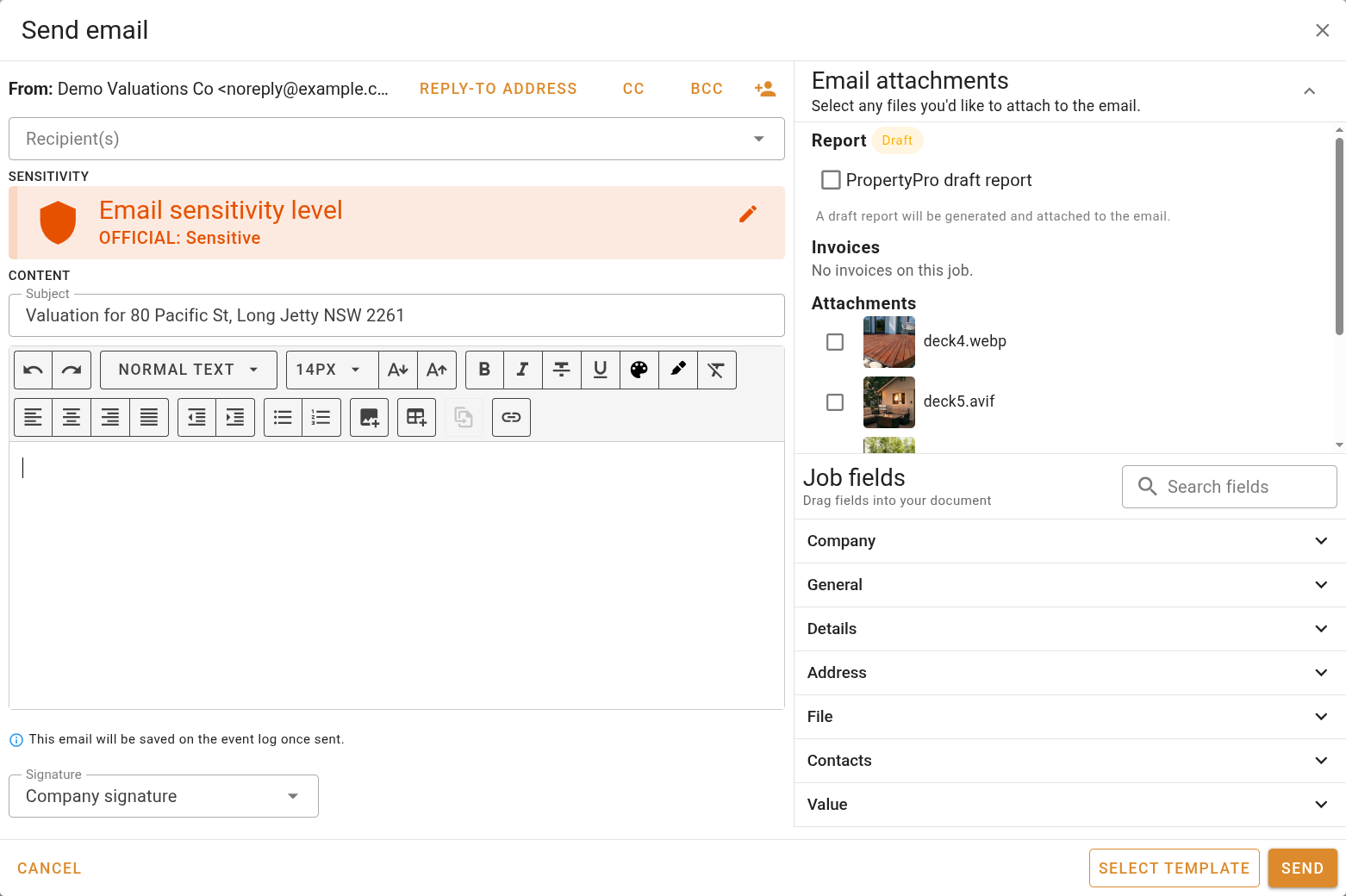
Sending email requires the Send email permission, the email integration feature, and email enabled for your organisation.
Sender
The From address is read-only. It shows your organisation's configured sending address and display name, set by the email integration, and cannot be changed for an individual message.
Recipients
The Recipient(s) field accepts one or more addresses and is the only required address field. Its options are drawn from the record and your organisation.
| Source | Description |
|---|---|
| Record contacts | Contacts on the record that have an email address. |
| Internal roles | Users assigned to the record, each labelled with their role. Valuations and projects list the valuer, supervising valuer, assignee, additional valuers, and signatories. Quotes list the quoter, valuer, assignee, additional valuers, and signatories. Requests have no role-based contacts. |
| You | Your own account, labelled Me. |
| Company contacts | Contacts saved against your organisation. |
Reply-to, cc, and bcc
Three toggle buttons above the recipients reveal optional address fields.
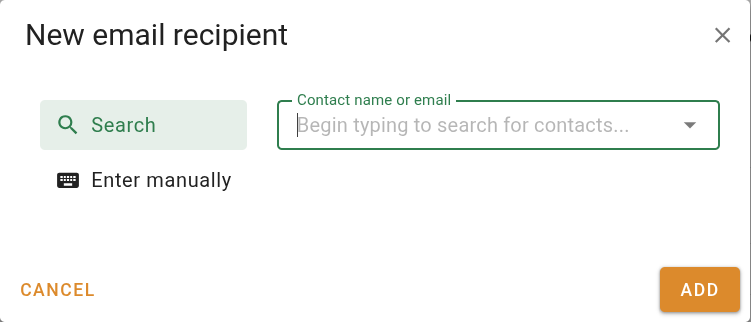
Adding a recipient
Sensitivity label
A Sensitivity label classifies the content of the email. A default label is applied automatically when your organisation has configured one. Only visible when sensitivity labels are enabled for your organisation.
When your organisation requires a sensitivity label, the email cannot be sent until one is selected.
Managing sensitivity labels
Sensitivity labels are configured in Settings | System, under Email integration. Enabling sensitivity labels there reveals a Manage sensitivity labels button, which opens the label list.
The label list shows every label and sublabel in priority order, refreshed using the button. Drag a row to reorder it. Reordering is disabled while a sort or filter is active.
Creating or editing a sensitivity label
Click + New label, or right-click an existing row and choose Create new label or Create new sublabel, to open the label editor. Double-click a row to edit it.
| Field | Description |
|---|---|
| Name | The label's name within VOW. |
| Display name | The name shown to recipients in Outlook. Matches Name unless changed separately. |
| Description | An internal description of the label's purpose, shown only within VOW. |
| User tooltip | The text shown to recipients in Outlook when they hover over the label. Required. |
| Colour | The colour used to display the label. Inherited from the parent label when the label has one. |
| Active | Whether the label is available for selection. |
| Default label for new emails | Whether this label is pre-selected when composing a new email. |
Click Save to save the label.
Message content
The message body is composed in a rich-text editor, with a required subject line above it.
Subject
The Subject is required. It supports template fields, which are replaced with values from the record when a template is applied.
If the subject still contains template fields in double braces (``) that could not be filled from the record, the email cannot be sent until they are resolved.
Formatting toolbar
The toolbar above the body applies rich-text formatting.

The following table describes each control available in the toolbar, in the order they appear.
| Control | Description |
|---|---|
| Undo / Redo | Steps backwards or forwards through recent edits. |
| Text style | Applies Heading 1, Heading 2, Heading 3, or Normal text. |
| Font size | Sets a specific size, or increases and decreases the current size. |
| Bold, Italic, Strikethrough, Underline | Character formatting marks. |
| Text colour | Sets or clears the colour of the selected text. |
| Highlight | Applies or clears a highlight colour behind the text. |
| Clear formatting | Removes all marks from the selection. |
| Alignment | Aligns text left, centre, right, or justified. |
| Indent / Outdent | Increases or decreases the indent of a paragraph. |
| Bulleted list / Numbered list | Starts or toggles a list. |
Links, tables, and images
Template fields
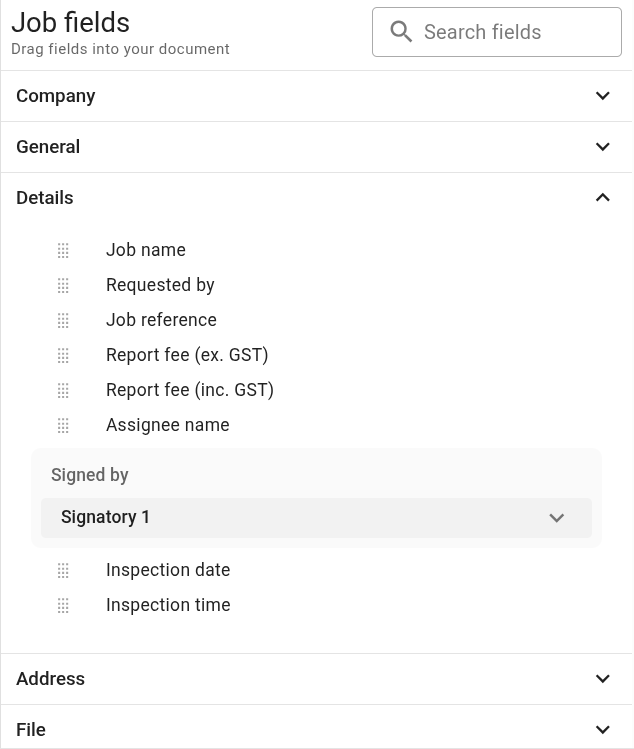
Template fields are data placeholders that pull values from the current record into the email body (for example, a job name, address, or inspection date from a valuation). Each field displays its current value inline as you compose, so you can see exactly what the recipient will receive.
The Template fields panel on the right lists the fields available for the current record type. Drag a field from the panel into the body to insert it, or type @ in the body to search for and select a field from a pop-up list. The Replace variable with text toolbar action converts a selected field into its current plain-text value.
Template fields are available for valuations, projects, quotes, and requests.
Email attachments
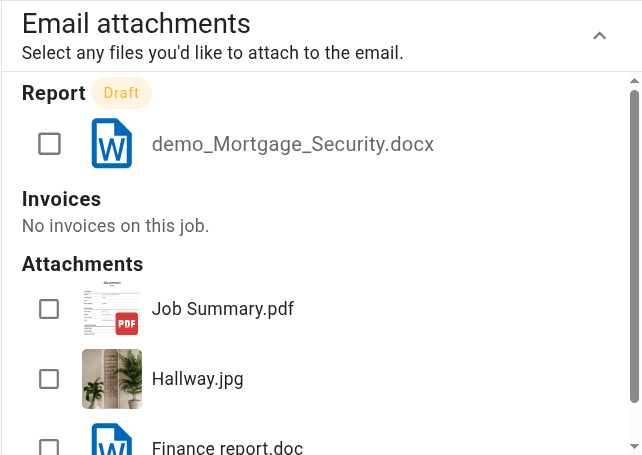
The Email attachments section on the right lists files that can be attached from the record.
| Item | Description |
|---|---|
| Report | The record's report document. When no document exists yet, a draft is generated and attached as the email is sent. Valuations and projects only. |
| Invoices | Invoices on the record. Indicators show when an invoice's attachment has not been generated yet or is outdated. Valuations and projects only. |
| Attachments | Files attached to the record. |
Signature
The Signature field selects the signature appended to the email. My signature is available when you have set one in your account settings; Company signature is always available. When you have not set a personal signature, only the company signature is offered.
See My Settings to set your personal email signature.
Using a template
Click Select template to apply a template to the email. The selection dialog lists active templates for the record type. Choose one and click Use template, or click Blank email to start from scratch. Applying a template fills the recipients, subject, body, signature, and reply-to, cc, and bcc fields according to the template's configuration, and applies the template's sensitivity label when sensitivity labels are enabled.
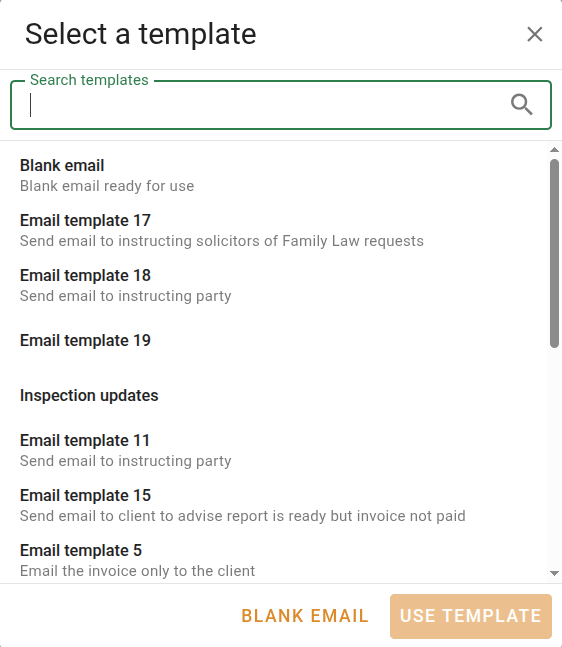
Applying a template can replace recipients you have already added. When that would happen, a 'Recipients changed' confirmation appears before the template is applied.
Templates are only offered when email templates are enabled for your organisation. See Email templates for creating and managing them.
Sending the email
Click Send to send the email. Before sending, the composer checks that a subject is present, at least one recipient is added, a sensitivity label is set when your organisation requires one, and the body is not empty. Click Cancel to discard the message.
Once sent, the email is recorded on the record's event log, and any invoices attached to it are marked as sent.
Every email sent from a record is saved to that record's event log.
See Sending emails for a step-by-step walkthrough.