

Valuation table view
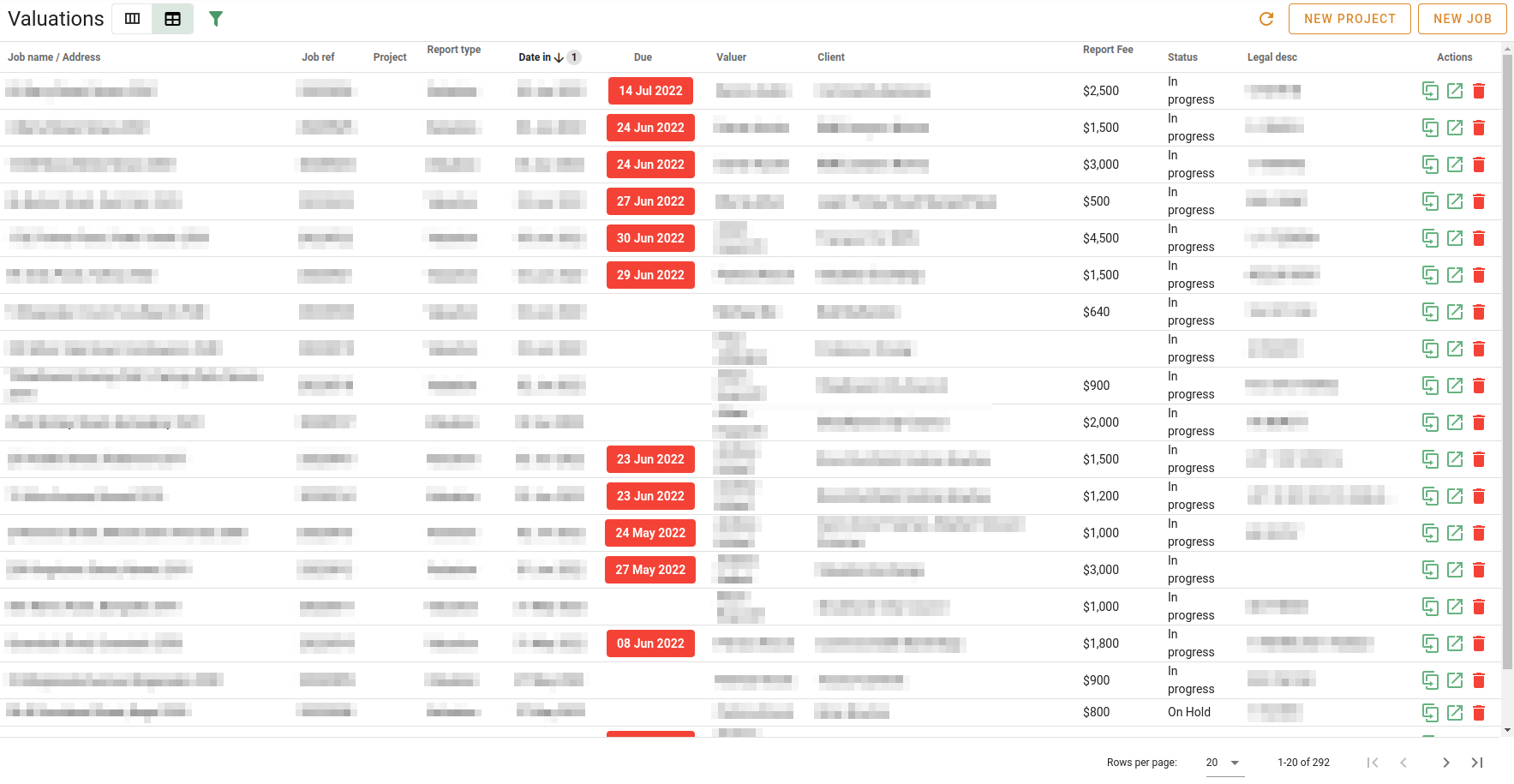
The table view of the valuations is way of viewing valuations in a scrollable table where each valuation has its own row. Unlike the column view, you are able to see jobs that have been archived.
View selector
You can click the buttons in the view selector to choose your view. In the image above, the user has chosen to have the table view displayed.
Which jobs are loaded
The controls at the top of the page decide which jobs the table holds. The table then filters, sorts and groups them without going back to the server.
- Show archived: off by default, so the table holds every job in an active status. When on, archived jobs that were open during the chosen period are added. Active jobs are always included. The Archived column shows the same thing per job, and its filter and the switch are one setting: the switch sets the filter, filtering the column to Yes turns the switch on, and the Filters chip does not count it.
- Open during: the period used when Show archived is on. The field names the period (This Quarter (Q4 2026), Last Financial Year (25-26), June 2026, 21 - 27 Sep 2026) and shows the full name and dates when you hover. The arrows either side move to the previous or next period of the same kind. Click the field for the list of periods (last 3, 6, 12 or 24 months; this and last month, quarter and financial year; YTD for the year to date; this and last year) and, beside it, a Start and an End calendar: pick a day in either to move that end of the period on its own, and To date under End sets the end to today. Every choice applies straight away.
Whose jobs you see is a column filter here: Valuer, Assignee, Supervising valuer and Branch.
When more jobs match than the table can hold, a message shows how many matched and no rows are loaded. Shorten the period to continue.
Filtering
- Search jobs keeps the rows where any column contains the text.
- Every column has its own filter in its header. Set filters list the values present (status, category, property type, report type, valuer, assignee, supervising valuer, client, branch, zones), date columns filter by a range and text columns by their contents. Filters on different columns work together.
- Client is the job's instructing party. The All contacts column, hidden until you show it from the Columns panel, lists every contact on the job, and Search jobs looks in it too.
- The Filters chip beside the search box shows how many columns have a filter set. Click it to open the Filters panel, which lists every column's filter; the cross on the chip clears the column filters.
- Your column filters and search text are kept while you move around VOW, and they are part of the page's address, so a link to the page opens the same filtered view.
- Drag a column header onto the Row Groups bar above the table to group the rows by that field.
See Working with data grids for the grid's filtering, sorting and grouping tools.
Tools

Refresh
Click the Refresh button to fetch the valuation information from the server again.
New project
Click New project to create a new project. See Working with projects to see more information about projects.
New job
Click New job to create a new job. See Working with valuations to see more information about jobs.
Classic jobs page
With Use the classic jobs page turned on (in the menu beside the view selector, or under Jobs page in My settings), the table is the previous version: it loads a page of jobs at a time, and you find jobs with the filter panel and the page navigation below.
Filtering
Click Filter to toggle the Filter panel's visibility.
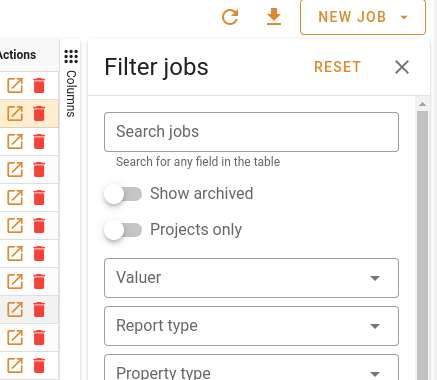
The Filter panel will show on the right-hand side of the page. You can hide the Filter panel by clicking Filter again, or by clicking the Close button at the top left of the panel.
You can filter the rows in the table by specifying any of the following criteria:
- The job has the entered text in one of the fields shown in the table
- Whether the job has a status that is flagged as an archive status
- Whether the job is a project
- Valuer
- Report type
- Property type
- Property category
- Report purpose
- Zoning
- Job status
- Branch
- Date in (range)
- Inspection date (range)
- Due date (range)
- Date out (range)
- Date requested (range)
Click Reset to clear the filters you have set.
Table navigation
At the bottom left of the page, there are some table page navigation tools:

Use these to:
- Go back to the first page
- Go back to the previous page
- Go forward one page
- Go to the last page