

Email templates
Email templates define the content of emails sent from within VOW. Each template has a type that determines when it can be used.
Email templates list
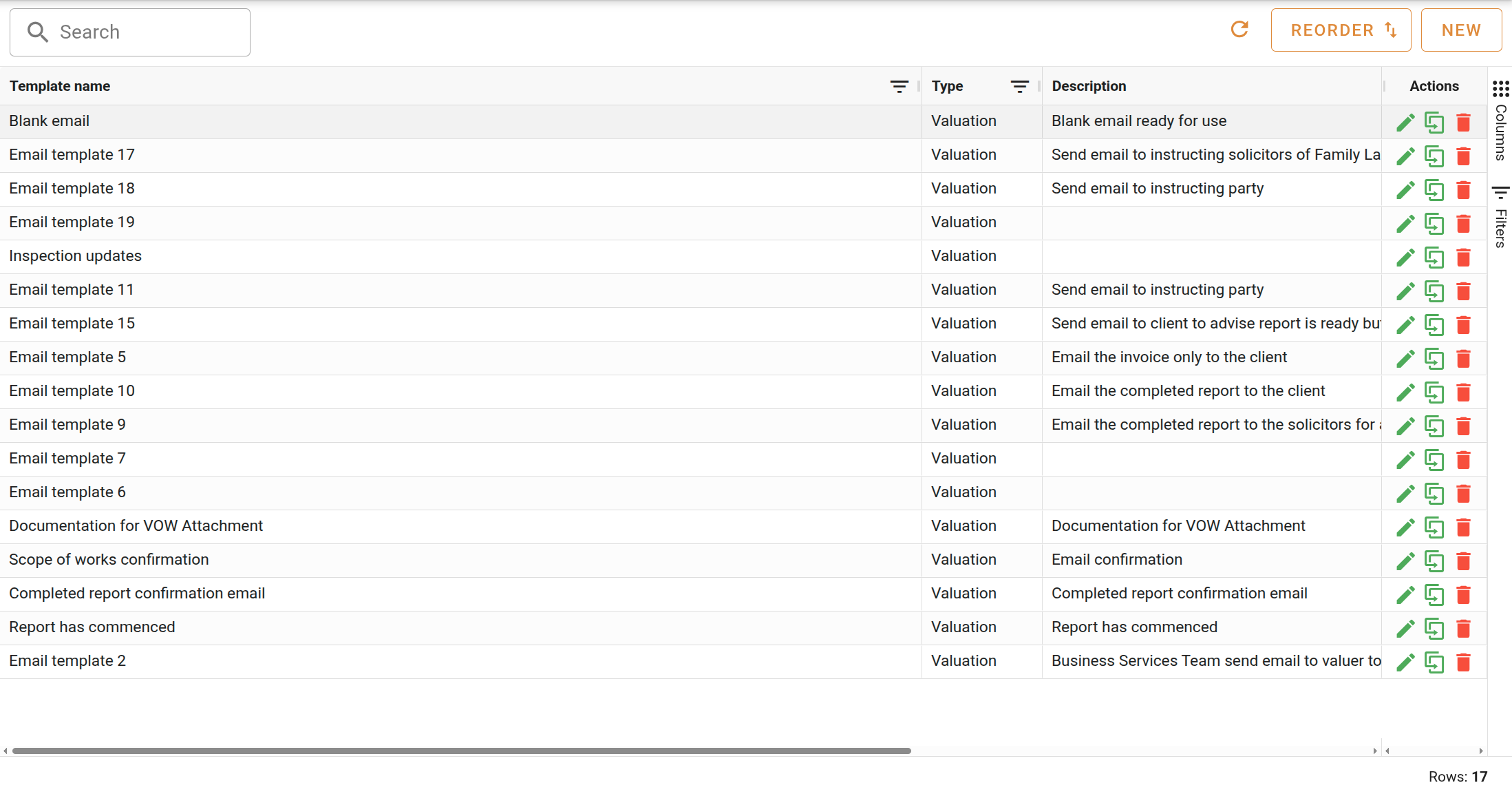
The email templates list shows all email templates in your organisation, with columns for name, type, description, and whether it is active. Use the Search field to filter by name or description, or click the button to reload the list.
Creating an email template
Click the New button to open the "create email" dialog.
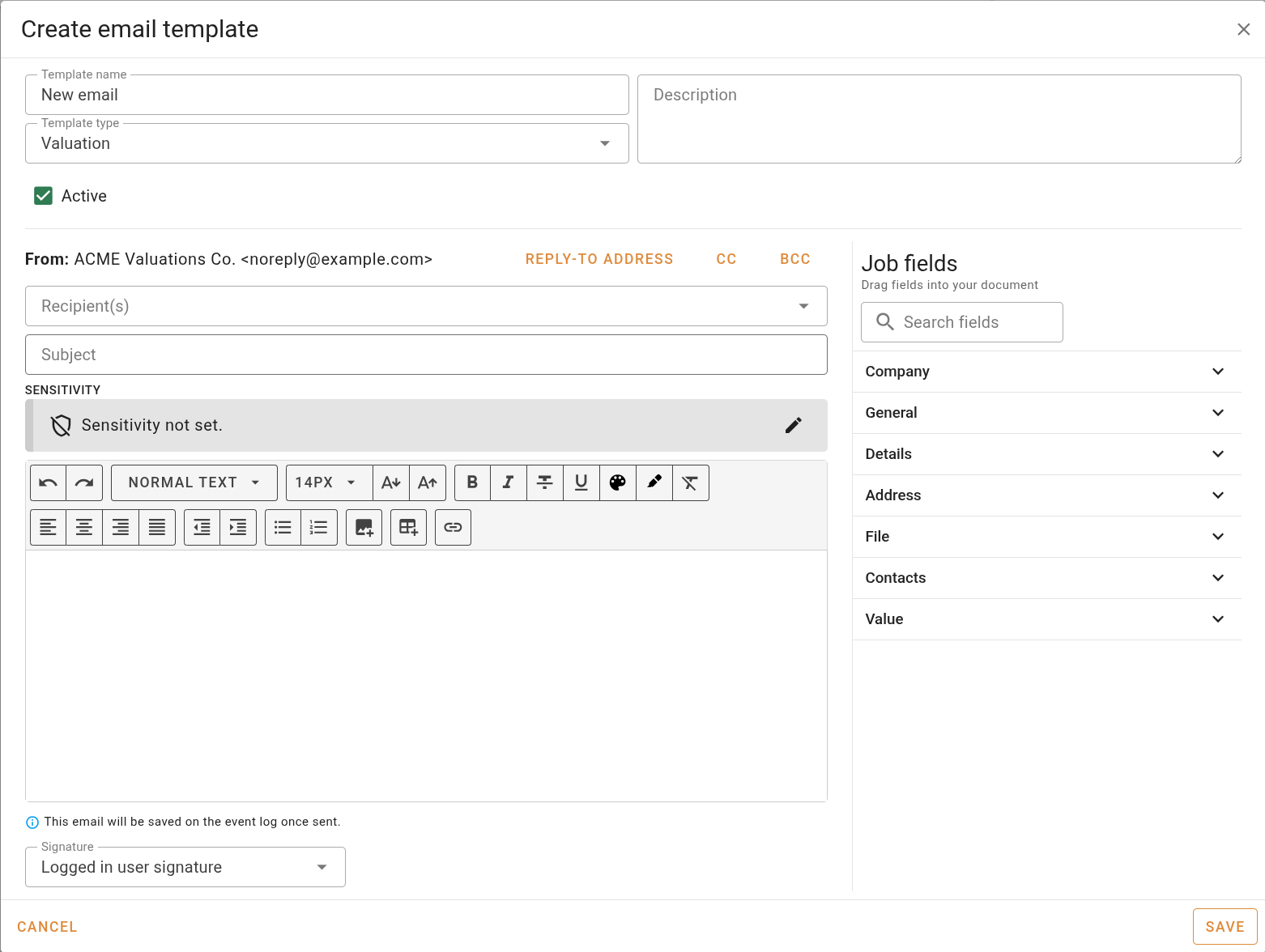
Fill in the fields below and click Save to create the email template.
| Field | Description |
|---|---|
| Template name | The name shown in template selection lists throughout the system. |
| Template type | The type of record this template is used on: Valuation, Project, Request, or Quote. |
| Description | Optional description of the template's purpose. |
| Recipient(s) | Select one or more recipients. The email will be sent to these contacts. |
| Subject | The subject line for the email. Supports dynamic fields from the record. Required. |
| Email body | The body of the email. Supports rich text formatting and dynamic fields from the record. |
| Signature | The signature to append to the email. |
If you change the Template type on an existing template, a confirmation dialog will warn you that any incompatible fields in the template will be removed.
Click Save to create the template.
If you close the editor with unsaved changes, you will be asked whether to save, discard, or continue editing.
For more on sending emails and working with the email editor, see the Email reference page.
Reordering email templates
Click Reorder to open the reorder dialog and drag templates into your preferred order. Only active templates appear in the reorder dialog.
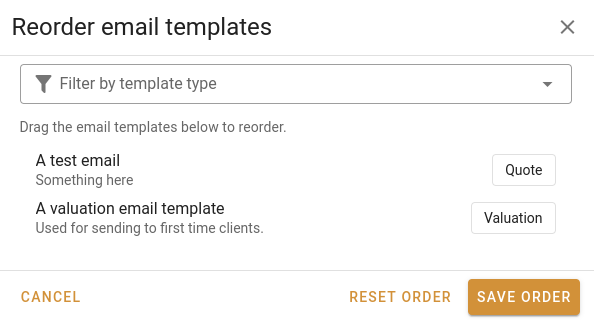
Use the Filter by template type dropdown to narrow the list to a specific type before reordering.
Click Reset order to discard any unsaved drag changes and return to the previously saved order. Click Save order to commit your changes.