

Roles
Roles define what users can see and do in VOW. Each role is a named collection of permissions. Users can be assigned one or more roles, and their combined permissions determine what they have access to.
Roles list
The Roles list shows all role definitions in your organisation. Each entry shows the role's name and description. A Default role chip appears on whichever role is currently set as the default for new users.
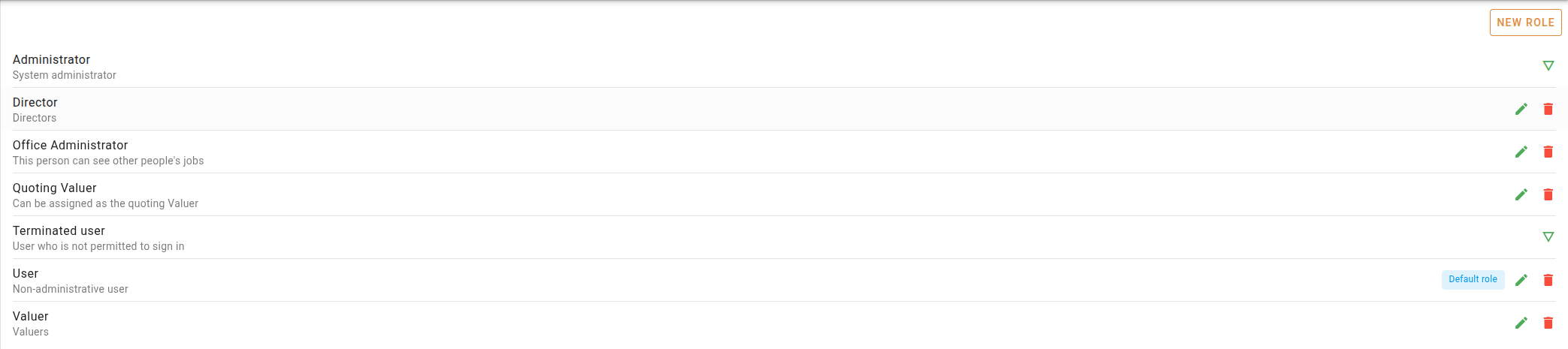
Roles fall into two categories:
- System roles: built-in roles provided by VOW (Administrator, Terminated user). These can be viewed but not edited or deleted.
- Editable roles: all other roles, including the built-in User and Valuer roles and any roles your organisation has added. These can be edited and deleted.
Click a system role to view its permissions in read-only mode. Click any other role (or its button) to open the editor.
A warning is shown at the top of the panel if no default role has been set. See The default role below.
Managing roles
The default role
One role can be marked as the default. When a new user account is created, the default role is automatically assigned to them.
Only one role can be the default at a time, so marking a role as default clears the flag from whichever role previously held it.
If no default role is set, a warning is shown at the top of the Roles panel.
Permissions
The tables below list every permission available in the system, grouped by area. When you open a role in the editor, permissions are displayed in the same groups with a search field to filter them.
Some permission groups are only available on certain subscription plans. Permissions your plan does not include are shown in the editor but cannot be selected.
Workflows
| Permission | Description |
|---|---|
| Use workflows and tasks on jobs | User can interact with workflows and tasks on a valuation. |
| Manage default workflows and tasks | User can create, edit, and delete the default workflow and task definitions. |
List data & default values
| Permission | Description |
|---|---|
| Delete items from system lists | User can delete items from system lists. |
| Create new system list items | User can add items to system lists. |
| Print system list reports | User can print system list reports. |
| View the system lists tab and the default values tab | User can navigate to Settings | Lists and view list items and default values. |
| Edit system list items and default values | User can update existing list items and change default values. |
Emails
| Permission | Description |
|---|---|
| Manage email templates | User can create and update email templates in the system settings. |
| Send emails from within VOW | User can compose and send emails using the email editor. |
| Manage email sensitivity labels | User can create and manage sensitivity labels applied to emails. |
Properties
| Permission | Description |
|---|---|
| View properties page | User can navigate to the Properties page. |
| View properties | User can open and view individual property records. |
| Edit properties | User can update property information. |
Quotes
| Permission | Description |
|---|---|
| See quotes assigned to other users | By default, users can only see quotes they are involved in. This permission allows them to view all quotes. |
| Edit quotes assigned to other users | By default, users can only edit quotes they are involved in. This permission allows them to edit all quotes. |
| Delete quotes | User can delete quotes. |
| Set quote amounts | User can enter and update quote amounts when editing a quote. |
| Create quotes | User can create new quotes. |
| View quotes page | User can navigate to the Quotes list. |
| Download/Print quotes | User can download and print quotes. |
| View quotes | User can open and view individual quotes. |
| Sign off on quotes | User can mark a quote as acceptable and ready to send. |
| Edit quotes | User can update existing quotes. |
Roles security
| Permission | Description |
|---|---|
| Assign roles to users | User can edit other user accounts in Settings | Users and update the roles assigned to them. |
| Delete user-created roles | User can delete roles that have been created by users. |
| Create new roles | User can create new roles in Settings | Roles. |
| Print role reports | User can print role reports. |
| View the role settings tab and role details | User can navigate to Settings | Roles and open role records. |
| Update roles | User can save changes to existing roles. |
Reporting
| Permission | Description |
|---|---|
| Print management reports | User can generate and print management reports. |
Requests
| Permission | Description |
|---|---|
| Create work requests | User can submit new work requests. |
| Process requests | User can process and progress requests through the workflow. |
| View request details | User can open and view individual requests. |
Sales
| Permission | Description |
|---|---|
| Attach documents to sales | User can attach documents to a sale record. |
| Delete sales | User can delete analysed sales. Sales imported from external sources cannot be deleted. |
| Create new sales | User can analyse and create new sale records. |
| Print sale reports | User can export sales to CSV or PDF. |
| View and search for sales | User can view the sales list and open individual sale records. |
| Update sales | User can edit existing sale records. |
System
| Permission | Description |
|---|---|
| Export client data | User can export client data from the system. |
| View event logs | User can view event logs throughout the system. |
| Is a valuer role | Users with this role appear in valuer selection lists throughout the system. |
| Not permitted to sign in | Users with this role cannot log into the system. They can still appear in lists and be associated with jobs. Enabling or disabling this permission affects user account status and your subscription, so a confirmation is required when making this change. |
| See the reports menu | User can access the Reporting page. |
| Manage report templates | User can create and manage report templates in the system settings. |
| View requests page | User can navigate to the Requests page. |
| See the sale menu item | User can access the Sales page. |
| See the settings menu | User can access the Settings page. |
| View the system settings tab | User can navigate to the system settings. |
| Update the system settings | User can save changes to the system settings. |
| Upload files to the system | User can upload files and attach them to records. |
| See the valuation menu item | User can access the Valuations page. |
Time keeping
| Permission | Description |
|---|---|
| See how much other users are charging | User can view the hourly rates of other users' time entries. |
| View other users' time entries | User can view time entries logged by other users. |
| Update other users' time entries | User can edit time entries logged by other users. |
| Charge for time spent on jobs | User can log billable time against jobs. |
| View time keeping reports | User can access time keeping reports. |
Users
| Permission | Description |
|---|---|
| Deactivate users | User can mark users as terminated, preventing them from logging in. |
| Create new users | User can create new user accounts. |
| Print user reports | User can print user reports. |
| View the user settings tab and user details | User can navigate to Settings | Users and open user records. |
| Update details of other users | User can edit existing user account details. |
Valuations
| Permission | Description |
|---|---|
| Unlock files being edited by other users | When a user opens an attached file for editing, it is marked as locked. This permission allows the user to unlock files locked by others. |
| Delete invoices | User can delete invoices from valuations. |
| Create and update invoices | User can create invoices and update existing ones on valuations. |
| Change invoice dates | User can edit the date of an invoice, including backdating. |
| View and search other users' valuations | By default, users can only see valuations they are involved in. This permission allows them to view all valuations. |
| Edit other users' valuations | By default, users can only edit valuations they are involved in. This permission allows them to edit all valuations. |
| Attach documents to valuations | User can attach documents to a valuation. |
| Delete valuations | User can delete valuations. |
| Create new valuations | User can create new valuations. |
| Print valuation reports | User can generate and print valuation reports. |
| View and search for valuations | User can view the valuations list and open individual valuations. |
| Sign off on valuations | User can mark a valuation as signed off. |
| Update valuations | User can edit existing valuations. |