

Quote summary
The quote summary is a dashboard panel that shows the current state of your in-progress quotes at a glance: how many are overdue, due soon, or awaiting a client reply, the number of active quotes, the total value in the pipeline, and a breakdown of quotes by status. By default it summarises the quotes you are the assignee or quoter for, and the panel caption shows whose quotes are displayed.
The quote summary panel is hidden by default. To show it, tick it in the Panels menu at the top of the dashboard.
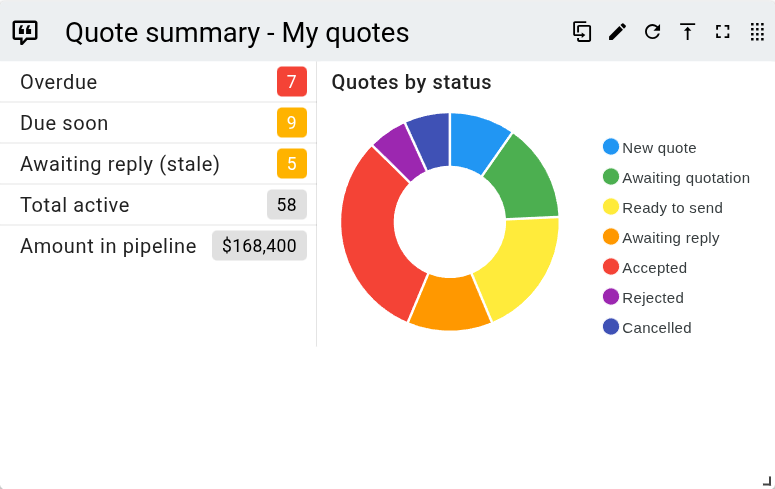
In-progress quotes are those with a status of new, awaiting quotation, quoted, or awaiting reply. Accepted, declined, and other closed quotes are not counted.
Counters
The left of the panel lists five counters. Each one except Amount in pipeline is a link that opens the quotes list filtered to the matching quotes.
| Counter | Description |
|---|---|
| Overdue | In-progress quotes whose due date has passed, excluding those awaiting a client reply. Shown in red when any are overdue, green when none are. |
| Due soon | In-progress quotes due within the next three days, excluding those awaiting a client reply. Shown in amber when any are due soon, green when none are. |
| Awaiting reply (stale) | Quotes that have been awaiting a client reply for more than seven days. Shown in amber when any are stale, green when none are. |
| Total active | All your in-progress quotes. |
| Amount in pipeline | The combined value of your in-progress quotes. |
Quotes by status
A doughnut chart breaks down your in-progress quotes by status, with one segment per status. Clicking a segment opens the quotes list filtered to that status. Hold Ctrl while clicking, or click with the middle mouse button, to open it in a new browser tab. When there are no in-progress quotes, the panel shows a No quotes placeholder in place of the chart.
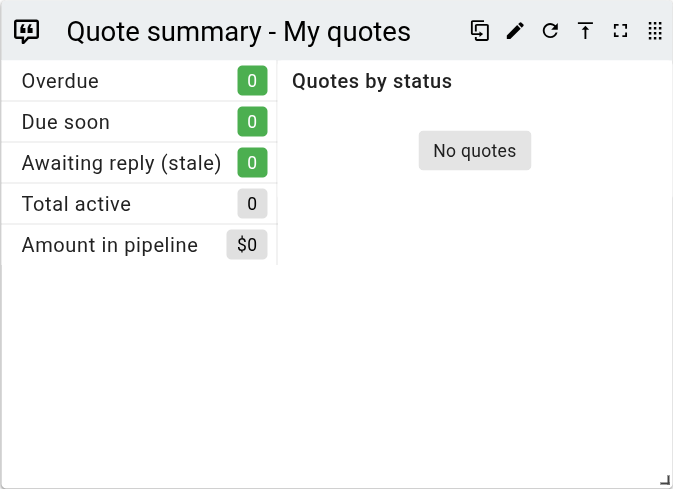
When the panel is too narrow to fit the chart beside the counters, the chart moves below them.
Panel toolbar options
Each panel header provides the following options. A drag handle sits at the right of the header. Drag it to move the panel around the dashboard. The drag handle stays visible at all times, but when the panel is too narrow to show the remaining options they collapse into a overflow menu. For resizing and showing or hiding panels, see Panels.
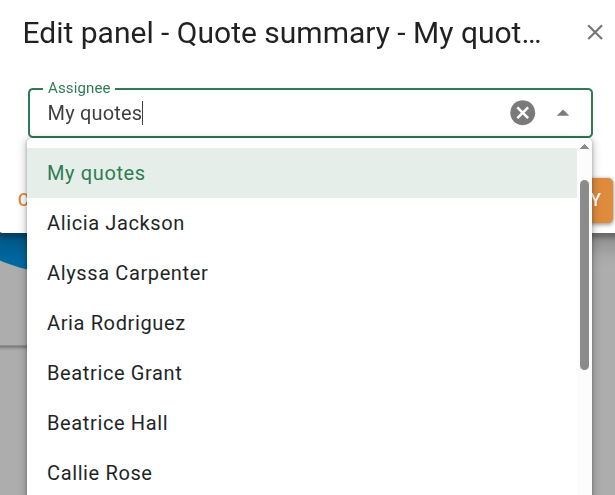
The quote summary panel requires permission to view quotes. Changing the displayed assignee requires permission to view other users' quotes.