

System lists
System lists are the sets of values available in dropdown fields throughout VOW. Each list corresponds to a specific field or group of fields and is managed independently. Changes to a list are reflected immediately across all users.
Lists
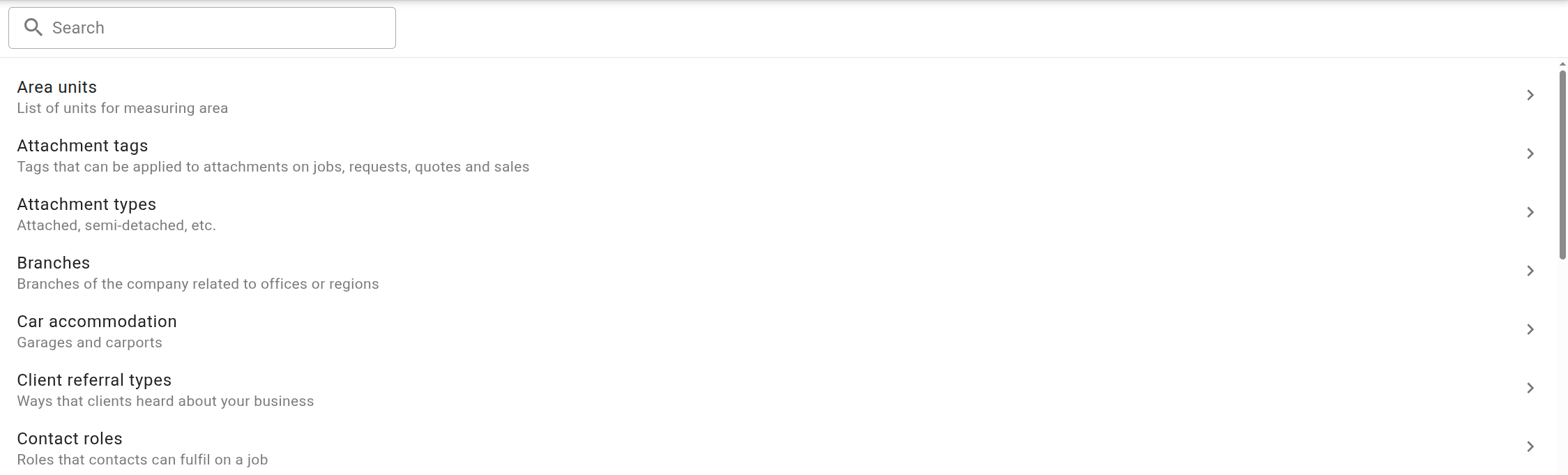
The lists panel shows all the list types available in VOW. Use the Search field to filter by name. Click any list to open it in the list editor.
Some lists require a feature module that may not be included in your subscription. These are shown with a chip indicating the required feature and cannot be edited until that feature is enabled on your account.
List editor
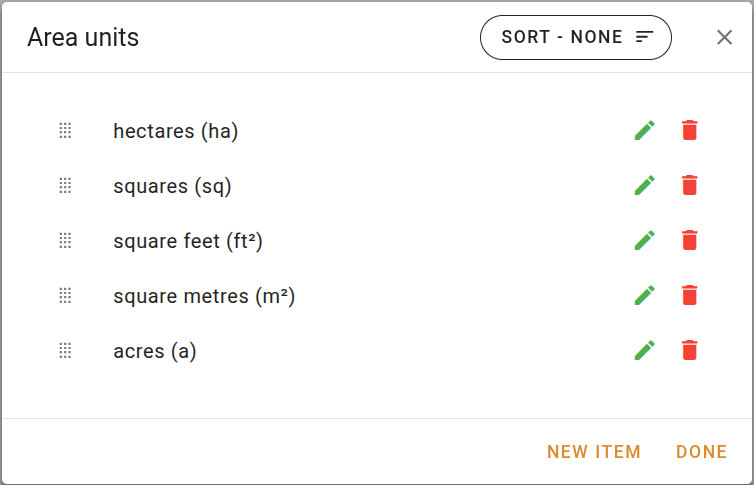
The list editor opens as a dialog when you click a list in the panel. It shows all items in the selected list along with their current state.
Reordering items
Items can be reordered manually by dragging, or sorted automatically using the sort control in the dialog header.
Drag-and-drop reordering and sort control changes are both saved immediately when applied. The Done button only closes the dialog.
Item states
Items in the list editor may display a chip to indicate their current state. Items with no chip are active and available for selection throughout the system.
| Chip | Meaning |
|---|---|
| Deactivated | The item has been marked as inactive. It does not appear in dropdown lists but remains in historical records. |
| Retired [date] | Zones only. The zone's effective until date has passed. It is no longer considered active. |
| Activates [relative date] | Zones only. The zone's effective from date has not yet been reached. It will become active automatically on that date. |
LGAs (Local Government Areas) are not user-editable and do not appear in the list editor. When VOW receives an updated LGA dataset, affected LGAs are marked as retired automatically. Retired LGAs appear greyed out in dropdown menus throughout the system.
Managing items
All changes, including additions, edits, deletions, and reordering, are applied to the database immediately.
Managing system lists requires explicit creation, editing, and deletion privileges. If your account lacks these permissions, the respective action buttons will be hidden from view.
List reference
The following table covers every available type, where it appears in the system, and any special fields or requirements.
| Name | Description |
|---|---|
| Area units | Used in the Area unit dropdown on any address panel, including the Job | Details | Address panel. Includes a display field for showing a short form in reports (e.g. "m²" instead of "square metres"). |
| Attachment tags | Applied to attachments on jobs, requests, quotes, and sales. In the folder view, each attachment has a tag button. In the list view, right-click an attachment and select Tags from the context menu. |
| Attachment types | Used in the Job | Building | Occupancy | Style attached dropdown. |
| Branches | Used in the Job | Details | Valuation details | Branch dropdown, in the Branch field on quotes, and in the Settings | Users | Details | Branches field when editing a user. |
| Car accommodation | Used in the Job | Building | Occupancy | Car accommodation dropdown. |
| Categories | Used in the Job | File | Valuation information | Category dropdown. |
| Client referral types | Used in the Referral type field on the job contact form. |
| Contact roles | Used in the Role field on the job contact form. |
| Current uses | Used in the Job | Summary | Main building | Current use dropdown. |
| Device types | Used in the Job | File | Valuation information | Data entry dropdown. |
| Document types | Used in the Job | Value | Valuation details | Documents dropdown. Only visible when the Documents to sight switch is turned on. |
| Encumbrances | Used in the Job | Summary | Other details | Encumbrances/restraints field. |
| Environmental issues | Used in the Job | Summary | Other details | Environmental issues field. |
| External conditions | Used in the Job | Building | Occupancy | External condition dropdown. |
| Fixtures and fittings | Used in the Job | Building | Occupancy | Fixtures & fittings dropdown. |
| Floor types | Used in the Job | Building | Occupancy | Main flooring dropdown. |
| Inspection types | Used in the Job | File | Valuation type | Inspection type dropdown, and in the Inspection type field in the valuation creation wizard. |
| Interests valued | Used in the Job | Value | Valuation summary | Interest valued dropdown. |
| Interior inings | Used in the Job | Building | Occupancy | Main interior linings dropdown. |
| Internal conditions | Used in the Job | Building | Occupancy | Internal condition dropdown. |
| Internal layouts | Used in the Job | Building | Occupancy | Interior layouts dropdown. |
| Job statuses | Used in the Job | File | Valuation information | Job status dropdown and to define columns in the valuations column view. Includes extra fields when editing: Show jobs with this status in the main view controls column view visibility, and Show jobs with this status in the mobile view controls mobile view visibility. |
| LGAs | Local Government Areas. Populated from an external dataset and available in the LGA field on any address panel throughout the platform. LGAs are read-only and cannot be edited or created manually. When an updated dataset is received, affected LGAs are retired automatically. |
| Levels | Used in the Job | Building | Occupancy | Style leveled dropdown. |
| Main building types | Used in the Job | Summary | Main building | Main building type dropdown. |
| Market activity levels | Used in the Job | Sales Evidence | Market | Market activity level dropdown. |
| Market conditions | Market condition levels used in reporting. |
| Market directions | Used in the Job | Risk | Risk ratings | Market direction (price) rating. |
| Neighbourhood descriptions | Used in the Job | Land | Land details | Neighbourhood dropdown. |
| Parties | Party types involved in a valuation, such as lender or mortgage insurer. Not currently assigned to a specific field. |
| Payment methods | Used in the Job | Details | Invoices | Add payment | Payment method dropdown. |
| Property identification methods | Used in the Job | Land | Land details | Property identifications dropdown. |
| Property natures | Displayed on sale cards and used in the sales search result filters. |
| Property types | Used in the Job | File | Property details | Property type dropdown. |
| Quote cancellation reasons | Used in the Cancel quote dialog in the Quotes section to record why a quote was cancelled. Requires the Quotes feature module. |
| Quote rejection reasons | Used in the Reject quote dialog in the Quotes section to record why a quote was rejected. Requires the Quotes feature module. |
| Rental periods | Used in the Job | Valuation details panel via the rental period tags. |
| Report phrases | Common phrases that can be inserted verbatim into reports at the cursor position. Includes a phrase name and the full phrase text. |
| Report types | Used in the Job | File | Valuation type | Report type dropdown. Includes extra fields when editing: API PropertyPRO report type maps this type to a PropertyPRO type, and Job turnaround override sets a turnaround period for this report type, overriding the system default. |
| Request rejection reasons | Used in the Reject request dialog in the Requests section to record why a work request was rejected. Requires the Requests feature module. |
| Roof types | Used in the Job | Building | Occupancy | Roof dropdown. |
| Sale codes | Regulatory codes used to classify sales, shown in the Sales | Contract | Sale code dropdown and the bulk Set sale code action on the sales search results. Each code has a Code, a name, and a State; only codes matching a sale's state are offered for that sale. |
| Sale types | Used in the Sales | Contract | Sale type dropdown when creating or editing a sale. |
| Services | Services available to the property, such as utilities. |
| Street appeals | Used in the Job | Building | Occupancy | Street appeal dropdown. |
| Time entry tags | Labels that can be applied to time entries to organise and filter them. Applied from the Edit time entry dialog. Requires the Time keeping feature module. |
| Valuation purposes | Used in the Job | File | Valuation type | Report purpose dropdown. Also appears when creating and editing quotes, and when filtering financial reports. |
| Walls | Used in the Job | Building | Occupancy | Main walls dropdown. |
| Windows | Used in the Job | Building | Occupancy | Window frames dropdown. |
| Zone effects | Used in the Job | Land | Land details | Zoning effect dropdown. |
| Zones | Used in the Job | Details | Address | Zoning dropdown and any address panel. Includes a name and a code. Each zone can have an Effective from and Effective until date to manage zone transitions over time. Once the effective until date has passed, the zone is automatically retired and will no longer appear in dropdowns. |
| Zoning instruments (LEP) | Used in the Job | Details | Address | Instrument dropdown and any address panel. |