

Users
Users are the people who log into VOW within your organisation. Each user has their own account with a unique username, and their access is controlled by the roles assigned to them.
The Users panel lists every account in your practice. Terminated users appear at the bottom of the list, greyed out. Accounts that have been locked due to failed login attempts are highlighted in the list.

Users cannot be deleted, but they can be deactivated. Marking a user as a "Terminated user" prevents them from logging in, removes them from your active user count, and stops any associated fees, but they will still appear in historical records.
Creating users
Click New user to open the user editor.
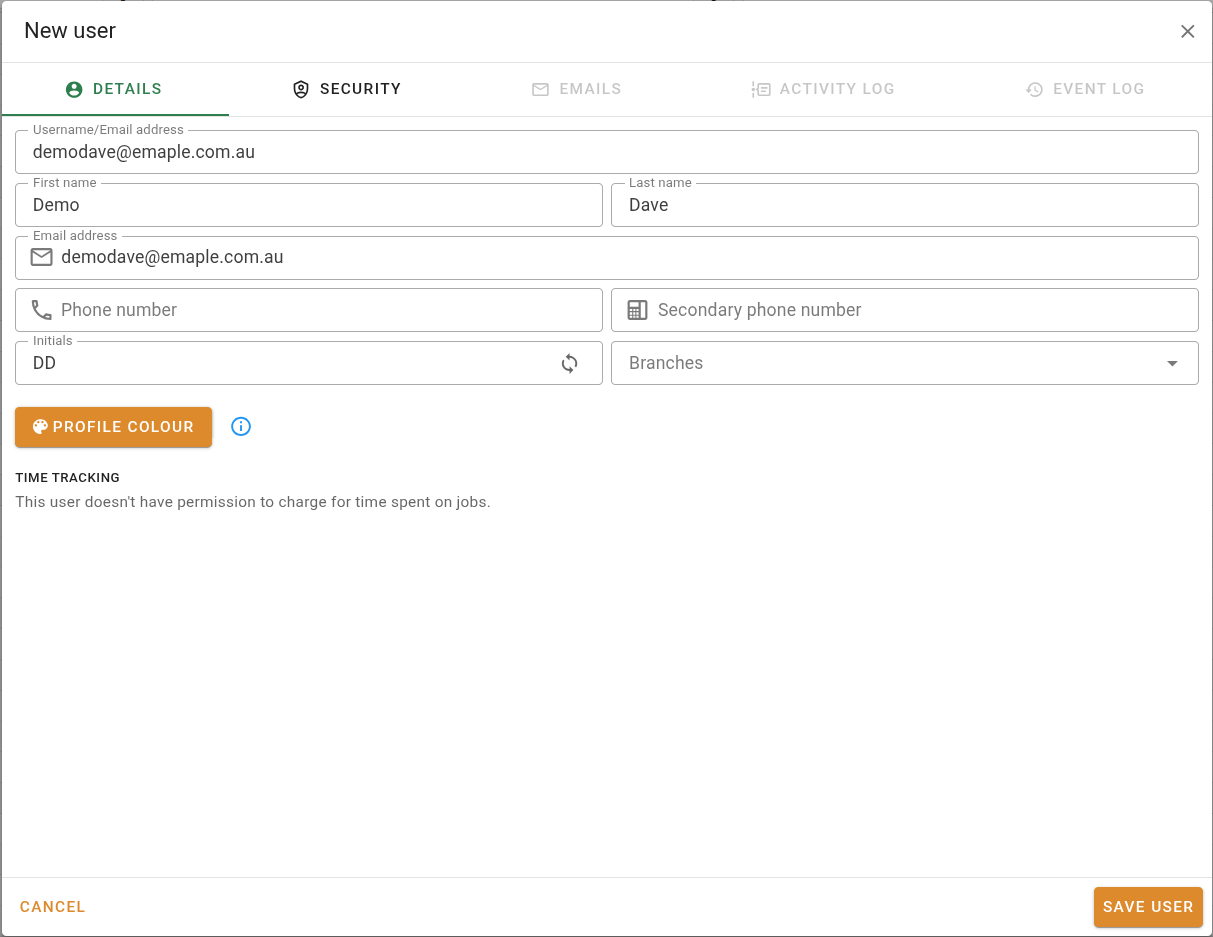
When creating a new user:
- Choose the roles to assign to the new user. See Roles for details.
- Enter a username and a first and/or last name, these are mandatory. The username must be a valid email address and cannot be changed after the account is created.
- Fill in the remaining fields and click Save user when done.
The emails, activity log, and event log tabs are disabled when creating a new user.
Once saved, the system sends the new user a welcome email with a link to set their password. See First login for what to expect. On the first login they will also be prompted to scan a QR code to set up two-factor authentication.
Before the account is created, a confirmation dialogue displays the username you entered. Double-check the spelling because it cannot be changed after creation.
Invalidate passwords
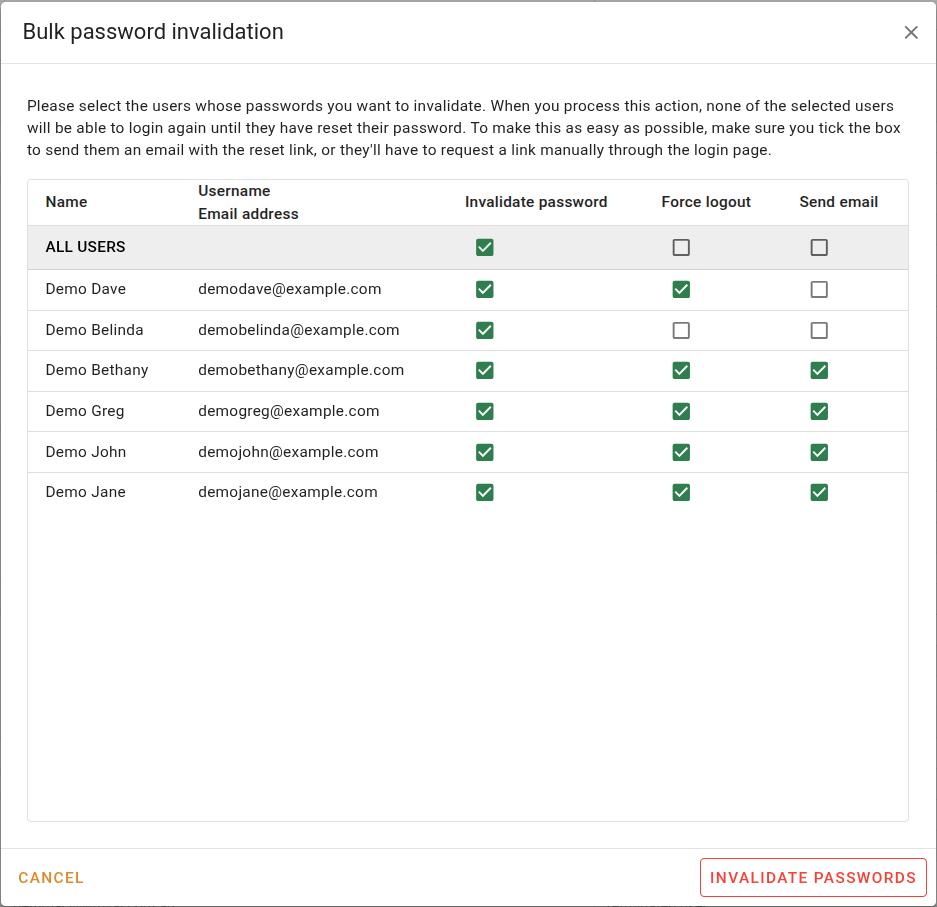
The Actions menu is visible to system administrators only and sits next to the New user button. It contains the bulk password invalidation tool.
Editing a user
Click the button at the far right to edit the user.
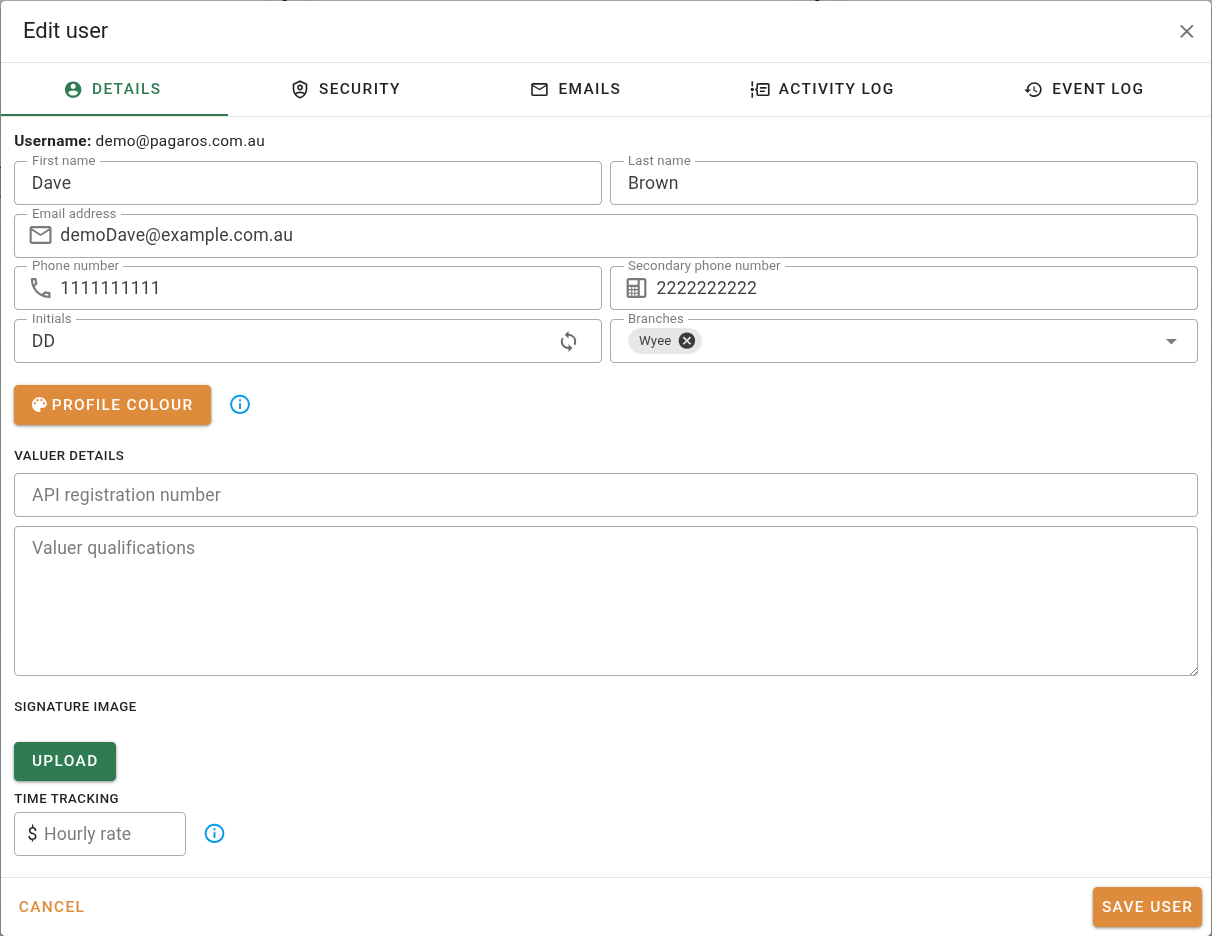
The user editor opens as a dialog with five tabs: Details, Security, Emails, Activity log, and Event log.
Details
The Details tab holds the user's personal and professional information.
| Field | Description |
|---|---|
| Username | The user's login email address. Displayed as read-only for existing users, as it cannot be changed after creation. |
| First name | The user's given name. |
| Last name | The user's family name. |
| Email address | The contact email address for this user. Appears on reports and receives system notification emails. |
| Phone number | The user's primary phone number. |
| Secondary phone number | The user's secondary phone number. |
Valuer details
The valuer details section is only shown when the user has at least one role that includes the valuer permission.
| Field | Description |
|---|---|
| API registration number | The user's API registration number. Used in valuation reports. |
| Valuer qualifications | The user's professional qualifications. Enter each qualification on a new line. Used in valuation reports. |
The hourly rate field is only shown when the user has at least one role that includes the billable hours permission. Users without that permission see a message indicating they are not set up to charge for time. Time keeping must also be available on your subscription and enabled in system settings for time tracking to be used in VOW.
Security
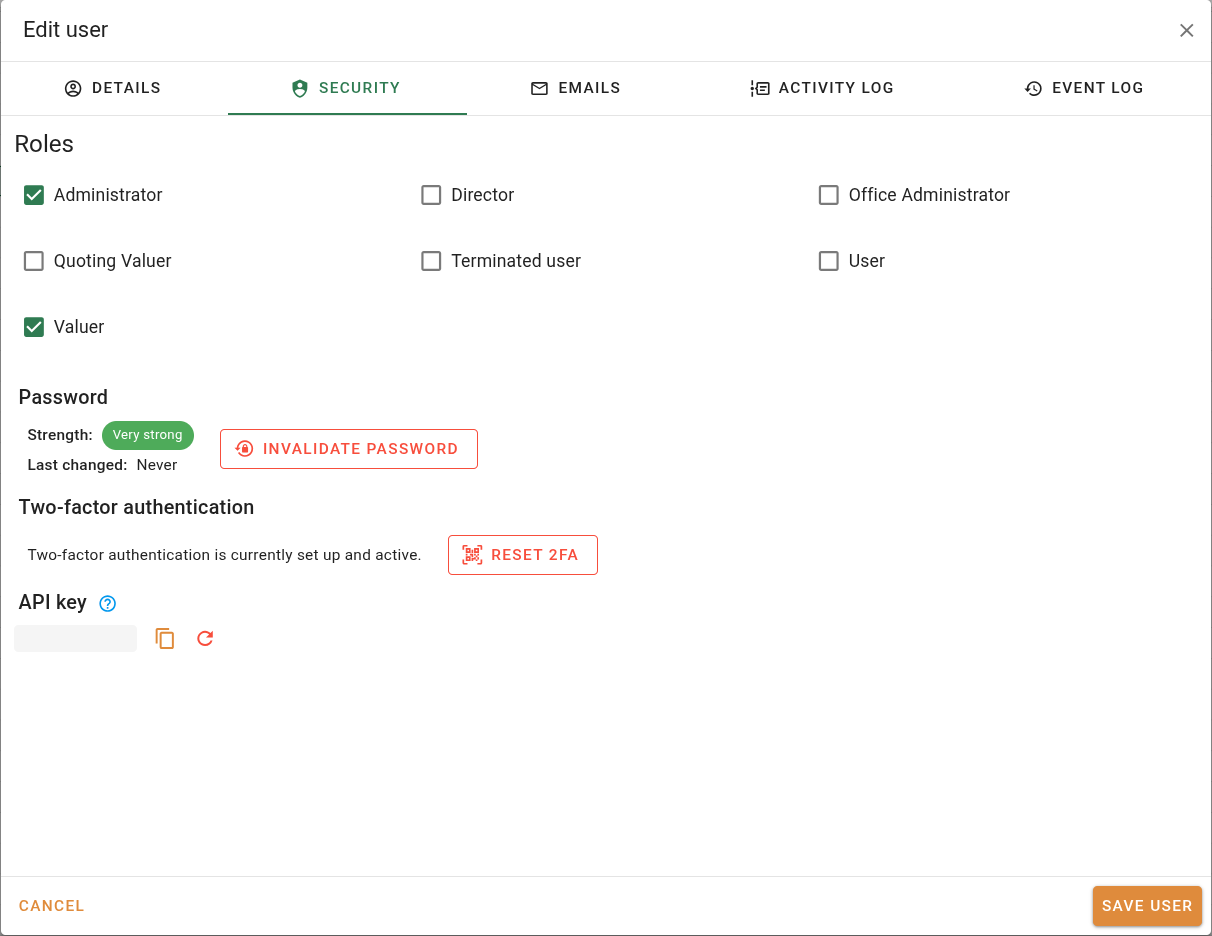
The Security tab manages the user's roles, password, two-factor authentication, and API key.
Roles
Select the roles to assign to this user. Each role grants a set of permissions. See Roles for details.
At least one system administrator must exist in the system at all times. The last remaining administrator cannot have their admin role removed.
Account locked
If a user exceeds the maximum number of failed login attempts in a short period, their account is locked and they cannot log in. The Security tab displays an alert when this is the case.
Password
| Field | Description |
|---|---|
| Strength | A visual indicator of the strength of the user's current password. |
| Last changed | How long ago the user last updated their password. |
Displays whether two-factor authentication is currently active for this user. When it is active, a Reset 2FA button is shown to system administrators. Clicking it clears the user's existing enrolment. They will be prompted to scan a new QR code the next time they log in.
API key
The user's API key is used by the VOW Helper desktop application to authenticate its requests. See VOW API key for more information.
Emails
The Emails tab is only available when email integration is enabled on your account. Users without permission to send emails will see an informational message on this tab rather than the fields below.
| Field | Description |
|---|---|
| Sender name | The name that appears in the From field of emails sent by this user. |
| Reply-to address | The address that email recipients will reply to. |
Activity log
A record of actions this user has performed across the system, such as creating jobs, updating records, sending emails, and logging in and out. The log can be filtered using the panel on the right:
| Filter | Description |
|---|---|
| Search | Free text search across log entries. |
| Event type | Filter by the type of action, such as login, password change, email sent, or file upload. |
| Item type | Filter by the type of record the action was performed on, including Valuations, Quotes, Requests, Time tracking, or Users. |
| Date | Filter by a preset time period or a custom date range using the After and Before fields. |
Event log
A record of changes made to this user account, such as role updates, password resets, and profile edits. The log can be filtered using the panel on the right:
| Filter | Description |
|---|---|
| Search | Free text search across log entries. |
| Event type | Filter by the type of change, such as password reset, signature update, or API key generation. |
| Date | Filter by a preset time period or a custom date range using the After and Before fields. |