Contacts
Contacts are the people and organisations your company works with, such as clients, referrers, and other parties. They are used across VOW wherever a contact needs to be nominated on a record, including valuations and quotes.
Contacts list
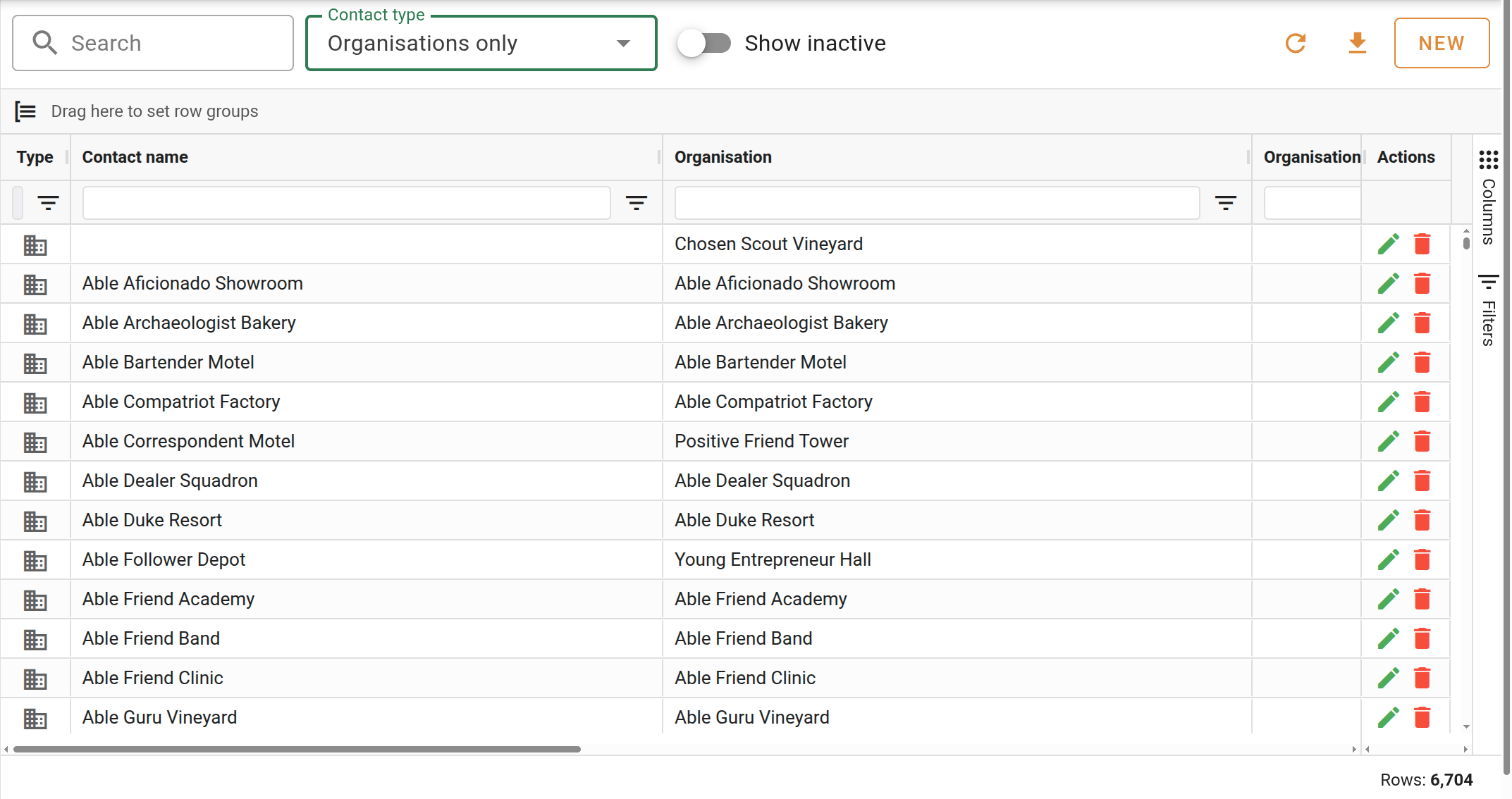
The contacts list shows all contacts in your organisation in a searchable grid. Use the Search field to filter by name, the Contact type dropdown to show people only, organisations only, or both, and the Show inactive toggle to include inactive records.
| Column | Description |
|---|---|
| Type | An icon indicating whether the contact is a person or an organisation. |
| Contact name | The contact's full name. |
| Organisation | The name of the contact's parent organisation, if any. Supports row grouping. |
| Organisation branch | The branch of the parent organisation, if set. Supports row grouping. |
| The contact's primary email address. | |
| Phone | The contact's primary phone number. |
| Blocked | Shown only when the contact has been marked as blocked. Blocked contacts have a blocked icon displayed in red across the grid. |
| Accounts | Indicates the contact is a billing contact for their organisation. Hidden by default (enable it via the column panel). |
| Active | Whether the contact is currently active. |
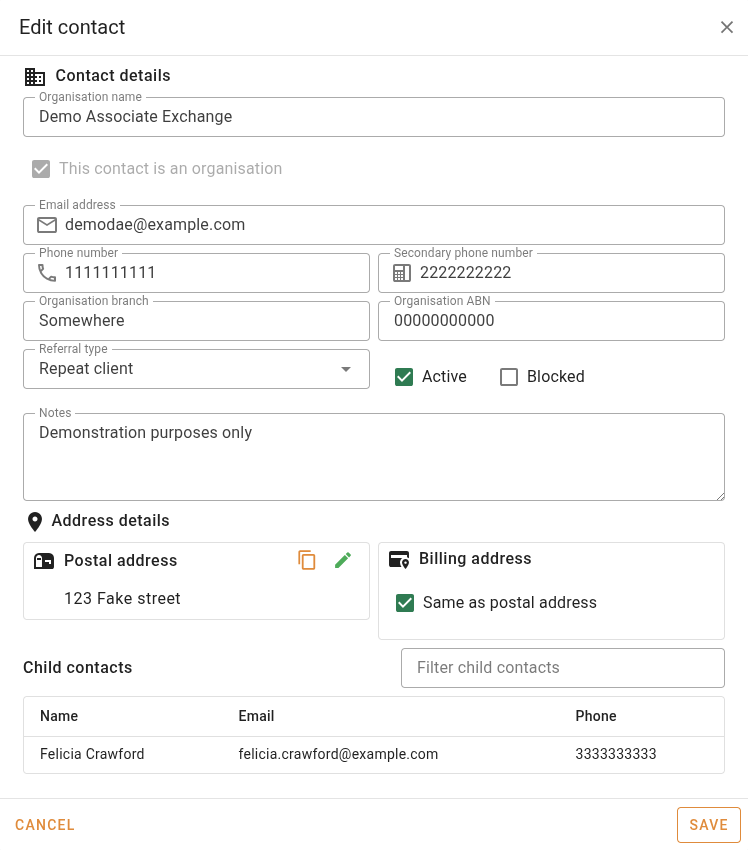
Contact form
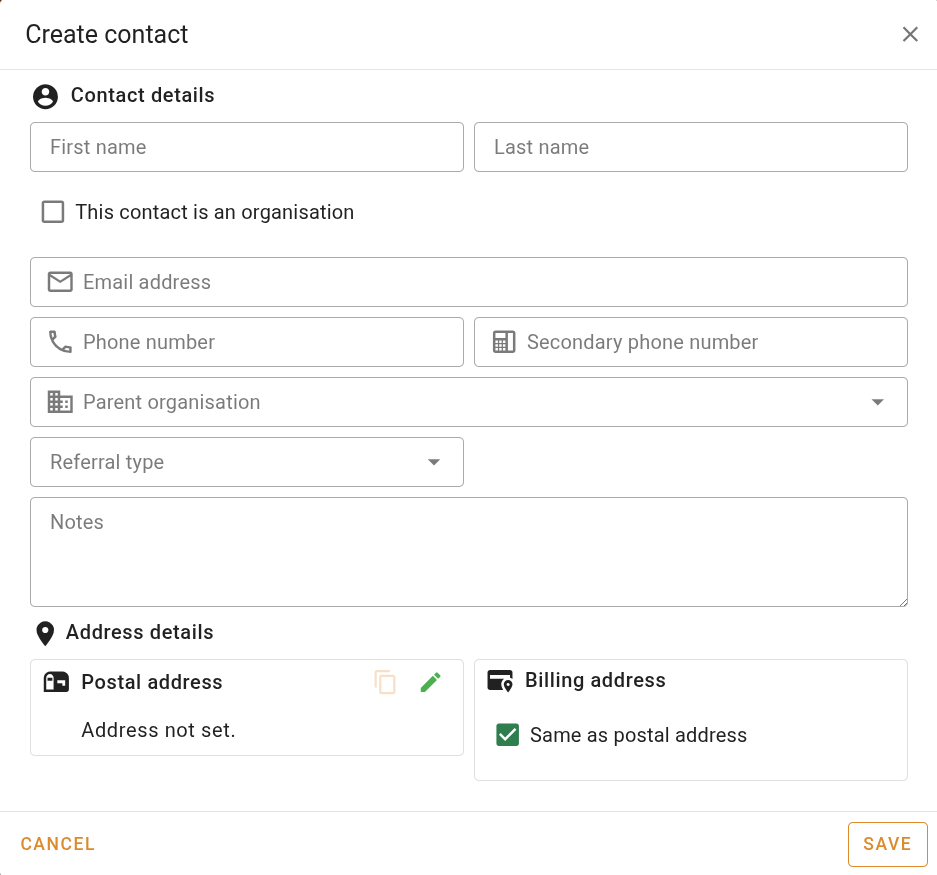
The contact form opens as a dialog when creating a new contact or editing an existing one.
Contact details
The fields in this section adapt based on whether the contact is a person or an organisation.
| Field | Description |
|---|---|
| First name / Last name | The contact's given and family name. Shown for person contacts only. Combined to form the full name used throughout the system. |
| Organisation name | The contact's name. Shown for organisation contacts only. |
| Email address | The contact's primary email address. |
| Phone number | The contact's primary phone number. |
| Secondary phone number | An optional additional phone number. |
| Parent organisation | Links the contact to a parent organisation. Shown for person contacts only. Type to search existing organisations, or create a new one inline. |
| Organisation branch | The branch of the organisation. Shown when the contact is an organisation or is linked to a parent organisation. |
| Organisation ABN | The organisation's ABN. Shown when the contact is an organisation or is linked to a parent organisation. |
| Referral type | How this contact came to the practice. Selected from the Referral types list in Settings. Optional. |
| Notes | Free-text notes about the contact. |
Address details
The form displays two address cards: Postal address and Billing address. Click the button on either card to open the address editor. Click the button to copy the formatted address to the clipboard.
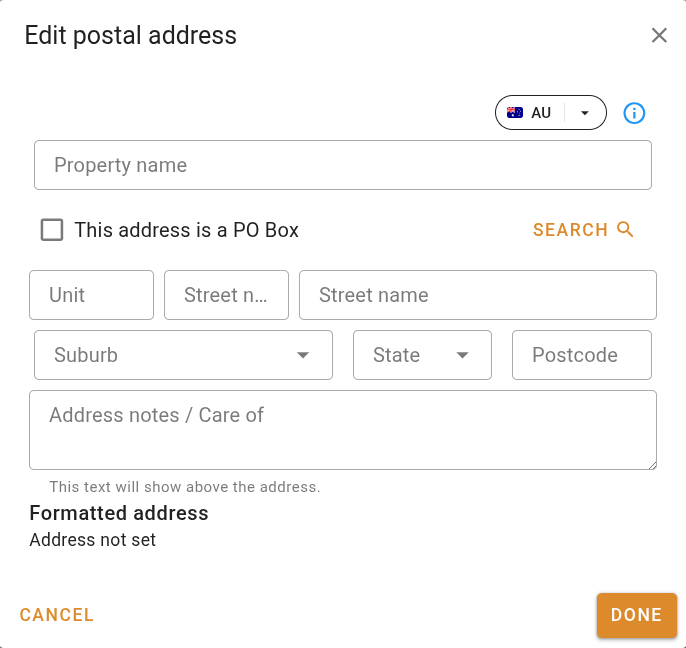
The address editor opens as a dialog containing the following fields.
| Field | Description |
|---|---|
| Unit | The unit or apartment number. Hidden when the address is a PO Box. |
| Street number | The street number. Hidden when the address is a PO Box. |
| Street name | The street name. Hidden when the address is a PO Box. |
| Property name | An optional property or building name. Becomes PO Box / Locked Bag when the address is set as a PO Box. |
| Suburb | The suburb. |
| State | The state. |
| Postcode | The postcode. |
| Address notes / Care of | Additional text shown above the formatted address in documents and reports. |
| Formatted address | A read-only preview of the address as it will appear across the system. |
Child contacts
This section appears only when viewing an existing organisation contact. It lists all contacts that have this organisation set as their parent.
Use the filter field to search within the list. It shows each child contact's name, email address, and phone number if they have been provided.