

VOW Helper
The VOW Helper is a small cross-platform desktop app. It runs in the system tray and lets you click edit buttons in VOW to open files in your native desktop applications. When you're done editing, you trigger Send back from the helper to upload your changes to VOW.
Available on Windows, macOS, and Linux.
See the helper reference for the full list of actions, statuses, and settings.
Still using the original Windows-only helper? See the legacy helper guide.
Prerequisites
You'll need a personal API key set up before the helper can talk to VOW. See Personal API key for how to generate one.
Installing the helper
Open the downloaded file and follow the install prompts for your platform. On Linux, install the .deb with sudo apt install ./VOW-Helper-latest.deb (or double-click it to open in your package manager).
The installer isn't currently code-signed, so your operating system may warn you that the publisher can't be verified. On Windows, click More info and then Run anyway. On macOS, right-click the app and choose Open the first time you run it.
First-time setup
The first time you run the helper you'll be prompted for your API key — paste the personal API key from your VOW My settings page (see Personal API key for how to find or generate one).
Other settings (server URL, local file directory, etc.) come with sensible defaults and can be changed later from the helper's settings page if you need to.
If you change the local file directory and you use OneDrive, iCloud Drive, or another file-syncing service, choose a folder that's not inside a synced location. Sync conflicts can interfere with the edit/save workflow.
Editing files
Click the edit button on any editable attachment in VOW:
| Flat view | Folder view (context menu) |
|---|---|
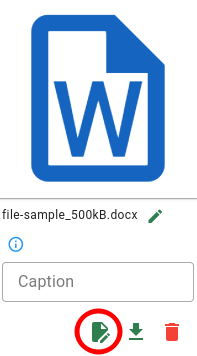 | 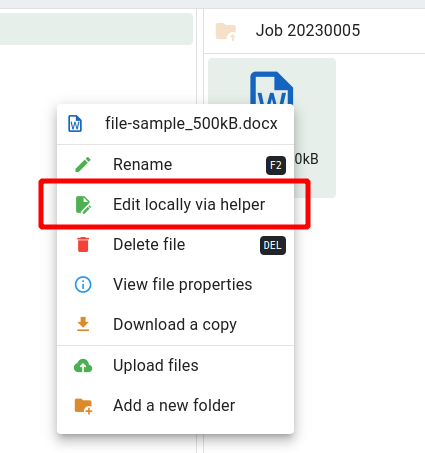 |
Your browser will ask you once whether to open vowhelper:// links with the VOW Helper — tick the "always" option so you don't have to confirm every time. The helper will launch automatically if it isn't already running.
The helper then:
- Downloads the attachment to your local file directory
- Opens it in the default application for that file type (Word, Excel, etc.)
When you've finished editing, save and close the file, then open the helper and click Send back on the file to upload your changes to VOW and unlock the attachment.
When you edit a report, related attachments (images, supporting documents, etc.) are downloaded alongside it so you can insert them directly from your file browser. Use Open folder in the helper to see all the files for a given edit in one place.
Managing checked-out files
The helper's Files screen shows a list of all files you currently have checked out, grouped by the record they belong to. From there you can:
- Edit — re-open a file in its default editor
- Send back — upload the current version back to VOW, unlock the attachment, and remove the local copy
- Discard — unlock the file on VOW and delete your local copy without uploading
- Discard report & attachments — on the report row; drops the report and its related attachments only, keeping any other editing files for the record
- Open folder / View in VOW / Discard all — available from the record's ⋮ menu; Discard all drops every file in the group at once
Each file also shows a status indicator that tells you what stage the workflow is at — e.g. Ready to edit, Editing, Sending back…, or Close file to finish cleanup. See the helper reference for the full list.
If something goes wrong — a download, send back, or discard fails — the file's primary action becomes Retry, which re-attempts whatever failed without you having to start over. The status tells you what failed (Download failed, Upload failed, Discard failed) so you know what Retry will do. A common cause is a missing or incorrect API key — fix it in Settings and click Retry.
When you edit against a non-default system, the record card shows a Staging or Dev chip so it's clear you're not working on the live system. Records from the live system show no chip.
Running in the system tray
Closing the helper window hides it to your system tray rather than quitting the app — this way it's ready to receive edit links from your browser without cluttering your taskbar. To actually quit the helper, use the tray icon menu or your OS's quit shortcut.
Keeping the helper up to date
The helper checks for new versions automatically — on launch, periodically while it's running, and again whenever you send back your last checked-out file. You can also check on demand from the About page using the Check for updates button.
When a new version is available, a banner appears across the top of the helper window:
- If your local files are all sent back (nothing checked out), the banner shows Update & restart. Click it to download and install the update — the helper restarts automatically when it's done.
- If you still have files checked out, the banner asks you to send back or discard them first. Installing an update restarts the helper, so finishing your in-progress edits first avoids losing work. Click Review files to jump to the Files screen, send back or discard everything, and the banner will switch to Update & restart on its own.
The settings page
Most defaults work out of the box, but you can adjust them from the helper's Settings page:
- VOW server — Live site, Test system, or a Dev host (the dev option is primarily for development use). Most people leave this on Live.
- API key — the personal API key the helper uses to talk to VOW. Each system keeps its own key, so the field shows the key for whichever server is selected above. Use Test connection after changing it to confirm authentication is working.
- Local file directory — where checked-out files are stored while you edit them.
- Auto-cleanup threshold — how many days old a file must be before the helper removes it on startup. Default is 5 days.
- Theme — light, dark, or follow your system theme.
- Log verbosity — how much detail is shown in the in-app log panel. All log levels are always written to the log file regardless of this setting.
The Open logs button on the settings page opens the helper's log directory in your file manager — useful if you need to send logs when reporting an issue.
Resetting the helper
The Danger zone at the bottom of the settings page has two destructive resets:
- Clear checked-out files & downloads — removes every checked-out record and deletes the downloaded files, while keeping your settings and API keys. Use this if your local files get into a bad state (for example a leftover editor lock file that blocks send back or discard).
- Reset everything — also clears your settings and API keys, then restarts the helper for a clean slate.
Clearing local files doesn't send your changes back to VOW. Send back anything you want to keep first. Files that were still locked in VOW are best unlocked there afterwards.
You'll also find a Docs link in the helper's sidebar — it opens this documentation in your browser.
Troubleshooting
The edit button downloads a file instead of opening the helper
Check that you selected Current (v2) under Settings | My settings | Integration in VOW for the Helper version. If it's set to Legacy (v1), the browser will download a .vowxfer file instead of opening a vowhelper:// link.
My browser doesn't ask to open the helper
The first click on an edit button should prompt your browser to open the vowhelper:// link with the VOW Helper. If that prompt doesn't appear, check that the helper is installed, then try again.
My changes haven't reached VOW
Saving and closing the file in Word or Excel isn't enough on its own — open the helper and click Send back on the file to upload your changes and unlock the attachment in VOW.
The file says "Close file to finish cleanup"
After a Send back or Discard, the helper needs to delete the local copy of the file. If Word, Excel, or another app still has the file open, the operating system won't let the helper remove it. Close the file in your editor and the helper will finish the cleanup automatically.
If it stays stuck even after you're sure the file is closed, an app may have left a stale lock file behind (common after a crash, or with files inside a cloud-synced folder). Use Settings | Danger zone | Clear checked-out files & downloads to clear it out — this removes the leftover lock files that a normal discard can't.
A download, send back, or discard failed
The file shows a failure status (Download failed, Upload failed, or Discard failed) and its primary button becomes Retry. The most common cause is a missing or wrong API key, especially when editing against the test or dev system — the helper uses a separate key per system. Open Settings, confirm the key for the system named in the error, then click Retry. You don't need to discard and start over.
"Couldn't unlock … it may still be locked in VOW"
A discard couldn't unlock the attachment on the server, so nothing was deleted — the file and your local copy are kept with a Discard failed status so you can Retry once the connection or key is sorted. If it still won't unlock, unlock the attachment directly in VOW.