

Legacy helper
This page covers the original Windows-only helper, kept here for users with existing installs. For new installs or any non-Windows machine, see the VOW Helper instead.
The legacy helper is the original Windows-only app. It lets you click an edit button in VOW and have the file open in Word, Excel, or another native application, with changes uploaded back automatically when you save and close.
Prerequisites
You'll need a personal API key set up before the helper can talk to VOW. See Personal API key for how to generate one.
Installing the helper
Download the helper by clicking the button below:
Windows might object to you running the helper installer because it doesn't trust it. You might see this:
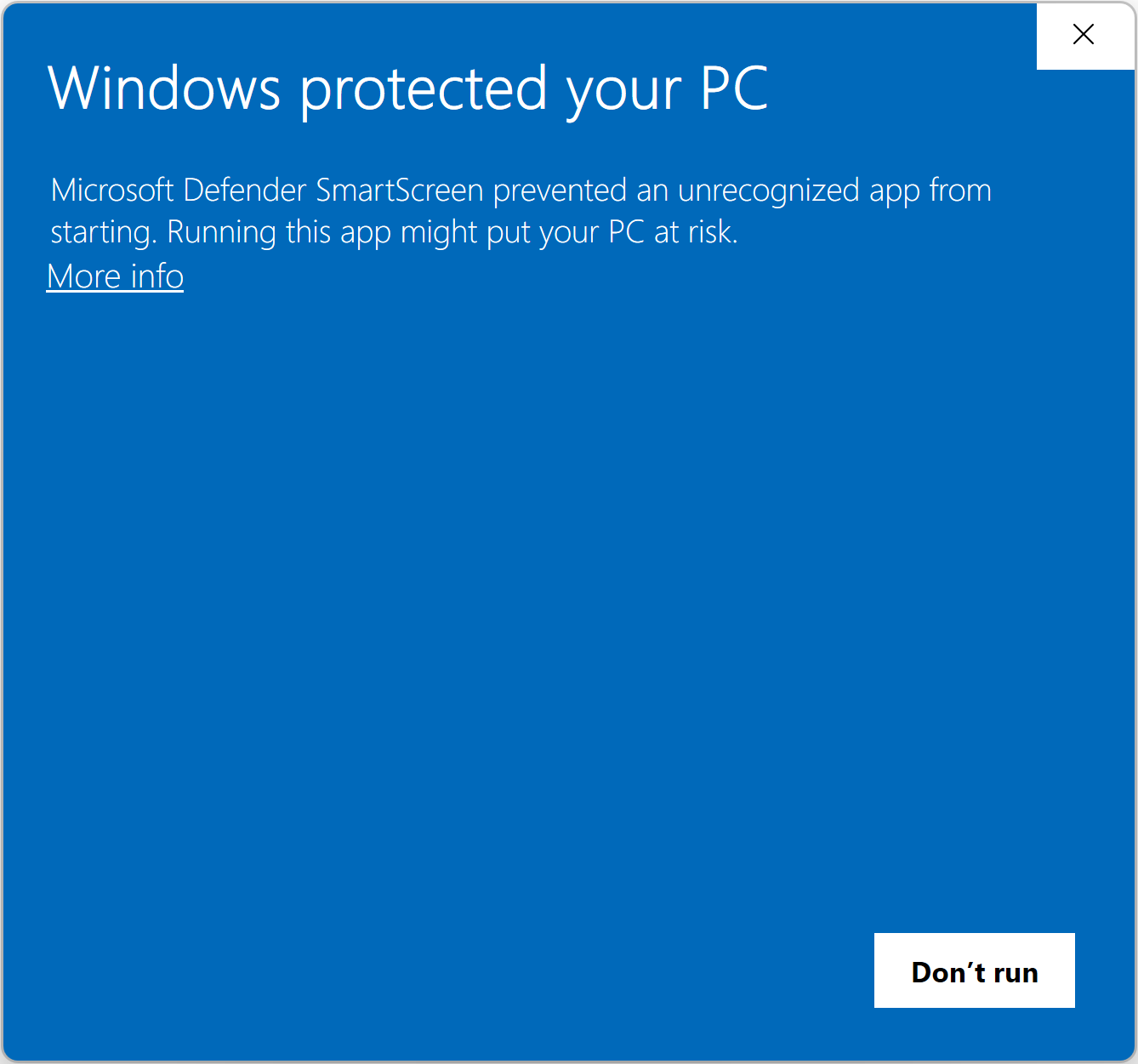
If you see this, click the More info link on the popup and you'll see this:
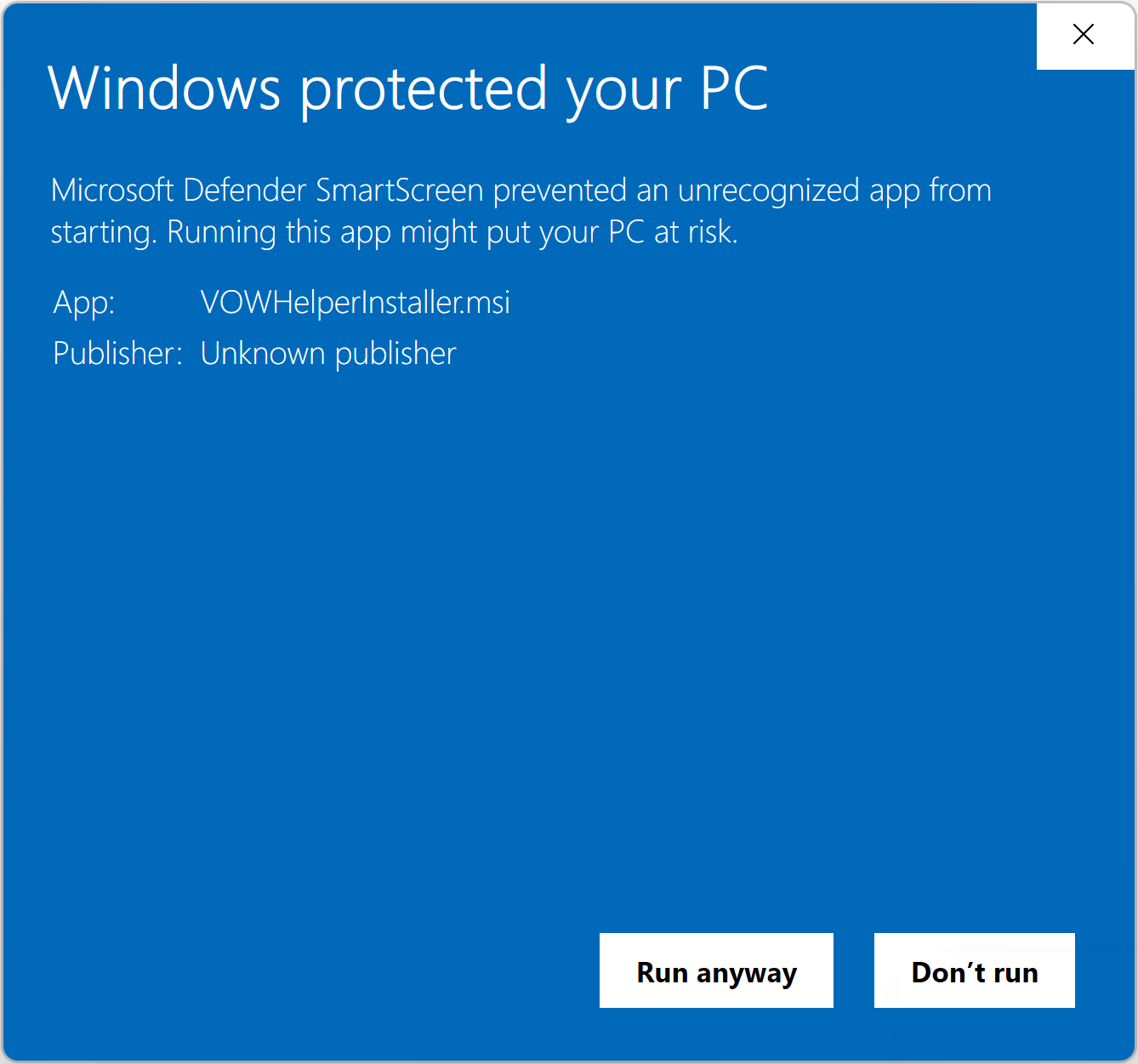
Click the Run anyway button to install the helper.
Install step 1
The helper installer will start, and you should see this window:
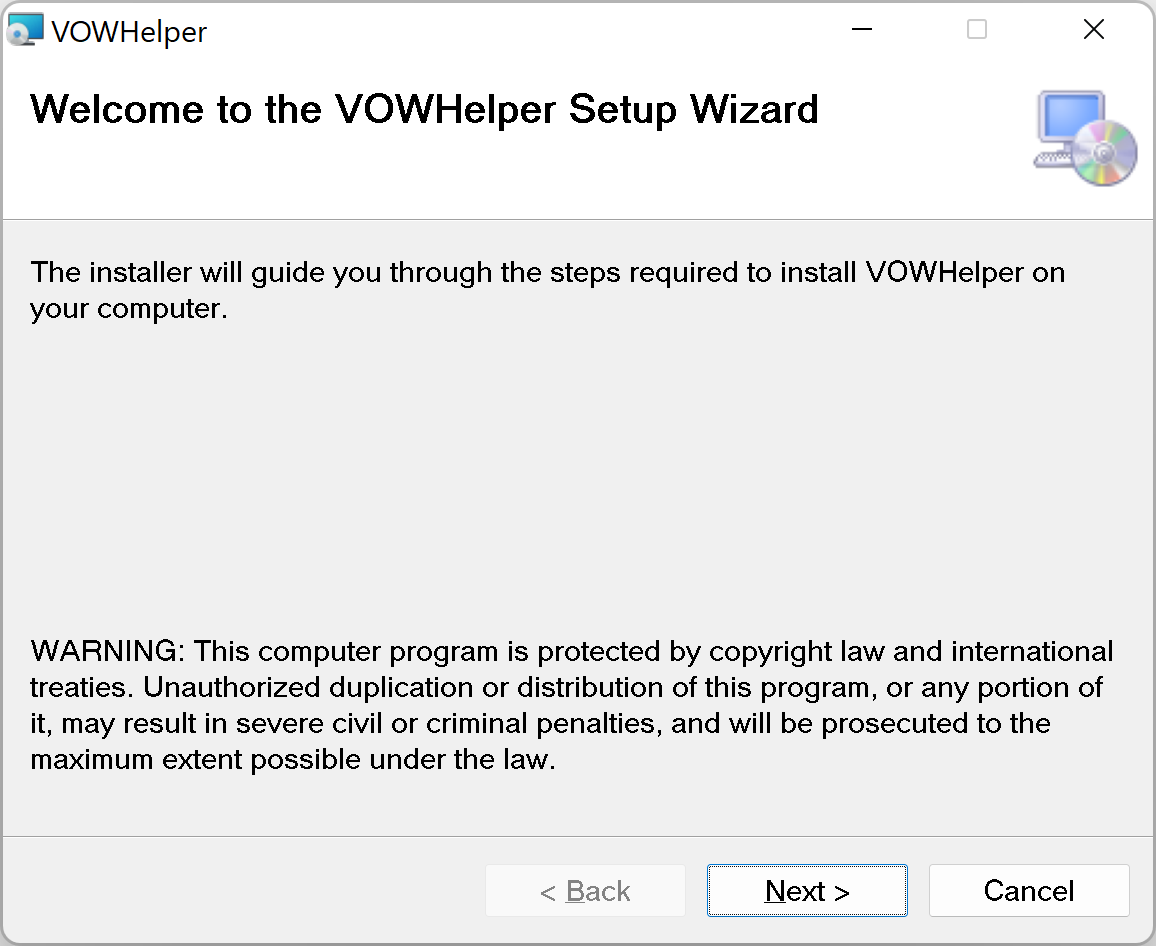
Click the Next > button to continue.
Install step 2
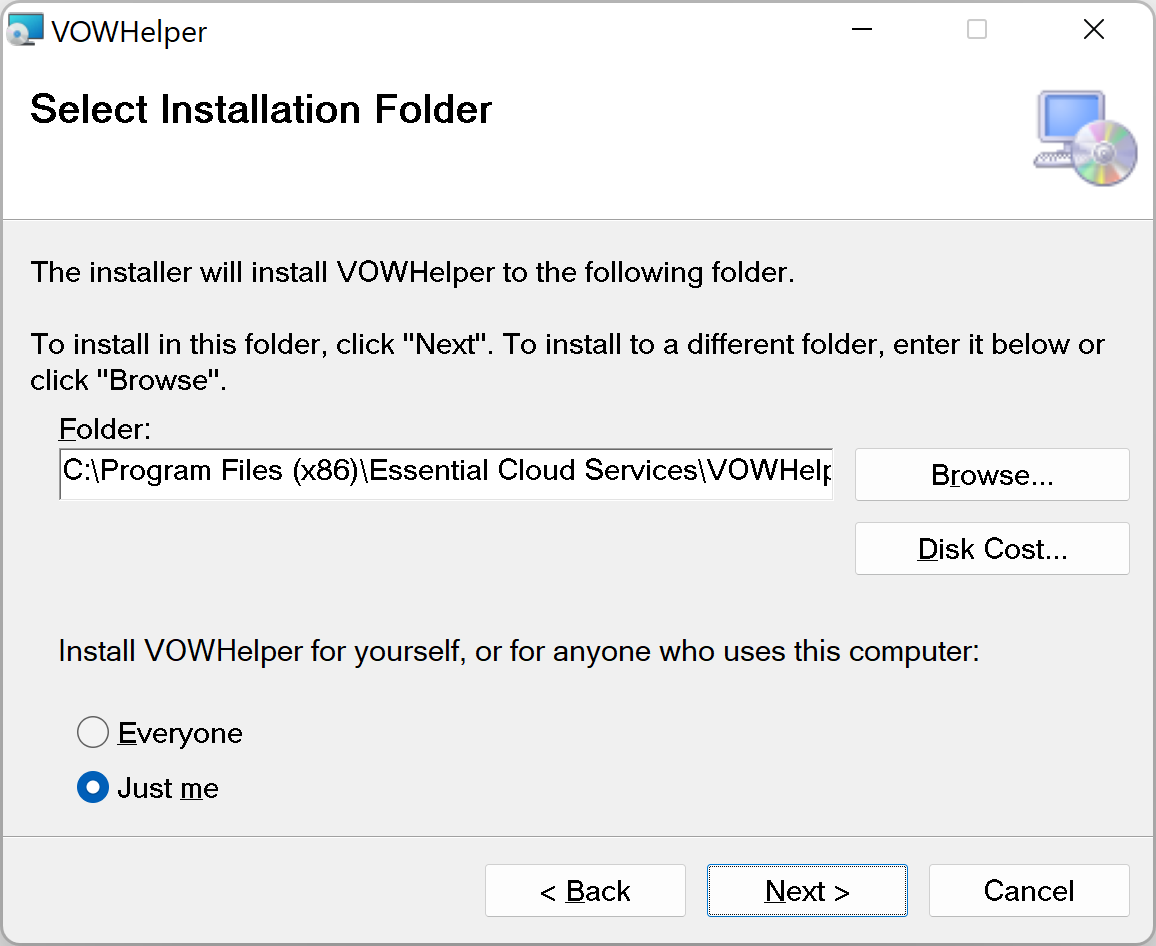
Leave the defaults in place and click Next > to continue.
Install step 3
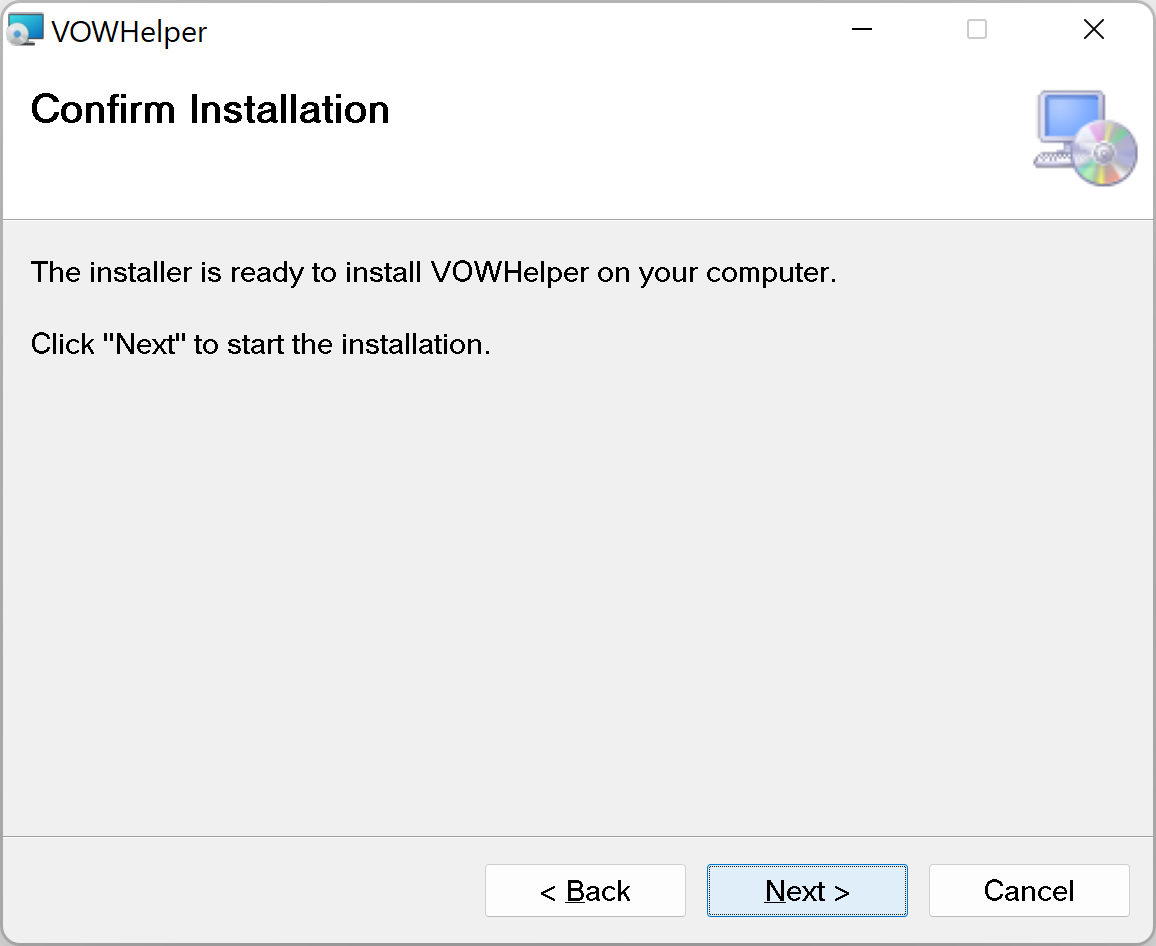
The next step is the confirmation step, and you'll need to click Next to continue.
At this point, Windows will require administrative access to copy the program into the location specified during install step 2. It will pop up a window showing this information:
Do you want to allow this app from an unknown publisher to make changes to your device?
C:\Users\your-login\Downloads\VOWHelperInstaller.msi
Publisher: unknown
File origin: Hard drive on this computer
You have the option of choosing Yes or No. You must choose Yes to install the software.
Install step 4
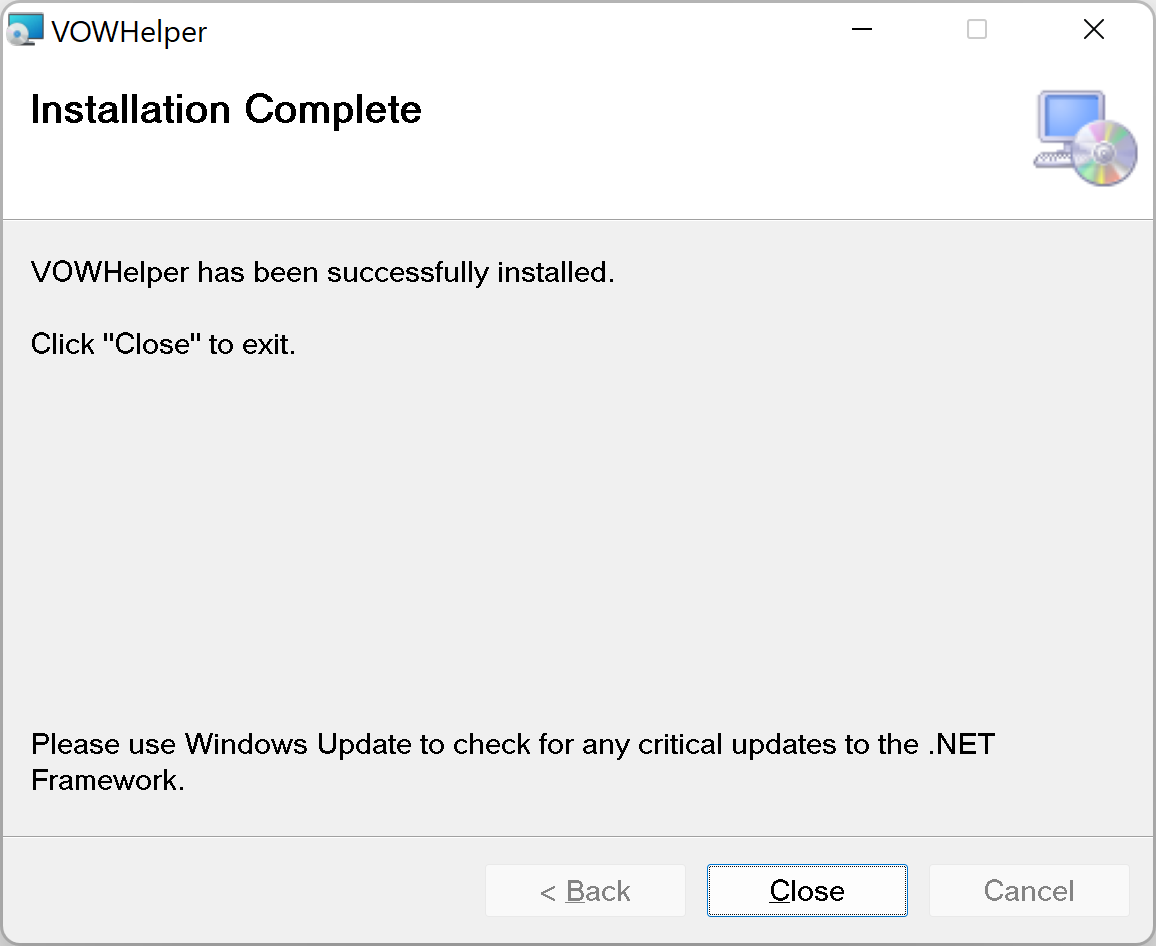
At this point, the installation is complete, and you should click the Close button to dismiss the installer.
Editing files
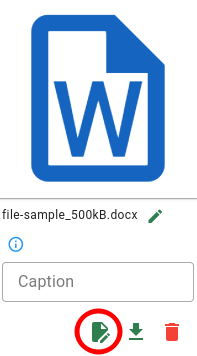
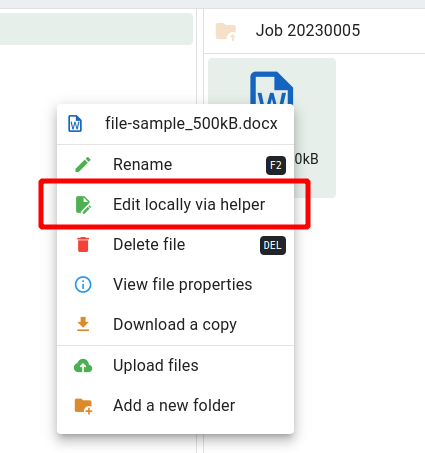
With the helper in place, you're now able to handle the downloads that the server sends when you click to edit an editable attachment. The edit button is circled in the screenshots below.
| Flat view | Folder view (context menu) |
|---|---|
 |  |
The first time you click this, you'll see a button in the bar at the bottom of your browser that looks like this:

Click the caret (^) at the end of the button to show the popup menu.
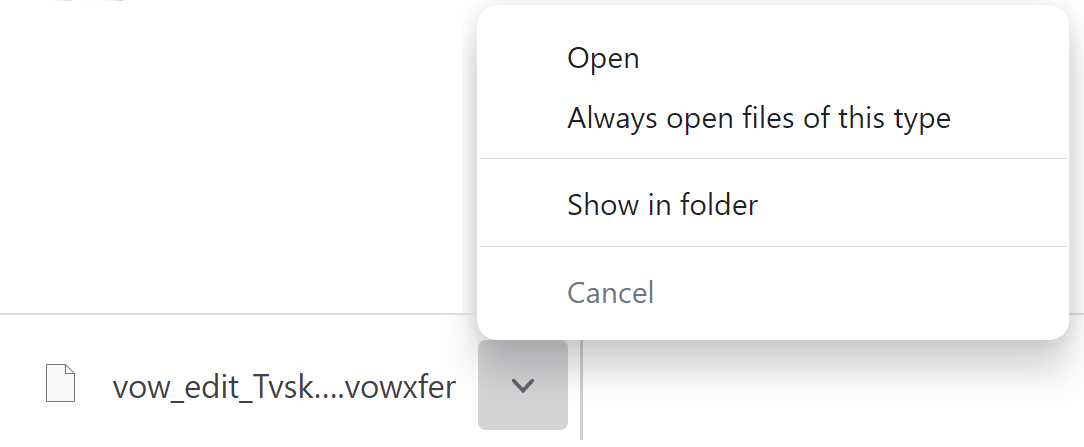
First, click the Always open files of this type menu item so that you won't have to open the files manually:
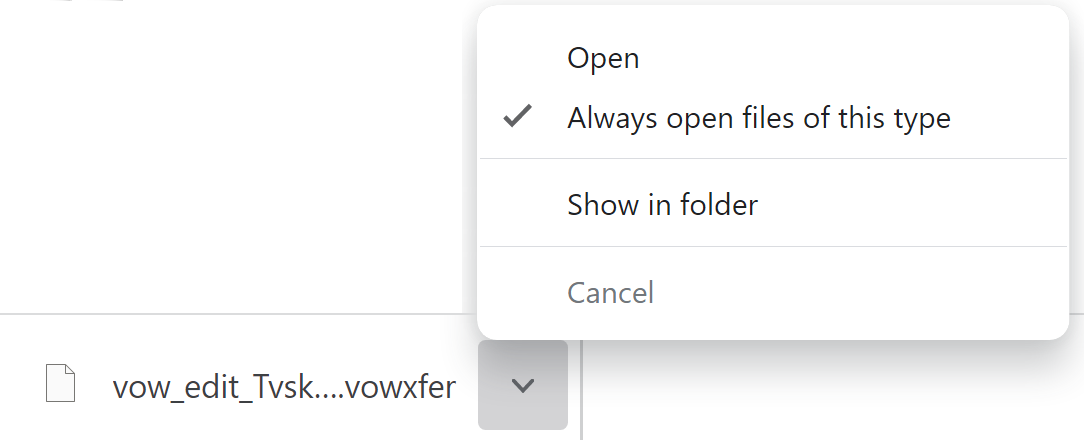
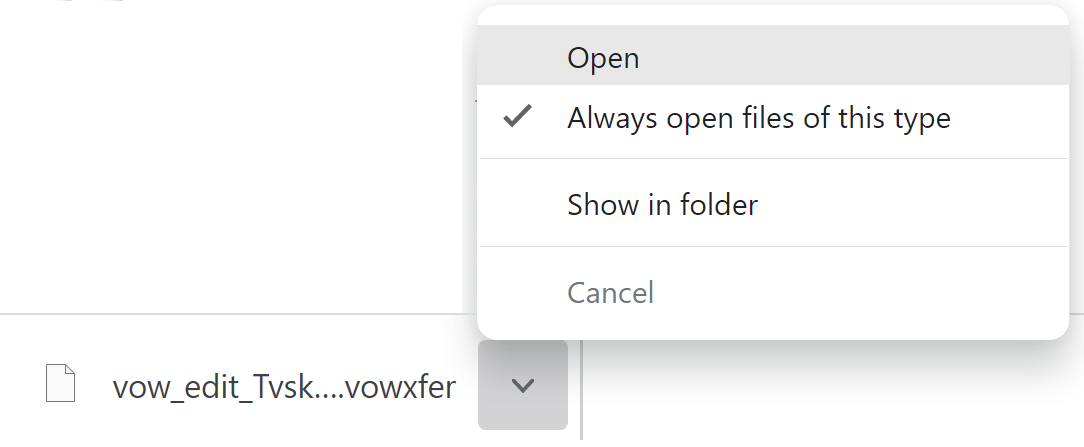
Then choose the Open menu item to open the helper document.
After you choose Open Windows will tell you that you need to choose an app to open the file. You should click the More apps link to show all of the installed applications.
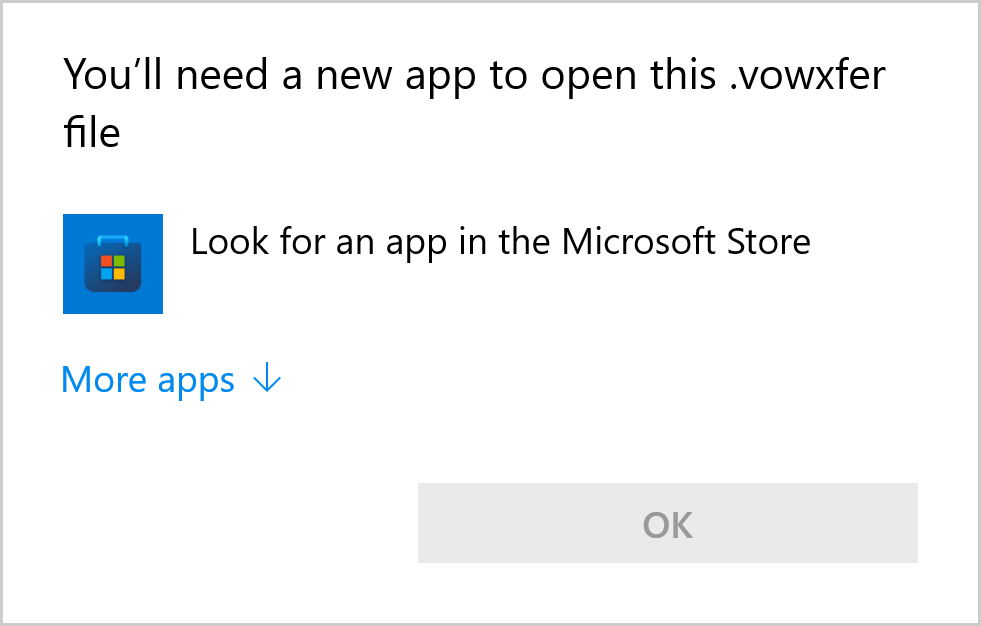
Then scroll to the bottom of the list and click the Look for another app on this PC link.
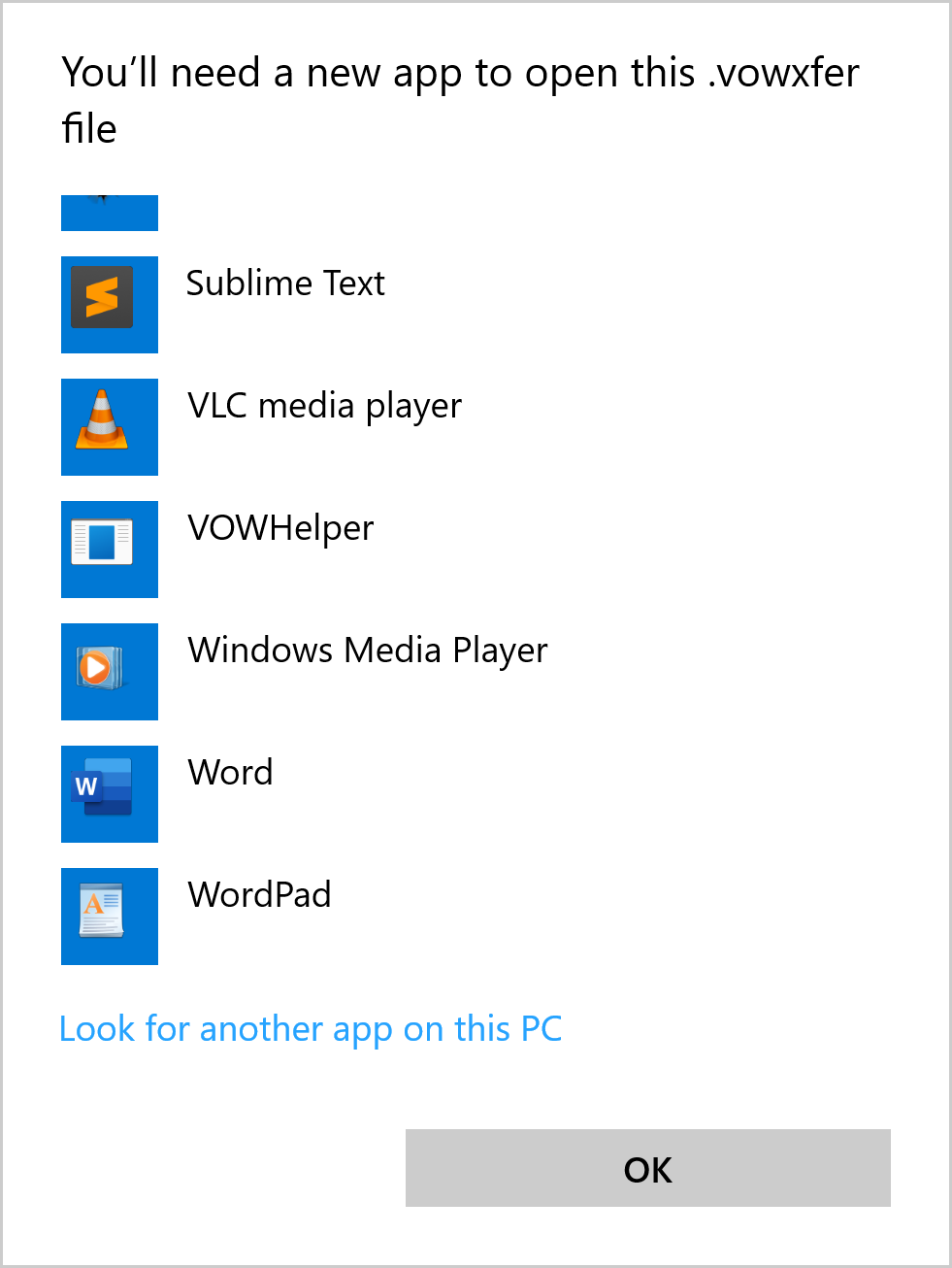
Windows will open a window that will let you browse for the helper application. You should go to C:\Program Files (x86)\Essential Cloud Services\VOWHelper and double-click VOWHelper.exe.
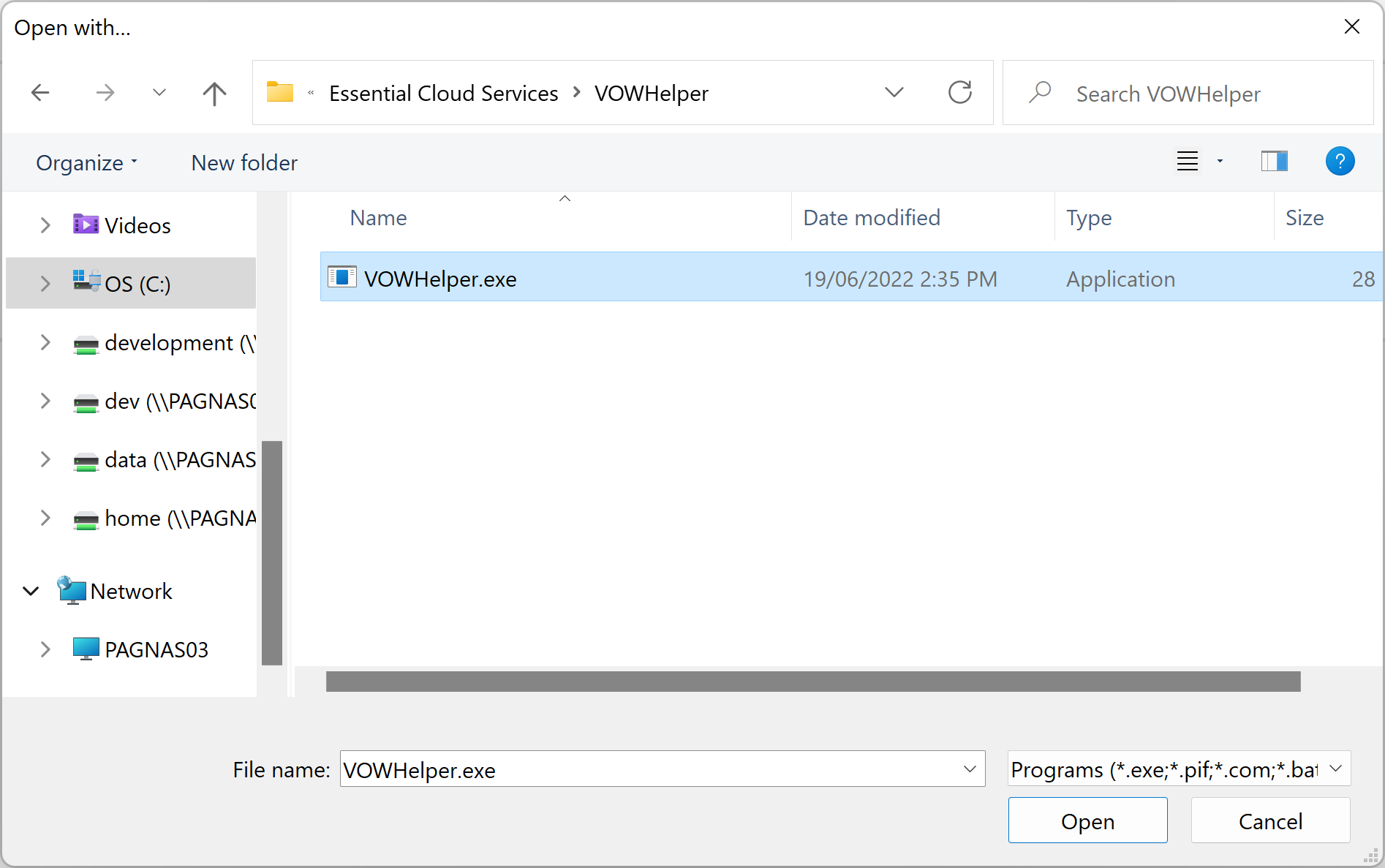
Depending on your system, you might be done. If you still have to choose an app every time you click the Edit button in VOW, then you'll need to take the following steps.
First, click the Edit button and then choose not to open the helper. Then open your Downloads folder. Right-click the downloaded file (it'll be named something like vow_edit_01234567890123456.vowxfer, where the 16 digits could be any letters or numbers) and choose Open with | Choose another app.
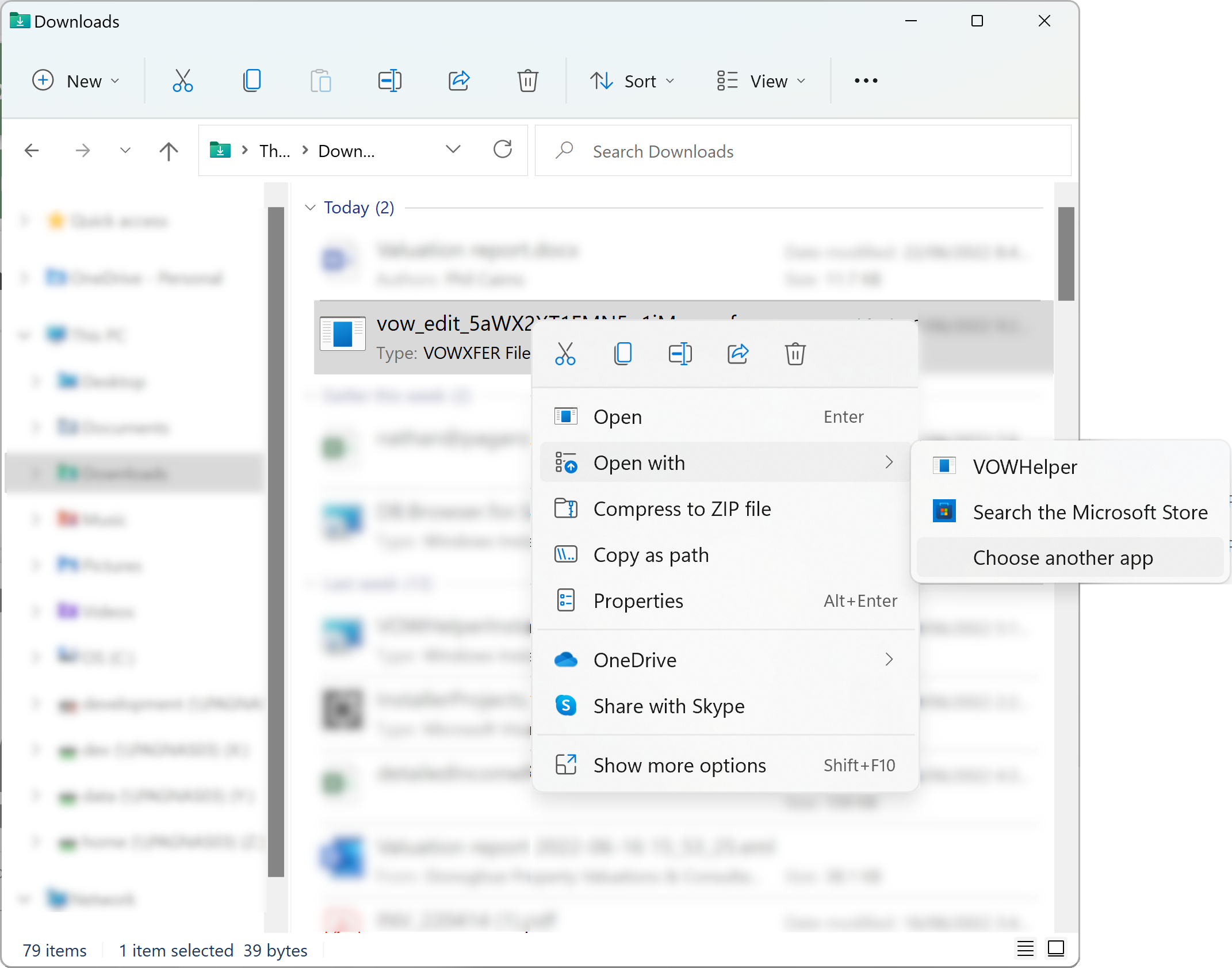
In the popup, tick the Always use this app to open .vowxfer files and then click the VOWHelper item followed by OK (or double-click the VOWHelper item after ticking the box).
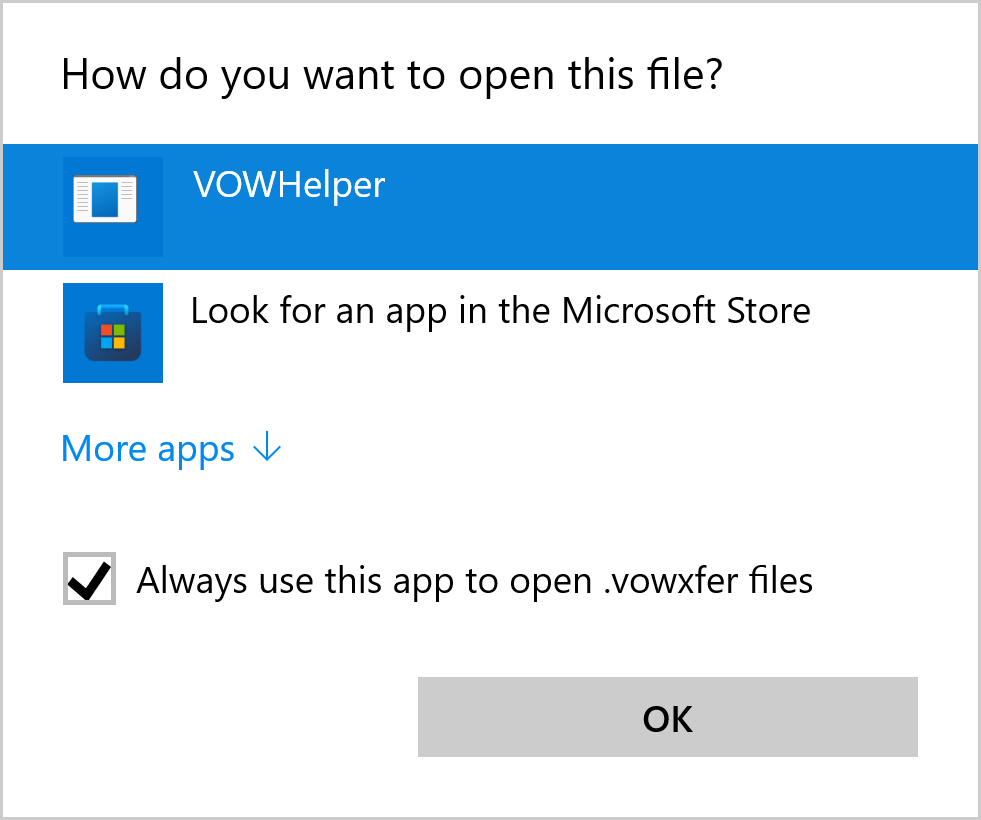
At that point, the VOWHelper will open, and it will always open whenever you click to edit a file from within VOW.
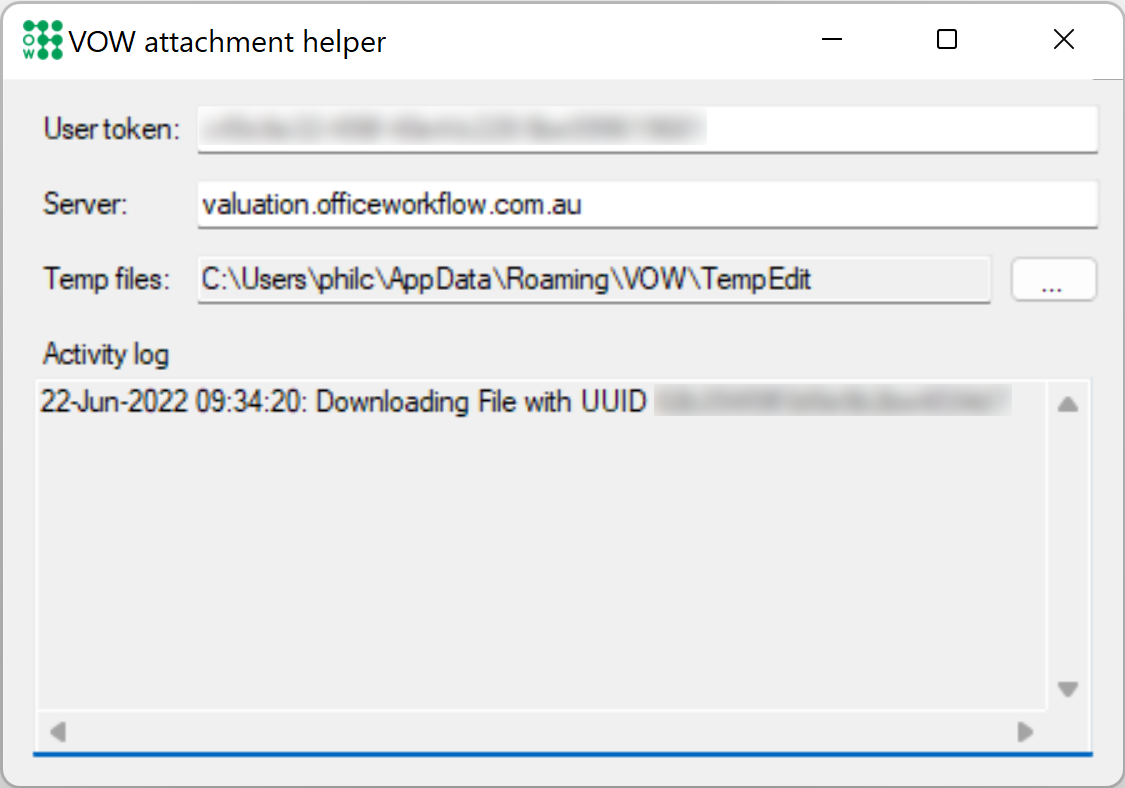
Edit your document in Word or Excel (or whatever you're using), then save it and close it. When you're done, the file will be sent up to the cloud, to replace the one that you originally downloaded.
Configuring the Helper
There are a few configuration fields in the Helper that you'll need to set up.