

Finding leases
All your leases are listed on the Leases page. Click Leases in the main navigation to open it.
See the Leases overview in the reference manual for a description of every column and control.
The Leases page
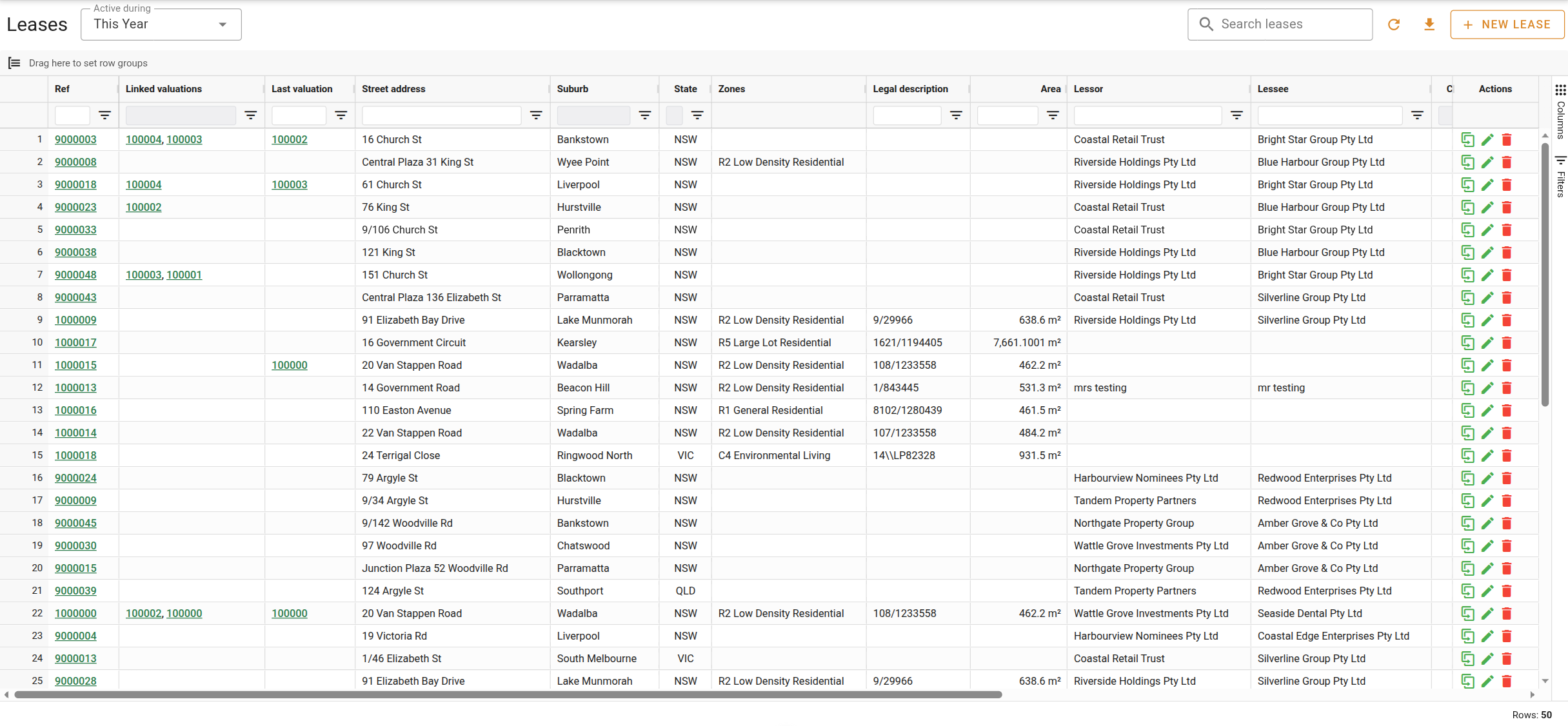
Each row is one lease, and the most recently commenced leases are at the top. You can:
- Double-click a row to open the lease.
- Click the lease Ref to open it as a full page.
- Right-click a row for more actions, such as copying the address or opening it on a map.
Choosing a period
The Active during control limits the list to leases that were running at some point during the period you choose. A lease counts if its term overlaps the period at all, so a lease that started before the period and ended after it is included.
Pick a period such as This Year or Last 12 Months from the dropdown. If you need a specific period, choose Custom range and enter the From and Until dates. The list updates as soon as both dates are filled in.
The Leases page always has a period selected, so if a lease you expect is missing, widen the period first. A lease with no commencing or terminating date is never left out because of the missing date.
Searching
Type in Search leases to narrow the visible rows to those containing your text in any column.
Working with the grid
The Leases page is a data grid like the others in VOW. You can sort, filter, group, and rearrange columns. See Working with data grids.
Exporting
Click the button to export the list to Excel or CSV.