

Creating and editing leases
You can create, edit, clone, and delete leases if your account has the right permissions. Ask your administrator if a button described here is missing.
See the Lease form in the reference manual for every field.
Creating a lease
- Click Leases in the main navigation.
- Click New lease at the top right.
- Fill in the form. The Required fields bar above the form lists what is still missing. Click an item in the bar to jump to that field.
- Click Save.

You need at least an address, the commencing and terminating dates, the rental period, and the current rent. VOW gives the lease the next reference number when you save it.
Use the address lookup at the top of the form to fill in the address. It saves typing, and it lets VOW find the lease by location when someone searches for comparable leases near a property.
The rent figures
Choose whether the rent you enter is Per annum or Per month, then enter the Current rent (ex. GST). Once you also enter the Lettable area, VOW works out the Gross rent per annum ex GST and the rate per square metre. That rate is the figure shown when the lease is used as evidence in a valuation.
Editing a lease
Double-click a lease in the list, or click its button, make your changes, and click Save. You can also press Alt+S.
If you can view leases but not edit them, the form opens in view mode and every field is read only.
The Linked valuations card lists the valuations this lease has been used as evidence in. Click a reference to open that valuation.
If someone else saves the lease while you are editing it, you are told about the conflict when you save. You can keep editing or overwrite their changes with yours.
Cloning a lease
Cloning is the quickest way to record a renewal, or a similar lease at the same property.
- Click the button on the lease.
- Tick the extra details you want to carry across. The address, term dates, rents, and GST Applicable setting are always copied.
- Click Clone, check the new lease, and click Save.
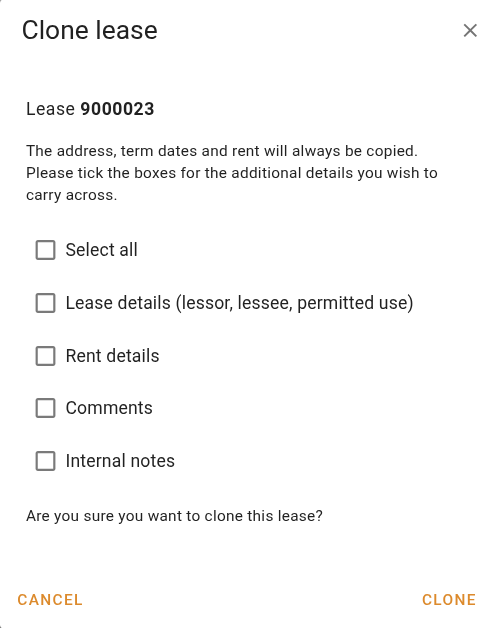
The clone is not saved until you click Save.
Attaching files
Open the attachments pane at the right of the lease form to attach files such as the lease document. It works the same way as on other records. See Attachment basics.
Deleting a lease
Click the button on the lease and confirm.
You can't delete a lease that a valuation uses as evidence. VOW tells you which valuations use it. Take the lease off each of those valuations first, then delete it.
Deleting a lease cannot be undone.