

Send an email from a job
Included with Professional and Enterprise
This lesson sends Priya Raman an inspection time for 14 Oran Park Drive.
Before you start
- Your role needs Send emails from within VOW, and View and search for valuations to open the job. If you do not have them, Set up users shows how an administrator gives it to you.
- Your company's email integration must be on. If Actions has no Send email, ask your administrator to complete Set up email integration.
- Open a job that has a client contact with an email address.
Send an email from a job
- Click Actions in the job's header and choose Send email. If your company has email templates, VOW asks which to use first. Click Blank email. A blank email starts with no subject and no sensitivity label. Templates have their own lesson.
- Open Recipient(s) and pick the client. The list offers the job's contacts and the people in your company who are on the job, each labelled with their role.
- Check the From line. It is your company's sending address and cannot be changed here. To send replies somewhere else, click Reply-to address and choose one.
- Type the Subject. When your company has no email templates, VOW fills one in for you to keep or change.
- Write the message in the body. Use the toolbar above it to format text.
- Under Signature, choose My signature or Company signature. Only the company signature is offered until you set your own in My settings.
- Click Send. The composer closes and the email goes out.
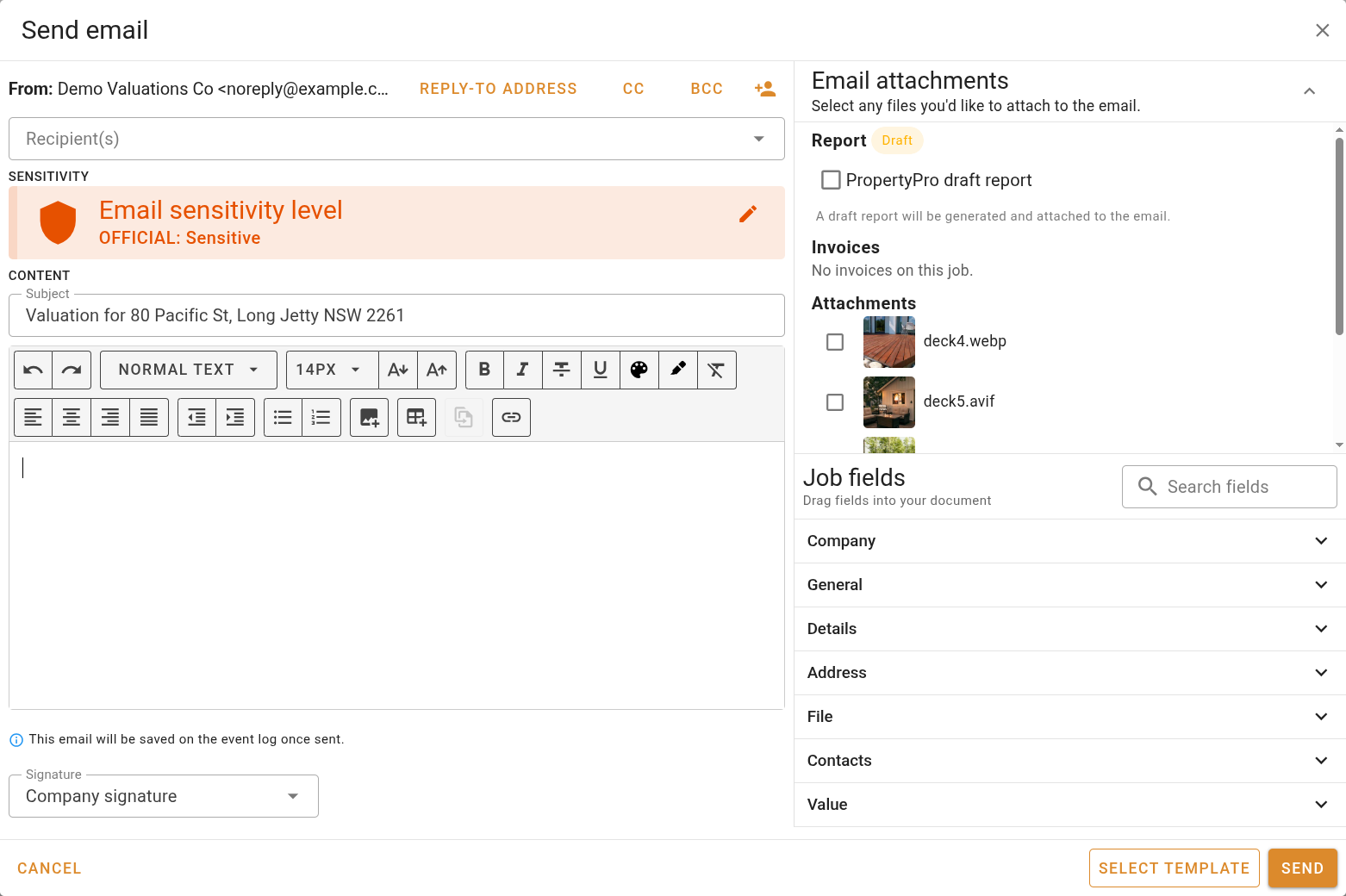
Sending an email from a job
Send needs at least one recipient, a subject and some body text. It refuses to send while the subject still has a field in double braces that could not be filled from the job.
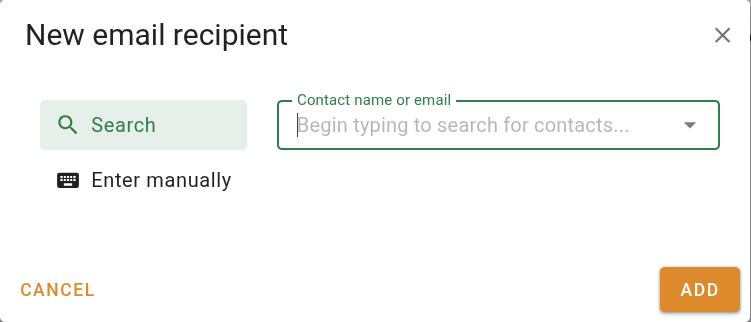
Add someone who is not on the job
- Click the button above the recipients. The 'New email recipient' dialog opens.
- On Search, start typing their name and pick them from your company's contacts. If they are not in your contacts, click Enter manually and type their Name and Email address.
- Click Add. They appear as a chip under Recipient(s). If cc or bcc is open, first choose Add to recipients immediately, Add to Cc immediately or Add to Bcc immediately.
Copy someone in
- Click cc or bcc above the recipients. A Cc or Bcc field appears with the same list of people.
- Pick the people to copy in. Anyone under Bcc is hidden from the other recipients.
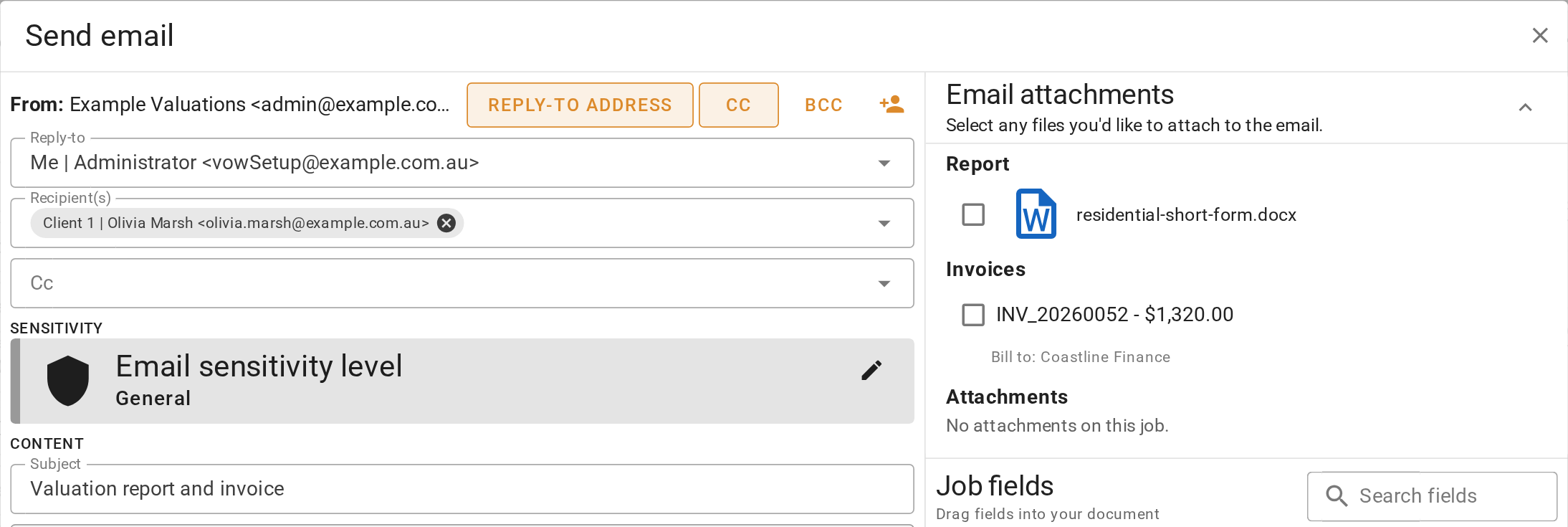
To remove the field, click the button again. Nobody in it is sent the email.
What you should see
The composer closes with no error. On the job's event log, the newest entry reads Email sent, with your name and the time.
Next
Email a contact. For every field in the composer, see Email composer.