

Edit a lease
Included with every subscription
Add the rent reviews, outgoings and commentary to the lease you created, and attach the lease document. Delete a lease that was recorded by mistake.
Before you start
- Your role needs Update leases. Without it the form opens read-only. If you do not have it, Set up users shows how an administrator gives them to you.
- Open the lease you created in Create a lease. Double-click its row, or click its Ref to open it as a full page.
The form
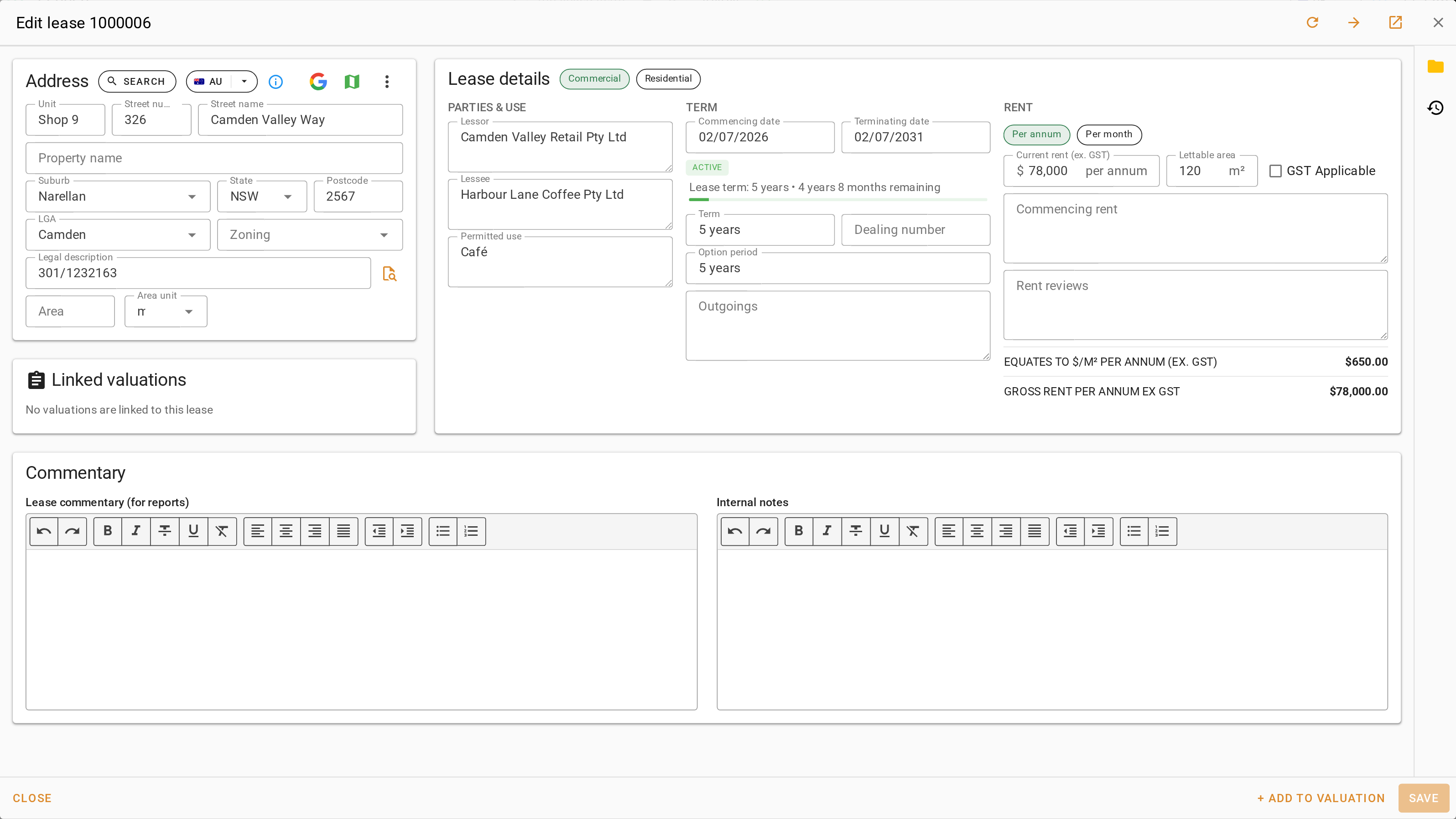
- Address is the property, found with Search.
- Lease details has three columns. Parties & use holds the Lessor, the Lessee and the Permitted use. Term is the dates, the term as written, the dealing number, the option period and the outgoings. Rent is the current rent, the lettable area, GST Applicable, the commencing rent, the rent reviews and the two figures VOW works out.
- Linked valuations lists every valuation this lease has been used as evidence in, and the last valuation of the property. It fills in automatically and you cannot edit it.
- Commentary has Lease commentary (for reports), which is copied into Brief Comments when the lease is added to a valuation, and Internal notes, which stay in your company.
- The strip on the right edge opens the side pane. The folder opens Attachments and the clock opens Events, the lease's event log.
In the dialog, the arrow in the header opens the same lease as a full page. Save is in the dialog footer and in the full page header, or press Alt+S.
Add the details that arrived later
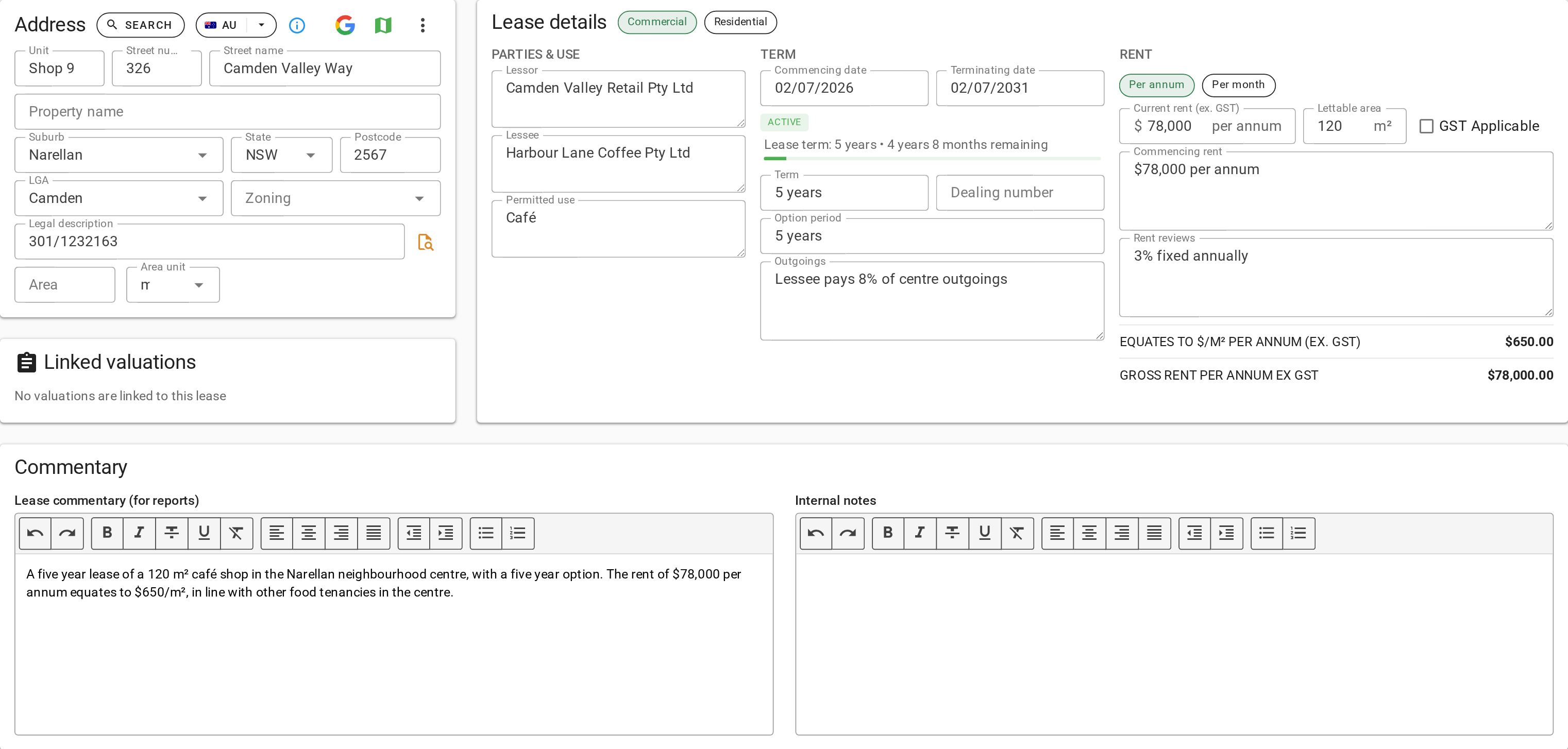
- Under Rent, enter the Rent reviews as the lease states them, such as 3% fixed annually, and the Commencing rent if it differs from the current rent.
- Under Term, enter the Outgoings.
- Under Commentary, write the Lease commentary (for reports) as it should read in a valuation. It is copied into Brief Comments whenever the lease is added to a valuation.
- Click Save.
Attach the lease document
- Click the folder on the right edge of the form. The side pane opens on Attachments. A lease that has never been saved has to be saved first.
- Drag the lease document onto the drop zone at the top of the pane, or click Browse and pick the file. The File upload progress dialog shows the upload. Click Done.
- Click Save. The document is kept only once the lease is saved.
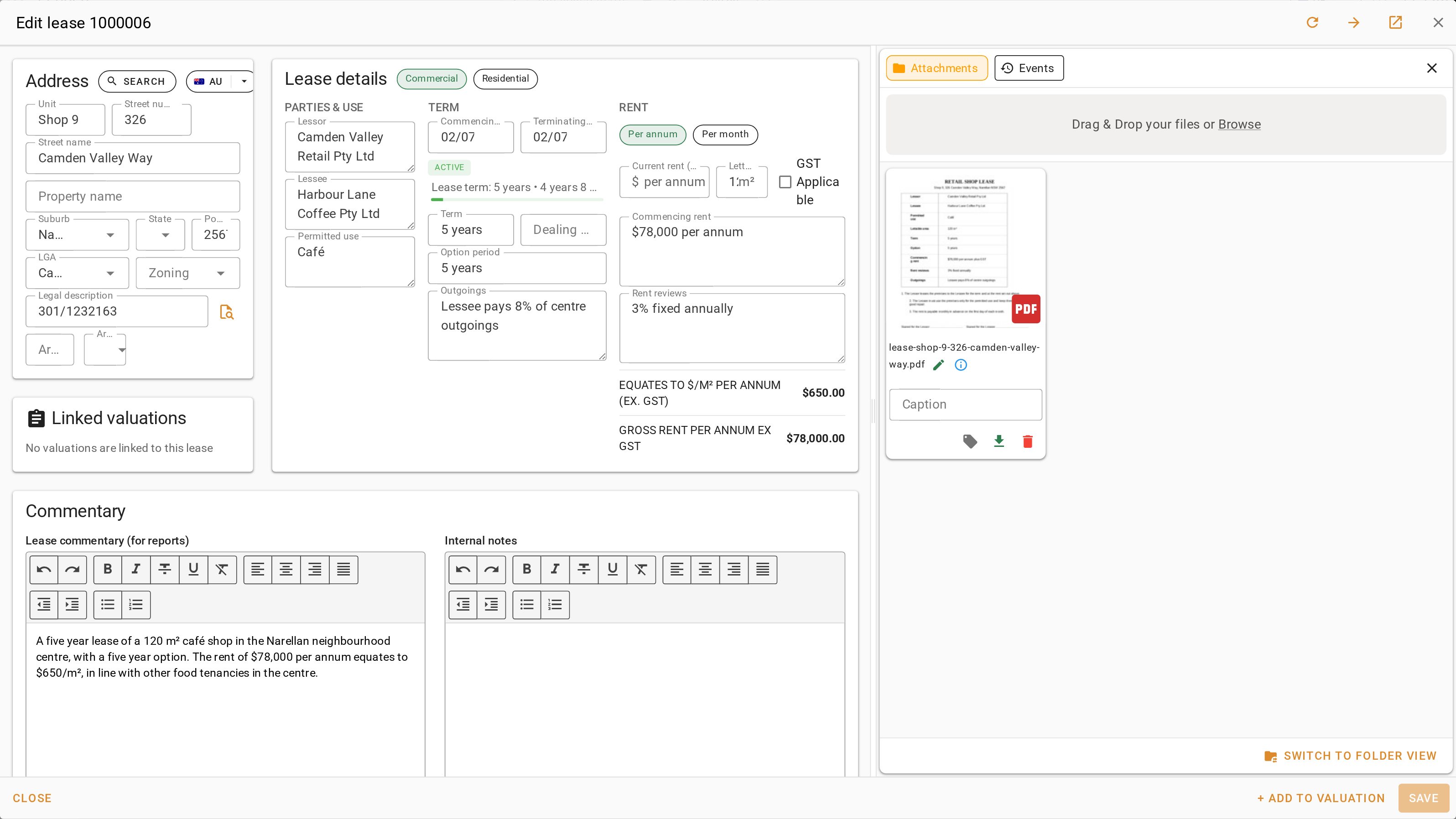
For folders, renaming, tags and file properties, see Managing attachments.
Delete a lease recorded by mistake
Your role needs Delete leases.
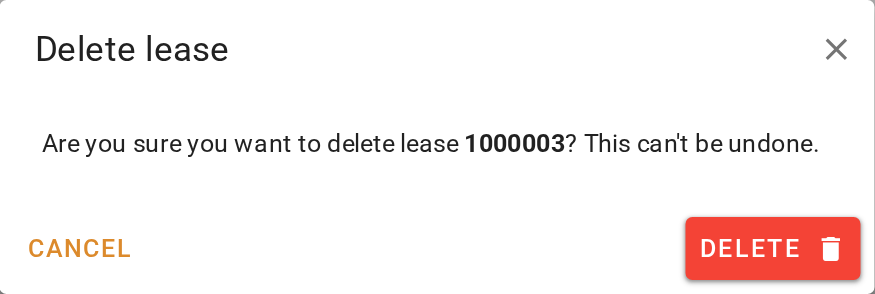
- On the Leases page, click the button on the lease's row.
- In the 'Delete lease' dialog, click Delete. The lease cannot be brought back.
A lease that is evidence on a valuation cannot be deleted. VOW lists those valuations instead, and the lease has to come off each of them first.
What you should see
The lease's row shows the figures you entered, and Events in the side pane lists each save with the fields that changed. The Attachments pane shows the lease document.
Next
Find a lease. For every field, see Lease form.