

Reject, cancel or reopen a quote
Included with Professional and Enterprise
Reject or cancel, which one
- Reject records the client's no. It is offered once the quote is Awaiting reply.
- Cancel records your company withdrawing the quote, for example when the client stopped answering, the enquiry lapsed, or you decided not to quote. It is offered at any in-progress stage.
Both keep the quote with its contacts, notes and files, and both can be undone with Reopen quote. Deleting a quote removes it for good. The delete confirmation offers Cancel instead when the quote could still be cancelled.
Before you start
- Your role needs Edit quotes. If you do not have it, Set up users shows how an administrator gives it to you.
- The reasons offered in each dialog come from two lists an administrator keeps under Settings | System lists, Quote rejection reasons and Quote cancellation reasons. You can also type a reason that is not in the list.
Reject a quote
- Open the quote and click Reject. From the table, right-click the row and choose Reject quote, or click the button in its Actions column.
- Under Rejection reason, pick a reason or type one, such as price or timing.
- Click Reject.
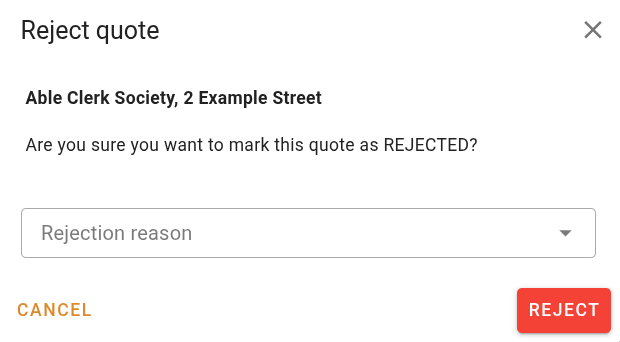
Rejecting a quote
The quote leaves the table and the stepper reads Response: Rejected with the reason under it. With Show completed on, the reason shows in the table's Rejection/Cancellation reason column.
Cancel a quote
- Open the quote and click Cancel quote. From the table, right-click the row and choose Cancel quote, or click the button in its Actions column.
- Under Cancellation reason, pick a reason or type one.
- Click Confirm.
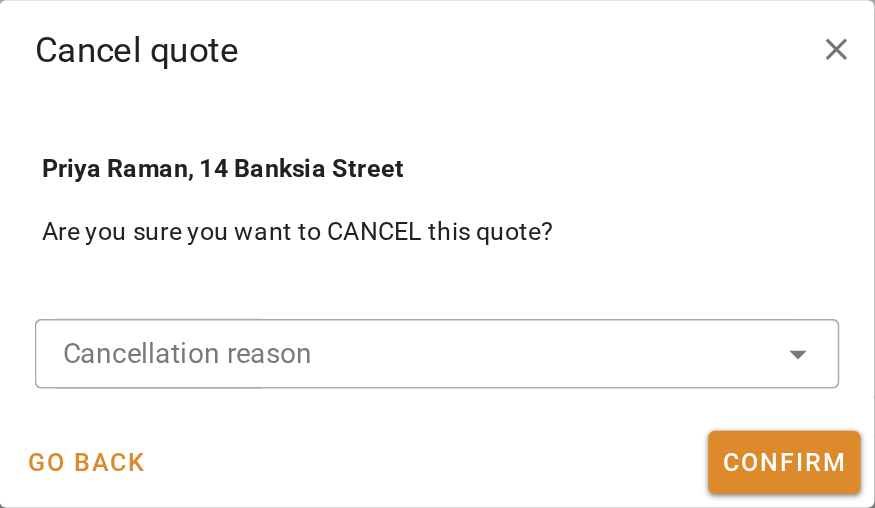
Cancelling a quote
Reopen a quote
A reopened quote keeps its reference, event log and files.
- Turn on Show completed in the table and find the quote.
- Right-click the row and choose Reopen quote, or click the button in its Actions column. On the quote itself, click Reopen quote.
- The confirmation names the status the quote goes back to, which is the one it had immediately before it was closed. A rejected quote goes back to Awaiting reply. A cancelled quote goes back to the step it had reached, such as New quote or Awaiting quotation. If the quote's details already meet a later step, VOW moves it on to that step as it reopens.
- Click Reopen.
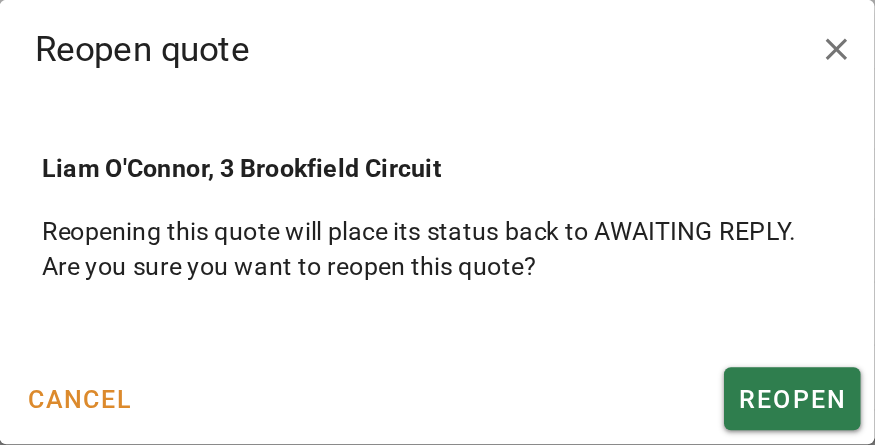
Reopening a quote
The rejection or cancellation reason is cleared from the quote but stays in its event log. An accepted quote cannot be reopened, because accepting it created or linked a job.
What you should see
After a reject or cancel, the quote is gone from the default table. It appears with Show completed on, with its reason in the Rejection/Cancellation reason column. After a reopen, it is back in the default table at the status the confirmation named, and the column is blank.
Next
Find a quote. For which actions each status allows, see Form actions.