

See the time on a job
Included with Enterprise
The job's Time keeping panel totals every entry linked to the job, yours and, with permission, everyone else's.
Before you start
- Open the job at 14 Oran Park Drive, Oran Park from the Valuations page and find its Time keeping panel. If the panel is not on any tab of your layout, Panels shows how to add one.
- Seeing other people's time needs View other users' time entries. Seeing their billable amounts also needs See how much other users are charging. Opening the entries behind another person's total needs View time keeping reports. If you do not have them, Set up users shows how an administrator gives them to you.
Read the panel
- The panel shows one card per person with time on the job, with the total hours on the right. With My time selected, your card is titled Time you've spent. A timer running on this job counts as it goes.
- Click All users to see everyone who has worked on the job, each card titled with the person's name. With See how much other users are charging, each card also shows Total billable. Click My time to show only yours again. With View other users' time entries the panel opens on All users, and it remembers your choice after that.
- Click the button in the panel's footer to start timing this job.
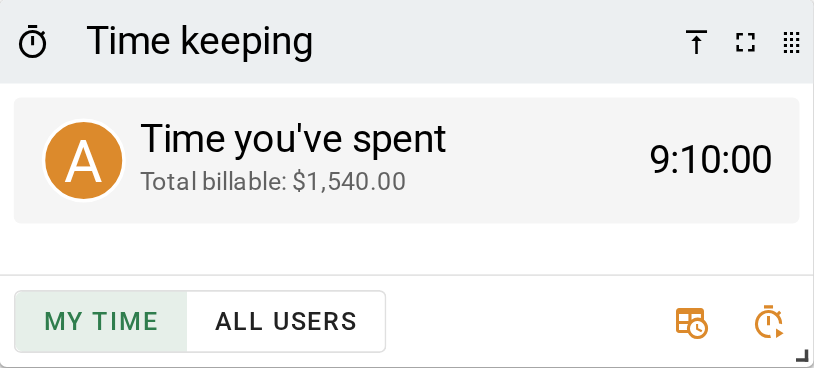
On a quote the same card is called Time entries and sits under the contacts, so time spent pricing a job is recorded before the job exists. When the quote is accepted, the entries stay on the quote.
Open the entries behind a total
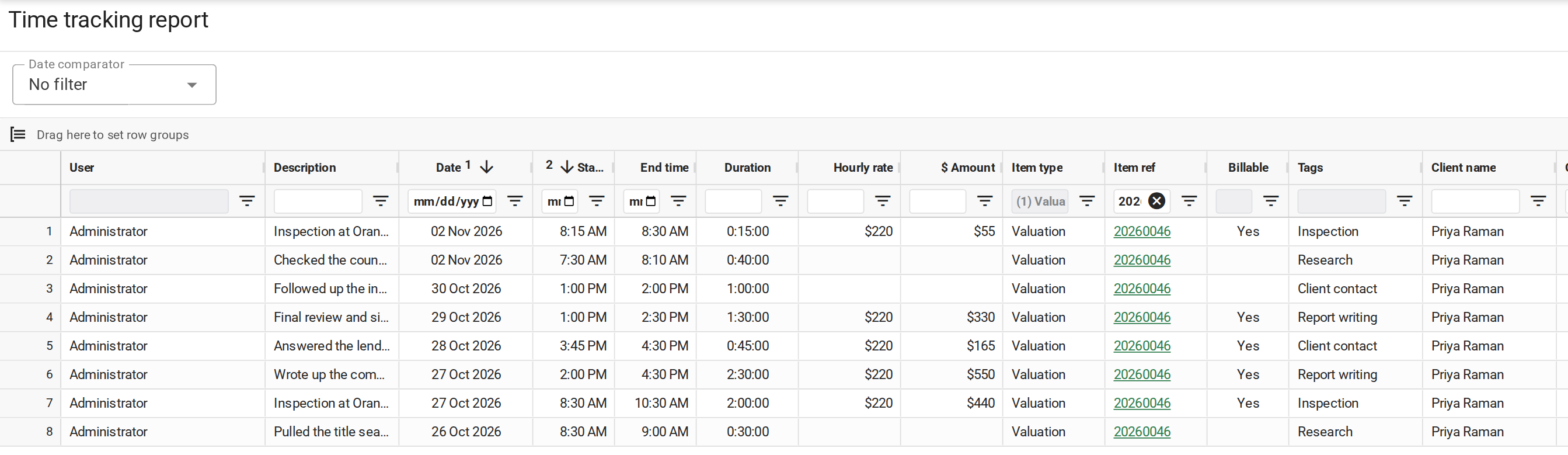
- Click your own card. The Time keeping page opens on the Grid view, filtered to this job, listing every entry behind the total. With View time keeping reports it opens the time tracking report instead.
- Click the button in the panel's footer to see everyone's entries for the job in the time tracking report. The button only appears with View time keeping reports.
- In the report, double-click an entry to open it. With Update other users' time entries you can correct a colleague's entry here, such as a timer they left running.
What you should see
The panel shows your hours on the job. With All users on, each colleague has a card of their own. The grid or the report lists the entries that add up to the total, each with its description, times and linked job.
Next
Go back to Working with time keeping, or on to the next module in VOW tutorials. For every column and filter in the report, see Time tracking report.