

Add supporting sales
Included with every subscription
VOW searches its sales data for properties like the subject, near it and sold around the valuation date. Each supporting sale carries its own comparison comments onto the report.
Before you start
- Your role needs Update valuations. If you do not have it, Set up users shows how an administrator gives it to you.
- Open the job from Update a job. The search works from what is on the job, so fill in the address, the Zoning and the Area under Address, and the Valuation date.
- Save comments to sale also needs Update sales.
Add supporting sales
- Open the Sales Evidence tab. If Supporting sales shows a map, click the button.
- Under Supporting sales, click + Add sales. The Add supporting sale dialog lists sales like the subject from your company's sales and the Valuer General's data. The sales closest to the subject in distance, sale date and area come first.
- To narrow the list, type part of a street or suburb under Filter results by address. To change the date range, the distance or suburbs, or the zones, click the button. The filters are saved with the job, so the next search on it starts from the same settings.
- Tick the sales that support the value. A sale with the state's logo beside it came from the Valuer General's data. One with your company's logo was analysed by someone in your company.
- Click Save. The sales appear in the list. To see them on a map, see Add sales on the map.
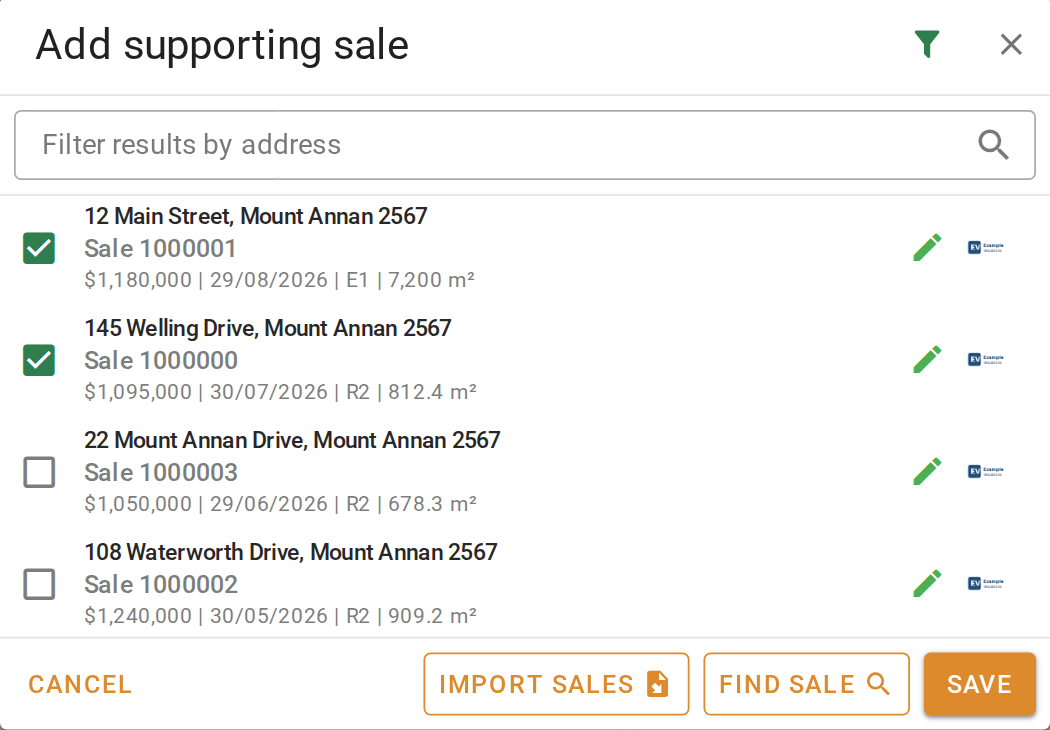
Adding supporting sales
Add sales on the map
- On the Sales Evidence tab, click the button under Supporting sales. The supporting sales are listed on the left and mapped with the subject on the right. VOW remembers the view you last used and opens every job in it.
- Click + Add sales. Sales like the subject are listed and marked on the map. Point at a sale in the list to find its marker.
- To change the search, use the bar along the top. Set the Date Range, choose Radius or Suburb, and turn on Analysed sales only to see only sales your company analysed. The list and the map update as you change them.
- Tick the sales that support the value.
- Click Done. The ticked sales join the list and the map.
- Click Save on the job.
Adding sales on the map
Comment on a supporting sale
- Click a sale in the list. Its details open beside the list.
- Write the comparison in the comments, such as what the sale has that the subject does not, and how that bears on the value.
- Click Save comments to sale to copy the comments onto the source sale. They replace any comments already on that sale. The next job that uses the sale starts with them.
- Click Save on the job.
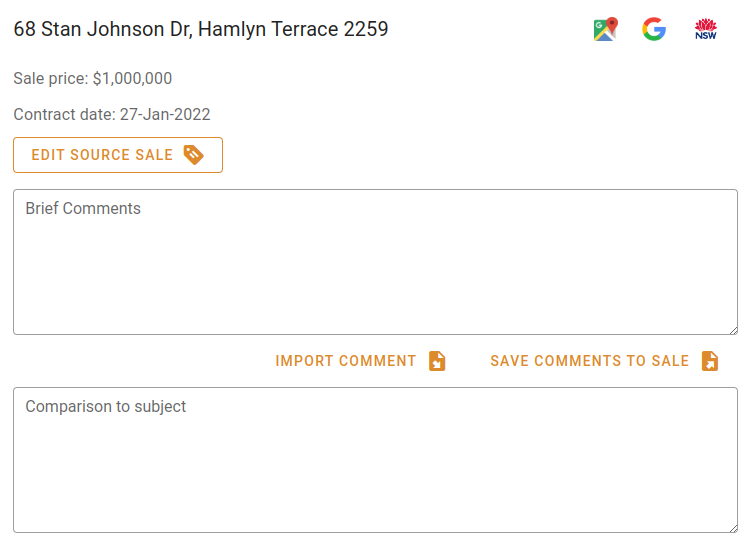
Commenting on a supporting sale
A supporting sale is a copy taken when you add it. Changing the source sale later does not change the copy on the job, so a finalised report's evidence stays as it was.
Bring in a sale VOW did not suggest
To add a sale the search did not offer, click the button for a specific sale in the Add supporting sale dialog. In the New supporting sale dialog, enter an address. VOW finds every sale recorded at it, whatever its date. Pick one. When there is none, the sale form opens for you to enter the sale yourself.
To reuse the evidence from an earlier job at a similar property, click Import sales and enter that job's reference. Choose whether to add to or replace the sales already on this job.
To search and analyse sales away from any job, use the Sales page. See Working with sales.
What you should see
Supporting sales lists the sales you chose, each with its sale price and date. The ones you commented on show the comments when opened. The same sales appear in the report's evidence table once you generate it.
Next
Generate the report. For every control in the search and the sale details, see Sales Evidence.