

Build a full search
Included with Professional and Enterprise
Build a search from criteria on the Full tab, such as every residential block in a suburb between four hundred and seven hundred square metres. Each row of the form is one condition made of a field, a comparator and a value. A property has to meet every row to be in the results.
Before you start
- Your role needs View properties page and View properties. If you do not have them, Set up users shows how an administrator gives them to you.
- Open Properties from the main menu and click the Full sub-tab.
Add the criteria
- On the first row, choose the Field. Start with Suburb. As soon as a field is chosen, an empty row is added below it for the next condition.
- Choose the Comparator. For a suburb, choose equals. The list changes with the field. A number field offers less than, greater than and is between. A text field offers contains and starts with. A list field such as Zone offers is one of and includes all of.
- Enter the Value. Type the suburb name in full.
- On the second row, choose Area, the comparator is between, and enter Value 1 and Value 2 in square metres. A block has to fall inside the two numbers to match.
- On the third row, choose Zone, the comparator is one of, and pick the zone or zones you want. A property matches if it has any of them.
- Click Search with the magnifying glass. The results open in their own tab, and the search is added to your Recent tab.

Building a search from criteria
Every row has to be true at once. Two rows on the same field with equals do not add up, and only the last one counts. To search two suburbs, use one row with is one of and a suburb on each line.
Choose the right comparator
- matches, on Street name and Street number, understands abbreviations and ranges. Street name matches "St" to "Street", and a street number of
12-18finds 12, 14, 16 and 18, the numbers on that side of the street. - includes, on Lot / Plan number, finds a lot or plan inside a legal description without you typing the whole description.
- is set and is not set take no value. They find properties with anything, or nothing, in the field, such as properties with no land value yet.
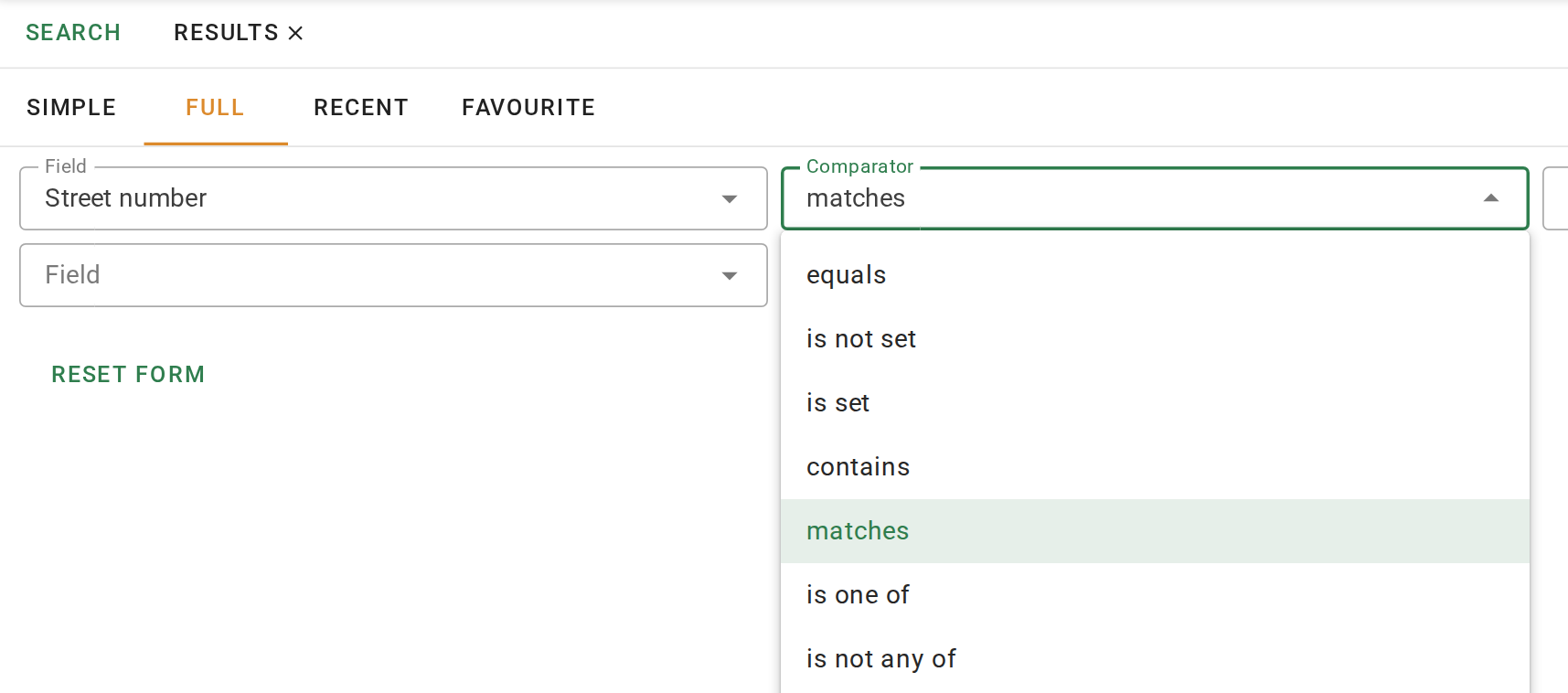
For every comparator and the fields it applies to, see Search comparators.
Edit a search from its results
- On the Results tab, click the button in the toolbar. The Full tab opens with every row of the search loaded.
- Change the value that was wrong, or add a row.
- Click the button. A second Results tab opens. The first stays open until you close it.

What you should see
A Results tab with only the properties that meet every row, with the suburb you named, a land area inside your two numbers and one of your zones. Click the button in the toolbar to list the criteria in plain words.
Next
Work with the results. For the form's actions, see Full search.